
Overview
You will learn
- How to authorize your client to communicate with your Service Ticket Intelligence service instance
- How to upload training data and train a machine learning model to classify service requests
- How to classify service requests into categories


Prerequisites
Steps
Intro
Service Ticket Intelligence provides machine learning functionalities to effectively deal with service requests. Thereby, the service offers two main functionalities:
The service is able to analyze the unstructured information in service requests and classify the requests into categories.
The service is able to recommend solutions for service requests based on historical data.
Find more details on the Service Ticket Intelligence concepts here.
First, you need to retrieve an OAuth access token which will grant you access to the Service Ticket Intelligence APIs and allows you to communicate with your service instance. This access token is added to all your service instance requests.
Open Postman and make sure that the Env for STI sample collection 2012 environment is selected. For detailed steps, see Set Up Postman Environment and Collection to Call Service Ticket Intelligence APIs.
On the left, expand the STI sample collection 2012. Select the request, Get Access Token.
Click Send to send the request to your service instance.

The response includes your access_token that is valid for 1799 seconds (30 minutes). After that time, you will need to generate a new one using once again the Get Access Token request. There is no need to copy the access token as the collection automatically adds the token to all requests.
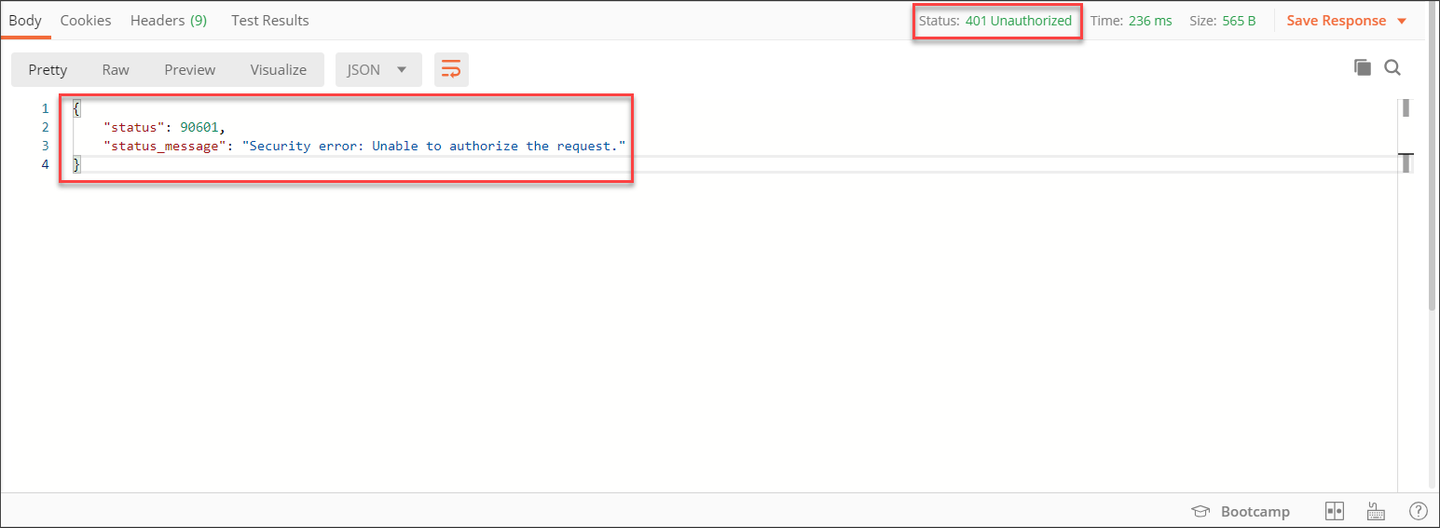
If you send a request and receive a response, as in the image below, with a status of 401 Unauthorized, your access token has expired. In this case please redo this step in order to get a new access token.
Now, you can upload data that will be used to train a machine learning model. The training data contains historical service requests that the model can use to learn from. The dataset contains travel-related data and has the following three possible categories: Complaint, Compliment and Request.
Select the request Upload Classification Training File (travel data - small). The training data is already included in the Body of the request. If you would like to use your own set of training data, please ensure that the data is in CSV file format and encoded in Base64. Click Send to upload the training data.

The service now automatically creates a new model and sets its status to NEW. That indicates that the model was just created and has not been trained yet. Both the ID of the new model, as well as its status, can be found in the response of the request.

Next, you can start training the model based on the data that was uploaded in the previous step.
Therefore, select the request Start model training and click Send. This will trigger the model training process.

To observe the current status of your model, select the request Get model status and click Send.

The response of the request includes all the details of your model along with its current status. When training is triggered, the status is PENDING_TRAINING which indicates that the model is queued for training. Once training has started, the status changes to IN_TRAINING. When training is done, the status changes to READY. Make sure to send the request Get model status every couple of minutes until training is completed. Training time varies depending on data size and infrastructure resource utilizations. In this example, it should take approximately 10 to 20 minutes to complete.

To actually classify new service requests using the trained machine learning model, it is necessary to activate (deploy) the model.
Select the request Activate model and click Send. This will start the activation process of the model.

Use the request Get model status from the previous step again to observe the process. Once the status of the model changes to ACTIVE, the model is ready and activated.
Finally, the model can be used to classify requests.
Select the request Classify single message (without options). Open the Body tab to see the service request message that will be sent to the service. Feel free to change the message to whatever you like. Click Send to classify the request.

The response of the request includes the predicted category which, for this training data, can be Complaint, Compliment and Request. In this example, the predicted category is Complaint. The prediction is made with a probability indicated by the confidence field which represents how certain a model is about its prediction across all other categories. A confidence of 1 means that the model is 100% sure of its prediction. The training dataset used in this Postman collection is kept small and lightweight, so that the training process can complete within 10-15 minutes. Because of that, expect an impact on prediction performance (confidence score).

Feel free to try different service request messages in the Body tab and find out which category the service predicts.
You can also try out the other POST /Classify requests.

You have now successfully used Service Ticket Intelligence to classify new service requests.
Resources
Discussion
Share feedback on this tutorial or join the conversation in SAP Community.