
Create Template for Purchase Order Documents
Create a template for purchase order documents to extract information from similar documents using SAP Document AI.
Overview
You will learn
- How to create a template for purchase order documents using your schema
- How to associate documents with your template and how to edit them
- How to use your template when extracting information from documents


Prerequisites
Steps
In Create Schema for Purchase Order Documents, you defined a schema that includes a list of header and line item fields you want to extract from purchase order documents. In this tutorial, you’ll create a template that uses your schema and associate documents with your template. You’ll Edit the extraction results of the associated documents to teach SAP Document AI where certain field values are located on the document to improve the accuracy of the extraction prediction for similar documents.
In the SAP Document AI basic UI, access Template on the left navigation pane and click + to create a new template.

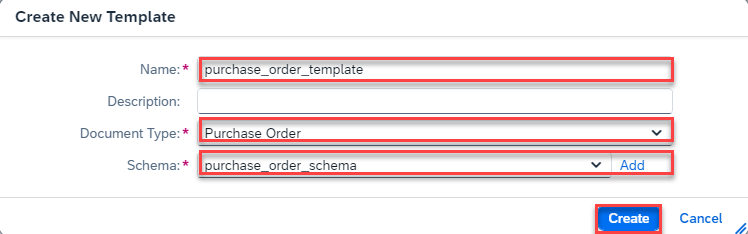
In the dialog, proceed as follows:
Enter a name for your template,
purchase_order_template, for example.Choose
Purchase Orderas yourDocument Type.Select the schema you created in Create Schema for Purchase Order Documents.
Click Create to create your template.
Template After your template is created, a confirmation dialog pops up. Click OK to acknowledge it. It will now navigate you to the detail page of your template.

Template You now see a list of the associated documents (in our case, No data yet) and a list of the extraction fields that you’ve defined in your schema.

Template 
Template In the next steps, you’ll upload a document, get the extraction results, and edit them so that you can associate the document with your template.
CAUTION:
When using the free tier option for SAP Document AI or a trial account, be aware of the technical limits listed in Free Tier Option and Trial Account Technical Constraints.
This tutorial uses the following purchase order documents. Download them to follow along (right-click on the link, then click Save link as to download the files locally):
Access Document on the left navigation pane and click + to upload a new document.

Template On the Select Document screen, choose
Purchase Orderfor the Document Type.Select the Schema you created. Don’t select a Template this time.
Drop the file directly or click + to upload one of the purchase order documents. The following images use the Sample Purchase Order 1.
Click Confirm.

Template The document status changes from
PENDINGtoDONE.
Template Click the document row to see the information extracted from the document using the schema you created.

Template
Before associating the document with your template, make sure the extraction results are correct.
Click Edit. You can edit extracted values manually on the right of the screen. You can also select them from the page preview in the middle of the screen. To do the latter, hover your mouse over the page preview. The mouse pointer changes to a crosshair cursor. Position the cursor at the corner of the value you wish to select. Then, hold down the left mouse button. Move the cursor diagonally to the opposite corner to draw a bounding box around the value you want to select. Select the appropriate header or line item field from the Field dropdown in the Assign Field dialog. Add or change the value, as necessary. If you choose a line item, set the number in the Row Index field. Make sure the number you enter here matches the appropriate line item in the Label column on the right of the screen.

Template This is an example of how to edit the field
cancelDate:
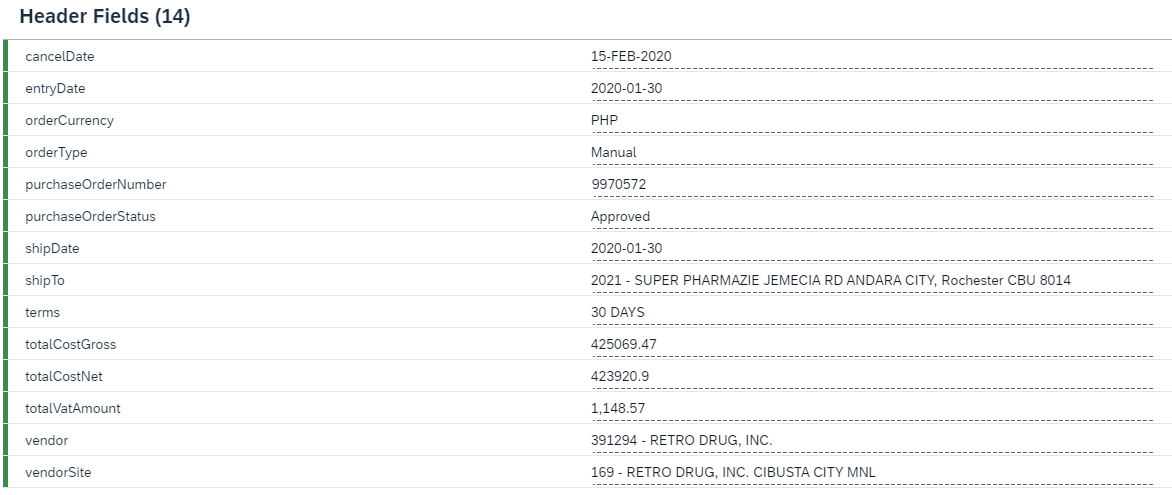
Template Once you’ve edited all incorrect header fields, the extraction results should look like the following:
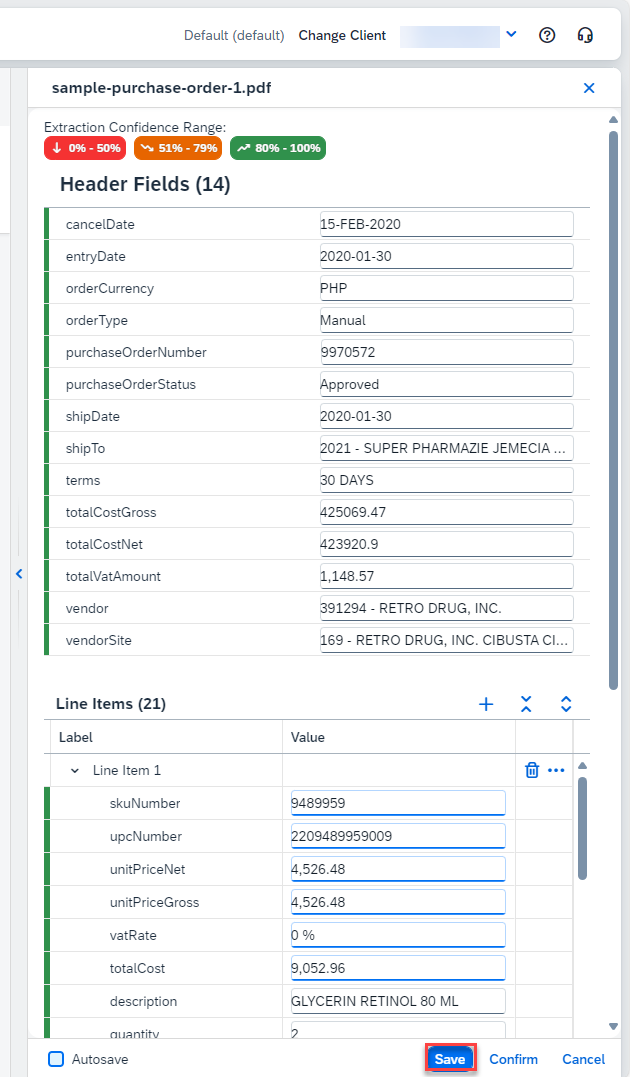
Template Once you’ve edited at least two lines of incorrect line item fields, the extraction results should look like the following:

Template Save your changes.
Template
Click Add to template to associate the document with your template.

Template Select the relevant template from the dropdown and click Add.

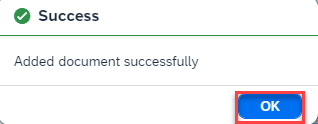
Template Click OK. The document file is now associated with the template you selected. You can repeat the preceding steps to associate additional documents with your template.
Template
The last step that remains is to activate the template.
Access Template on the left navigation pane and click the row of the template you created to access it.

Template Click Activate.
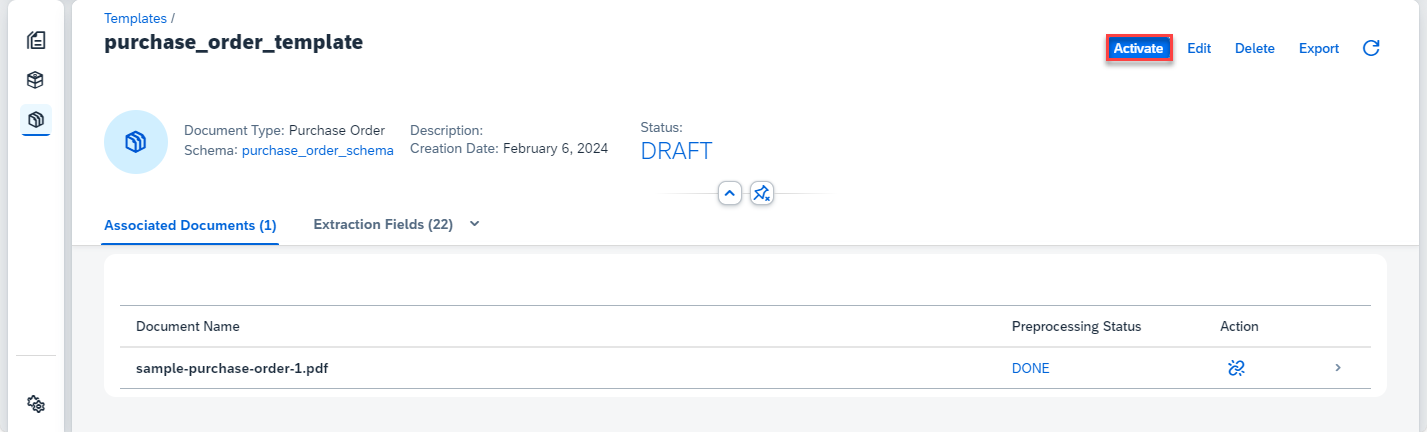
Template Now, the status of your template changes from
DRAFTtoACTIVE, which means you can use the template to extract information from documents. To make changes to your template, you have to Deactivate it first.
Template
Access Document on the left navigation pane and click + to upload a new document.

Template In the Select Document screen, choose
Purchase Orderfor the Document Type.Select the Schema and Template you created.
Drop the file directly or click + to upload one of the other two purchase order documents. First, use the Sample Purchase Order 2.
Click Confirm.
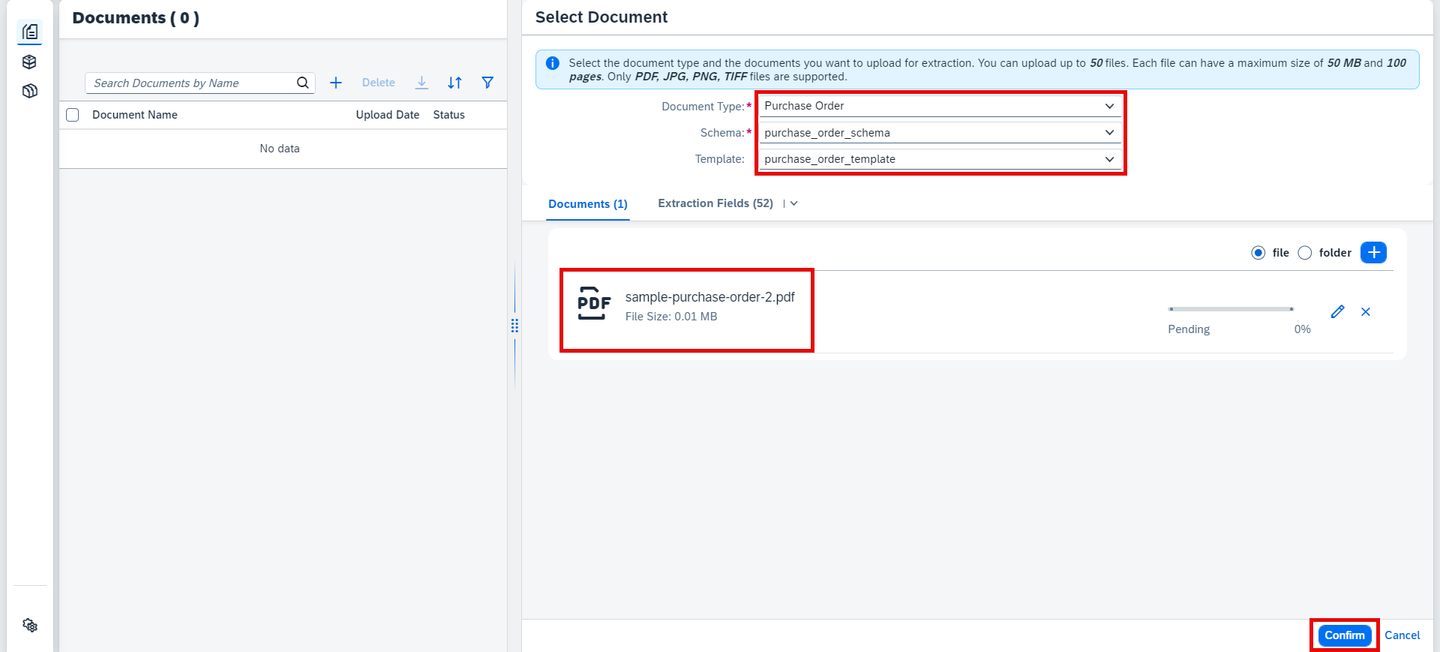
Template The document status changes from
PENDINGtoDONE.
Template Access the document by clicking on it. You now see the page preview of the document file you uploaded, and the information extracted from the purchase order header fields and line items using the schema and template you created.

Template You can now create a schema and a template and use them to get the extraction results for your own standard document types: invoices, payment advices, and purchase orders.
Congratulations, you’ve completed this tutorial.
Resources
Discussion
Share feedback on this tutorial or join the conversation in SAP Community.