
Use Trial to Subscribe to the SAP Document AI Basic UI
Get access to the SAP Document AI user interface application, using SAP Business Technology Platform (SAP BTP) Trial.
Overview
You will learn
- How to get a trial tenant for Cloud Identity Services
- How to activate an account for Cloud Identity Services and establish trust
- How to subscribe, assign role collection and access the SAP Document AI Trial application


Prerequisites
Prerequisites
- You have created a service instance for SAP Document AI: Use Trial to Create a Service Instance for SAP Document AI.
Steps
After completing the prerequisite tutorial Use Trial to Create a Service Instance for SAP Document AI, you can start with the steps to subscribe to the SAP Document AI Trial application.
From your global account page, choose the
trialtile to access your subaccount.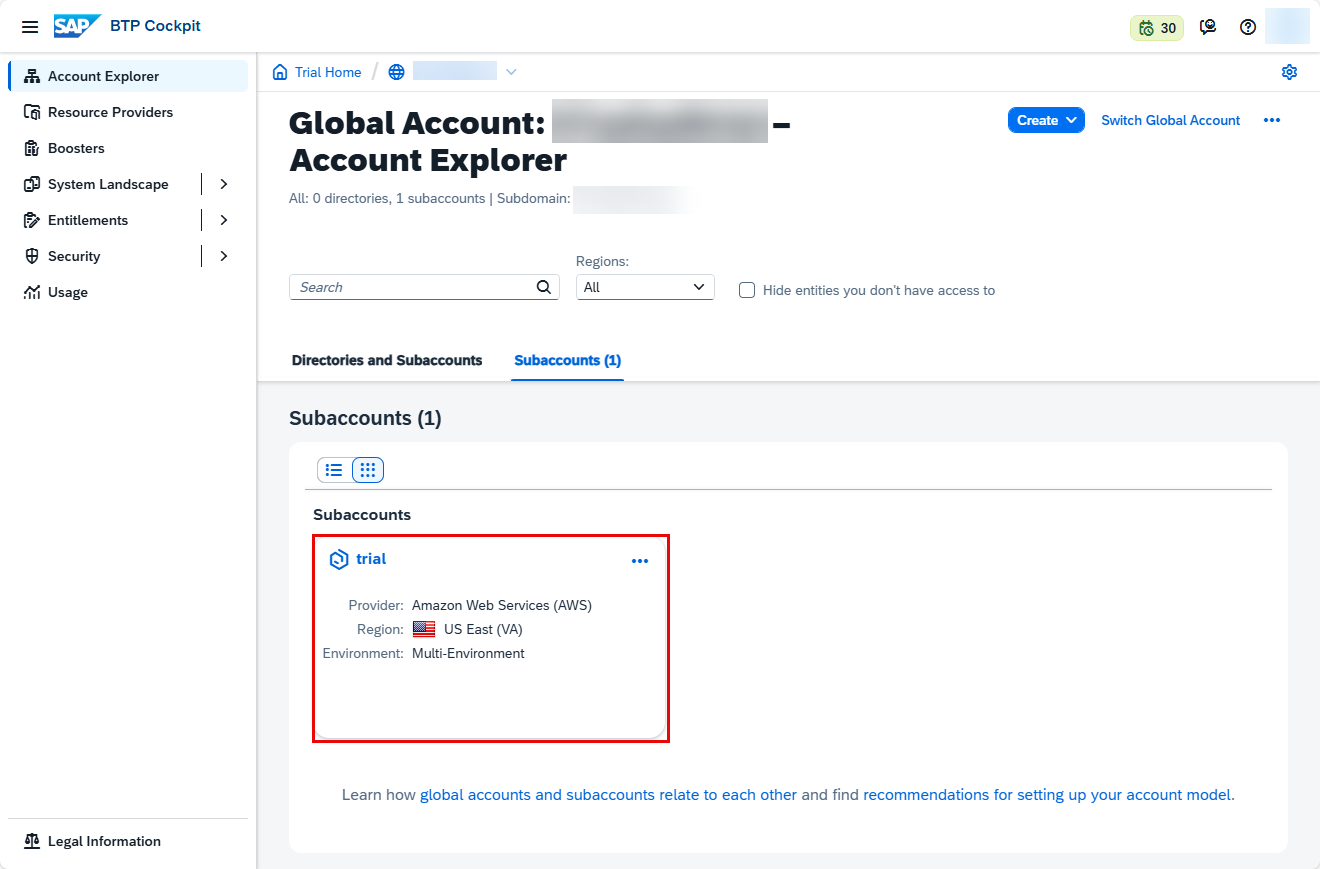
DOX-UI The SAP Document AI Trial application requires a trial tenant for Cloud Identity Services. For more information, see Get Trial Tenant.
The Service Marketplace is where you find all the services and applications available on SAP BTP.
On the navigation side bar, click Service Marketplace.

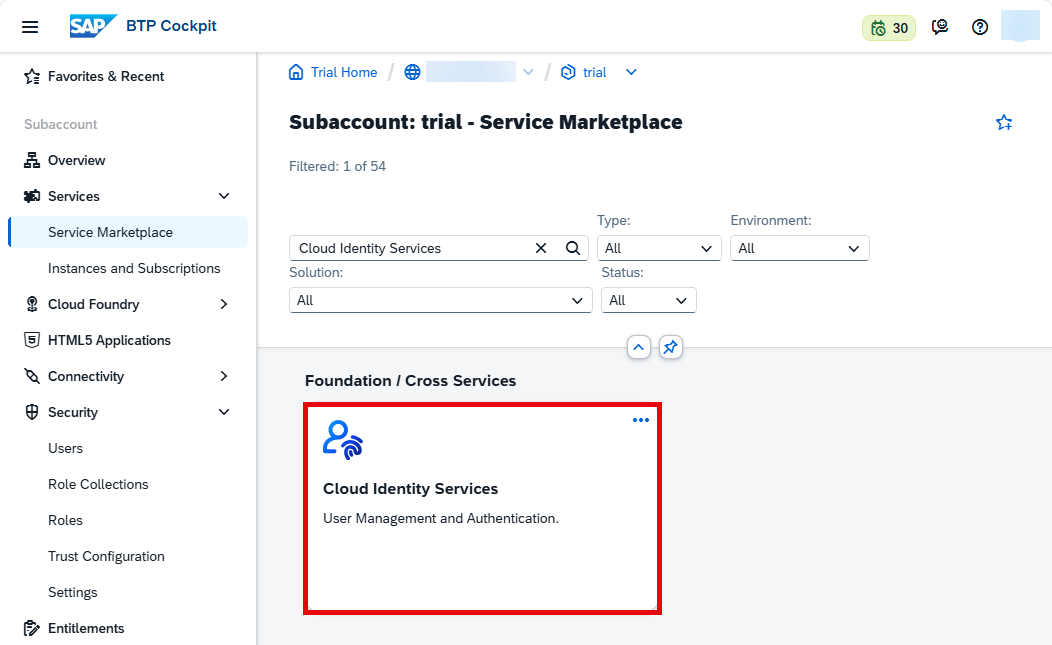
DOX-UI Search for Cloud Identity Services and click the tile.
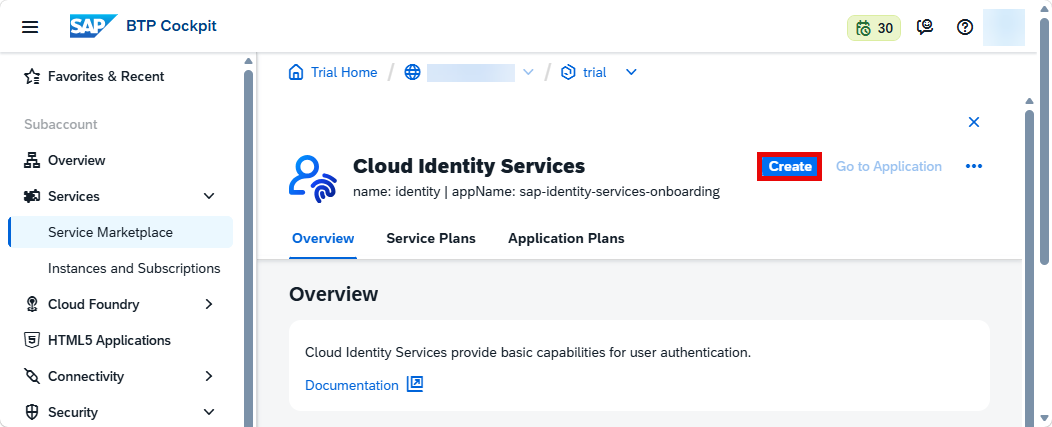
DOX-UI In the top-right corner, click Create.
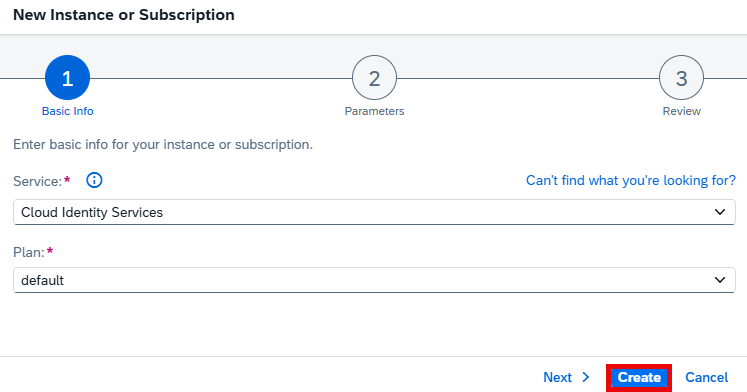
DOX-UI In the dialog, choose the
defaultplan and click Create.
The subscription is going to be created now. Click on View Subscription to go to the list of your existing subscriptions.

For more details on how to configure entitlements, quotas, subaccounts and plans on SAP BTP Trial, see Manage Entitlements on SAP BTP Trial.
Go to your inbox and open the account activation email. Choose Click here to activate your account.

DOX-UI Enter a password and click Continue.

DOX-UI You are informed that your account is successfully activated. Click Continue.
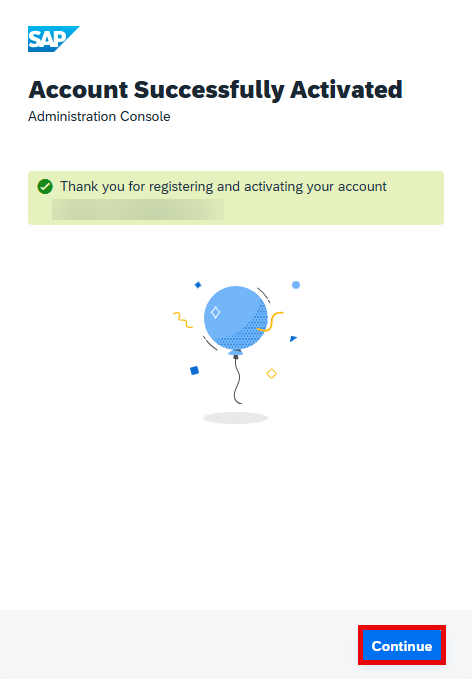
DOX-UI
This opens the administration console of SAP Cloud Identity Services:

Back on the SAP BTP Trial cockpit, under Security, click Trust Configuration and then in the top-right corner, click Establish Trust.

DOX-UI Choose your trial tenant for Cloud Identity Services and click Next 3 times.
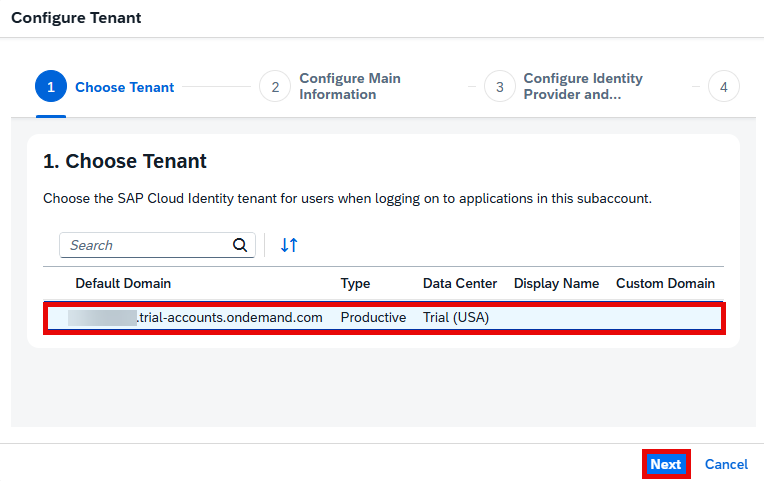
DOX-UI Click Finish.

DOX-UI
Your trial tenant for Cloud Identity Services is added to the list:
On the navigation side bar, click Service Marketplace.
DOX-UI Search for SAP Document AI and click the tile.

DOX-UI Click Create.

DOX-UI In the dialog, choose the
defaultplan and click Create.

The subscription is going to be created now. Click on View Subscription to go to the list of your existing subscriptions.
Under Security, click Users and then click Create.

DOX-UI Enter your User Name and E-mail. In the Identity Provider dropdown, choose your trial tenant for Cloud Identity Services. Click Create.

DOX-UI Click the Navigation arrow of your trial tenant for Cloud Identity Services.

DOX-UI Click Assign Role Collection.

DOX-UI Choose
Document_Information_Extraction_UI_Templates_Admin_trialto access all the features available in the UI application and click Assign Role Collection.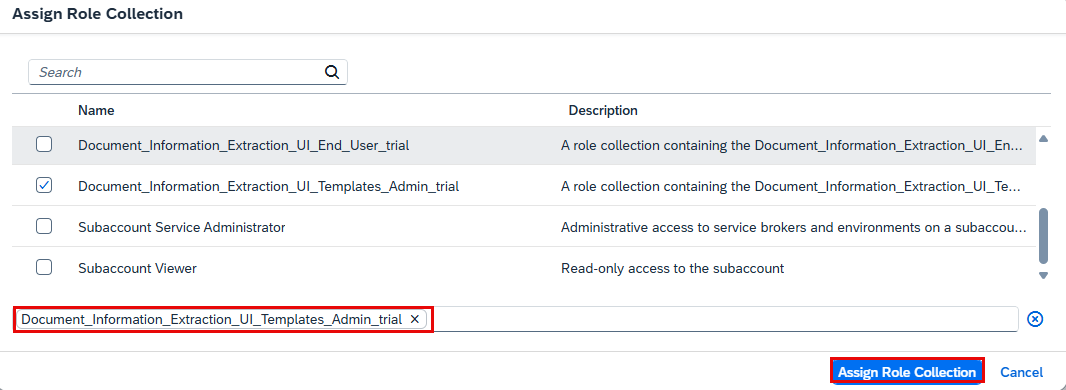
DOX-UI
Your trial tenant for Cloud Identity Services is now assigned to the Document_Information_Extraction_UI_Templates_Admin_trial role collection.

Go back to Instances and Subscriptions, click the dots to open the menu and select Go to Application to open the app.
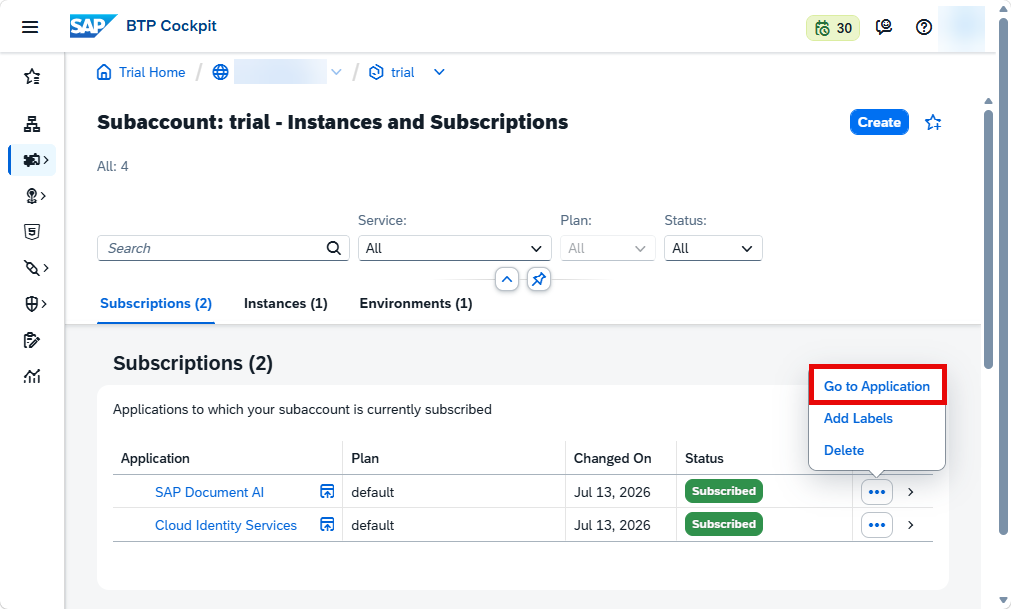
The SAP Document AI application is displayed:

You have successfully subscribed to the SAP Document AI basic UI. Find out how to use the application in the next tutorial: Use Machine Learning to Extract Information from Documents with the SAP Document AI Basic UI.
Resources
Discussion
Share feedback on this tutorial or join the conversation in SAP Community.