
Overview
You will learn
- How to create and activate your own schema for standard documents
- How to define the fields that you want to extract from a standard document
- How to upload a standard document to the SAP Document AI basic UI
- How to get extraction results using the schema you’ve created, LLMs, and the solution’s machine learning models.


Prerequisites
Prerequisites
- You’ve created a trial account on SAP BTP: Get a Free Account on SAP BTP Trial
- You’ve access to the SAP Document AI basic UI, as described in the tutorial: Use Trial to Subscribe to the SAP Document AI Basic UI
Steps
Intro
In the tutorial Use Trial to Extract Information from Custom Documents with Generative AI and SAP Document AI, you created a schema and defined the fields that you wanted to extract from custom document types using LLMs. In addition, you used the schema to extract field values from the documents that you uploaded to SAP Document AI.
It’s also possible to use LLMs to extract information from standard document types (invoice, payment advice, and purchase order). In this tutorial, we’re going to create a schema for a standard document type (invoice) and use both generative AI and the solution’s machine learning models to get the extraction results.
Before you upload our sample invoice file to SAP Document AI, you’ll create a corresponding schema.
Open the SAP Document AI basic UI, as described in the tutorial: Use Trial to Subscribe to the SAP Document AI Basic UI.
In the left navigation pane, click Schema Configuration.

LLM To create your own schema, click Create.
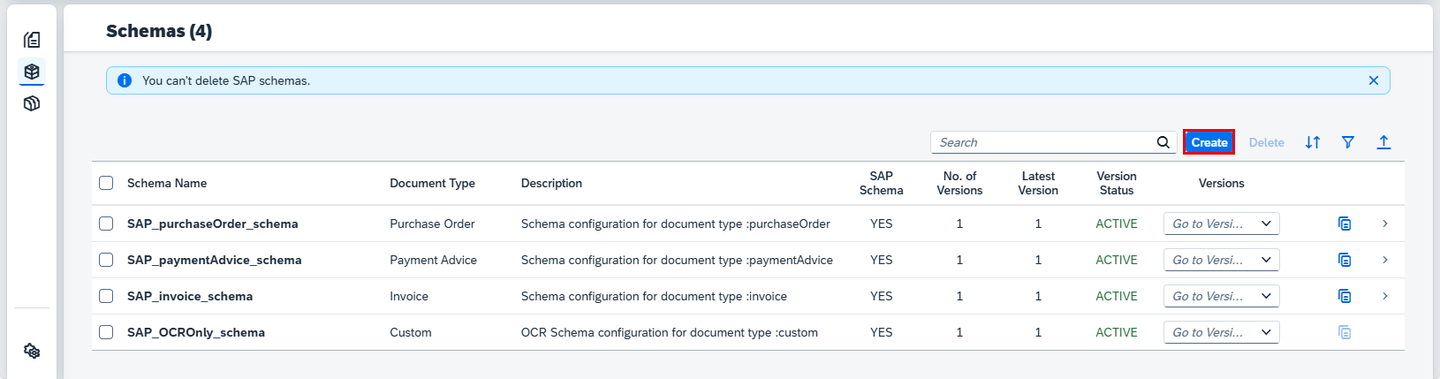
LLM In the dialog that opens, enter a name for your own schema – for example,
invoice_schema. Note that the name can’t include blanks. Next, selectInvoiceas your Document Type.Click Create to create the schema.

LLM Your schema now appears in the list. Access the schema by clicking on it.

LLM
You can also adapt copies of the appropriate preconfigured SAP schemas to extract information from standard document types. However, we won’t cover that approach in this tutorial.
To add your first header field, click Add.

You must enter a field name and data type for each new field. The available data types are string, number, date, discount, currency, country/region, and list of values.
Default extractors are only available for standard documents. See the list of all default extractors in Extracted Header Fields and Extracted Line Items.
You can also optionally add a field label (user-friendly name) and a description.
A description is an optional entry that you add to provide an explanation or additional context for a field. Descriptions are particularly useful with fields that use generative AI to extract information. SAP Document AI uses your descriptions as prompts for the LLM. So, when wording a description, it’s helpful to imagine that you’re explaining what you want to extract to a person with no prior knowledge.
In this tutorial, we’ll use descriptions when creating each of the fields for which extraction is handled using generative AI.
As your first header field, add the total amount of the invoice.
Enter the name for your field – for example,
total_amount. There’s no need to enter a description here.Select
numberas the Data Type.Use
autoas the Setup Type andgrossAmountas the Default Extractor.Note that your schema supports various combinations of setup types and extraction methods. When you use the setup type
autowith a default extractor, the solution’s pretrained machine learning models are used to extract the information from the document. When you use the setup typeautowithout a default extractor, generative AI (LLMs) is used instead. The setup typemanualsupports extraction using a template. For more information, see Setup Types. For further details of this approach, see the tutorial mission Shape Machine Learning to Process Custom Business Documents.Click Save.

The field now appears in your list of header fields, where you can see all the information that you’ve just entered. You can edit or delete the field by clicking the respective icons on the right.

Click Add again to open the Header Field dialog.
Enter the name for your second header field – for example,
snNumber.Enter the description
source numberSelect
stringas the Data Type.Use
autoas the Setup Type and leave Default Extractor empty.Click Save.

Now, go ahead and add the remaining header fields and line item fields shown in the following tables and images. Pay attention to the different data types and whether you should add a description or a default extractor.
Header fields:
| Name | Description | Data Type | Setup Type | Default Extractor |
|---|---|---|---|---|
total_amount | number | auto | grossAmount | |
snNumber | source number | string | auto | empty |
contact | contact information (email address) | string | auto | empty |
taxName | string | auto | taxName | |
taxAmount | number | auto | taxAmount | |
customerPO | number of customer purchase order (P.O.) | string | auto | empty |
currencyCode | string | auto | currencyCode | |
purchaseOrderNumber | string | auto | purchaseOrderNumber |
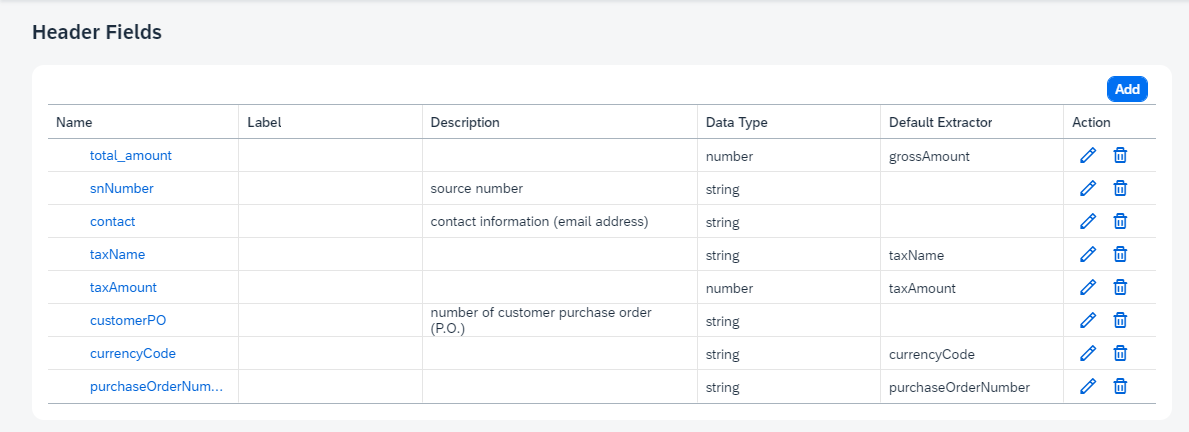
Line item fields:
| Name | Description | Data Type | Setup Type | Default Extractor |
|---|---|---|---|---|
description | string | auto | description | |
quantity | number | auto | quantity | |
unitPrice | number | auto | unitPrice | |
partNumber | part number | string | auto |

Note that the SAP Document AI basic UI also includes a feature that allows you to group schema fields by category. To use this feature, you must first activate it under UI Settings. For simplicity’s sake, we haven’t included the feature in this tutorial. If you’d like to find out more about it, see Schema Field Categories.
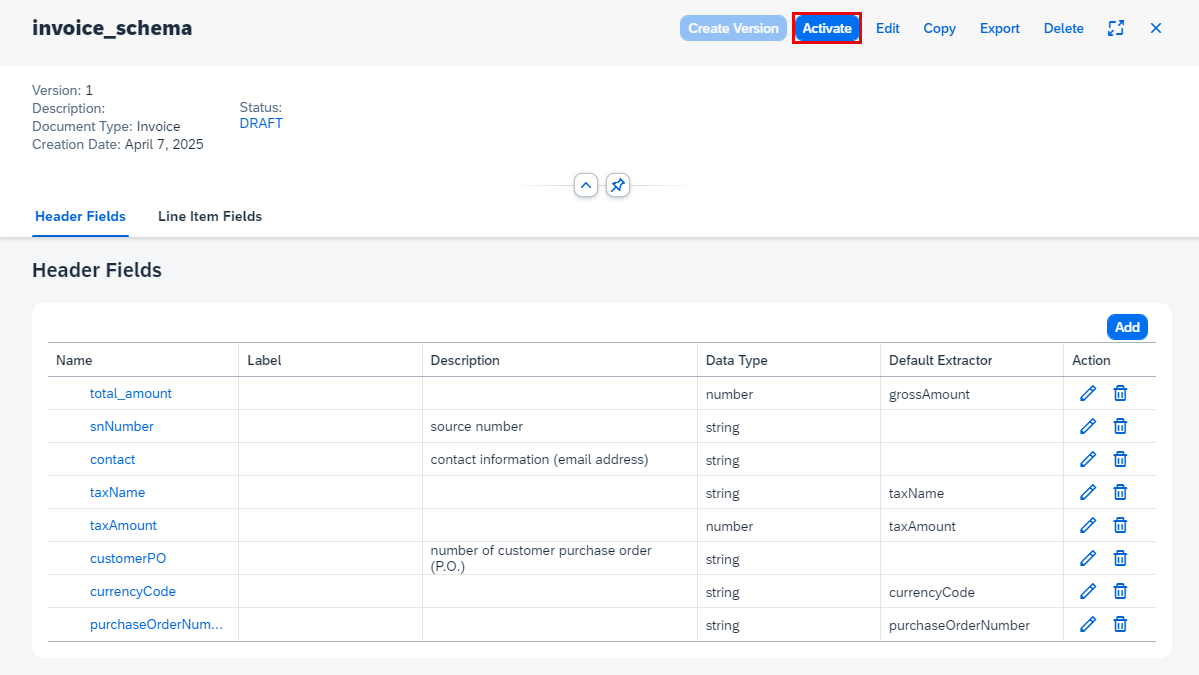
Once you’ve added the fields, you need to activate the schema so that you can use it to extract information from documents. Right now, the schema has the status DRAFT, indicating that it can’t be used yet.
To activate the schema, click Activate.
Now, the status of your schema changes to ACTIVE. To make changes to your schema, you must first Deactivate it.
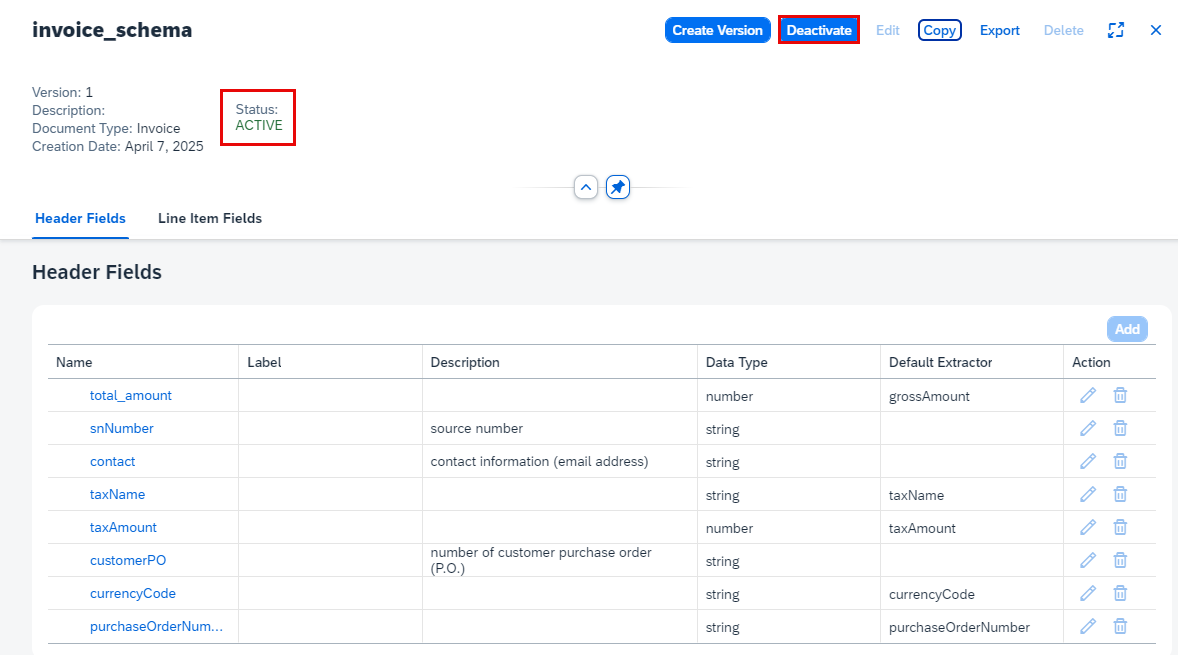
Congratulations, you’ve now created and activated your own schema for invoice documents.
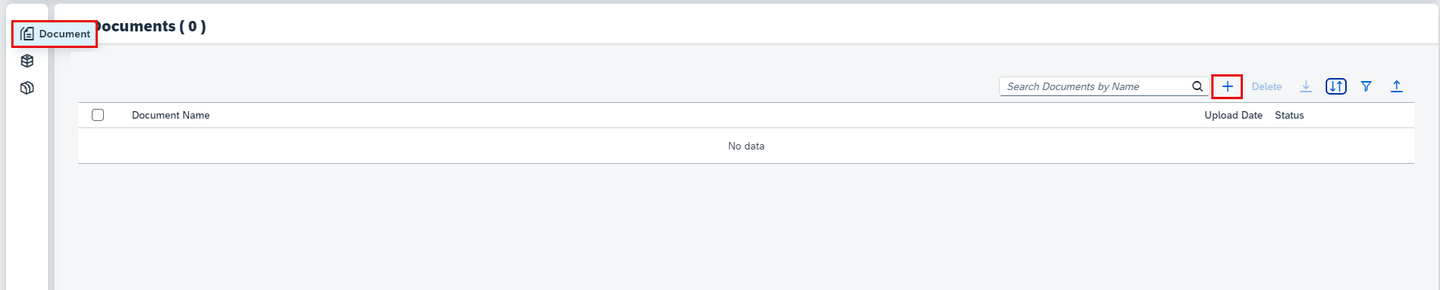
Access Document from the navigation on the left of the screen, then click + to upload the invoice document.
LLM On the Select Document screen, choose
Invoicefor the Document Type.Select the Schema you created (
invoice_schema).Right-click on the link, then click Save link as to download the sample invoice document locally.
Drag and drop the file directly or click + to upload the sample document.
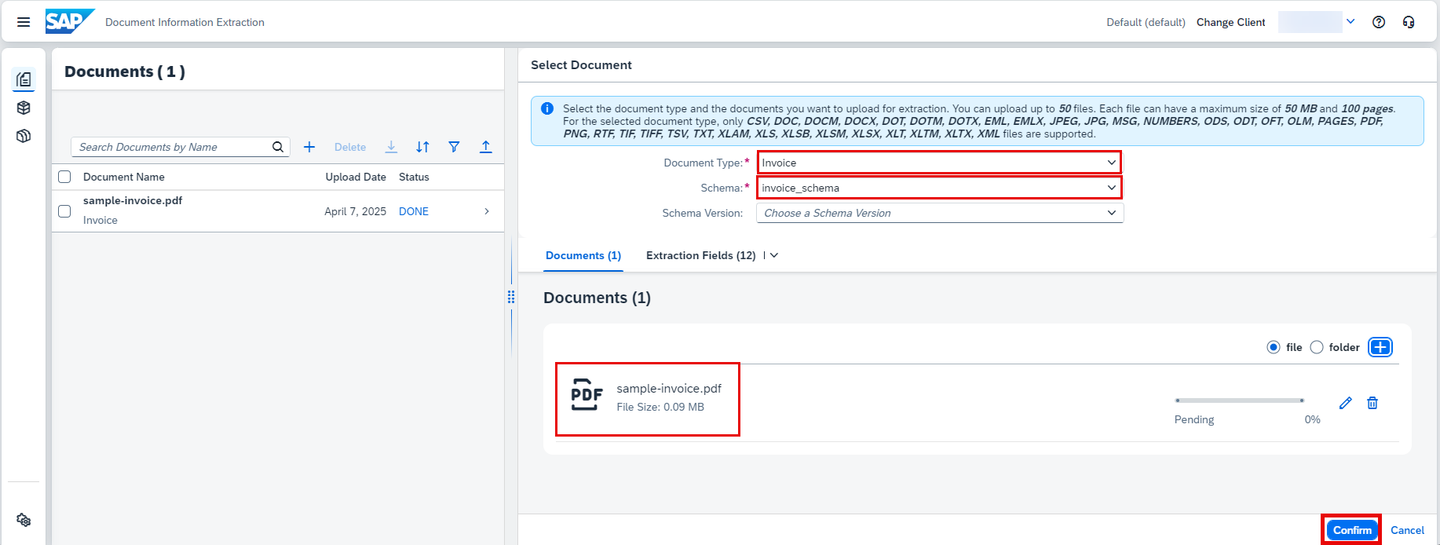
LLM Click Confirm.
The document status changes from
PENDINGtoDONE.
LLM Access the document by clicking on it. You now see the page preview of the document file you uploaded, and the information extracted from the invoice header fields and line items using LLMs, the solution’s pretrained machine learning models, and the schema that you created.

LLM
Note that the first time you extract fields using generative AI, the results are in the orange confidence range.
Congratulations, you’ve completed this tutorial.
You’ve now successfully extracted information from an invoice document using the schema configuration feature from SAP Document AI, LLMs, and the solution’s pretrained machine learning models.
Feel free to repeat the steps using your own standard documents.
Resources
Discussion
Share feedback on this tutorial or join the conversation in SAP Community.