
Overview
You will learn
- How to call and test SAP Document AI
- How to access and use Swagger UI (User Interface)
- How to extract information from files with SAP Document AI


Prerequisites
Steps
Intro
The core functionality of SAP Document AI is to automatically extract structured information from documents using machine learning. When you finish this tutorial, you will get field value predictions for the documents you upload to SAP Document AI.
You’ll use Swagger UI, via any web browser, to call the SAP Document AI APIs. Swagger UI allows developers to effortlessly interact and try out every single operation an API exposes for easy consumption. For more information, see Swagger UI.
You need the service key that you created for SAP Document AI in the previous tutorial – either Use Trial to Create a Service Instance for SAP Document AI or Use Free Tier to Create a Service Instance for SAP Document AI. Outside the uaa section of the service key, you’ll find an entry called tenantuiurl and another called swagger (highlighted in the image below).
To access the SAP Document AI Swagger UI, first copy the
tenantuiurlvalue and paste it into a text editor. Then, copy theswaggervalue and paste it onto the end of thetenantuiurlvalue. Finally, copy the resulting string, paste it into the address bar of your web browser, and press Enter.
DOX To be able to use the Swagger UI endpoints, you need to authorize yourself. In the top right corner, click Authorize.

DOX Get the
access_tokenvalue created in the previous tutorial Get OAuth Access Token for SAP Document AI Using Any Web Browser, then add Bearer in front of it, and enter in the Value field.CodeBearer <access_token>
DOX Click Authorize, and then click Close.

DOX
Use the GET /capabilities endpoint to see the list of document fields and enrichment data for each document type you can process with SAP Document AI.
Click the endpoint name to expand it, click Try it out, and then Execute.


You should receive a response like the following:

If you get an error response code 401 (Unauthorized), your token is probably incorrect. Check if you have added the word
Bearerbefore the token and if the token value is complete and has been properly copied from theaccess_tokenvalue you received in the previous tutorial: Get OAuth Access Token for SAP Document AI via Web Browser.
When you create a service instance for SAP Document AI, a default client is automatically created. A client is used in most of the endpoints to distinguish and separate data.
Free tier and trial users can only create one client. To see your list of clients:
Expand the GET /clients endpoint.
Click Try it out.
Enter a maximum number of clients to be listed in the limit field.
Click Execute.

You should receive a response like the following:

Use the DELETE /clients endpoint to delete the default client.
Expand the DELETE /clients endpoint.
Click Try it out.
Enter in the payload field the client id (
default) you want to delete.Click Execute.

You should receive a response like the following:

Use the POST /clients endpoint to create your own client. The clientId value created here will be used in other SAP Document AI endpoints.
Expand the POST /clients endpoint.
Click Try it out.
Enter your
clientIdandclientNamevalues in the payload field in the format you see in Examples for payload parameter (c_00andclient 00, for example).Click Execute.

You should receive a response like the following:

You can repeat step 3 to see the clientId and clientName of the client you have just created.
CAUTION:
When using the free tier option for SAP Document AI or a trial account, be aware of the technical limits listed in Free Tier Option and Trial Account Technical Constraints.
SAP Document AI uses a globally pretrained machine learning model that currently obtains better accuracy results with invoices and payment advices in the languages listed in Supported Languages and Countries. The team is working to support additional document types and languages in the near future.
Use the POST /document/jobs endpoint to upload to SAP Document AI any document file in PDF or single-page PNG and JPEG format that has content in headers and tables, such as an invoice.
As an alternative to uploading your own document to SAP Document AI, you can use any of the following sample invoice files (right click on the link, then click Save link as to download the files locally):
Do the following:
Expand the POST /document/jobs endpoint.
Click Try it out.
Upload a document file.
In options, enter the list of fields to be extracted from the uploaded file (
documentNumber,taxId,purchaseOrderNumber,shippingAmount,netAmount,senderAddress,senderName,grossAmount, for example), the client you created in step 5 (c_00, for example), and the document type (invoice, for example). In this case, you can use the following:JSON{ "extraction":{ "headerFields":[ "documentNumber", "taxId", "purchaseOrderNumber", "shippingAmount", "netAmount", "senderAddress", "senderName", "grossAmount", "currencyCode", "receiverContact", "documentDate", "taxAmount", "taxRate", "receiverName", "receiverAddress" ], "lineItemFields":[ "description", "netAmount", "quantity", "unitPrice", "materialNumber" ] }, "clientId":"c_00", "documentType":"invoice", "receivedDate":"2020-02-17", "enrichment":{ "sender":{ "top":5, "type":"businessEntity", "subtype":"supplier" }, "employee":{ "type":"employee" } } }Click Execute.

After you have clicked Execute, you should receive a response like the following:

Copy the id from the Response body to see the result of the extraction in the next step.
You can now use the GET /document/jobs/{id} endpoint to receive the prediction.
Expand the GET /document/jobs/{
id} endpoint.Click Try it out.
Set
extractedValuestotrueto get the extracted values.Enter the
idreceived in the POST /document/jobs endpoint as theid.Click Execute.
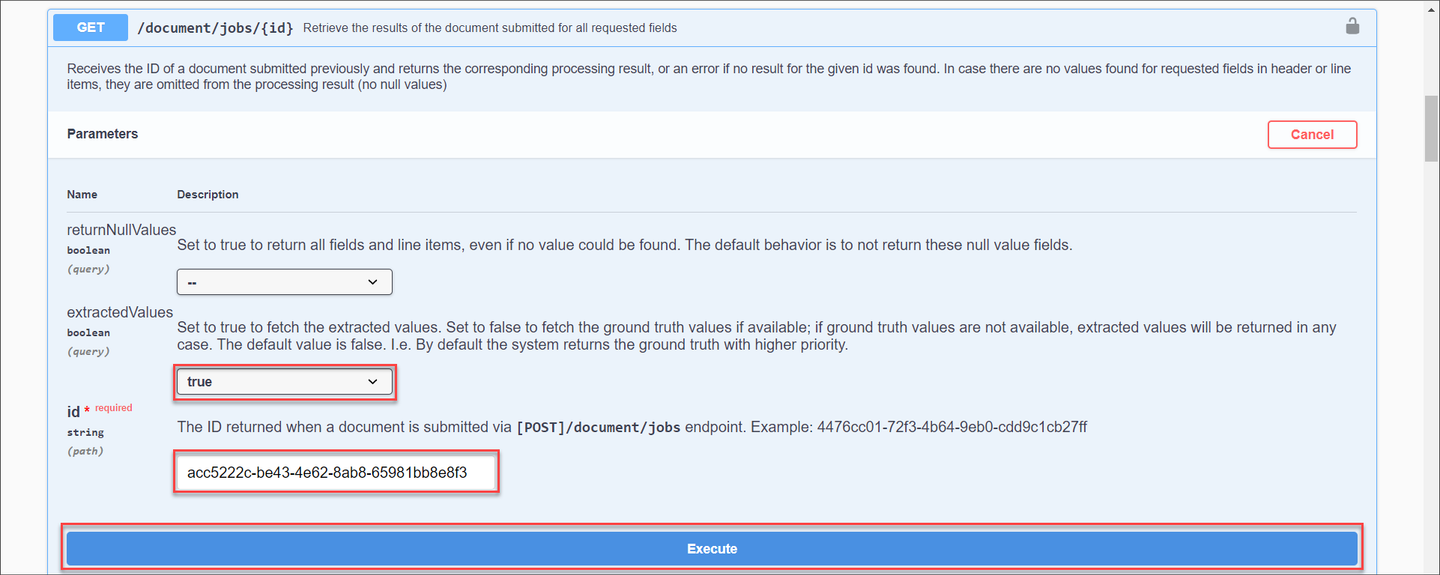
You should receive a response like the following:
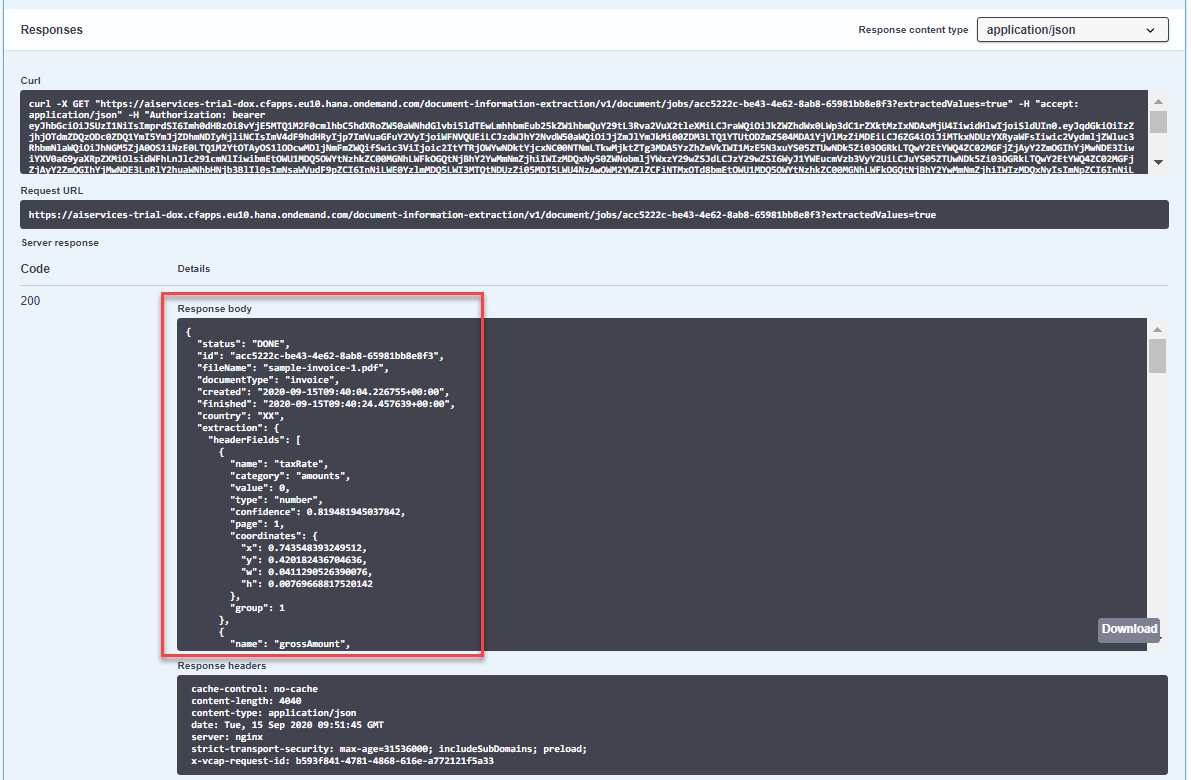
In the response, you will find some general information about the document you uploaded. In headerFields, such as documentDate and taxAmount, and in lineItems, such as description and quantity, you will find the prediction for the extracted fields.
The prediction is made with a probability indicated by the confidence field which represents how certain the model is about its prediction. A confidence of 1 means that the model is 100% sure about its prediction.
If the status of the document (indicated by the status field) is PENDING instead of DONE, then it means that SAP Document AI is still extracting some fields and the returned JSON file does not yet contain all the requested fields.
You have now successfully used our machine learning model to get field value predictions for the document you uploaded to SAP Document AI.
You can repeat step 4 and delete the client you created in step 5.
Congratulations, you have completed this tutorial.
Resources
Discussion
Share feedback on this tutorial or join the conversation in SAP Community.