
Overview
You will learn
- How to get a tenant for Cloud Identity Services
- How to activate an account for Cloud Identity Services and establish trust
- How to subscribe, assign authorization policies and access the SAP Document AI workspace


Prerequisites
Prerequisites
- You have created a service instance for SAP Document AI using either the embedded edition (embedded_edition) plan or the premium edition (premium_edition) plan (instead of the free plan): Use Free Tier to Create a Service Instance for SAP Document AI
Steps
After completing the prerequisite tutorial Use Free Tier to Create a Service Instance for SAP Document AI, you can start with the steps to subscribe to the SAP Document AI workspace.
For now, the SAP Document AI workspace is only available for enterprise accounts with the plans embedded edition (embedded_edition) and premium edition (premium_edition). Make sure to choose one of these 2 plans when creating your service instance (instead of the free plan). For more information, see Service Plans.
Open the SAP BTP cockpit.
Click the tile to access your subaccount.

To use the SAP Document AI workspace, you need to make sure that your account is properly configured.
The SAP Document AI workspace requires a tenant for Cloud Identity Services. For more information, see Get Your Tenant.
On the navigation side bar, click Entitlements to see a list of all eligible services. You’re entitled to use every service in this list according to the assigned service plan.
Search for
Cloud Identity Services. If you find it in the list, you’re entitled to use it. Now you can set this step to Done and proceed with Step 3.
Check Entitlements
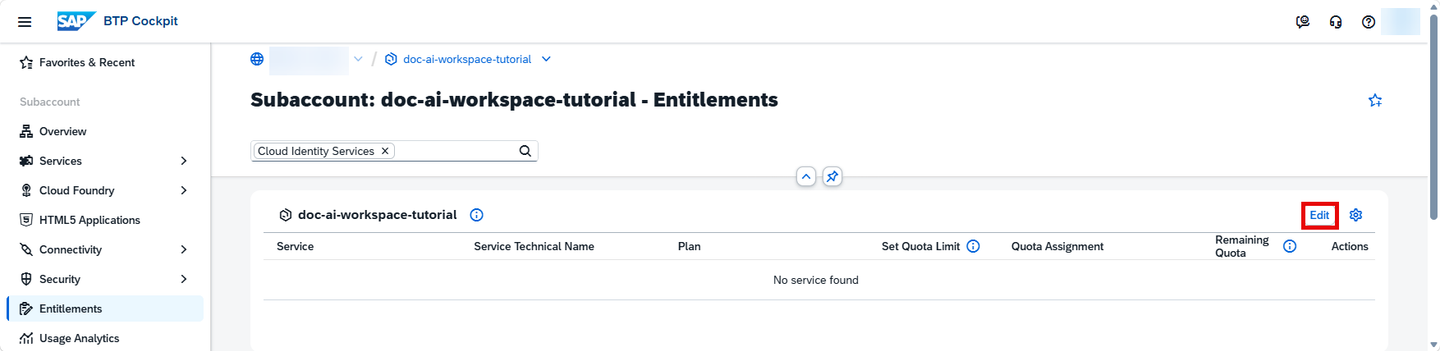
ONLY if you DO NOT find Cloud Identity Services in your list, proceed as follows:
- Click Edit.
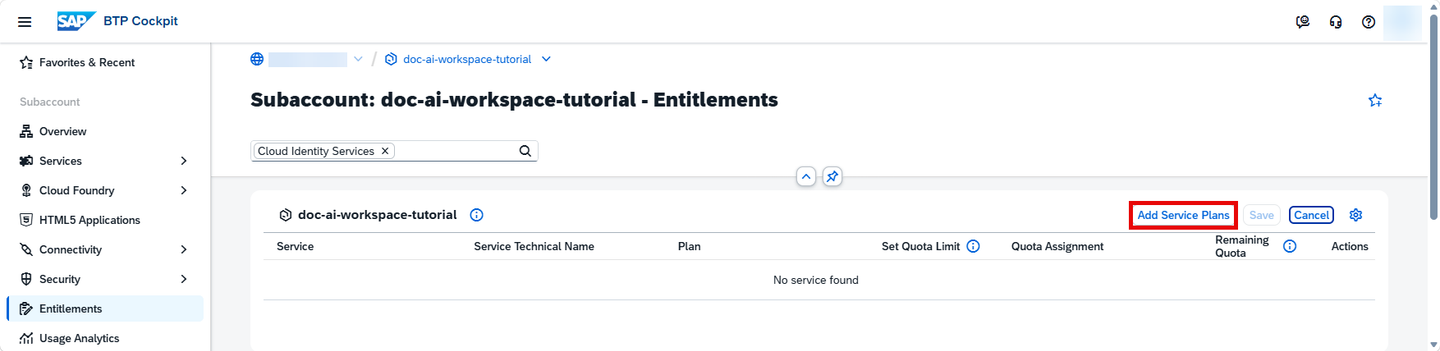
- Click Add Service Plans.
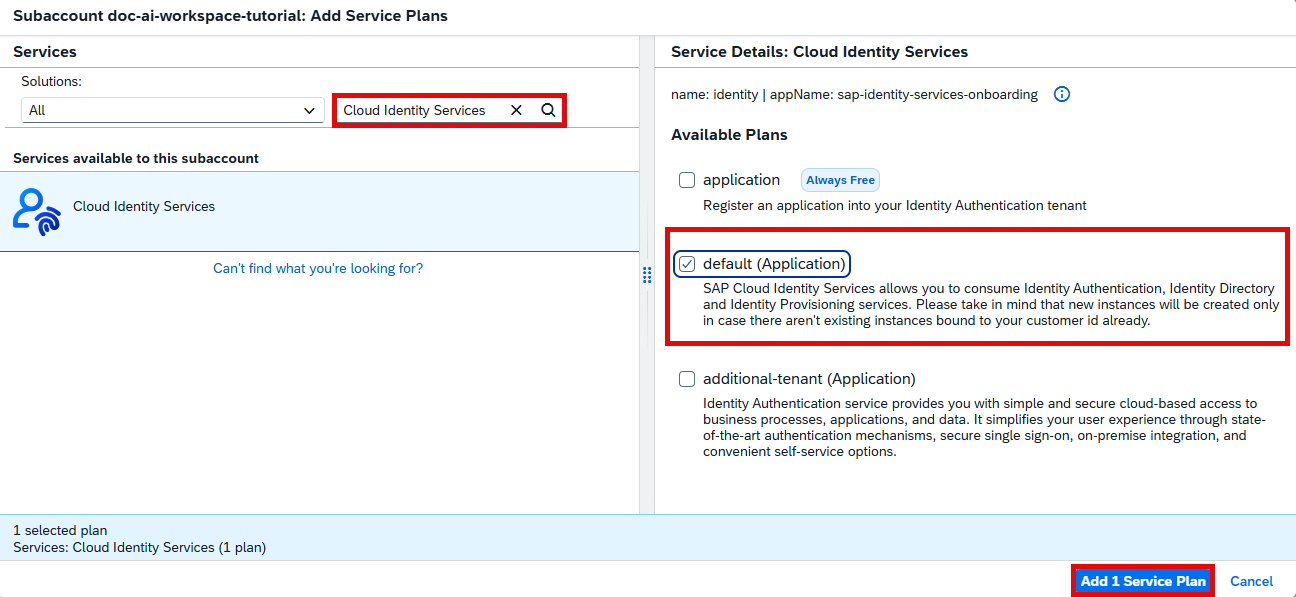
- Search for
Cloud Identity Services. Choose thedefault (Application)plan (or theadditional-tenant (Application)plan). Click Add 1 Service Plan.
- Click Save to save your entitlement changes.
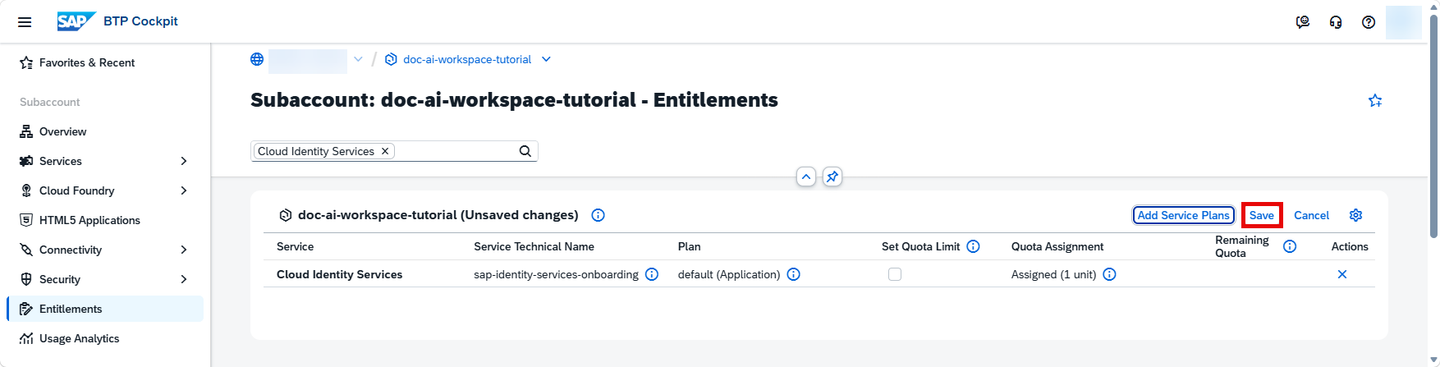
You’re now entitled to create a tenant for Cloud Identity Services.
The Service Marketplace is where you find all the services and applications available on SAP BTP.
On the navigation side bar, click Service Marketplace. Search for
Cloud Identity Servicesand click the tile.
DOX-UI In the top-right corner, click Create.

DOX-UI In the dialog, click Create.

DOX-UI The subscription is going to be created now. Click on View Subscription to go to the list of your existing subscriptions.

DOX-UI
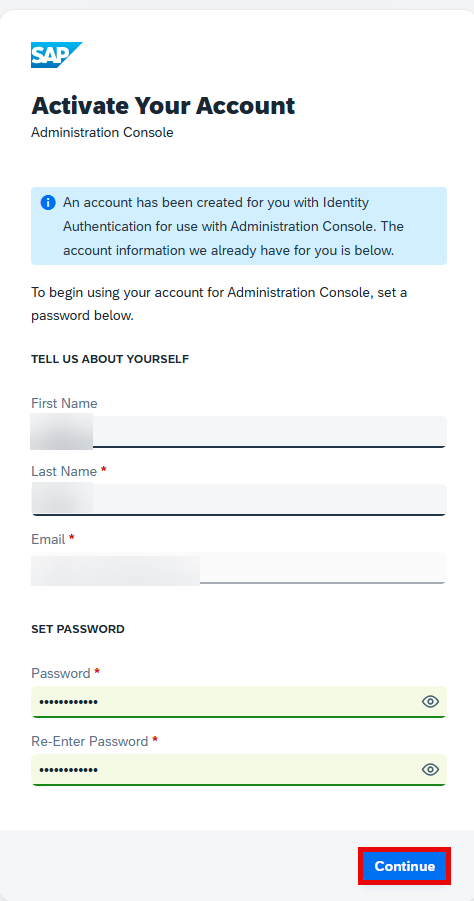
Go to your inbox and open the account activation email (
Activation Information for SAP Cloud Identity Services). Click the activation link.
DOX-UI Enter a password and click Continue.
DOX-UI You’re informed that your account is successfully activated. Click Continue.

DOX-UI This opens the administration console of SAP Cloud Identity Services:

DOX-UI Leave the administration console of SAP Cloud Identity Services open. We’ll go back here in step 7.
Back on the SAP BTP cockpit, under Security, click Trust Configuration and then in the top-right corner, click Establish Trust.

DOX-UI Choose your tenant for Cloud Identity Services and click Next 3 times.

DOX-UI Click Finish.

DOX-UI Your tenant for Cloud Identity Services is added to the list:

DOX-UI
Before subscribing to the SAP Document AI workspace, make sure that a service instance has alread been created for SAP Document AI using either the embedded edition (embedded_edition) plan or the premium edition (premium_edition) plan.
On the navigation side bar, click Service Marketplace. Search for
SAP Document AIand click the tile.
DOX-UI Click Create.

DOX-UI In the dialog, choose the
defaultplan and click Create.
DOX-UI The subscription is going to be created now. Click on View Subscription to go to the list of your existing subscriptions.
DOX-UI
SAP Document AI provides default policies that you can assign to users. These policies determine which actions a user can carry out on the SAP Document AI workspace. For more information, see Authorization Policies.
Go back to the administration console of SAP Cloud Identity Services that you left open in step 4.
Under Applications & Resources, choose the Applications tile.

DOX-UI Choose the bundled application
SAP Document AI.
DOX-UI Choose the Authorization Policies tab and choose an authorization policy that you want to assign – for example,
Admin.
DOX-UI The administration console opens the Assignments pane.
Choose Add.

DOX-UI Select the users that you want to add to the authorization policy and choose Add.

DOX-UI You have added the selected users to an authorization policy. These users are authorized to access and use the resources with the rules and restrictions defined in the authorization policy.
Back on the SAP BTP cockpit, under Services, click Instances and Subscriptions. Choose the three dots at the right end of the row with the SAP Document AI application and select Go to Application from the dropdown.

DOX-UI The logon screen appears.
Enter your Identity Authentication service Email or User Name and Password to log on.
A Permission Denied dialog is displayed. Or the SAP Document AI basic UI appears (in case you’ve already used the same subaccount to access the SAP Document AI basic UI as described in Use Free Tier to Subscribe to SAP Document AI Basic UI). To access the SAP Document AI workspace, do the following:
- On the Permission Denied dialog, do the following:
Choose the link (
here) in “Or choosehereif you already have access to the SAP Document AI workspace.”

DOX-UI - From the SAP Document AI basic UI, toggle the Workspace switch at the top of the screen from OFF to ON. Alternatively, edit the URL of the SAP Document AI basic UI, replacing /ui and everything that follows it with /workspace.

DOX-UI The SAP Document AI workspace appears.

DOX-UI You have successfully subscribed to the SAP Document AI workspace.
- On the Permission Denied dialog, do the following:
Choose the link (
Resources
Discussion
Share feedback on this tutorial or join the conversation in SAP Community.