
Overview
You will learn
- How to predict financial objects using your machine learning model
- How to
undeployand delete your model - How to delete datasets and dataset schemas


Prerequisites
Steps
In the service key you created for Data Attribute Recommendation in the previous tutorial: Use Free Tier to Set Up Account for Data Attribute Recommendation and Get Service Key or Use Trial to Set Up Account for Data Attribute Recommendation and Get Service Key, you find a section called swagger (as highlighted in the image below) with three entries, called dm (data manager), mm (model manager) and inference.

For the following step, copy the URL of the Swagger UI for inference and open it in a browser tab. The Swagger UI for inference allows you to classify new data using your machine learning model that you have created in Use the Invoice Object Recommendation (IOR) Business Blueprint to Train a Machine Learning Model.
To be able to use the Swagger UI endpoints, you need to authorize yourself. In the top right corner, click Authorize.
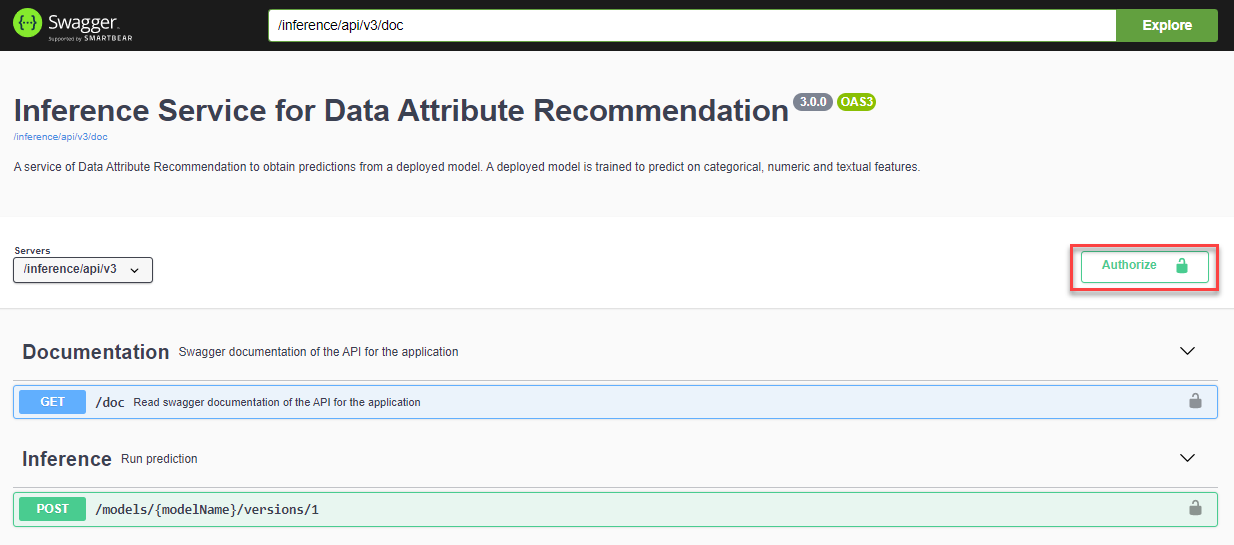
Authorize Get the
access_tokenvalue created in the previous tutorial: Get OAuth Access Token for Data Attribute Recommendation Using Any Web Browser, then add Bearer (with capitalized “B”) in front of it, and enter in the Value field.CodeBearer <access_token>Click Authorize and then click Close.
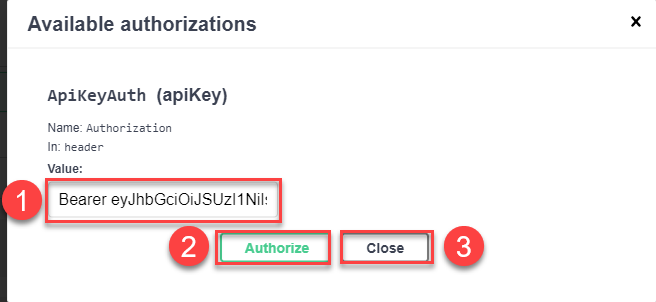
Authorize
To get the machine learning model predictions, proceed as follows:
Expand the endpoint
POST /models/{modelName}/versions/1by clicking on it. Then click Try it out.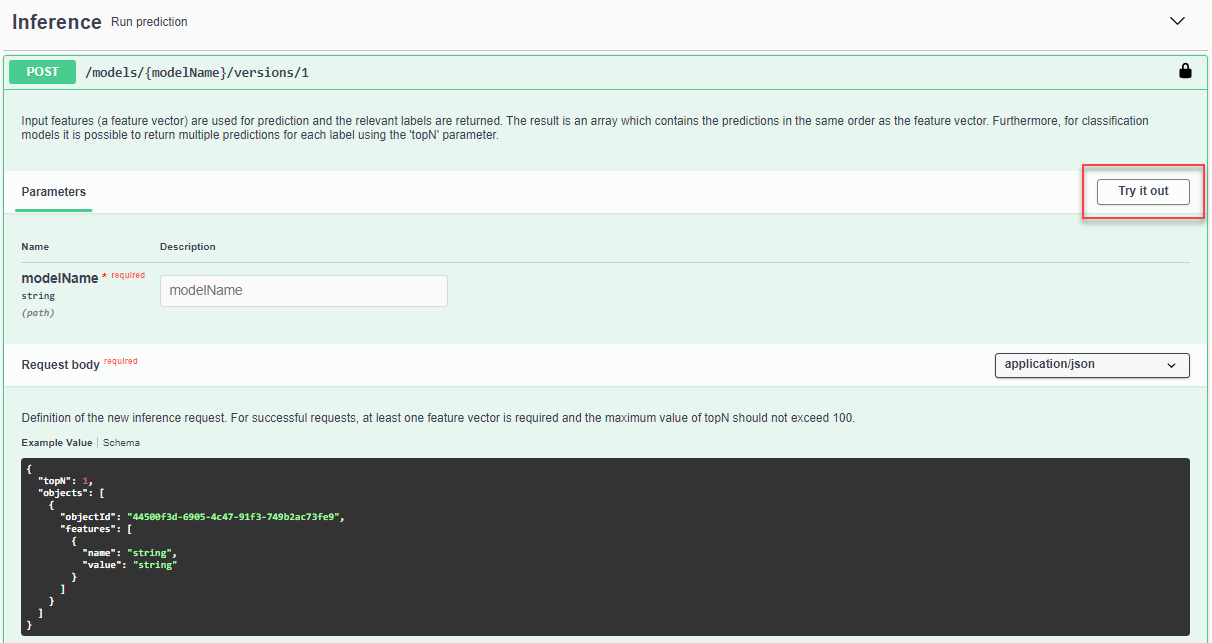
Inference Endpoint Fill the parameter
modelNamewith the name of your machine learning model (ior_tutorial_model).In the parameter
body, you have to provide the data that needs to be predicted. According to the dataset schema that you have created in Use the Invoice Object Recommendation (IOR) Business Blueprint to Upload Data to Data Attribute Recommendation with Swagger UI, the machine learning model takes the training fields such as BUKRS for company code as input and predicts G/L accounts (HKONT). Replace the text in the parameterbodywith the following:JSON{ "topN":3, "objects":[ { "objectId":"optional-identifier-1", "features":[ { "name":"BUKRS", "value":"ZN02" }, { "name":"BELNR", "value":"1500022169" }, { "name":"GJAHR", "value":"2021" }, { "name":"BUZEI", "value":"3" }, { "name":"KOART", "value":"S" }, { "name":"WRBTR", "value":"162709.54" }, { "name":"LIFNR", "value":"68046473" }, { "name":"BLART", "value":"KN" }, { "name":"BUDAT", "value":"20210331" }, { "name":"MWSKZ", "value":"IF" } ] }, { "objectId":"optional-identifier-2", "features":[ { "name":"BUKRS", "value":"ZC04" }, { "name":"BELNR", "value":"1510043834" }, { "name":"GJAHR", "value":"2022" }, { "name":"BUZEI", "value":"176" }, { "name":"KOART", "value":"S" }, { "name":"WRBTR", "value":"19554" }, { "name":"LIFNR", "value":"69089950" }, { "name":"BLART", "value":"KN" }, { "name":"BUDAT", "value":"20220326" }, { "name":"MWSKZ", "value":"Q1" } ] } ] }Click Execute to send the above input to the service to get financial object predictions.
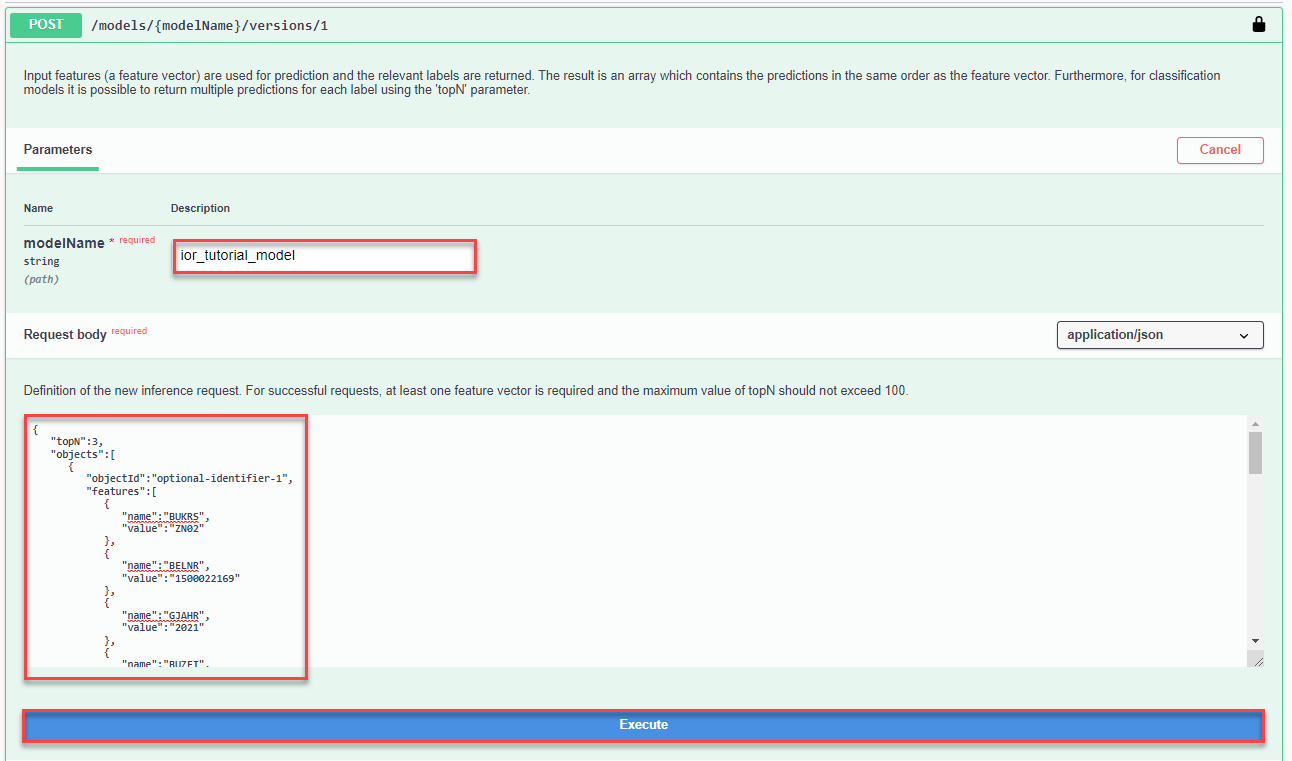
Inference Execute
In the response of the service, you find the probability and the values for G/L account numbers (HKONT). The probability represents how certain the model is about its prediction. The higher the probability the more confident the model is that the prediction is actually correct. If the probability is close to 1, the model is very certain. The service provides one main prediction and two alternative predictions for each G/L account.

{
  "id": "a4860abd-6a14-40ea-4203-5a3cabb6371a",
  "predictions": [
    {
      "labels": [
        {
          "name": "HKONT",
          "results": [
            {
              "probability": 0.9826196432,
              "value": "7325581"
            },
            {
              "probability": 0.0098451525,
              "value": "8015506"
            },
            {
              "probability": 0.0063656443,
              "value": "8044756"
            }
          ]
        }
      ],
      "objectId": "optional-identifier-1"
    },
    {
      "labels": [
        {
          "name": "HKONT",
          "results": [
            {
              "probability": 0.9783372283,
              "value": "7515556"
            },
            {
              "probability": 0.018033715,
              "value": "7325581"
            },
            {
              "probability": 0.0034737068,
              "value": "8044756"
            }
          ]
        }
      ],
      "objectId": "optional-identifier-2"
    }
  ],
  "processedTime": "2022-05-10T09:51:12.253115",
  "status": "DONE"
}You have successfully used a machine learning model to predict financial objects. Feel free to adapt the examples above and retry the prediction.
Now that you have learned the whole process about how to use the Invoice Object Recommendation (IOR) Business Blueprint from the Data Attribute Recommendation service, it’s time to clean up. This way, the technical limits won’t get in your way when trying out other Data Attribute Recommendation tutorials. See Technical Constraints and Free Tier Option Technical Constraints.
First, undeploy your model. For that, go back to the Swagger UI for mm and:
Expand the endpoint
DELETE /deployments/{deploymentId}by clicking on it. Then click Try it out.
Inference Endpoint Fill the parameter
deploymentIdwith the ID of your deployment. Use theGET /deploymentsendpoint in case you no longer have the deploymentidin hand.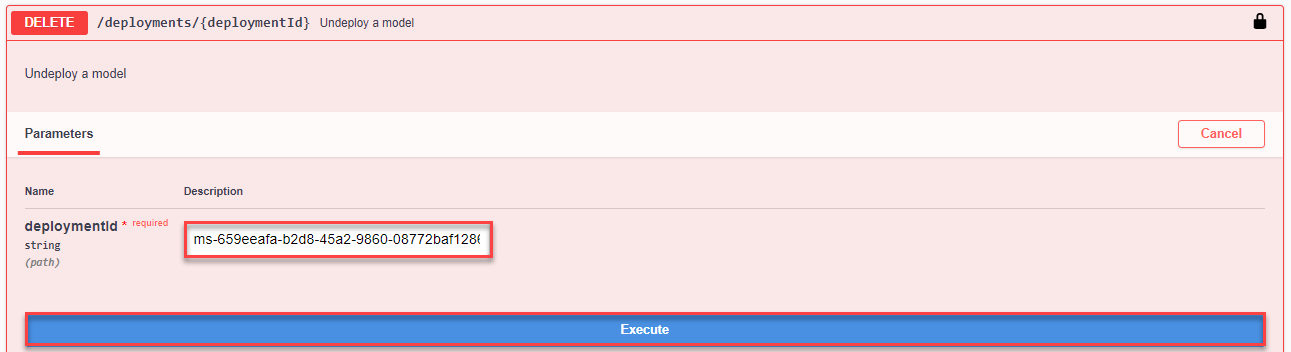
Inference Endpoint
If the response code is 204, the model has been successfully undeployed.

You have successfully undeployed your model, but the model is not yet deleted. Instead it isn’t in production which means that you cannot make inference requests. You can deploy it again at any time using the POST /deployments endpoint.
Once undeployed, you can delete your model.
Expand the endpoint
DELETE /models/{modelName}by clicking on it. Then click Try it out.
Inference Endpoint Fill the parameter
modelNamewith the name of your machine learning model (ior_tutorial_model). Use theGET /modelsendpoint in case you no longer have the modelnamein hand.
Inference Endpoint
If the response code is 204, the model has been successfully deleted.

Now that the model is deleted, you can delete the training job that created the model.
Expand the endpoint
DELETE /jobs/{jobId}by clicking on it. Then click Try it out.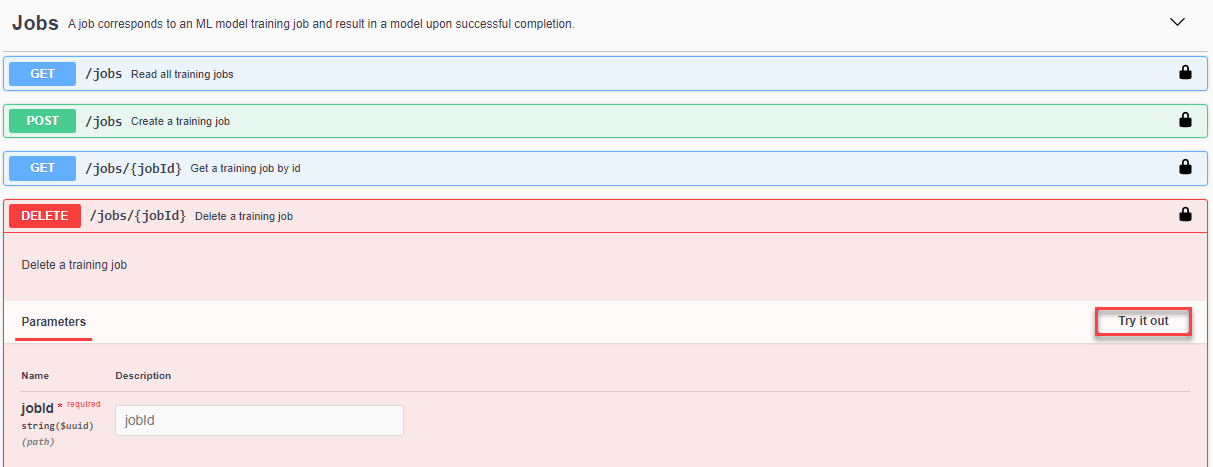
Inference Endpoint Fill the parameter
jobIdwith the ID of your training job. Use theGET /jobsendpoint in case you no longer have the jobidin hand.
Inference Endpoint
If the response code is 204, the training job has been successfully deleted.

To clear the uploaded data, you can now delete the dataset as the associated training job is already deleted. For that, go back to the Swagger UI for dm and:
Expand the endpoint
DELETE /datasets/{id}by clicking on it. Then click Try it out.
Inference Endpoint Fill the parameter
idwith the ID of your dataset. Use theGET /datasetsendpoint in case you no longer have the datasetidin hand.
Inference Endpoint
If the response code is 204, the dataset has been successfully deleted.

If you do not need your dataset schema anymore, you can delete it as well.
Expand the endpoint
DELETE /datasetSchemas/{id}by clicking on it. Then click Try it out.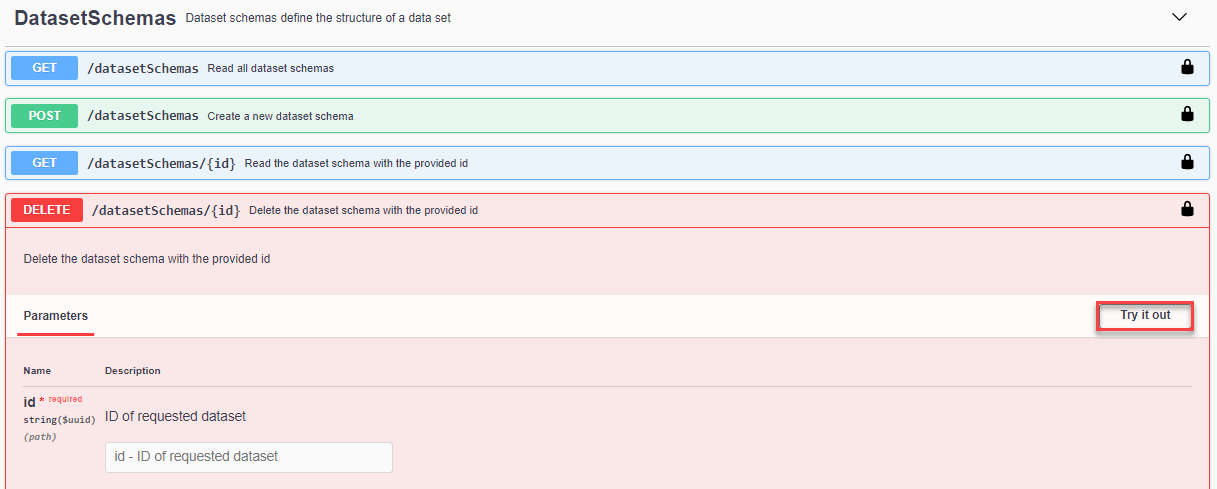
Inference Endpoint Fill the parameter
idwith the ID of your dataset schema. Use theGET /datasetSchemasendpoint in case you no longer have the dataset schemaidin hand.
Inference Endpoint
If the response code is 204, the dataset schema has been successfully deleted.
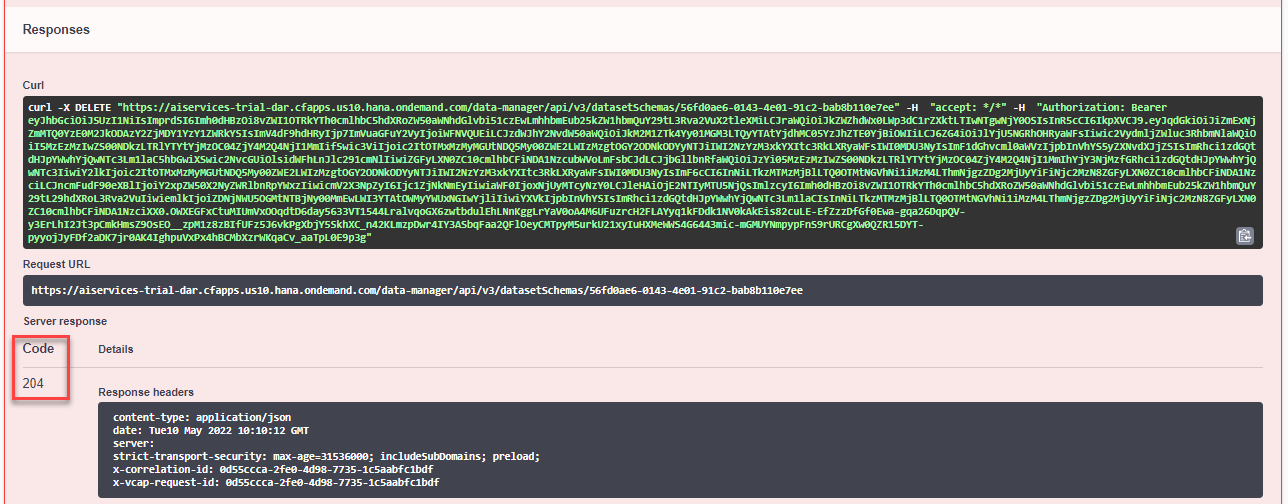
Congratulations, you have completed this tutorial.
Resources
Discussion
Share feedback on this tutorial or join the conversation in SAP Community.