
Overview
You will learn
- How to use your service key values to get an OAuth access token via any web browser


Prerequisites
Steps
To get your OAuth access token you will need the values listed below from the service key you created in the previous tutorial: Use Free Tier to Set Up Account for Business Entity Recognition and Get Service Key or Use Trial to Set Up Account for Business Entity Recognition and Get Service Key.
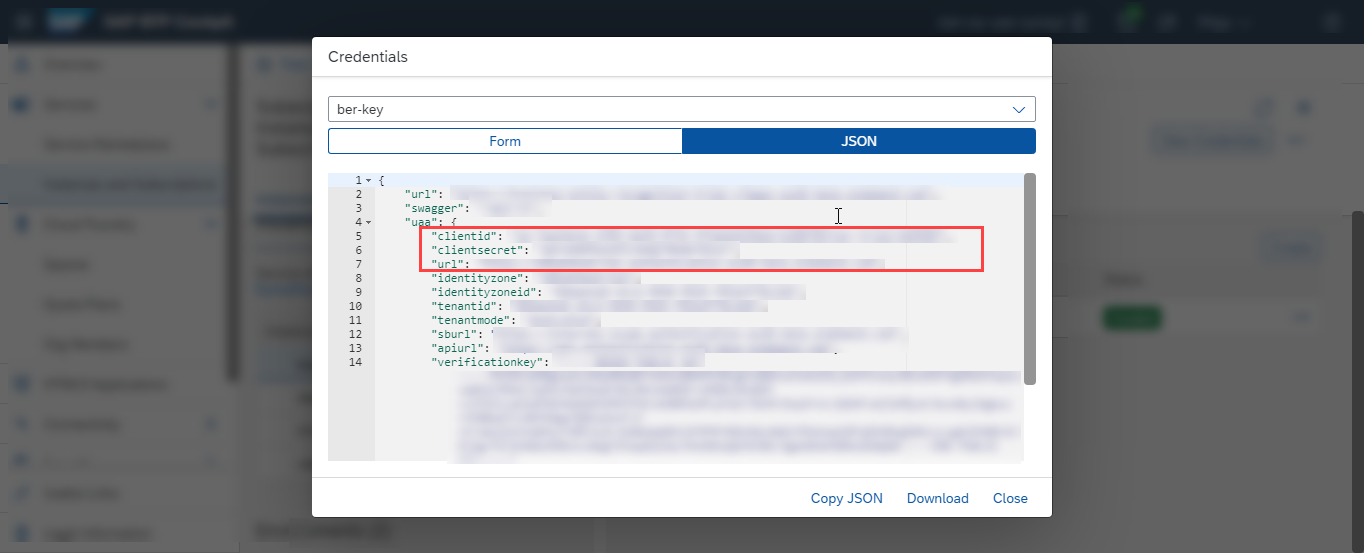
Add
/oauth/token?grant_type=client_credentialsto theurlvalue (from inside theuaasection of the service key), paste it in any web browser and choose Enter.Enter the
clientidvalue from your service key as Username.Enter the
clientsecretvalue from your service key as Password.Click Sign in or OK (depending on the web browser you work with).

You should receive a response like the following:
{
    "access_token": "<< your access token >>",
    "token_type": "bearer",
    "expires_in": 43199,
    "scope": "<< granted access >>",
    "jti": "<< unique identifier >>"
}
Once the token has been generated, make sure to copy and save it locally for easy access. The token is valid for 12 hours (43199 seconds). After that, you’ll need to generate a new one.
You have successfully generated your OAuth access token for the Business Entity Recognition service and you are now all set to Detect and Highlight Entities from Unstructured Text with Pre-trained Models, and Create Dataset and Upload Training Data followed by Deploy Model and Get Prediction Results.
Resources
Discussion
Share feedback on this tutorial or join the conversation in SAP Community.