
Deploy an SAP Conversational AI Chatbot to Microsoft Teams
Enable an SAP Conversational AI chatbot to be run within Microsoft Teams.
Overview
You will learn
- How to enable your chatbot within Microsoft Teams


Prerequisites
Prerequisites
- You have created a chatbot to deploy. This tutorial uses the bot created in the tutorial Consume API Services and Call Webhooks from Your Chatbot.
Steps
Intro
This tutorial shows you how to enable and test your chatbot in Microsoft teams, but does not include information on adding the chatbot to teams and channels within Microsoft Teams. For more information on this, see Manage your apps in the Microsoft Teams admin center.
Create a trial account at Microsoft Azure.
After creating a trial account, make sure your subscription is set up properly.
Go to the Microsoft Azure portal.
Click Subscriptions.
Click your subscription (mine was called
Azure subscription 1).Click Resource Providers (menu on bottom left).
Make sure the
microsoft.insightsis registered.
Go to the Microsoft Azure portal.
Click Create a Resource.

Create a Resource Search for Azure Bot, then at the bottom of the tile click Create > Azure Bot.

Bot Registration Fill in the fields in the wizard.
The instructions were valid at the time of this writing, but you should check the Microsoft documentation for exact instructions.
Field Name Input Value Bot Handle A unique display name for the bot (which will appear in channels and directories – this can be changed later) Subscription Your Azure subscription (in my trial, I had only one) Resource Group Select a resource group. If you don’t have one – which you probably won’t have – then create a new one. Pricing Make sure you select the F0 free Pricing tier – I had to change the selection – unless you want to use it in production. Microsoft App ID Keep Create new Microsoft App ID Click Review + Create.

Create bot resource It will take a few minutes for the resource settings to be validated.
Once complete, click Create.
It may take a few minutes for the resource to be created.
When complete, you can go to the bot resource by clicking Go to resource.

Bot created There will be 2 links: one to the resource, and one to the key vault, where you get the secret.
Open your bot resource, and go to Settings > Configuration.
The app ID is shown under Microsoft App ID. Copy this number down.

App ID Open the key vault.
In my Azure account, I had to give myself permission to enable me to use the key vaults and to get my app’s secret. I did the following:
- In the key vault, go to Settings > Access Policies.
- Click Add Access Policy.
- In the Configure from template field, select the Key, Secret & Certificate Management.
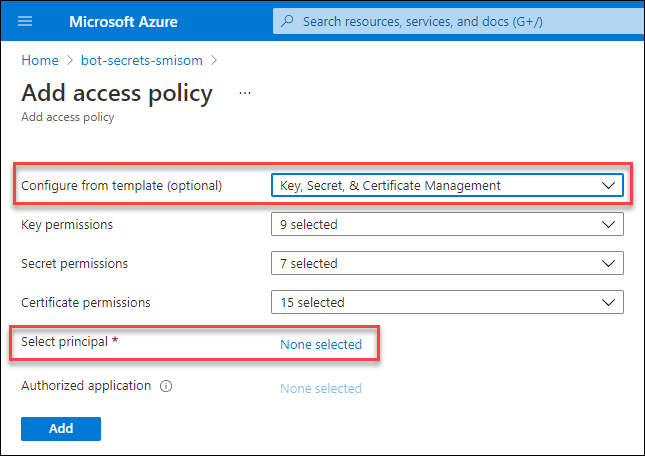- Under Select principal, search for your account and select it.
- Click Add, and then Save.
Select the secret already created when you created your bot resource.

Secret Click on the version, and then copy the secret at the bottom of the page.

Copy secret
Go back to SAP Conversational AI.
Open your bot, and go to the Connect tab.

Connect tab Click on the row for Skype and Teams, and in the popup, enter the app ID and secret from Azure.

Copy endpoint An endpoint will be created. Copy it.

Link text e.g., Destination screen Go back to your resource in Azure, and under Settings > Configuration, paste the endpoint into the Messaging Endpoint field.

Paste endpoint Click Apply (at top).
Still in your resource in Azure, go to Test in Web Client.

Open test At the bottom of the screen, there is a box for talking with your bot.
Test your bot.

Test
Still in your resource in Azure, select Channels.
Click the Microsoft Teams icon.

Channels Click Publish, then Save.

Publish Navigate back to the Channels main page (you may have to navigate away or refresh the page).
Click on Microsoft Teams to open the Teams application.

Open Teams Test your bot in the Teams application.

Test in Teams
Resources
Discussion
Share feedback on this tutorial or join the conversation in SAP Community.