
Overview
You will learn
- How use conditions
- How to create and access custom variables
- How to use form events


Prerequisites
Prerequisites
- You have completed the previous tutorial for the event-based processes CodeJam, Create Actions to Get Data from S/4HANA.
Steps
Intro
SAP Build Process Automation enables many types of flows and branching. Here we will introduce 2 types of flow controls:
Conditions, where the flow can branch based on a specific condition. You can create up to 10 branches.
Process events, where the flow can change based on certain events that occur within a process. We will use form time events, which get raised after a specific amount of time and alter the flow.
Our scenario is: You will check if the new business partner is from the United States. If yes, then a second approval step is needed from the local staff. But … that approver only has 24 hours to veto the issuance of the badge – after that, the badge is automatically approved.
Go back to your process project.
Make sure you are in the Editable version.

Open editable process In the Badge Process, with nothing selected, open the side panel.

Open side panel Click Variables.
Under Custom Variables, click Configure.

Custom variables Click Add Variable
Enter the following (the identifier is automatically generated).
Field Value Name LocalApprover Type Boolean Click Apply.

Add custom variable Click Save (upper right).
We want by default that the flag be set to True, in case there is no need to add a local approver. If the local approver is needed and they reject the item, then we will set the flag to False.
This is a very simple use of the Script Task, but we wanted to introduce it to you, because it is very powerful for processing data, for example, lists of backend data returned via action, and making it available to the rest of the process. The results of the data manipulation are generally stored in custom variables.
Right after the trigger step, click the plus sign, +.

Add step Select Script Task.

Add script Rename the Step Name to Set Local Approver to True.
Click Open Editor.

Open editor In the code area on the right, add a few blank lines at the top, and then set the cursor at the top.
On the left, click Custom Variable > LocalApprover to a reference to that custom variable.

Add variable Then add code so the line is the following:
JavaScript$.context.custom.localapprover = true;
Finish script Let’s explore the Script Task a little.
Click Validate Script to check the syntax, including variable references. Any errors will be shown in the Script Console.

Validate script Once the script is valid, you can test the script with different data. Select the Test Variable tab.

Test script Add test input values by clicking the plus sign, +, setting the variable name to
$.context.custom.localapprover, and setting the value tofalse.Click Run Test. The results, including the values for the custom variables, are shown in the Test Console.

Test script Click Apply
Click Save.
Under the Approve branch of the first approval form, click the plus sign, +.
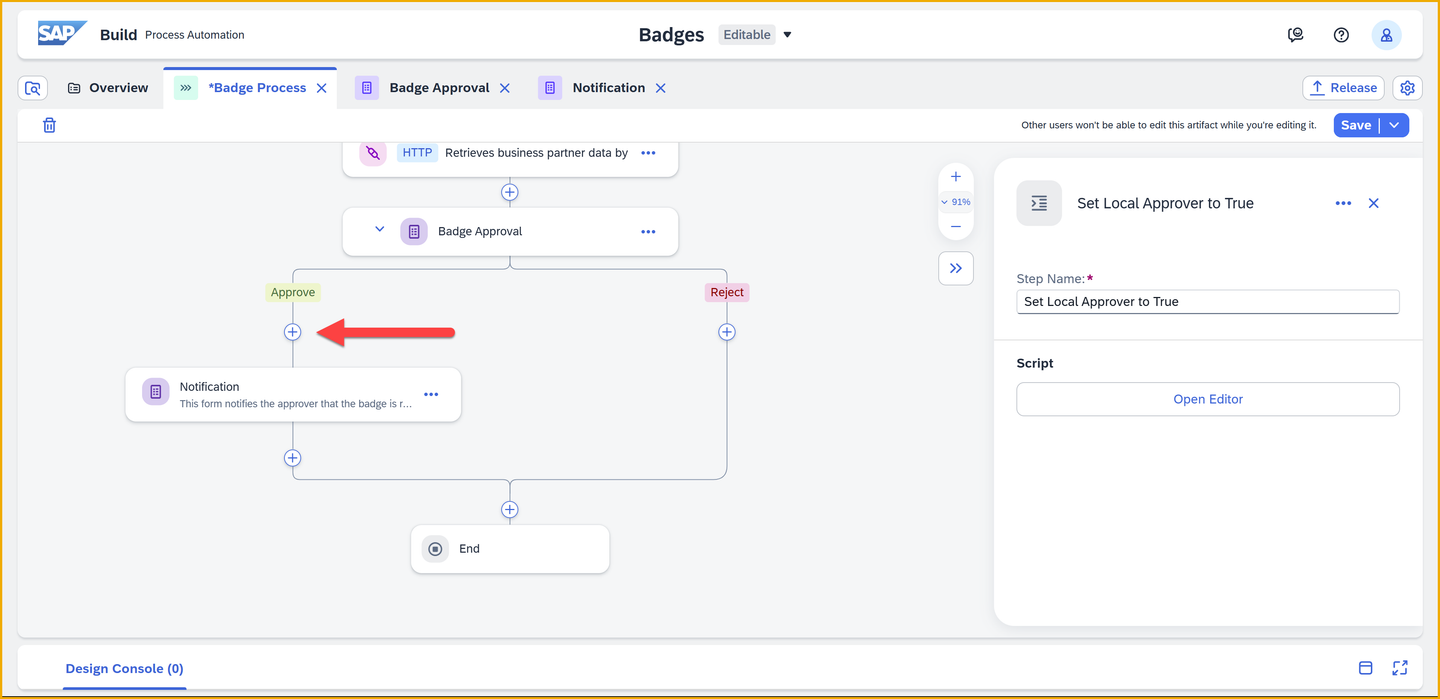
Add step Select Control and Events.

Control and Events Select Condition.

Condition Rename the Step Name to Check Country.
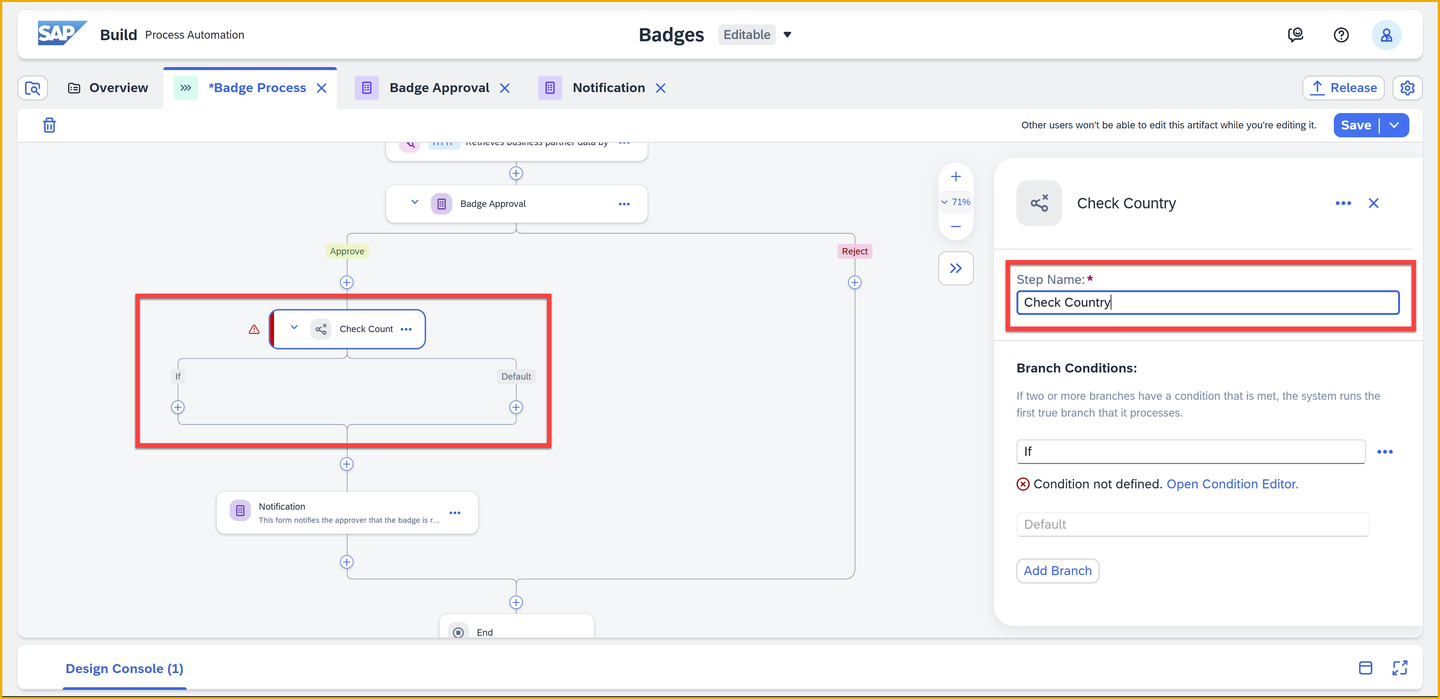
Condition name In the side panel, click the 3 dots next to If, then click Condition Editor.
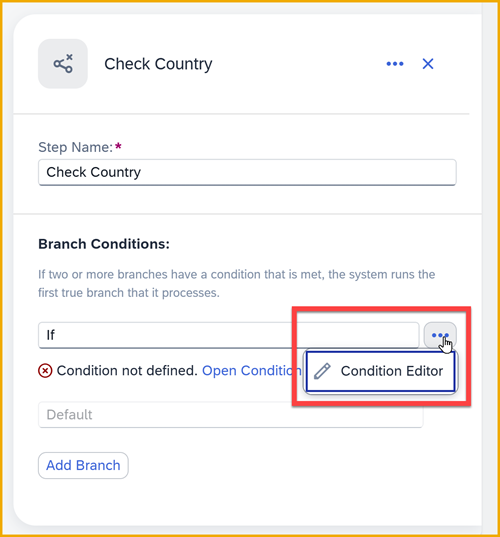
Open editor Set the condition as follows:
Field Value 1st Operand Retrieves business partner > result > Business Partner > Ctry/Reg. for Format Operator is equal to 2nd Operand US Click Apply.
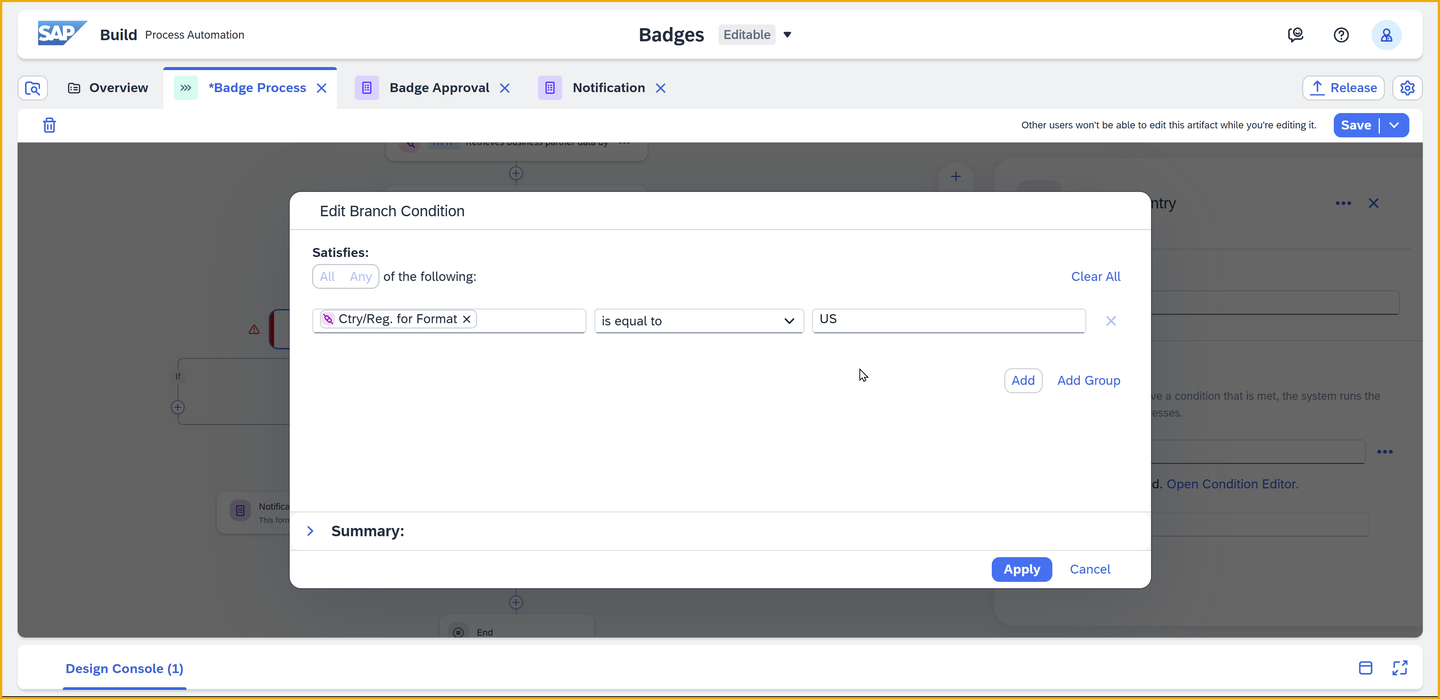
Add condition
Under the new condition, in the If, click the plus sign, +.

Add step Click Approval.

Add approval Instead of creating a new form, you will reuse the existing form but change its binding slightly.
Click Approval Form.

Select existing form For the Subject field, enter the following (including trailing space):
TextBadge Request - Local Approver -Then, with the cursor still at the end of the field, select Process Inputs > data > BusinessPartner.
For the Users field, enter the email address you used to create your SAP BTP trial.

Form general bindings Under the Inputs tab, bind the following fields:
Field Value BP ID Process Inputs > data > BusinessPartner Community ID Process Inputs > data > YY1_SAPCommunityDisplayName Country Retrieves busines partner > result > Business Partner > Business Partner First Name Process Inputs > data > FirstName Grouping Retrieves busines partner > result > Business Partner > Grouping Last Name Process Inputs > data > LastName 
Form inputs bindings Click Save.
In the case that the local approver rejects the badge, we must set the flag to false.
Under the new Approval Form 1, and then under the Reject branch, click the plus sign, +.

Add step Select Script Task.
Rename the Step Name to Set Local Approver to False.
Click Open Editor.
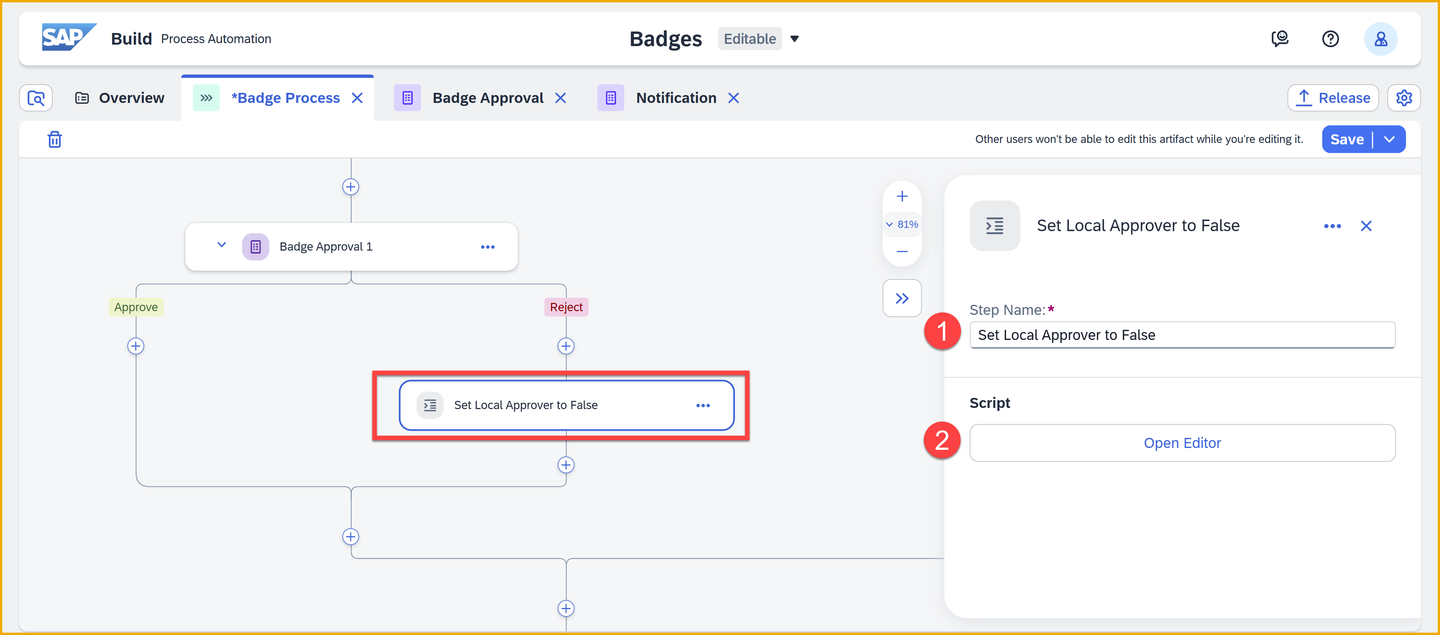
Open editor In the code area on the right, select all the text, and delete it.
Copy in the following:
JavaScript$.context.custom.localapprover = false;Click Apply.
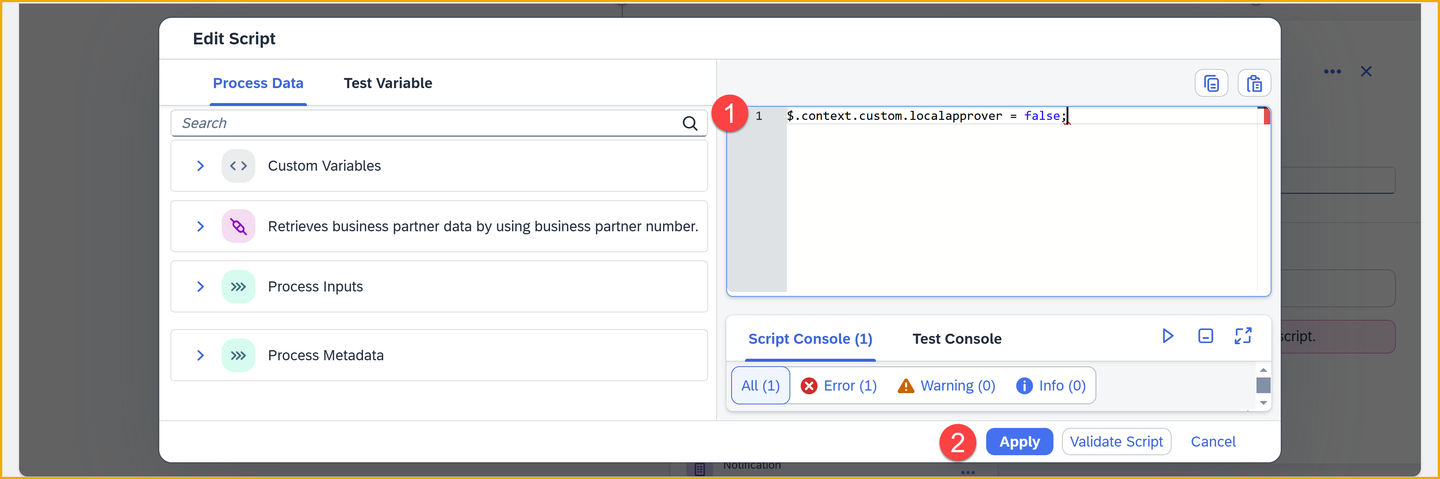
Set script code Under the Script Task, click the plus sign, +.

Add step Add the step Controls and Events > End.
It should look like this:

End Click Save.
We want to give the local approver a chance to reject the badge, but only for 24 hours. So we will make use of form events, also known as timer events, which allow us to break into the flow after a certain period has elapsed without the form being completed.
For the sake of this exercise, we will give the local approver just 1 minute.
Click the 3 dots next to Approval Form 1, and click Handle Events.

Handle event The form will now have a third path, in addition to Approve and Reject – a path for events when neither of the other two paths are taken.

Timer event Click Timer Event.
This will create a small subflow in case the timer event is triggered.

Timer event Click Timer Event to open the side panel.
Set Count to 1.
Set Unit to Minutes.
Under After the event is handled, change the select to Skip to Next Step.
If you cannot see this option, reduce the zoom of your browser.

Configure timer event Click Save (upper right).
Click Release.

Release In the dialog, you can add some release notes if you want.
Click Release.
Click Show project version (upper left).

Released version This will take you to the released version of your project, so you can deploy it.
You can navigate between the versions of your project at the very top using the dropdown (assuming there is more than one version).
Click Deploy.

Deploy Select the Public environment.
Select Upgrade.
You get a message that your deployment will update the existing trigger.

Triggers Click Deploy.
You again get a dialog to select the destination for the action. The previous selection from the previous deployment should still be there. If not, select S4HANA_Badges.
Click Deploy.

Destinations
Again, go back to the Create Business Partner app we provided to you.

Business partner app Enter the following:
Field Value First Name Anything you want Last Name Anything you want Country United States SAP Community Username Your user name in the SAP Community Click Create.
Your business partner is created.
Check that the event was received into SAP Build by going to Monitoring > Acquired Events > Business Events.
You should see an event created for your new business partner, including the business partner ID that you saw when you created it.

Business events
Go to the Inbox.
You will see an approval form. Click Approve.
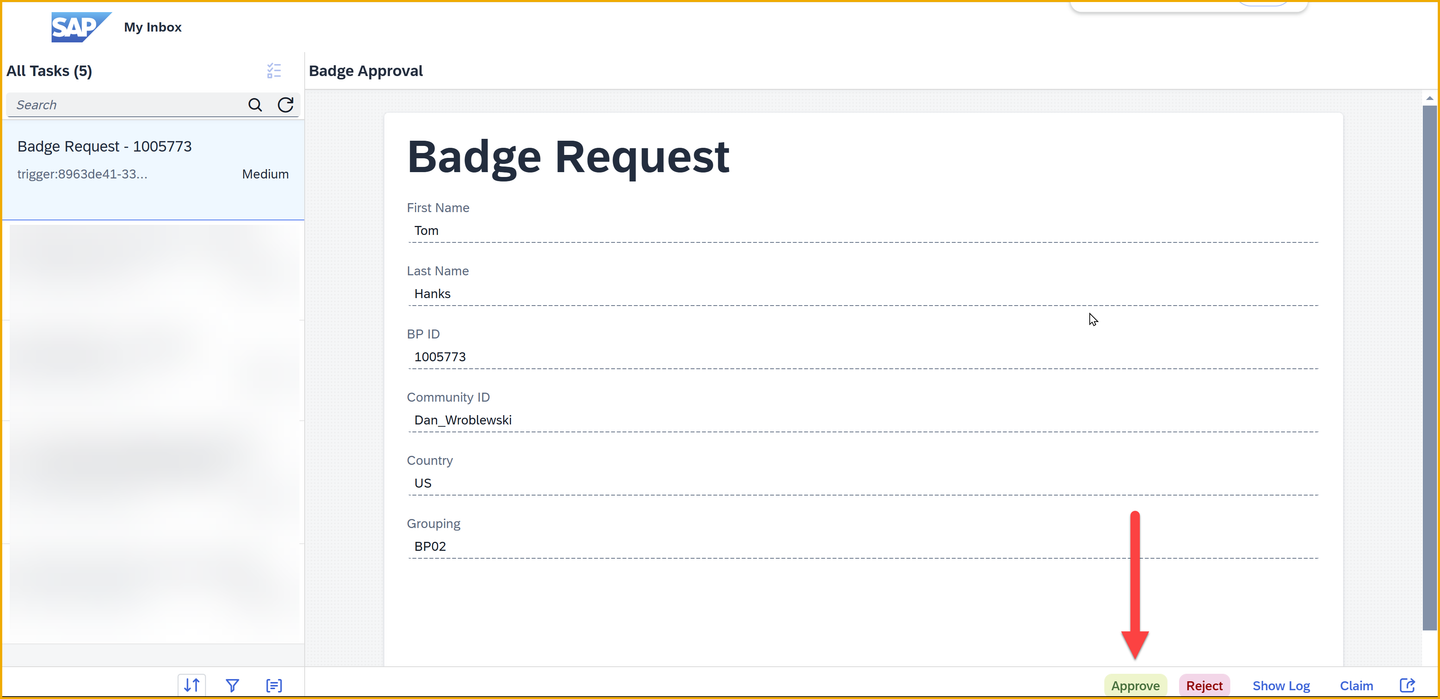
Approval form Refresh the Inbox and you will get a second, approval, because the business partner is in the United States.
Do not approve, and wait for a minute until the timer event triggers.

2nd approval form Now go to Monitoring > Processes and Workflow Instances.
Click on the latest instance.

New instance Let’s look at the log more closely. The log is in chronological order, from bottom to top. So let’s review what happened.

Log close-up From the bottom to top, you will see these steps:
- The process was triggered.
- You tried to set the local approver flag to true.
- You set the local approver flag to true successfully.
- You tried to retrieve business partner data with an action.
- You retrieved business partner data with an action successfully.
- The 1st approval task was triggered.
- The 1st approval task was completed.
- The country was checked.
- The 2nd approval task was triggered (because the country was the US).
- The 2nd approval task was not completed in the specified time (1 minute).
- The 2nd approval step was canceled.
- The process went to the next step.
- The notification form was triggered.
Things to Ponder
What are the 2 types of process events inside SAP Build Process Automation?
What specifically would you use a Script Task for?
How could you make use of an escalation event?
Resources
Discussion
Share feedback on this tutorial or join the conversation in SAP Community.