
Check Status of Process from SAP Build App
After triggering a process, you can check the status of that process using the Retrieve Instances flow function.
Overview
You will learn
- How to retrieve the instances for a process
- How to check the status for a specific instance


Prerequisites
Prerequisites
- You created the Sales Order Trigger application, as described in Create SAP Build App to Trigger Workflow.
Steps
Intro
In addition to triggering a workflow, you can get the status of a workflow, the tasks within a workflow, and a whole lot more.
In this tutorial, we will create a new page to display the processes we have triggered (including its ID, status and time it was triggered), and let the user click a button for each to check if its status was updated.
We will use the process flow functions that come with SAP Build Apps, making this task quite easy. You can also use a wide range of APIs to interact with processes, and these are described in the SAP Business Accelerator Hub. Select the API you are interested in, and then click View the API Reference.
You will create a separate page to display the process instances, including each one’s ID, time it was triggered, and its status.
In the top-left of your project, open the page dropdown and click Add New Page.

Open page area For Name, enter
Process Status.Click OK.

Create page Add a container into the page.

Add container Right-click the container, and select Copy.

Copy container Right-click the container, and select Paste.

Copy container This will create nested containers.

Nested container Copy the following text:
ContainerH4sIAAAAAAAACt1ZbW/bOBL+Kwb3DtgAolcSKYkUsB+8TnJrbJrkNukVRV0YfBnZQmVJkOg0uaL//UDLSpzEybKtvR/O+WDJEjkzzzzPcMh8QeauBpQiVS3rqoTSTMrWiFIB8lBuYInSLw/P7E2uUYooEzQQWmMWqhhTSWLM4oxgBSJiPBacCoo8pPO2LsTdrBRLa2NclUbkJTQDgjy0+fEGGpMrUcxkdTsrxF21MshDopm31tpN3uayAJSaZgUekkJ9mjfVqtSTpZjb4eirh1pzZ1/5guaiHmUGGnvdVqtG2TfMApY2mhtRrOz9P9paqLycz+7Dmp3ZWeaiPimFLEB31vqJZ6oQbYtSdO+cWuSFbqBE6YcNHsRnEAYywVQkgGkEAsuIExwA5TyKfa2j+Dke17kpYBA8YKFWramWOCEkAJkQDDThmNKAYcligXXAIKGx9qXPtzBSVWnWyUHvquZTVlSfB1dGmFVrg97G7++DauPSZZMvRXP3GLKPX70eNR0mUocR1lGUYMqTGDNGNWZBwDPCmYaMvMai4P+MRSojcaAVwZwFAlOdMcwYCTDEgdQBi6TP9Wt4hIfBQxT5vJwYWK4zC6WFxkNZAbfHeQPK5FWJUtRUn5F3YOzqjk9j0VgcGqhBmEeWajEHfCOa3M6CPPQJ7tbDKgVt21e2dthAW1dlC6OmEXfW8vNcBFHIqKYaRyGJMY0yhgWRHMswjgKaSJ+z8HkuflsZU5U7JB0CREpBiHloJR35AktFYxwqHygJQyoh2EpQISQUKEW7dbw2u8EpE0X7SNg6X0LZ5lXZ/gYLcZNXDUpRlpvrarypE39Tll5SPSSBhFglmFIIMeWgscx8jinogIgwoMpXO2ol3JoduAodKBb4AodaWlwFwyILKY4zqQMeZjqJyK5SuRV3RyPQ93RRq6aB0gxzbcN9gvxS3J5BOTcLlEa+73uohQKUWfOtS4aHytVSQnORneUltCj1/zI9XTD7ToyHFpDPF+ZlHnzOtQ0EEf+f/d3Wyy2Y/6xNvpThS9GIeSPqxUupZoopKoMEB0lGMSVJjKWOqC1oEZMh89W6z9iV6vAQqYbbuoHWot8n+wvKqma5KgRK0enFn29G17Pj0fXJ9eTNyezsYjw6+7mnx7CnRWtEY0CPjDeYouPjX968+eX9+/fvB7//ni6XadtO0dGg+yAPtarJa/Pi5GcXF3+8vey/elPetOfgFB15U3RvsbvdbdPiCDWUGkqVW9p9+LBN7c2E1qV+NvTxo4eyVbmu4HbAbieRhzr/0Mev+9eDqorqMd3bpWgM3qQPd88fyH81upwt8vmisMy2zHSpd1lVmndrLaAUJb6/f6UZuDUju04+LJHfrRotNGc8JFjxzLZFGcM8yigmIREx1xGju9qirpl8LpvvbSZdKmTbLU9PWfF6fh+JcIP0tgwnpzs1Z1bt4NdfB1P059vz88n5v6bIm6KfaBDzk2CKvL8adfX26vLk/PjkuBs3Ho/Hvu8wbjw6H5+c9cNOT31/PWyKfvL97vro6Ghb6JPTnydXs5N/v/0WeZtV213fB3f0NLofmHQr9qOnwf/AtA/QHL2OjXNdsmR6VpQmp8hDvZtPitFO8cNtLUr9br22PdE+P7T2m74sfct+qPuzLXX1uV23oLcoDQLfQ3copb6H/rtpbVOS3nuTOu451yXFh5DrmAx5EkZMRcjrt/1w03cCTZcbC3+urx8/XX9fbTfZ3+xJakRtsyGKwm43zvu9y2aOQfc4b8dVmeXzVSO2qokbHo7NRtfdZ1rxyB+GgvlUhnvGw8WTw+Ph2Gd3O/Ew0kJFQ0oSnnC2ZzxcPDk8Ho6nDWs8BMtIErBhmCQcCNm3Xhw8OTwejjvcNR4yCllE5DDmQZZQtWc8XDw5PB6Opy/dSQ0BEWfxUAlOJdk3Hi6e/BgeG2+NkH1E30uP/qTi3nI6uD8EcbTkuJDtsNQfoLoacqsAOwxtnzk6GnNcjnZF1e1/He040vbVoJyNOa4pLwXlDJ7jFuhFSnQBuaje0dLazTiSoHQ2lOCTQMd7Vr2LJwdXveM/dl5lE3EG39FaV3IDlcVcDyGKwSewZ/BdPPkB8G133+00RnW98Wy5KkxeF8LYrS/6+j8jA/omihsAAA==Right-click Container 2 – either on the canvas (it should still be selected) or in the tree view – and select Paste.

Paste UI You should now see the skeleton layout.

New UI
After retrieving the process instances, you will need a place to store the information.
Click Variables.
Click Page Variables, and then click Add Page Variable.
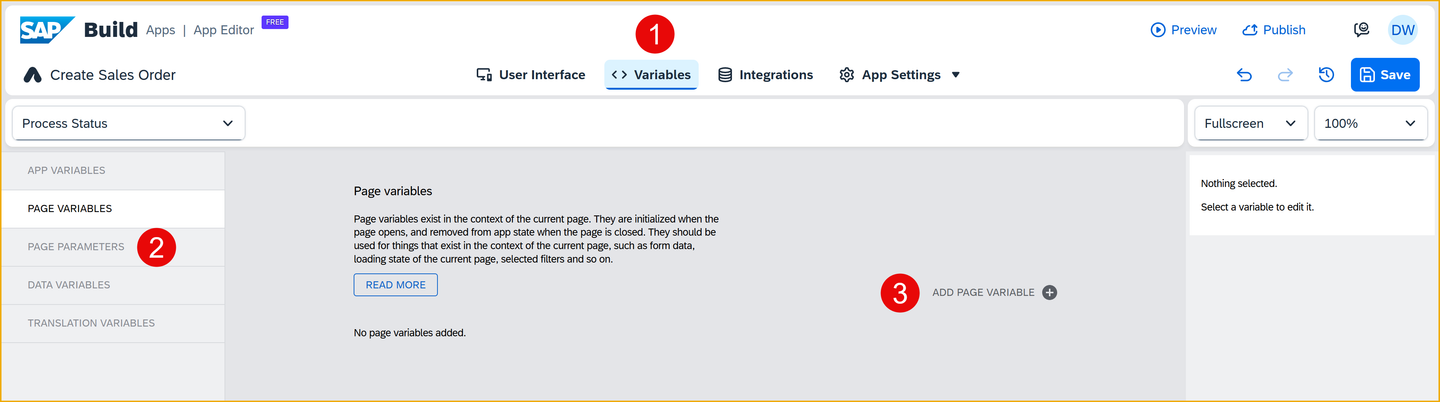
Page variable Choose From existing schema.

Page variable Select Process, then navigate to Order Processing > Retireve process instances > Output Schema.
Click Create.

Create page variable Change the name of the variable to processInstances.

Change variable name Click Save (upper right).
Click the User Interface tab.
Open the logic pane by clicking Add logic to Process Status.

Open page Under Processes, drag in a Retrieve Instances flow function and connect it to the Page Mounted event.

Open page With the flow function selected, set Process to Order Processing.

Open page With the flow function selected, set the startedBy property to Data and Variables > System Variables > Currently logged in user > email.
You can filter it to whichever user you want, or perhaps not filter the list at all.

Filter by startedBy With the flow function selected, set the orderBy binding type to Static text. Then, select startedAt desc.
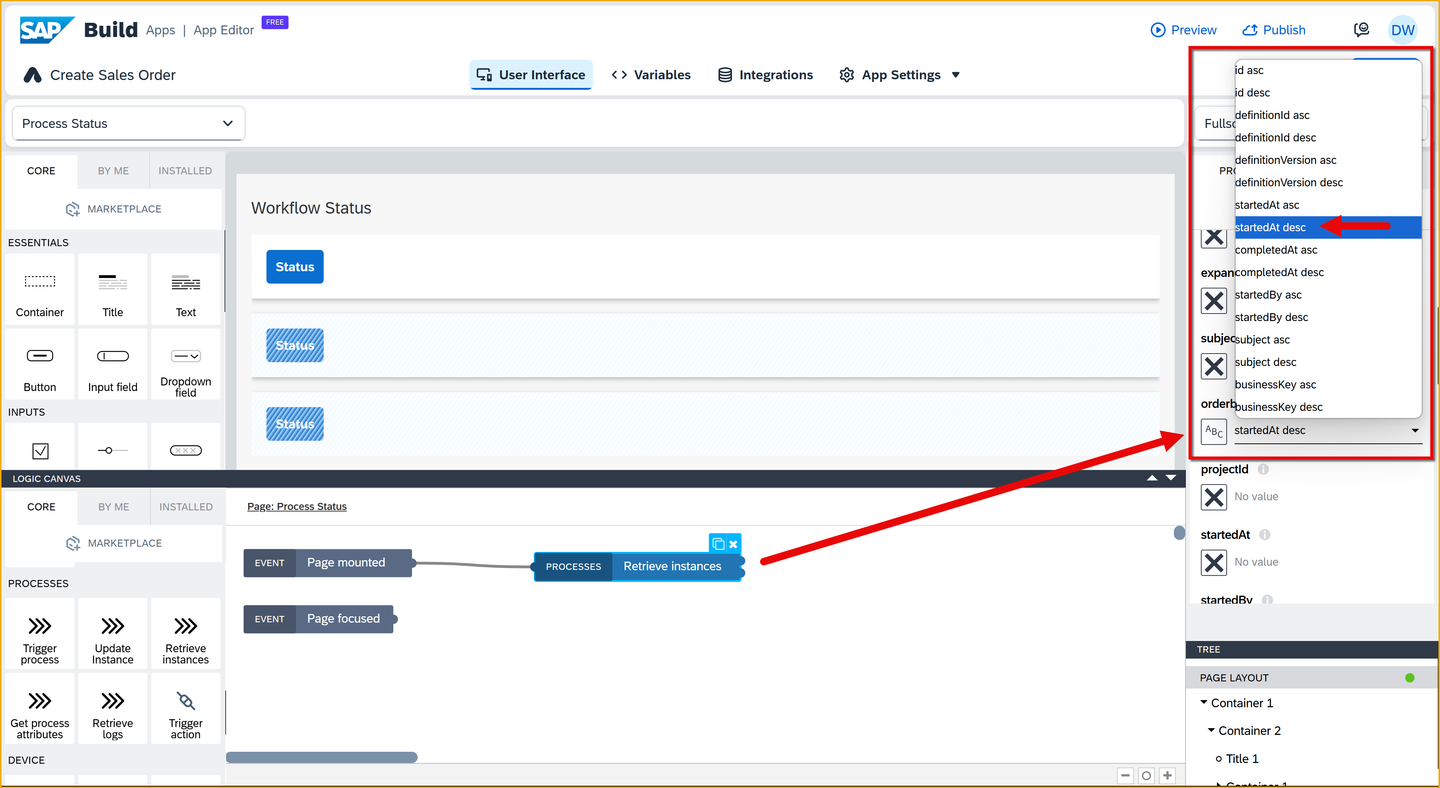
Sort by startedAt Drag a Set page variable flow function and connect it to the top output of the Retrieve instances flow function.

Open page Set Variable Name to processInstances (this should already be set).
Set Assigned Value to Output Value of Another Node > Retrieve Instances > Success.

Open page
You will create navigation so the user can open up the process status page from the home page.
Open the App Settings > Navigation tab.
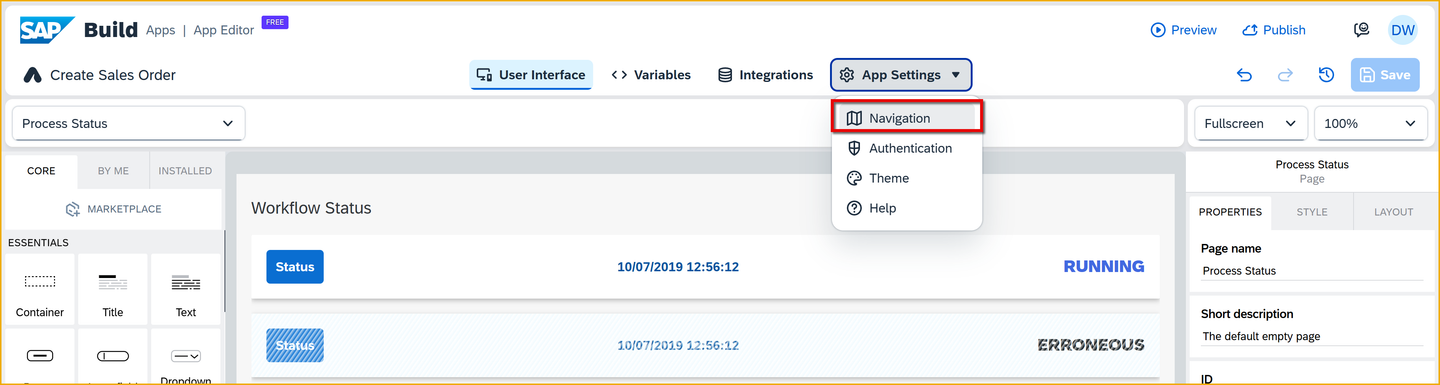
Open navigation Click Add Item. This will add a row to the navigation.
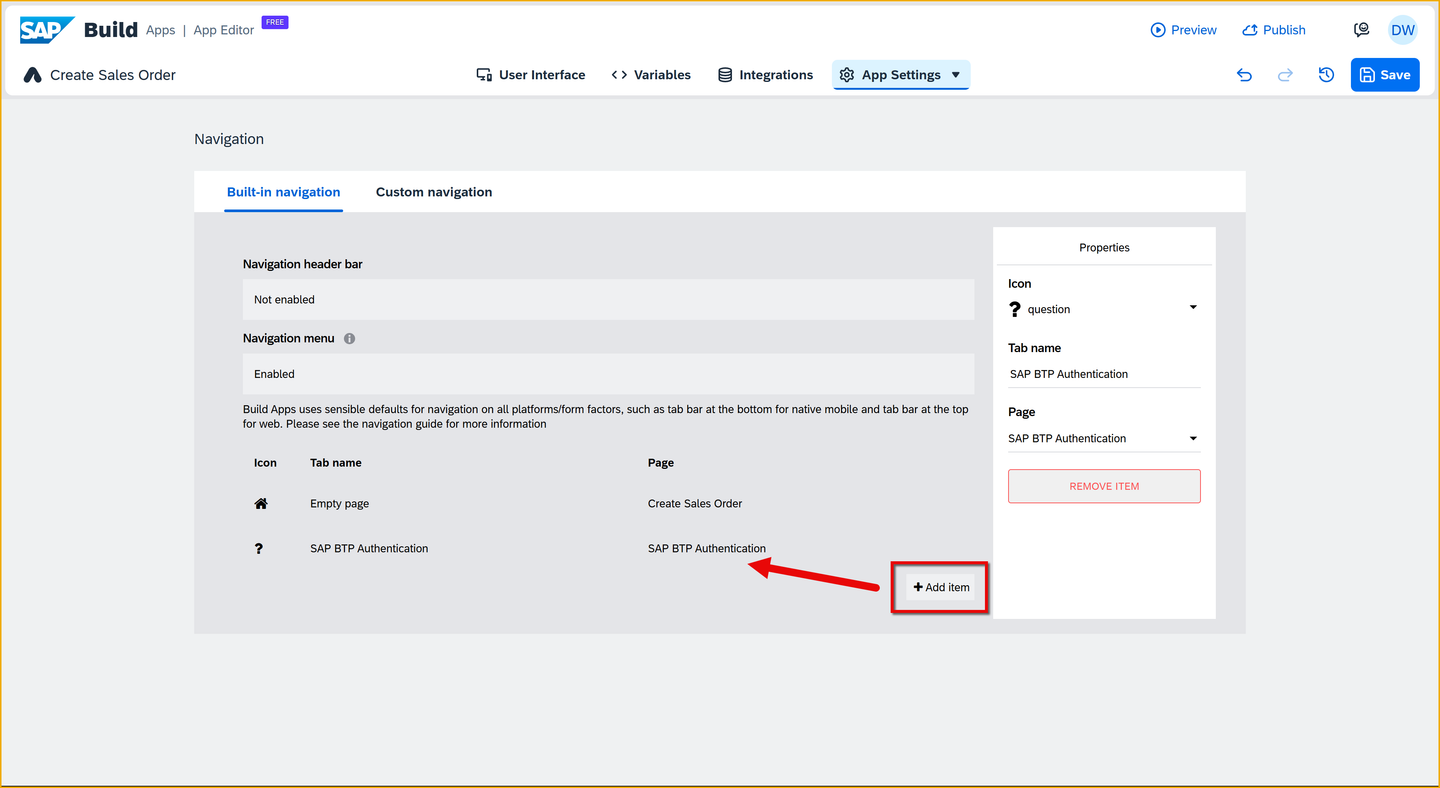
Add navigation Select the new navigation menu item, and set the following in the Properties pane on the right:
Field Value Icon play-circle Tab Name Process Status Page Process Status 
Add navigation Select the Empty Page menu item, and change its Tab name to Home.

Home page Click Save (upper right).
Run the app, and click the new Process Status navigation menu item.
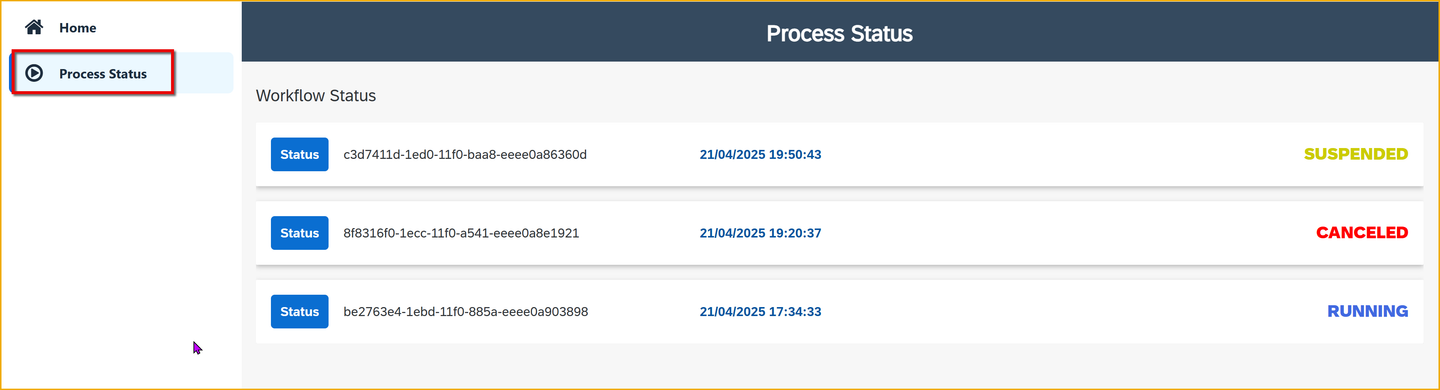
You should now see the process instances that you started. The exact data will depend on how many you created and their statuses.
To get any status that changed, you can just refresh the page. But now you will create logic for the status button to retrieve the latest status for a specific process instance.
Click the User Interface tab.
Make sure you are on the Process Status page.
Click the first Status button, and make sure the logic canvas is open. If it’s not open, click Show logic for Button 1.

Status button logic Under Processes, drag in a Retrieve Instances flow function and connect it to the Component Tap event.
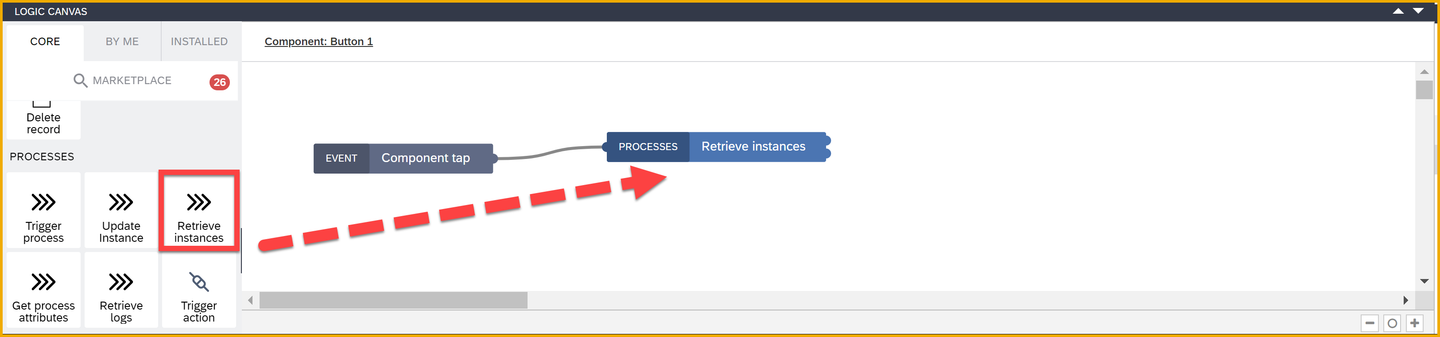
Retrieve instances Set the Process to Order Processing.
Set id to the following formula:
JavaScriptrepeated.current.id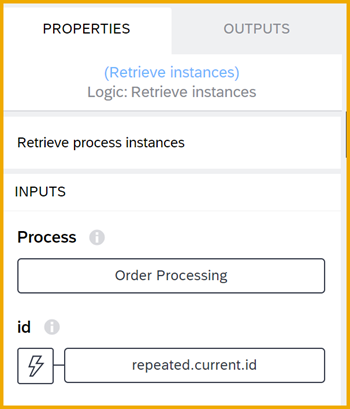
Retrieve instances - properties Drag a Set page variable flow function and connect it to the top output of the Retrieve instances flow function.
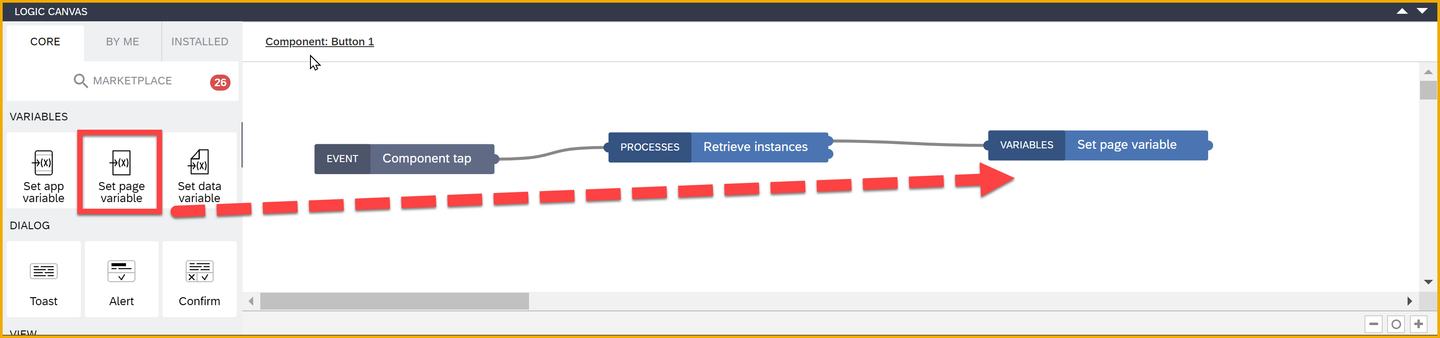
Set page variable Set Variable Name to processInstances.responseArray.
Set Assigned Value to the following formula:
JavaScriptSET_ITEM_AT(pageVars.processInstances.responseArray,repeatedInfo.current.index,SET_KEY(pageVars.processInstances.responseArray[repeatedInfo.current.index],"status",outputs["Retrieve instances"].workflowInstances.responseArray[0].status))
Set page variable - properties
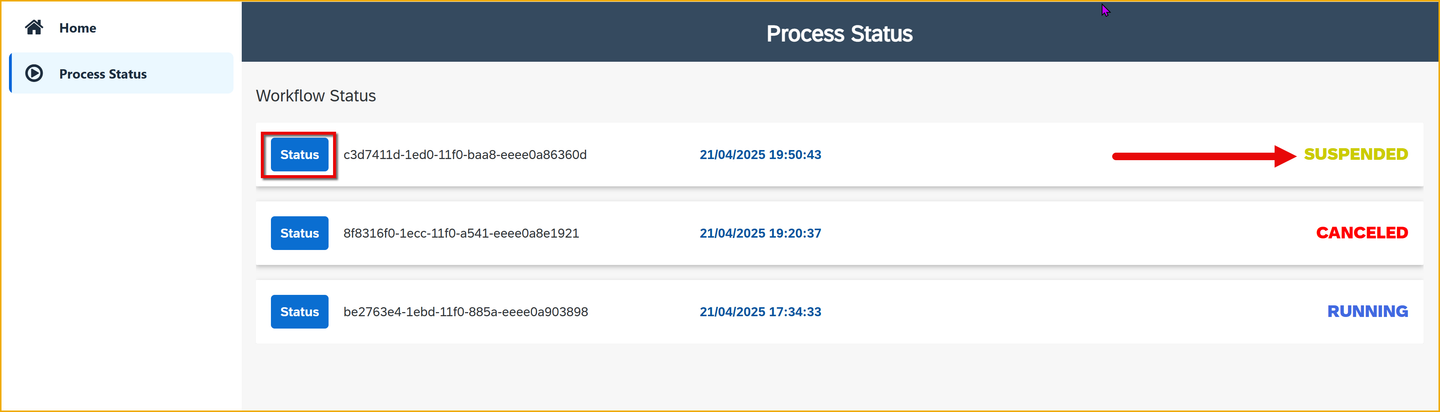
Run the app again (it should refresh on its own), and click the navigation to go to Process Status. You should see something like this.

Go to SAP Build Process Automation, and suspend the process.

Go back to your app and click Status for the process. The status should change to Suspended.
Resources
Discussion
Share feedback on this tutorial or join the conversation in SAP Community.