
Overview
You will learn
- How to create entities in Visual Cloud Functions
- How to create a function in Visual Cloud Functions
- How to deploy your backend project


Prerequisites
Steps
Intro
The application you are building will get business data from the Northwind OData service, but you will also want to create and manage your own data and mash it up in the front end with your business data.
Specifically, you will want to keep track of product ratings, as well as comments about the products.

Go to the SAP Build lobby, and click Create

Select Build an Application.

Select SAP Build Apps, and then Application Backend.

For the project name, enter Social Media Backend, then click Create.
Every time a user rates a single product, we want to store that as a single record in an entity.
In the Entities tab, click Create new.

Rating entity Set the entity title to
Rating, and click Add.Add the following fields to the entity:
Field Type Rating Number RatedBy Text ProductID Text DateCreated Date/time 
Rating fields Click Save App.
Every time a user adds a comment about a product, we want to store that as a single record in an entity.
In the Entities tab, click Create new.
Set the entity title to
Comment, and click Add.Add the following fields to the entity:
Field Type Comment Text ProductID Text CommentedBy Text DateCreated Date/time Click Save App.
We want to create a function that will aggregate the ratings of the products and return a single average rating for each product. If there are no ratings for a product, no record is returned for that product.
Functions are created using the standard SAP Build Apps formula, based on JavaScript syntax.
In the Functions tab, click Create new.
Set the name to
AverageRating, and click Create.
New function Click the + sign in the middle, then List records.
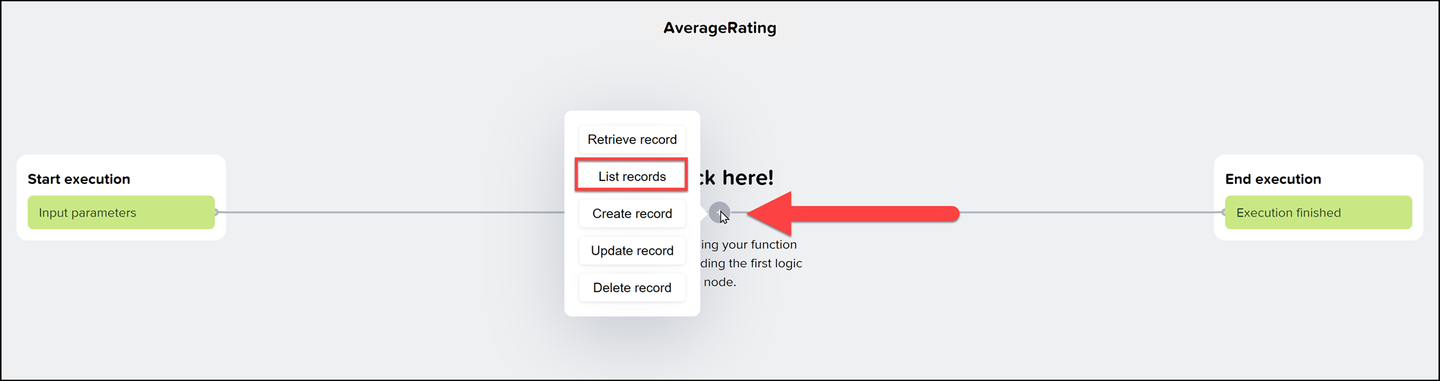
Add entity to function Under Configuration, set the entity to Rating.
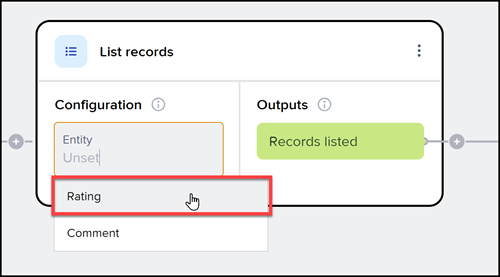
Configuration Click on End execution (on the right), and then on Execution Finished.

Alt text Under Output values, click Add value, and set the the following:
Set Name to
Ratings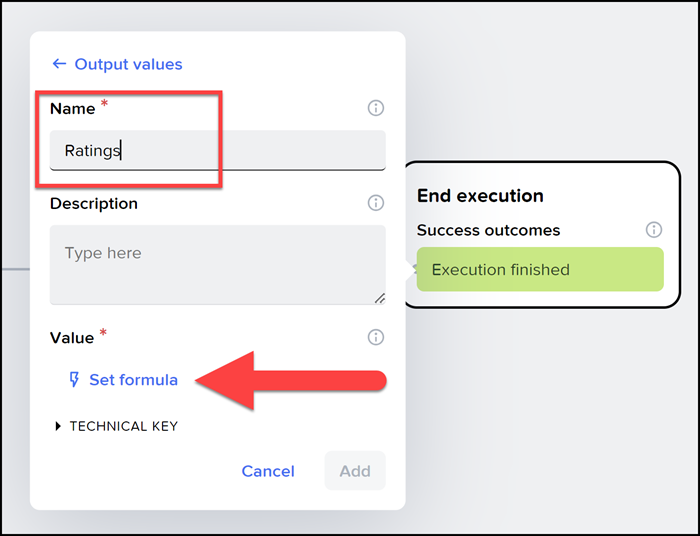
Return values Click Set formula and enter the following formula:
JavaScriptGROUP(outputs["List records Rating / Records listed"].records, item.productId, {productID: key, avg: AVERAGE(PLUCK(items,"rating")), count: COUNT(items) } )
Click Confirm, then click Add, and then Confirm.

Output formula Click Save App.
What the formula does
The
GROUPfunction takes our list of rating records, groups them by the product ID, and creates a new list with one element for each product ID.The object for each product contains the product ID, the average rating for all the ratings for that product, and the number of ratings for that count.
Inputs
On the left, you can define inputs to the function, so the user could send a specific product ID and the calculations could be done only for that product..
In the Deployments tab, click Review and Deploy.
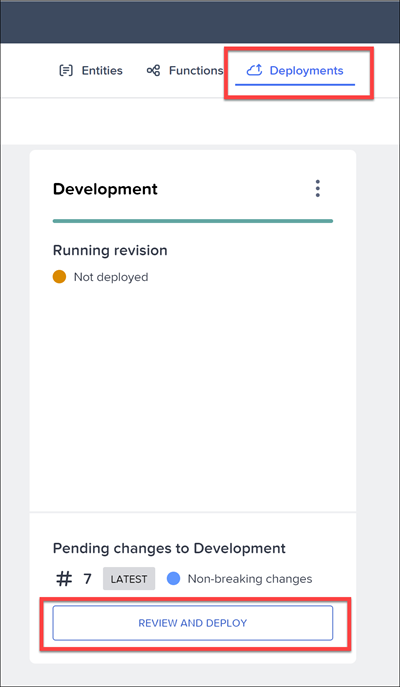
After reviewing the changes, click Deploy to Development.
It should take about a minute or two (going from Not deployed to Missing to Progressing to Healthy status). Once you see Healthy, you can add data to the entities and make calls from your front-end app. We will do this in the upcoming tutorials.
Resources
Discussion
Share feedback on this tutorial or join the conversation in SAP Community.