
Overview
You will learn
- How to subscribe to SAP Document Management Service, Application Option
- How to access the QR code from the SAP Mobile Services
- How to onboard mobile application
- How to create a repository
- How to sync your repositories


Prerequisites
Prerequisites
- You have access to the SAP BTP subaccount.
- You have enabled entitlement for the service Document Management Service, Application Option in the SAP BTP cockpit. For more information about the initial setup, see Subscribing to Document Management Service, Application Option.
- You have administrator privileges to subscribe to services in the SAP BTP subaccount.
Steps
Note: If you have already added the entitlements, you can skip this step.
Enter your Global Account → Account Explorer.
In the Subaccounts tab, choose your subaccount.

Choose Subaccount Click on Entitlements and choose Configure Entitlements(For new account) or Edit (For existing account).

Entitlements Click on Add Service Plans to see all available entitlements.
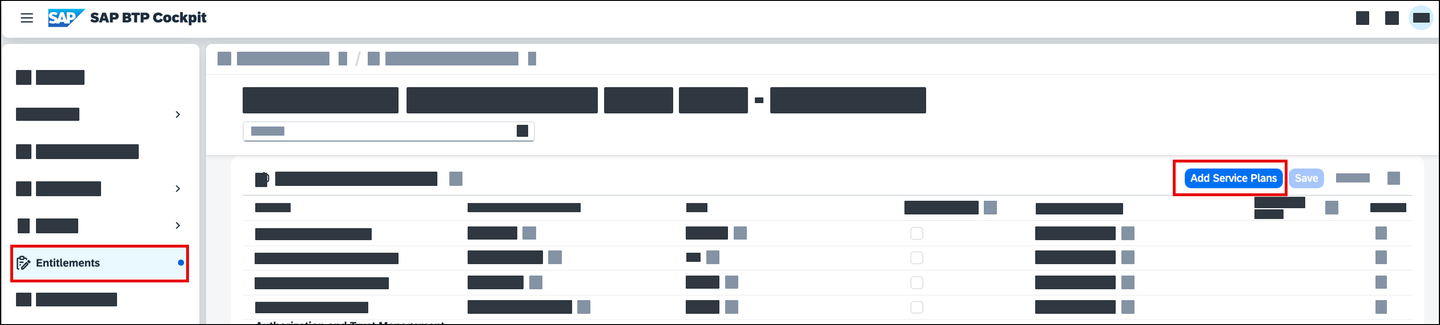
Add Service Plan Use the filter bar to search for
Document Managementto reduce the number of available entitlements. Click the checkbox to select the service plan ‘Standard’. Finally, confirm your selection by clicking onAdd 1 Service Plan.
Add 1 Service Plan Choose Save to confirm your selection.

Save Entitlements
Note: If you have already subscribed to the service, you can skip this step.
Click Service Marketplace on the side navigation pane, search for Document Management Service, Application Option, and click tile.
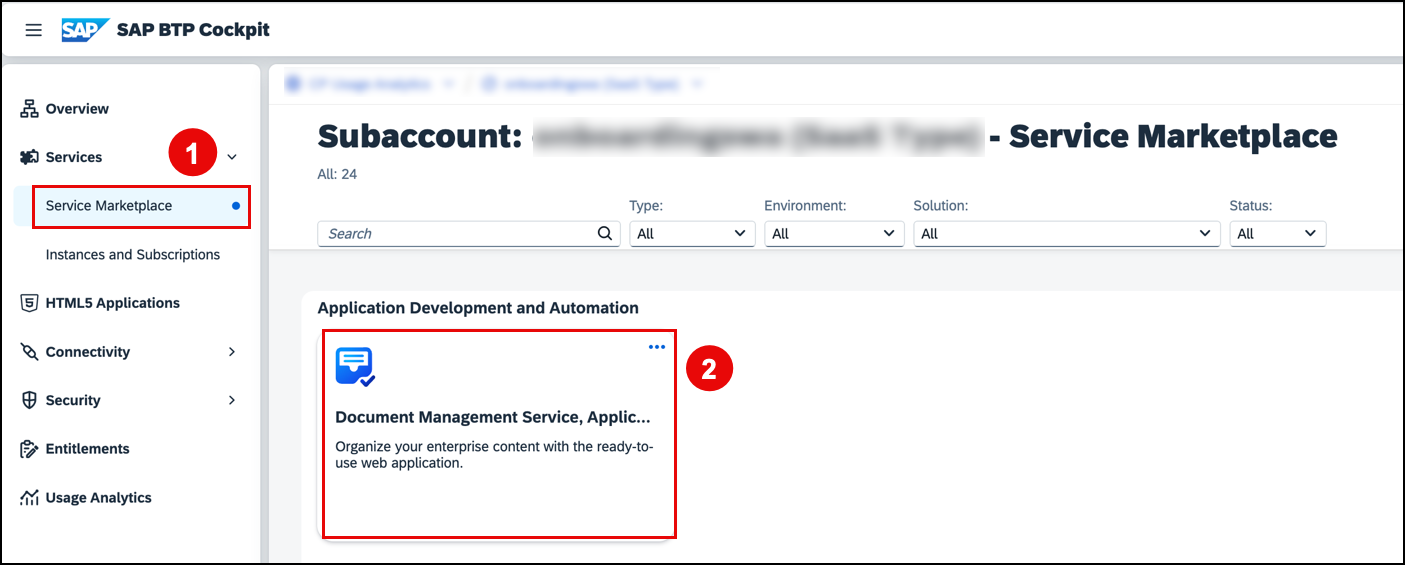
Click Create.

Creating App In the dialog, choose the
Standardsubscription plan and click Create.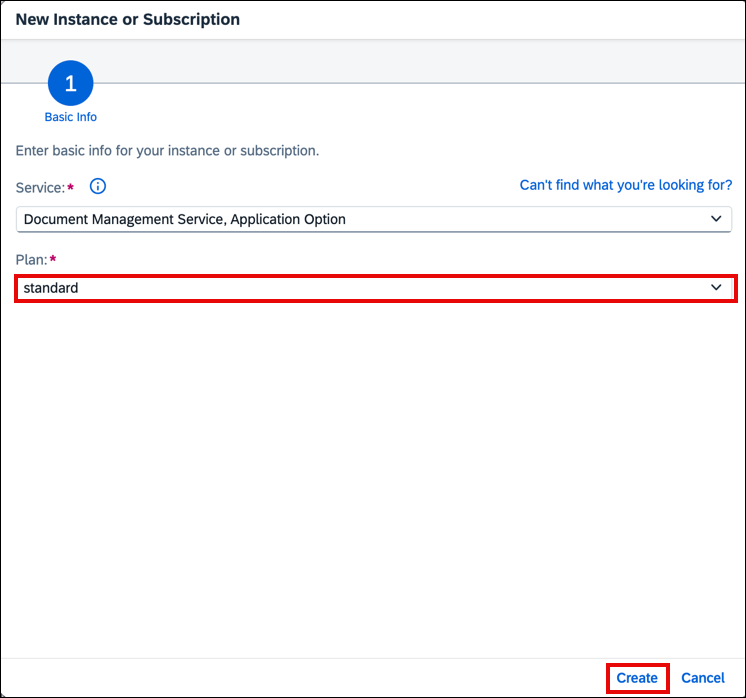
CreateFinal Step Your subscription is being set up. To review your existing subscriptions, choose View Subscription.

CreationProgress
To use the application, ensure that your user account is associated with a role collection that provides the necessary permissions.
Open the SAP BTP cockpit and navigate to your subaccount.
Choose Security → Role Collections, and then choose Create.

Create RoleCollections In the Create Role Collection dialog, enter
Mobile Adminin the Name field and choose Create.
Creation popup Choose the role collection
Mobile Adminfrom the list of role collections and choose Edit on the right.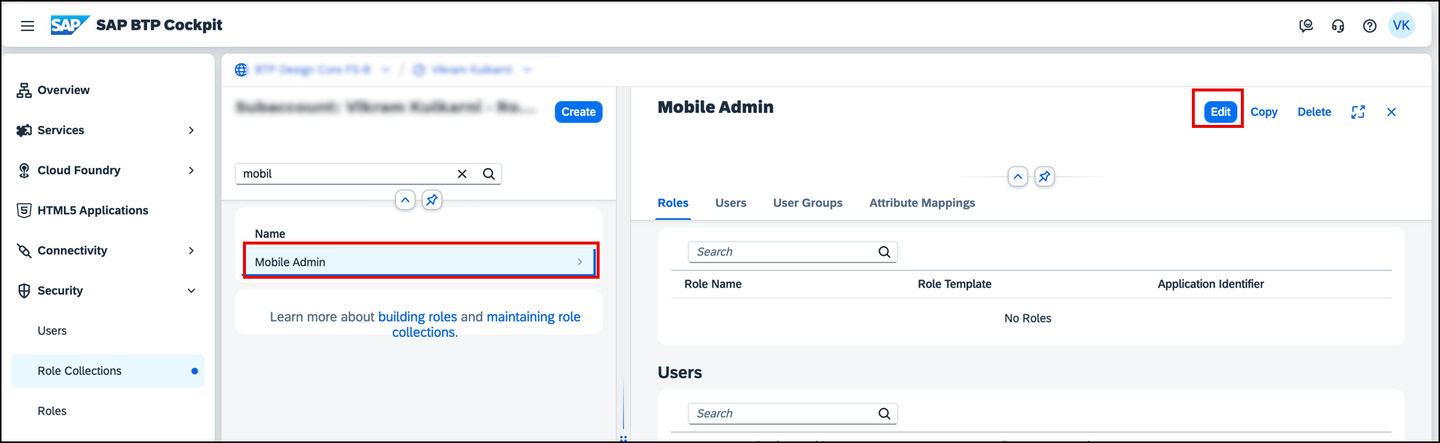
Edit Role Collections Open the value help in the Role Name field.
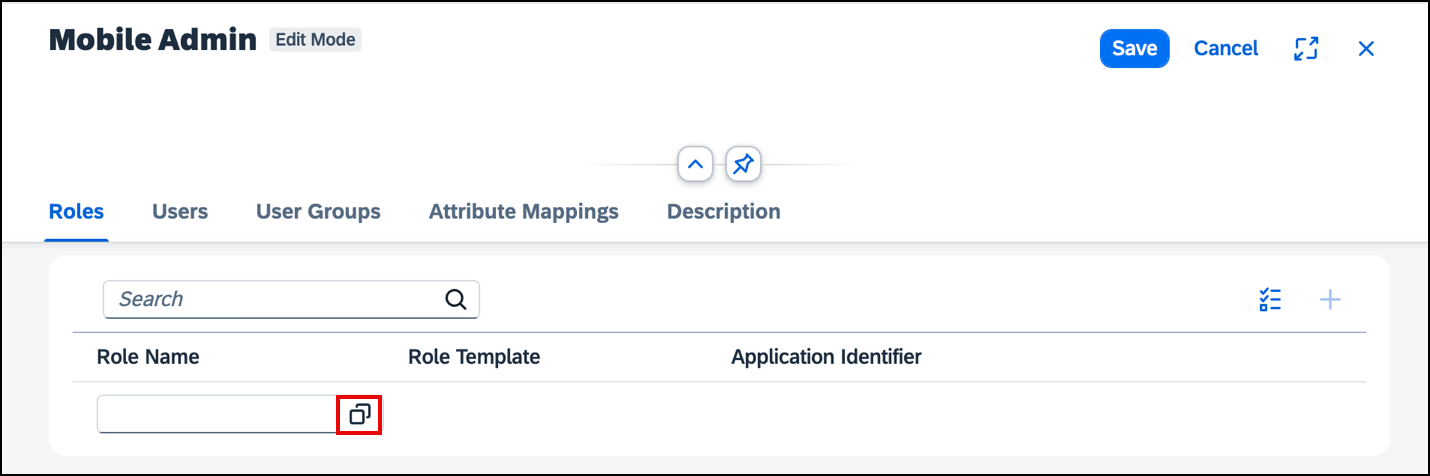
Role Name Search for the role
SDM_MobileAdmin,SDMWeb_Admin, andSDM_Admin, select it, and choose Add.
Role Name Choose Save.
Choose Security → Users, and then choose a user from the available list.
Under Role Collections on the right, choose Assign Role Collection.
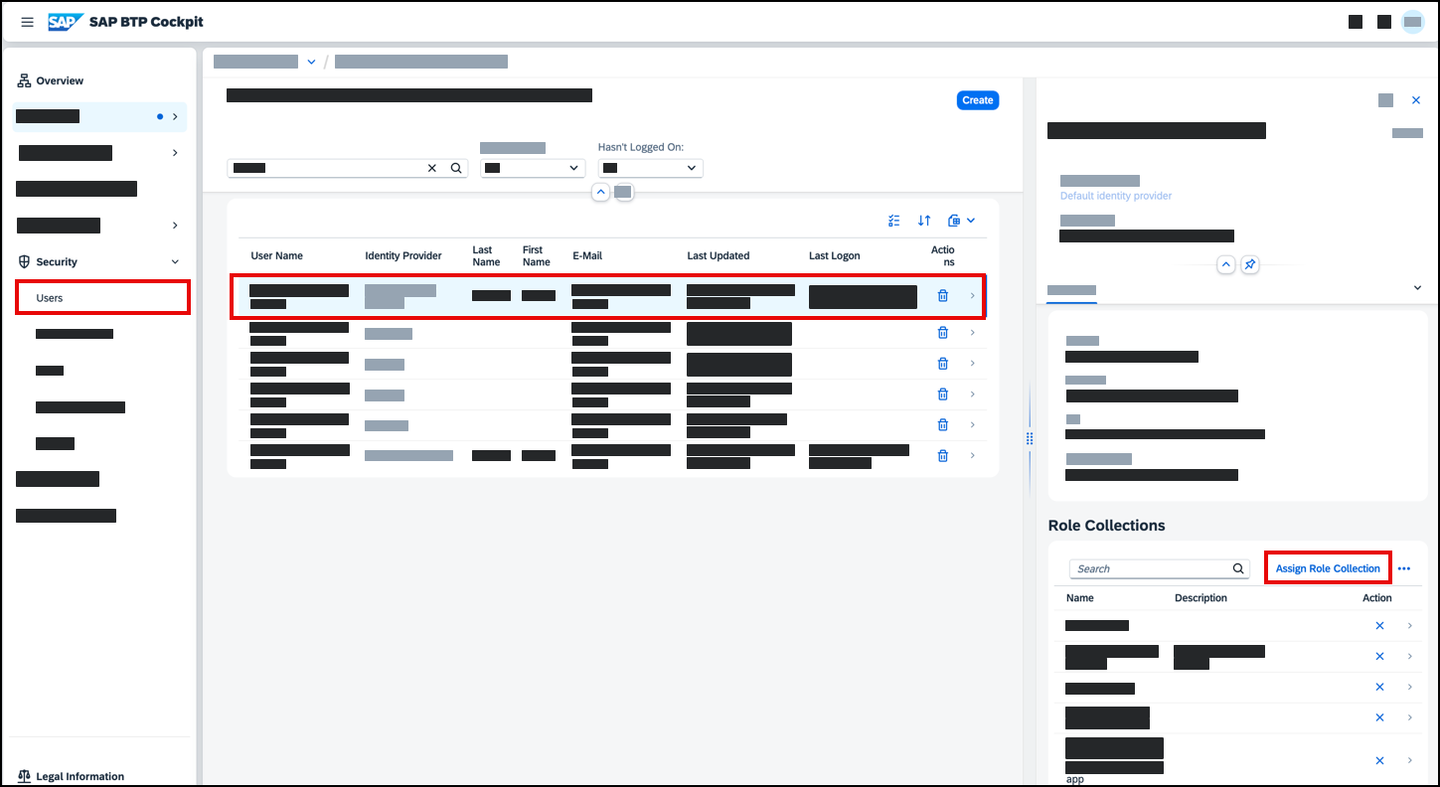
Role Collection to a User In the Assign Role Collection dialog, select the Mobile Admin role collection and choose Assign Role Collection.
You have now assigned the Mobile Admin role collection to your user.
Note: You might need to log out and log back in to make sure your new role collection is taken into account.
In your subaccount, navigate to Services → Instances and Subscriptions, click the button next to Document Management Service, Application Option.
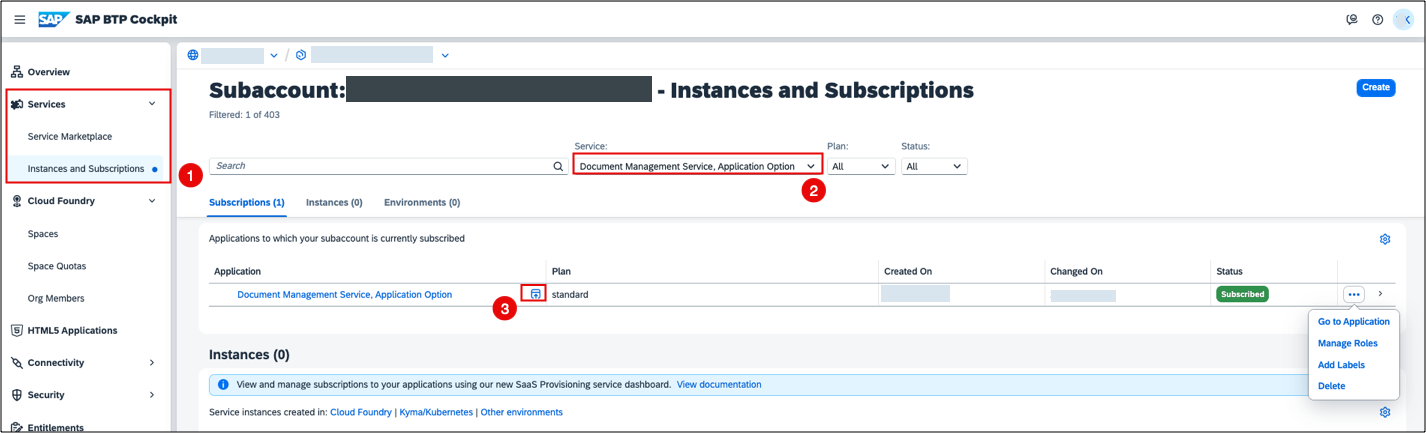
Go To Application in your subbacount Log on and click the Document Management Service Admin.

Accessing Repo Creation Tile Click Add Repository.

Add Repository Choose Internal as a Repository Type, enter the Display Name of your choice, and click Add.

Adding Repository Results: The repository you’ve set up will be available for access via the mobile application in the subsequent steps.
In your subaccount, navigate to Services → Instances and Subscriptions, click the button next to Document Management Service, Application Option.
Go To Application in your subbacount Log on to the application.
Click the Document Management Service Mobile Admin tile.

Admin View On the Getting Started page, click Start Onboarding.

Accessing Onboarding tile Click Mobile Services Cockpit.
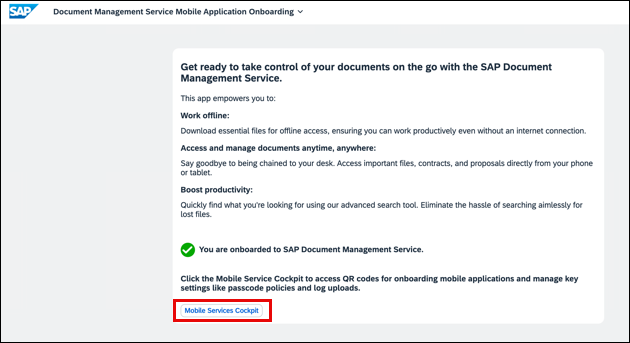
Acccessing Mobile Service Cockpit Navigate to the APIs tab.

Accessing API tab Results: You’ve accessed the QR code. Keep this tab open and proceed with the next step.
Note: If you are planning to test the mobile app with the different users, it’s required to assign the role of
SDM_Userto the respective users within the SAP BTP subaccount.
Download the app. For iOS devices, go to the App Store. For Android devices, visit the Google Play Store.
Start the app.
Click Agree.

End User License Agreement On your device, choose Scan.

Scan QR Code Scan the QR code from the previous step to proceed.

Scanning QR Code Choose Continue.
Continue Screen Results: A repository that you created in the earlier steps is displayed.
To refresh the list manually, pull down on the list and release it.

Repository Lists
Resources
Discussion
Share feedback on this tutorial or join the conversation in SAP Community.