Create JSON Web Token (JWT) to Authenticate Onboarding Repository API
In this tutorial, you follow the steps by using the parameters from the service key of the Document Management Service, Integration Option instance to generate a JSON Web Token (JWT).
✔How to generate JSON web token [ACCORDION-BEGIN [Step 1: ](Get access token details from your service key )] You will need the following values from your service key in order to get your JSON web access token. Navigate to the service that you created in the previous tutorial Create a Service Instance and then a Service Key of SAP Document Management Service, Integration Option. !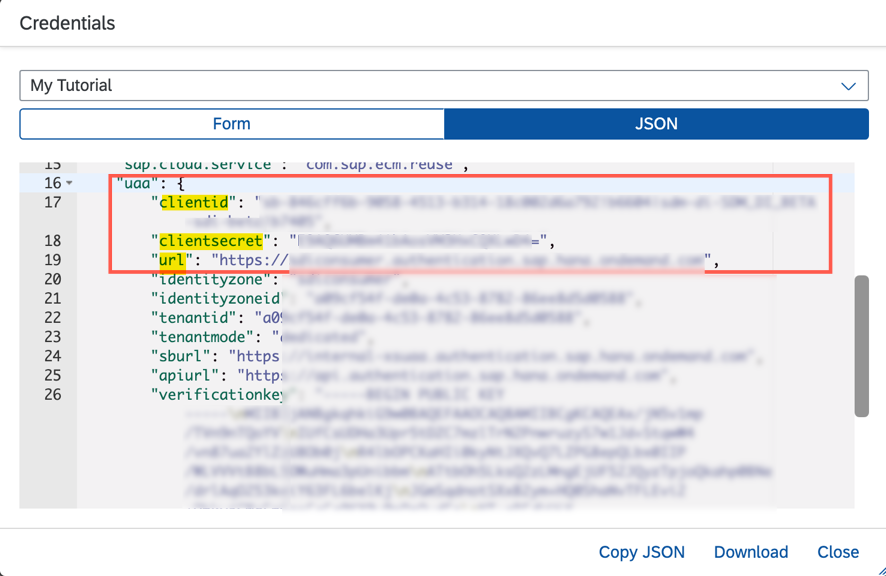 [DONE] [ACCORDION-END] [ACCORDION-BEGIN [Step 2: ](Get JSON web token)] 1. Open the Postman client. Click on New and then select HTTP Request to open a new tab on Postman to work on. !Postman2. Select the POST method and enter the following details: 1. Copy the url from your service key and append this /oauth/token?grant_type=client_credentials&authorities=<AUTHORITIES> 2. Verify that your request URL looks like the following: JSON "url">/oauth/token?grant_type=client_credentials&authorities={"az_attr":{"X-EcmUserEnc":"abc@xyz.com","X-EcmAddPrincipals":"abc" 3. For AUTHORITIES, encode the following values: JSON "az_attr":{"X-EcmUserEnc":"<Your BTP user Email ID>","X-EcmAddPrincipals":"<Your first name>" ! 4. For encoding, you need to select all the values in the authorities field, right click and select the option EncodeURIComponent. !Encoding_Authorities3. Navigate to Authorization tab and enter the following: | Field Name | Value | :————- | :————- | Type | Basic Auth | Username | clientId | Password | clientSecret Click Send. !AuthorizationDetails4. When a successful response is received, the status is 200 OK. Copy the access_token and save it in a secure area. !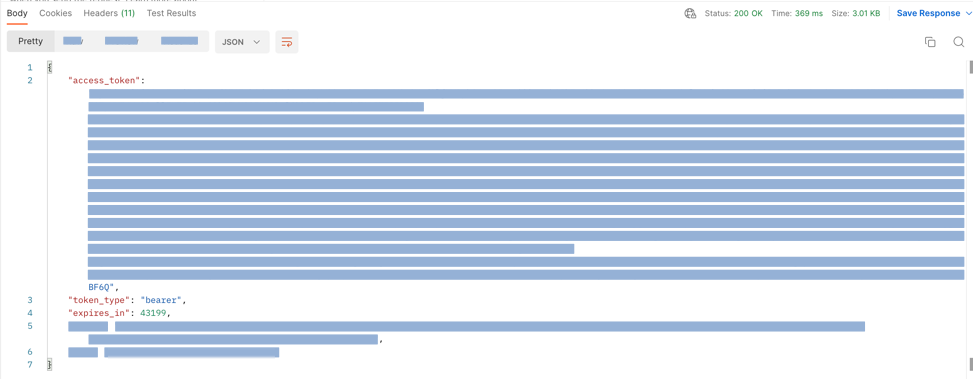 [DONE] [ACCORDION-END] [ACCORDION-BEGIN [Step 3: ](Test yourself)] [VALIDATE_5] [DONE] [ACCORDION-END]
Joule is an AI assistant. Generative AI may produce inaccurate, incomplete, or biased information. Always verify important details before acting on them.
Conversations are sent to SAP-hosted large language models for processing. Do not include personal data, credentials, or confidential information in your messages.
Joule's responses are based on the SAP tutorial catalog and may not reflect the latest product changes. For authoritative guidance, consult the linked tutorials and official SAP documentation.



