✔You can skip this step if you have already published a service group. Services assigned in the backend system to an existing and already published service group are automatically addressable by consumers. >
✔System aliases for OData V4 service groups must be manually created. The steps followed in this tutorial completely depend on your system landscape. [ACCORDION-BEGIN [Step 1: ](Run the transaction “/IWFND/V4_ADMIN”)] Navigate to SAP Gateway Service Administration via transaction /IWFND/V4_ADMIN on the SAP Gateway Foundation Hub and click Publish Service Groups. !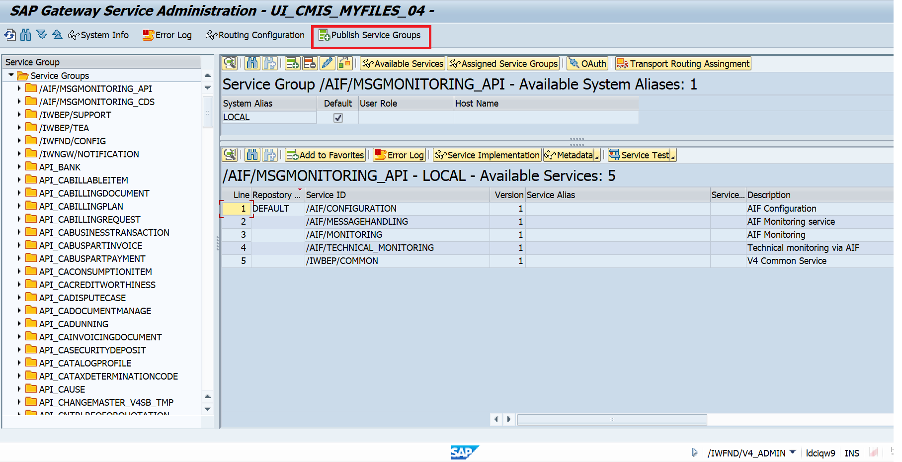 [DONE] [ACCORDION-END] [ACCORDION-BEGIN [Step 2: ](Select system alias)] On the SAP Gateway Service Publishing window, enter the System Alias in the respective field. >Note: It is recommended that a System Alias must be used based on your landscape. !SystemAliasn[DONE] [ACCORDION-END] [ACCORDION-BEGIN [Step 3: ](Get service groups)] 1. Click on Get Service Groups. The first service group ID should appear in the list. >Note: If the group was already published, a message is displayed “Selected service group not found or already published”. !ServiceGroup2. Find Service Group ID as UI_CMIS_MYFILES_04 and select it. !UI_CMIS_MYFILES_043. Choose Publish Service Group. !Step1 Publish_Service_Group4. Choose OK. !Step 2_PG_OK!SuccessMessage[DONE] [ACCORDION-END] [ACCORDION-BEGIN [Step 4: ](Test yourself)] [VALIDATE_6] [DONE] [ACCORDION-END]
You’ve noted down the System Alias of your customer system landscape. System aliases must be assigned to a service group to define communication between the SAP Gateway Foundation hub system and the backend system.
Steps
You will learn
How to publish a service group
Remember:
You can skip this step if you have already published a service group. Services assigned in the backend system to an existing and already published service group are automatically addressable by consumers.
System aliases for OData V4 service groups must be manually created.
The steps followed in this tutorial completely depend on your system landscape.
Step 1Run the transaction "/IWFND/V4_ADMIN"
—
Navigate to SAP Gateway Service Administration via transaction /IWFND/V4_ADMIN on the SAP Gateway Foundation Hub and click Publish Service Groups.
Joule is an AI assistant. Generative AI may produce inaccurate, incomplete, or biased information. Always verify important details before acting on them.
Conversations are sent to SAP-hosted large language models for processing. Do not include personal data, credentials, or confidential information in your messages.
Joule's responses are based on the SAP tutorial catalog and may not reflect the latest product changes. For authoritative guidance, consult the linked tutorials and official SAP documentation.



