
Overview
You will learn
- The basics of OAuth authentication for Cloud Integration, capability of SAP Integration Suite.
- How to configure the authentication workflow with a client certificate provided by SAP
- How to design, deploy, and run a simple integration flow, where a sender system is calling the integration flow using the configured authentication workflow. In the related tutorial Set Up Inbound OAuth Client Credentials Grant Authentication for API Clients with SAP-Generated Certificate, we show you how to configure the same authentication process for API clients calling the Cloud Integration application programming interface.


Prerequisites
Prerequisites
- You have created a trial account on SAP Business Technology Platform: Get a Free Trial Account on SAP BTP
- You have enabled Cloud Integration, capability of SAP Integration Suite, as described in Set Up Integration Suite Trial.
Steps
Intro
To authenticate a sender system to call an integration flow, various authentication options are supported. For more information, see OAuth with Client Credentials Grant for API Clients and OData API.
This tutorial exemplifies a 2-step authentication process. In general, you must configure both requests separately for your sender system.
- In the first call, the sender retrieves an access token from the SAP Business Technology Platform (SAP BTP) token server. For this step, the sender provides a client certificate.
- In the second call, the sender accesses the Cloud Integration runtime and is authenticated based on the access token. When authentication has been established, the integration flow is processed in the Cloud Integration runtime.

The application Postman is used to simulate a sender system.
During the course of this tutorial, you will design a simple integration flow and process the integration flow using the configured authentication option. When the integration flow is processed as expected, this will be the proof that you have configured the authentication setting correctly.
In this tutorial, the application Postman (version v9.16.0) is used as the sender. This Postman version provides a simplified user experience that allows you to configure the 2 requests described above in a single tab.
There are two options to create a client certificate for the first request (addressed at the token server): - Using any tool, for example, KeyStore Explorer - Getting a client certificate and key pair generated by SAP (when creating the associated service key on SAP BTP)
For more information, see Creating Service Instance and Service Key for Inbound Authentication.
In the example scenario, the sender calls the Cloud Integration runtime to process an integration flow.
Define a service instance. With a service instance, you define how to access a certain SAP BTP service. In the context of SAP Cloud Integration, a service instance is the definition of an OAuth client.
In SAP BTP cockpit, select your subaccount.
Go to Instances and Subscriptions.
Click Create to create a new service instance and specify the following settings when creating the service instance.
- Service:
Process Integration Runtime - Plan:
integration-flow - Runtime Environment:
Cloud Foundry - Space: Select the space that hosts your Cloud Integration application (for example, the dev space).
- Instance Name: Specify any name for the instance.

Service Instance Creation - Service:
Select Next.
On the screen “Parameters”, leave the settings as they are. With Roles “ESBMessaging.send” and Grant-types as “Client Credentials”.
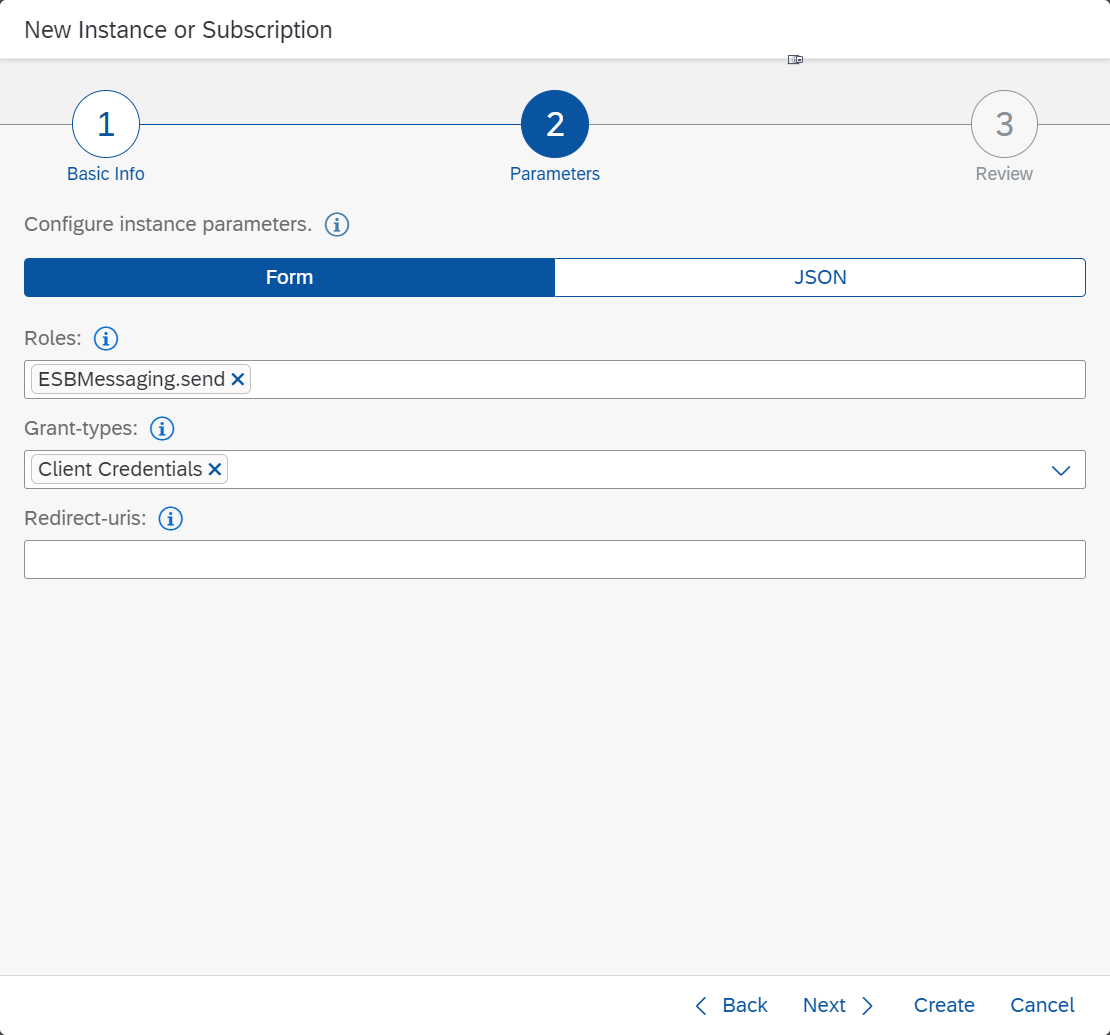
Service Instance Parameters The default role ESBMessaging.send provides permission for the sender system to process integration flows.
Make sure that under Grant-types the Client Credentials entry is displayed.
Tip: You can also use self-defined roles to authenticate sender systems to call integration flows. See: Managing User Roles.
Choose Create.
For further information on creating service instances and service keys, see: Creating Service Instance and Service Key for Inbound Authentication.
You now define a service to go along to your service instance.
On the Instances and Subscriptions screen for your subaccount, select the newly created service instance and choose ….
Click on Create Service Key.

Service Key Creation Specify a service key Name. To use an SAP-generated certificate for the step to retrieve the access token, select
Certificateas Key Type. You can keep the default settings for Validity and Key Size.Click Create.
Next, to display the details of the service key, choose … > View:

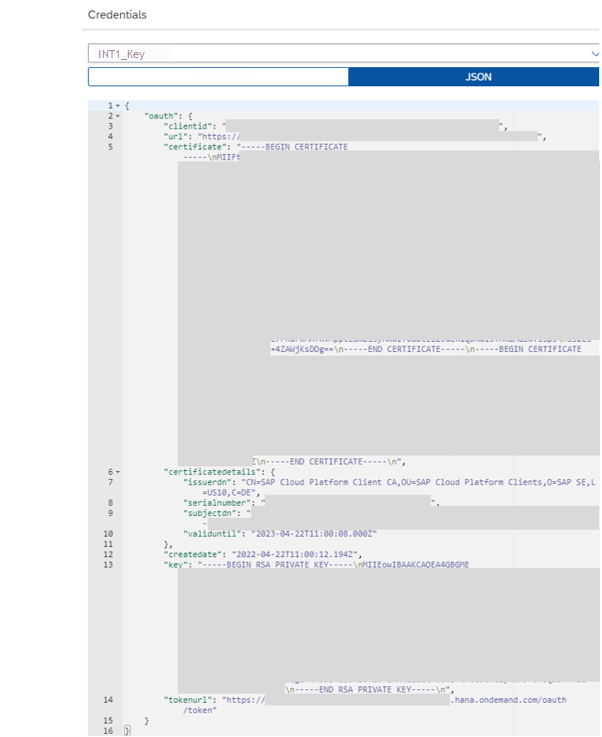
Service Key View Each service key with an SAP generated client certificate contains certain properties. You need the following parts for the configuration of your sender (Postman):
clientid: The user associated with the certificate. You need clientid when configuring the call from Postman.
URL: The URL of the resource you want to call.
certificate: The client certificate including the certificate chain. Note that the content contains multiple certificates in sequence (the beginning and end of each certificate identified with the strings
BEGIN CERTIFICATEandEND CERTIFICATE).key: The private key associated with the certificate. The certificate is generated (together with the private key) by SAP. You need the private key to configure the Postman client later.
token URL: The URL of the component (referred to as token server) that issues the access token.
Example: This is how the JSON representation of the service key looks like when you open it in SAP BTP cockpit:
Upload the public certificate (including chain, content of property certificate from service key) and the private key (content of property key from service key) to Postman.
Copy the value of the certificate property into a text file (for example, Notepad). Make sure that for the certificate you include the whole certificate chain, that means, copy the complete content starting with
-----BEGIN CERTIFICATE-----\n...and ending in-----END CERTIFICATE-----\n.Make sure you have the content transformed into the right format: Replace all
\nin the SAP-generated certificate with line breaks.You can use Word to format the content by using the Find and Replace dialog with the following values (once done, copy the content into the text file):

Word Hint The figure shows the Find and Replace dialog in Word with the following entries:
In field Find what enter \n.
In field Replace with enter ^p.
The correctly formatted content looks like this (beginning of the certificate content):

Certificate Save the text file as file with the extension
.cer, for example,certificate.cer.Repeat the same steps for the key content. Start copying from
-----BEGIN RSA PRIVATE KEY-----\nuntil-----END RSA PRIVATE KEY-----\nand store this as file with extension.key, for examplekey.key.
On your desktop, configure Postman as sender.
To specify the certificates and keys to be used to call the token server (first request), go to the Postman Settings.
Select the Certificates tab and choose Add certificates.

Add Certificates Specify the following parameters:
- Host: Add the URL of the
tokenurlproperty (without thehttps://at the beginning and the/oauth/tokenat the end). - CRT file: Upload the
.cerfile. - KEY file: Upload the
.keyfile.
- Host: Add the URL of the
Design a simple integration flow that does nothing else apart from generating a timestamp and sending the timestamp back to the sender.
If you have configured everything correctly, you receive a response in Postman that contains the actual time in Coordinated Universal Time (UTC) time zone.
Open SAP Integration Suite.
You can open SAP Integration Suite from the Instances and Subscriptions page of your subaccount. Your applications are listed on the page. Next to the Integration Suite application, select the … icon and then choose Go to Application.
Go to Design > Integrations.
If this is the first time you are using your account, you need to create an integration package. If there’s already an integration package, you can open that integration package and skip the steps 3 to 5.
To create an integration package, navigate to the Integrations tab on the left side and select Integrations.
Select Create.
Enter the name and description of the integration package (you can choose any name you want) and Save.

Create Integration Package In your Integration package, choose the Artifacts tab.
Choose Add > Integration Flow. You are now adding an integration flow to your integration package.

Add Integration Flow Specify a name for the integration flow and choose OK. You can use any name. Make sure that the Product Profile is set to Cloud Integration.

Specify Name for Integration Flow Select the newly created integration flow by clicking.
The integration flow model is opened.
Select Edit.
You will notice that on top of the model, the integration flow component palette is activated that allows you to add shapes to the model.

Component Palette Click the Receiver shape and remove it by selecting the recycle bin icon.
You don’t need a receiver component in this integration flow that is why you should delete it.

Receiver Shape Select the Sender shape so that the icons appear next to it - instead can we add the graphic here and remove the bit from ”like” to “before” as shown for the Receiver shape before. Delete the sender shape.
Again, select the Sender shape so that icons appear next to it. Select the arrow icon (as shown in the figure above) and drag and drop it to the integration flow Start shape.

Drag and Drop Arrow Icon A screen where you can select an adapter type opens. Select HTTPS.
In this scenario, the sender system (Postman) calls the integration flow through a basic HTTPS request.

Choose Adapter Type As long as the connection line is selected, you can access the properties sheet of the HTTPS adapter.
Within the configurations for the HTTPS adapter, choose the Connection tab.
For Address enter /GetTimestamp. Keep the other settings (for the parameters Authorization, User Roles, and CSRF Protected) as they are. The role ESBMessaging.send is assigned to the service key.

Connection Tab In the palette on top of the model, select the Message Transformers icon and choose Content Modifier.

Message Transformers Icon Place the cursor on the connection line between the Start and the End shapes to add the Content Modifier element to the integration flow.
In Content Modifier properties sheet below the model, choose the Message Body tab, and in the Body field enter the following expression:
Current time (UTC):
${date:now:yyyy-MM-dd HH:mm:ss}

Body Field The so-configured Content Modifier element creates a message body with the actual timestamp.
The expression ${date:now:yyyy-MM-dd HH:mm:ss} is an Apache Camel Simple language expression. Apache Camel is the open-source component behind Cloud Integration.
See: Using Camel Simple Expression Language.
That’s it, our integration is finished. When everything works well, the integration flow generates the actual timestamp and sends it back to the sender as a response.
Perform the following steps to deploy the integration scenario.
Save the integration flow.
Choose Deploy and confirm on the following screen.
Choose OK.
Go to Monitor > Integrations.

Integration Suite Navigation Select the left tile under Manage Integration Content.
Your deployed integration flow is displayed. You can check if deployment has been performed successfully (which is the expected behavior).
If a deployment error is shown, go back to Design > Integrations and check if the integration flow model can be saved without any errors.
Select the newly deployed integration flow.
In tab Endpoints, you find the endpoint address.

Endpoints Tab Copy the endpoint address to the clipboard. You need it to configure the Postman client.
As described above, in general, you need to configure and run two separate requests for the sender: one request addressed at the token server to get the access token, and another request addressed at the Cloud Integration runtime to call the integration flow. Using Postman, you can specify the settings for the first request as part of the second request in one screen. For more information, see OAuth with Client Credentials Grant for API Clients.
Open Postman.
Create a new GET request. As URL, enter the endpoint address of the deployed integration flow from the previous step.
Go to Authorization and specify the following parameters:
- Type:
OAuth 2.0 - Header Prefix:
Bearer. - Add authorization data to:
Request headers - Token Name: Enter any name.
- Grant Type:
Client Credentials - Access Token URL: Enter the value of the
tokenurlproperty from the service key (ending with/oauth/token). Note that this is the address of the token server called by the first requests. - Client ID: Enter the value of the
clientidproperty from the service key. - Client Authentication: Send client credentials in body.
With these Authorization settings, you’ve configured the first request addressed at the token server explained above.
- Type:
Click Get New Access Token. The access token is fetched from the token server and displayed on the next screen. In other words, the first request is performed.
To use the retrieved access token for the second request (to call the API resource), click Proceed. The request is shown with the access token.
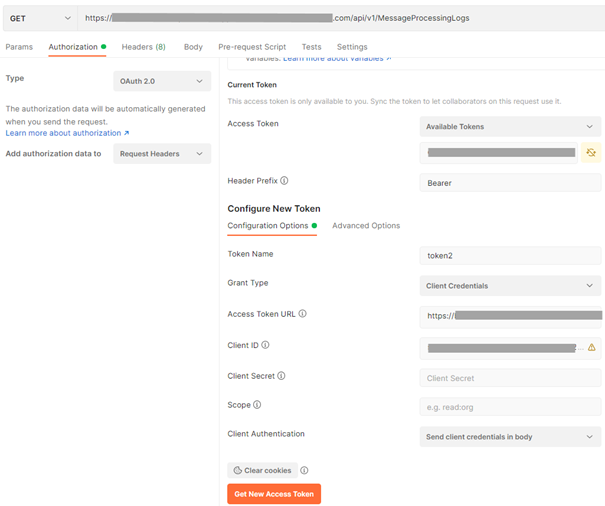
Create Request Click Send. The Cloud Integration runtime is called, and the integration flow is processed. The response is sent back to Postman. The response contains the actual timestamp (in UTC time zone).
So, the next time your watch doesn’t work, you can use this scenario to get the actual time.
Resources
Discussion
Share feedback on this tutorial or join the conversation in SAP Community.