
Overview
You will learn
- How to design and deploy an integration flow using Cloud Integration’s web-based integration flow editor
- How to design an integration flow to fetch data via an API of Open Connectors


Prerequisites
Steps
Back in SAP Integration Suite, go to Design > Integrations and APIs and choose Create to create an integration package.
An integration flow must be associated to an integration package.
On the Header tab, provide a Name and Short Description for your integration package.
The Technical Name gets populated automatically based on the name that you provide.
Choose Save.

Package-Header Choose the Artifacts tab. Here you will create your first integration flow. Choose Add > Integration Flow.
Enter a Name for the integration flow and choose Add and Open in Editor to open directly.

1-4-Integration-Flow Alternatively, choose Add and open the integration flow by selecting it.
Choose Edit to start editing the integration flow.
Choose Restore at the bottom right corner to bring up the Property Sheet. The property sheet is where you configure the parameters for every step in the integration flow.

1-6-Edit-Iflow
During this step, you define your sender channel and sender adapter. We use an HTTPS sender adapter to create a simple HTTP connection to invoke the execution of the integration scenario.
Choose the Sender step. Create the sender channel by clicking the arrow icon on Sender and dragging it to the Start step.

Create the sender channel In the Adapter Type prompt, select the HTTPS adapter.

Select HTTPS adapter On the property sheet, select the Connection tab. In the Address field, enter
/employees/getdetails.Optionally, you can enter any value of your choice, but ensure that you use "/" symbol before specifying the endpoint name. Deselect the CSRF Protected checkbox (this will be selected by default).

Configure HTTPS connection
From the palette, choose Call > External Call > Request Reply.

Select Request Reply Connect it to the message path.

Add request reply
Move the Receiver step right below the Request Reply step by selecting and dragging it. You do this to ensure that your integration flow is elegantly designed.
TIP: Use the pan and zoom controls for resizing the canvas.
Drag the arrow icon on Request Reply to the Receiver step.
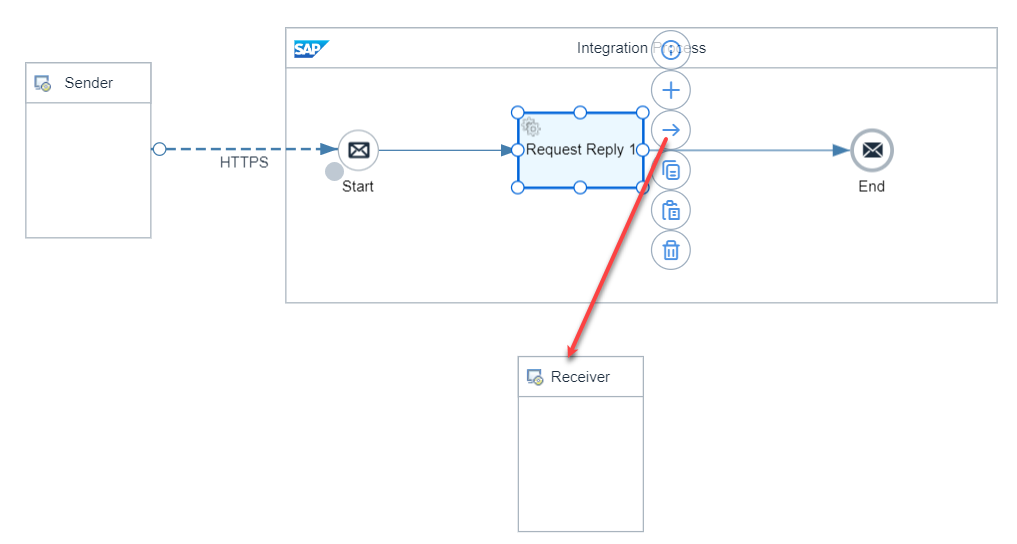
In the Adapter Type dialog, select OpenConnectors.
Select the Connection tab on the Property Sheet.
In the Base URI field, paste the copied request URL from Step 5 of Establish Connection Between Your BambooHR Trial and Open Connectors.
Do not paste the full URL. Paste only till /api-v2. If your request URL is
https://<request-URL>/elements/api-v2/employees, paste onlyhttps://<request-URL>/elements/api-v2.For the Credential Name, choose Select. A list of available user credentials that are applicable for Open Connectors come up. Select the user credential that you created.

4-6-Credential-Name For the Resource, enter /employees.
At this point, Cloud Integration tests the connection to the mentioned Base URI using the mentioned credential name. This is a way for you to check if everything is going as expected. This connection testing helps you choose the right API resource.

4-7-Resource For Method, choose GET operation.

4-8-Connection-Tab Leave the other fields as is. Choose Save to keep all your configuration changes.
Now you have configured the Open Connectors receiver adapter to fetch a list of employees from your BambooHR trial account when you attempt to invoke the HTTP endpoint.
Now that you have designed your integration flow, let’s deploy it for further execution.
Choose Deploy to deploy the integration flow.

5-1-Deploy-Status Choose Yes in the confirmation dialog for deployment.
Upon deployment confirmation, choose the Deployment Status tab on the property sheet.
On the Deployment Status tab, you can see details about the deployment for the integration flow. The expected deployment status is Deployed and runtime status is Started.

5-2-Deployment-Status
Later in the mission, you will use the endpoint of the deployed integration flow. Using Postman, you will invoke the endpoint to fetch data from your BambooHR trial system.
Resources
Discussion
Share feedback on this tutorial or join the conversation in SAP Community.