
Overview
You will learn
- How to consume SAP BTP services running from other environments
- How to use SAP BTP APIs, Service Manager and Service Operator to consume services from other environments


Prerequisites
Prerequisites
- Get an Account on SAP BTP to Try Out Free Tier Service Plans Get an Account on SAP BTP
- You have an account on the SAP Gateway Demo System (ES5) created
- You have connected SAP BTP to your SAP Gateway Demo System (ES5) account
- Install Docker (or any other Container tool).
- You have installed hub (or any other Container Image Library).
- You have installed the Kubernetes Command Line Tool.
- You have installed Service Manager Control (SMCTL) CLI v1.10.1, see Service Manager CLI Release Information published on non-SAP site
- You have assigned the Subaccount Service Administrator role collection, see Assign the Subaccount Service Administrator Collection
- You have the Helm package manager for Kubernetes v3.1.2 installed
- You have a Kubernetes cluster and have downloaded the Kubeconfig file from any hyperscaler:
Steps
Intro
Deploy an SAP Fiori Application in any a hyperscaler, such as Google Cloud Platform (GCP), Amazon Web Services (AWS), Alibaba Cloud or Azure, and still take advantage of the services provided by SAP Business Technology Platform (SAP BTP).
In this tutorial, you use the fioriapp sample application to learn some best practices of setting up your Kubernetes cluster to communicate with SAP BTP so you can learn how to consume SAP BTP services from any hyperscaler.
To configure the access to your Kubernetes cluster, you have to set the KUBECONFIG environment variable to point to the location where the KUBECONFIG file you have downloaded from your Kubernetes cluster. To do that, open a command line prompt on your computer and type in the following command:
Replace
<KUBECONFIG_FILE_PATH>with the file path of the KUBECONFIG file you have downloaded, including the file name and extension.
Open a command line prompt on your computer. In the command line screen, type in the following:
Test the configuration by running this command:
kubectl config get-contextsThis should return a context from the kubeconfig file.
| CURRENT | NAME | CLUSTER | AUTHINFO | NAMESPACE |
|---|---|---|---|---|
| * | #### | #### | ####-token |
Cert-manager is used to set up the certificates needed for internal communication between the Kubernetes API server and the deployment of the SAP BTP service operator in your cluster. For more information about cert-manager, see cert-manager documentation.
Open a command line prompt on your computer and type in the following command:
kubectl apply -f https://github.com/jetstack/cert-manager/releases/download/v1.5.3/cert-manager.yamlConsume services from a global account and a subaccount in SAP BTP.
As subaccounts are bound to specific regions, choose or create a subaccount located close to your Kubernetes cluster to prevent latency drawbacks.
SAP BTP service operator allows you to provision and manage service instances and service bindings of SAP BTP services so that your Kubernetes-native applications can access and use SAP BTP services from the cluster.
Go to https://account.hanatrial.ondemand.com or https://account.hana.ondemand.com and log in to the SAP BTP cockpit.
Choose your global account and then in the Account Explorer page, choose the tile of your subaccount.

subaccount Choose Services > Service Marketplace, and in the Service Marketplace page, choose the Service Manager service tile.
From the Service Manager page, choose Create and follow the steps in the wizard to create a service instance.

servicemarketplace On the Basic Info step:
In the Service dropdown menu, select Service Manager
In the Plan dropdown menu, select service-operator-access
If you can’t see this service plan, you need to entitle your subaccount to use the Service Manager service. For more information about how to entitle a service to a subaccount, see: Configure Entitlements and Quotas for Subaccounts.
In the Runtime Environment dropdown menu, select Other
In the Instance Name field, enter
btpserviceoperator
Choose Create.

instancecreationfinal Choose View Instance

clickviewinstance To create a binding for the
btpserviceoperatorservice instance, choose Create.
bindingcreation In the Binding Name field enter
operatorbindingand choose Create.
clickonbinding Choose View Credentials.

bindingcredentials Copy the credential information by choosing Download or Copy JSON.

bindinginfo This is an example of the binding object created with the default credentials type:
 {
    "clientid": "xxxxxxx",
    "clientsecret": "xxxxxxx",
    "url": "https://mysubaccount.authentication.xxx.hana.ondemand.com",
    "xsappname": "<name>",
    "sm_url": "<service_manager_URL>"
}- Deploy the SAP BTP service operator in the cluster using the obtained access credentials.
Replace the release version of SAP BTP service operator, clientid, clientsecret, sm_url, url with the credentials you have copied from the service binding.
For the list of the available SAP BTP service operator releases, see Available Releases. To know more about SAP BTP service operator, see Consuming SAP BTP Services in Kubernetes with SAP BTP Service Operator.
Test the configuration by running this command
kubectl get pods -n sap-btp-operatorThis should return the status of sap-btp-operator configuration.
| NAME | READY | STATUS | RESTART | AGE |
|---|---|---|---|---|
sap-btp-operator-## | 2/2 | Running | ## | ## |
Login to SAP BTP cockpit to verify cross consumable services from SAP Business Technology Platform (SAP BTP).
Go to https://account.hanatrial.ondemand.com or https://account.hana.ondemand.com and log in to the SAP BTP cockpit.
Choose your global account and then in the Account Explorer page, choose the tile of your subaccount.
subaccount Choose Services > Service Marketplace, and in the Service Marketplace page, choose the Authorization and Trust Management Service service tile.
From the Authorization and Trust Management Service page, verify the cross consumable service plan from
xsuaaservice instance.Based on the environment specified in the respective plan is supported for cross consumable.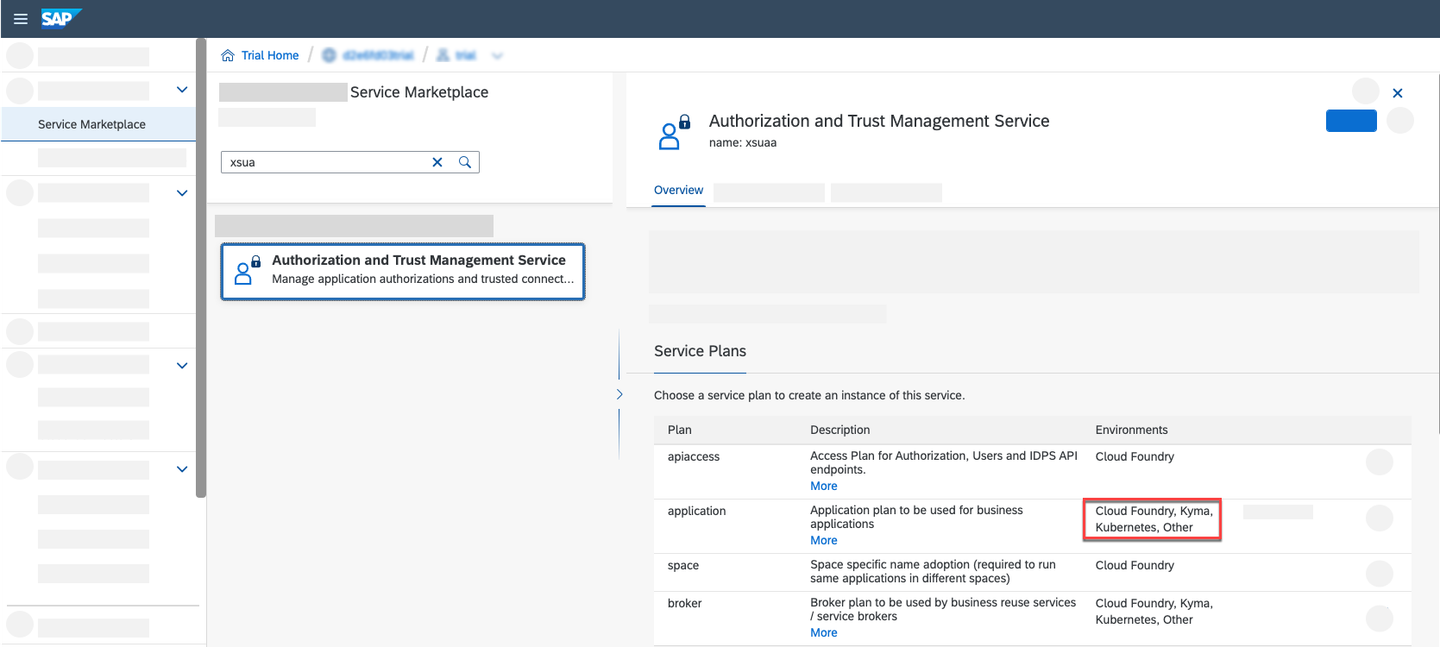
ccservicexsuaa If you can’t see this service plan or service instance , you need to entitle your subaccount to use the respective service and service plan. For more information about how to entitle a service to a subaccount, see: Configure Entitlements and Quotas for Subaccounts.
Login to SAP service manager to verify cross consumable services from SAP Business Technology Platform (SAP BTP).
Execute the following command from your Service Manager Control (SMCTL) command-line interface:
Shell/Bashsmctl login -a https://service-manager.cfapps.<region domain> --param subdomain=<subdomain>To find the region domain for the SAP Service Manager, see Regions and API Endpoints Available for the Cloud Foundry Environment
The subdomain is the subaccount subdomain, in which you would like to register the broker. You can find it in the cloud cockpit Overview tab of your subaccount.

subdomainname Input your user, with an assigned subaccount Service Administrator Role Collection, and your password.
Shell/Bashsmctl login -a https://service-manager.cfapps.<region domain> --param subdomain=<subdomain name> -u <user.email> -p <password>Assign the Subaccount Service Administrator Collection, see the step 2 of the Setup section of The procedure shows how to assign new service administrator role collections to a user of your choice.
Check the cross consumable services by entering the following command:
Shell/Bashsmctl marketplace
crossconsuableservices Based on SAP BTP Entitlements above screenshot may varies.
In the fioriapp sample application, the Destination and the SAP Authorization & Trust Management services will be consumed using the SAP BTP service operator. To use these SAP BTP services you have to create the respective service instances and service bindings. Use the createservice.yaml which will create the destination service instance with plan lite and the xsuaa service instance with plan application.
The hyperscaler applications can be found in the [btp-hyperscaler-extension] (https://github.com/SAP-samples/btp-hyperscaler-extension) repository. Within the repo you can find each of their Deployment files within the respective folder.
Download the code by choosing the green Code button and then choosing one of the options to download the code locally.
You can instead run the following command within your CLI at your desired folder location:
Shell/Bashgit clone https://github.com/SAP-samples/btp-hyperscaler-extensionCreate your own
sapfiorinamespace in your Kubernetes cluster.Shell/Bashkubectl create namespace sapfioricreate the destination service instance with plan lite and the
xsuaaservice instance with plan application by running the below command.Shell/Bashkubectl apply -n sapfiori -f https://raw.githubusercontent.com/SAP-samples/btp-hyperscaler-extension/master/k8s/createservice.yamlThe create service file is represented as declarative YAML object which describes what you want to run inside your namespace. You can find the file at
/btp-hyperscaler-extension/master/k8s/createservice.yaml.Check that the status of the service instance in your cluster by using the following command:
Shell/Bashkubectl get serviceinstances -n sapfioriThis should return the status of created service instances.
NAME OFFERING PLAN STATUS READY AGE destination-instance-fioridestinationliteCreatedTrue##xsuaa-instance-fiorixsuaaapplicationCreatedTrue##To know more about consuming services using SAP BTP service operator Working with SAP BTP Service Operator.
To build and deploy the fioriapp sample application in your cluster, you have to create a pod, which encapsulates the container and ensures that a specified quorum of running instances is fulfilled. To do that, use the deployment.yaml.
Build the docker image of the
fioriapp.cd
btp-hyperscaler-extension/basicfioriappdocker build . -t
<docker-username>/fioriapp-f Dockerfile
Replace
<docker-username>with your usernamePush the docker image of the
fioriappto your Container Image Library.- docker push
<docker-username>/fioriapp
Replace
<docker-username>with your username- docker push
Update the docker image in the
./btp-hyperscaler-extension/k8s/deployment.yamlfile. Line no 21- Replace
<docker-username>with your username
- Replace
Execute the below command to deploy the application into hyperscaler.
Shell/Bashkubectl apply -n sapfiori -f https://raw.githubusercontent.com/SAP-samples/btp-hyperscaler-extension/master/k8s/deployment.yamlThe deployment file is represented as declarative YAML object which describes what you want to run inside your namespace. You can find the file at
/btp-hyperscaler-extension/master/k8s/deployment.yaml.Execute the following command to check the deployed application pod status
Shell/Bashkubectl get pods -n sapfioriThis should return the status of deployed application.
NAME READY STATUS RESTART AGE fioriapp-##-##1/1Running####
Kubernetes provides a convenient way to expose applications. With --type=LoadBalancer you request to provision a public IP address. It will also automatically assign a cluster-IP and a Node Port in the current setup of the cluster.
Execute the below command to deploy the application into hyperscaler.
Shell/Bashkubectl apply -n sapfiori -f https://raw.githubusercontent.com/SAP-samples/btp-hyperscaler-extension/master/k8s/loadbalancer.yamlThe deployment file is represented as declarative YAML object which describes what you want to run inside your namespace. You can find the file at
/btp-hyperscaler-extension/master/k8s/loadbalancer.yaml.To find the deployed load balancer public IP, use the following command:
Shell/Bashkubectl get services -n sapfiori
loadbalancer Copy the load balancer IP and add the port “5000” run in a browser.
Application should return the list of business partners

finaloutput
Kubectl port-forward allows you to access and interact with internal Kubernetes cluster processes from your localhost.The port-forward command specifies the cluster resource name and defines the port number to port-forward to.As a result, the Kubernetes API server establishes a single HTTP connection between your localhost and the resource running on your cluster.Then user is able to engage that specific pod directly, either to diagnose an issue or debug if necessary.
Execute the following command to check the deployed application pod status
Shell/Bashkubectl get pods -n sapfioriThis should return the status of deployed application.
NAME READY STATUS RESTART AGE fioriapp-xx-xx1/1Running####copy the above name of the deployed application
fioriapp-xx-xxShell/Bashkubectl port-forward fioriapp-xx-xx 5000:5000 -n sapfioriRun http://localhost:4004 in your browser
Application should return the list of business partners
finaloutput
Congratulations! You have successfully completed the tutorial.
Resources
Discussion
Share feedback on this tutorial or join the conversation in SAP Community.