
Overview
You will learn
- How to create a project in the SAP Business Application Studio using the project wizard.
- How to use the run configurations.
- How to expose a port for your application.
- How to use the graphical modeling tools, the code editor and the CDS command-line-interface.
- How easy it is to use a database with your CAP service.


Prerequisites
Prerequisites
- You’ve access to the SAP Business Application Studio in a trial account on SAP BTP, see Set Up SAP Business Application Studio for Development
- You’ve created a Full Stack Cloud Application dev space in the SAP Business Application Studio.
Steps
As mentioned in the prerequisites of this tutorial, we assume that you’ve already set up your SAP Business Application Studio and created the needed Full Stack Cloud Application dev space.
If the dev space is not running, you need to start it and enter the SAP Business Application Studio.
The project wizard helps you create a CAP project.
Run the wizard by going to File > New Project from Template and follow the steps.
Select CAP Project and Start the wizard.
Enter
bookshopas the project name and select Minimal Sample. Leave the rest as is.Click Finish.
This opens your new project in a new workspace if you kept the defaults.
You’ve just created a runnable CAP project. Nothing more is needed, it just works. Let’s see it in action in the next step.
If you want to work on your project with others or be able to share your project for any other reason, initialize your project as a Git project. For an introduction to Git have a look at the tutorials based on SAP Web IDE, which is the predecessor of SAP Business Application Studio. It explains the basics nicely.
In the previous step you’ve created an already runnable application. To demo that it’s runnable and to see what’s already available, create a run configuration and run the project.
A run configuration is a collection of settings and files to run/debug your application.
Go to the Run Configurations panel and select Create Configuration.
Choose
bookshop - development profile (CAP).
As of now, there’s only the development profile available. Name your run configuration
Run bookshop-local.Choose Run Module on
Run bookshop-local.
Next to the run configuration at the right side, click the run module button.
Open the URL and look at the application, including the sample data for the Books entity (select Books) that is being served. This is your first, full-fledged OData service created with CAP.
The path (
/catalog) your service is served on, is derived from the name of the service. Learn here, how to override the default.
Now, let’s start to enhance your project, to have a good basis for the upcoming tutorials.
In this step you will add a little more complexity to your data model. Replace the code in db/schema.cds with the following code:
using { Currency, managed, sap, cuid } from '@sap/cds/common';
namespace my.bookshop;

entity Books : managed {
  key ID : Integer;
  title  : localized String(111);
  descr  : localized String(1111);
  stock  : Integer;
  price  : Decimal(9,2);
  currency : Currency;
}

entity Authors : managed {
  key ID : Integer;
  name   : String(111);
}
What is going on?
Besides defining the namespace, you see the using directive at the beginning of your file. This is your way to easily use capabilities and content from other modules or from within your project. Have a look at the documentation for the using directive to learn more.
As books are written by authors you want to add that relationship to your model. You could establish that relationship by adding CDS code to your files. Here you use the graphical modeler inside the studio for that.
Open the context menu on db/schema.cds and select Open With > CDS Graphical Modeler.

Select the Books entity and add a managed association to the Authors entity.

Stick with the defaults and confirm with OK.

Remember to save the file and see the visualization of your modelled association.

As stated before, you could’ve done it in the code editor as well. So have a look in the code editor what has been changed.

You need a second OData service. This additional service is meant for administrators, so that an administrator can see and edit all books and all authors. Here’s how you do it.
Create a file called admin-service.cds in the srv folder and copy this service definition into the file. Remember to save your changes.
using { my.bookshop as my } from '../db/schema';
service AdminService @(requires:'admin') {
  entity Books as projection on my.Books;
  entity Authors as projection on my.Authors;
}
Here you expose the
Authorsentity. TheAuthorsentity is part of your domain model (schema.cds) but isn’t exposed through theCatalogService(cat-service.cds). Whereas theBooksentity is exposed in both services.
Your project is auto-configured by the @cap-js/sqlite plugin. The benefit of this auto-wired configuration is, that it works out of the box. Until now you used the in-memory database automatically when you ran the application. It reflects all changes you do to your data model and sample data on the fly. But it also means that data is reset to the initial .csv content with every restart.
The next step is to have a file-based persistence of your data. And it’s just some configuration you need to add and your application is configured to use a database. That gives you persistent data even though you’re restarting your application. To use persistence also means you explicitly deploy the changes you make, to see them in your application.
First let’s make sure that you know the current state of effective database configuration.
Open a terminal by going to Terminal > New Terminal and execute the following:
Shell/Bashcds env requires.dbThe response should look as follows:
Shell/Bash{ impl: '@cap-js/sqlite', credentials: { url: ':memory:' }, kind: 'sqlite' }You see, that the current configuration uses an in-memory database. Let’s change that.
Add the needed configuration for a file-based SQLite database to your
package.json.JSON"cds": { "requires": { "db": { "kind": "sqlite", "credentials": { "url": "db.sqlite" } } }}Go to your terminal and deploy your data to a file-based SQLite3 database.
Shell/Bashcds deployThis creates a file called
db.sqliteand deploys the data into this file.Stop and then start your application in debug mode by going to View > Debug.
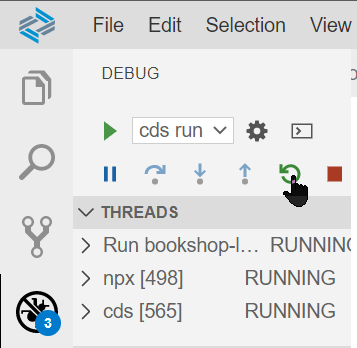
The Debug panel with a pointer to the restart button. Refresh the browser tab of your application and navigate to the
Booksentity in theCatalogService.
The data you see is now served from the file db.sqlite and is located in the root of your folder. The next step includes a proof that the file-based persistence is used.
To have some sample data for the data model you’ve just created, you create the needed files and then copy csv content over.
cds add dataThis adds csv files with a single header line for all entities to the db/data/ folder. The name of the files matches the entities’ namespace and name, separated by -.
Open
my.bookshop-Books.csvin thedb/datafolder and replace the content.The filename is important to make use of a default to pick up sample data.
CSVID,title,descr,stock,price,currency_code,authors_ID 201,Wuthering Heights,"Wuthering Heights, Emily Brontë's only novel, was published in 1847 under the pseudonym ""Ellis Bell"". It was written between October 1845 and June 1846. Wuthering Heights and Anne Brontë's Agnes Grey were accepted by publisher Thomas Newby before the success of their sister Charlotte's novel Jane Eyre. After Emily's death, Charlotte edited the manuscript of Wuthering Heights and arranged for the edited version to be published as a posthumous second edition in 1850.",12,11.11,GBP,101 207,Jane Eyre,"Jane Eyre /ɛər/ (originally published as Jane Eyre: An Autobiography) is a novel by English writer Charlotte Brontë, published under the pen name ""Currer Bell"", on 16 October 1847, by Smith, Elder & Co. of London. The first American edition was published the following year by Harper & Brothers of New York. Primarily a bildungsroman, Jane Eyre follows the experiences of its eponymous heroine, including her growth to adulthood and her love for Mr. Rochester, the brooding master of Thornfield Hall. The novel revolutionised prose fiction in that the focus on Jane's moral and spiritual development is told through an intimate, first-person narrative, where actions and events are coloured by a psychological intensity. The book contains elements of social criticism, with a strong sense of Christian morality at its core and is considered by many to be ahead of its time because of Jane's individualistic character and how the novel approaches the topics of class, sexuality, religion and feminism.",11,12.34,GBP,107 251,The Raven,"""The Raven"" is a narrative poem by American writer Edgar Allan Poe. First published in January 1845, the poem is often noted for its musicality, stylized language, and supernatural atmosphere. It tells of a talking raven's mysterious visit to a distraught lover, tracing the man's slow fall into madness. The lover, often identified as being a student, is lamenting the loss of his love, Lenore. Sitting on a bust of Pallas, the raven seems to further distress the protagonist with its constant repetition of the word ""Nevermore"". The poem makes use of folk, mythological, religious, and classical references.",333,13.13,USD,150 252,Eleonora,"""Eleonora"" is a short story by Edgar Allan Poe, first published in 1842 in Philadelphia in the literary annual The Gift. It is often regarded as somewhat autobiographical and has a relatively ""happy"" ending.",555,14,USD,150 271,Catweazle,"Catweazle is a British fantasy television series, starring Geoffrey Bayldon in the title role, and created by Richard Carpenter for London Weekend Television. The first series, produced and directed by Quentin Lawrence, was screened in the UK on ITV in 1970. The second series, directed by David Reid and David Lane, was shown in 1971. Each series had thirteen episodes, most but not all written by Carpenter, who also published two books based on the scripts.",22,150,JPY,170Open
my.bookshop-Authors.csvfile in thedb/datafolder and replace the content.CSVID,name 101,Emily Brontë 107,Charlotte Brontë 150,Edgar Allen Poe 170,Richard CarpenterIn the previous step we switched to a file-based persistence. That means you can’t see your sample data in your application without deployment. And as we didn’t deploy the sample data until now, you can restart your running application and still see the initial sample data.
To see your recent changes, you need to deploy your data using
cds deploy.Go to the debug panel with View > Debug and restart the app.
The Debug panel with a pointer to the restart button. There is a convenient shortcut that removes the need to restart the app with every change: Execute
cds watchin the terminal. Callcds help watchin the terminal for more information.Open the application and refresh or select Open in New Tab from the prompt in the bottom right corner of the UI.
Select
Booksand see that the newly changed model and its sample data is served as part of yourCatalogServiceservice.
The sample data returned by the locally running service. The JSON displayed here, is formatted by a browser extension.
The
CatalogServicedefined in thecat-service.cdsfile in thesrvfolder remains unchanged.
You’re set up with a basic CAP project showing some important features that make the CAP model so valuable. And you got in touch on some of the nice SAP Business Application Studio features. The next tutorial of this series gives you more details and encourages you to play around with those CAP and studio features.
Resources
Discussion
Share feedback on this tutorial or join the conversation in SAP Community.