
Overview
You will learn
- How to set up SAP Business Application Studio


Prerequisites
Prerequisites
- You have an SAP BTP Trial account (Get a Free Account on SAP BTP Trial)
Steps
Intro
The main focus of this tutorial is setting up SAP Business Application Studio in the trial environment.
For setting up SAP Business Application Studio in an enterprise account, refer to the Set Up SAP Business Application Studio topic of the SAP Business Application Studio Administrator Guide.
In an enterprise account you can set up SAP Business Application Studio as a free-tier service by selecting the free plan during entitlement configuration.
Go to https://account.hanatrial.ondemand.com and log in to your SAP BTP cockpit.
You might be asked to accept the legal terms. Check the box and click Accept.

BTPlegalterms
Click Go To Your Trial Account to open the list of available trial subaccounts.

enter your trial account Select the subaccount you want to use for this tutorial.
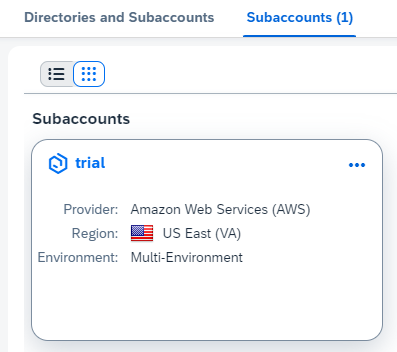
select subaccount In the overview page, check that Cloud Foundry is enabled.
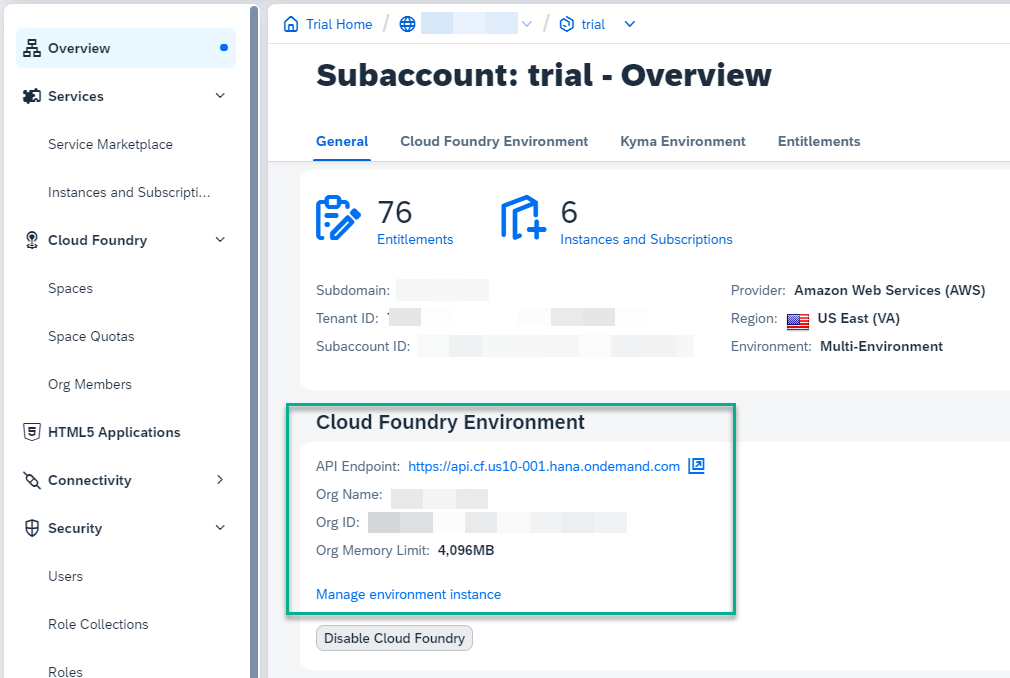
Cloud Foundry Enabled If Cloud Foundry is not enabled, press the Enable Cloud Foundry button.
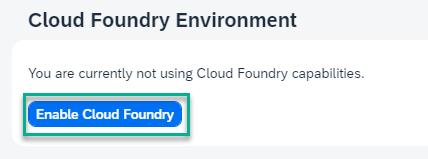
Enable Cloud Foundry
Go to Entitlements.

Entitlements Make sure the entitlements listed below are added. If you can’t find the entitlements make sure to add them as described here: Setting Up Your Trial Account | SAP Help Portal.
Authorization and Trust Management Service – add all 4 plans.

Entitlements SAP Build Work Zone, standard edition – add the following two plans:

Entitlements SAP Business Application Studio - add the following plan:

Entitlements
Go back to Trial Home.

TrialHome Click SAP Business Application Studio to launch SAP Business Application Studio.

launch sap business application studio When you create a new trial account, you are subscribed to SAP Business Application Studio by default.
If you receive an error message, we recommend that you recreate your account: delete the account and then Get a Free Account on SAP BTP Trial.
Important: If you receive an error message but your account was not created recently, you need to add a subscription to SAP Business Application Studio. Answer the validation question of the current step, go to the next step in this tutorial, and proceed from there.
You might be asked to accept the legal terms. Check the box and click OK.

legalterms A new tab opens. If you have not created a dev space, the welcome page for SAP Business Application Studio loads.

sap business application studio welcome If this is not the first dev space, the dev space manager for SAP Business Application Studio opens.

Create Dev Space Click My Dev Spaces to open the SAP Business Application Studio dev space manager page.

sap business application studio welcome Dev space manager for SAP Business Application Studio
sap business application studio dev space manager Create a bookmark to this page to make it easy for you to get back to SAP Business Application Studio later.
>If you reached this point in the tutorial, you have successfully on-boarded SAP Business Application Studio. Answer the validation question of the current tutorial step and mark the rest of the steps as "Completed".
Depending on when you created the SAP BTP Trial account, this subscription might already be added to the subaccount. If you are not subscribed to SAP Business Application Studio, follow this step to add the SAP Business Application Studio subscription to a subaccount.
Click Enter Your Trial Account to access the Cloud Foundry environment.

Access SAP BTP Trial Select the tile of the subaccount in which you want to enable the SAP Business Application Studio subscription.
For the trial environment, SAP Business Application Studio is only available on:
- Amazon Web Services (AWS) - US East (VA) region (US10 trial).
- Microsoft Azure - Singapore region (AP21 trial).
An updated list of regions is available in SAP Discovery Center > Service Plan > Trial.
When creating an SAP BTP Trial account a trial subaccount is generated.

subaccount From the navigation area, click Service Marketplace.

opensubscriptions In the Service Marketplace page, search for
studio.
filterservice Click the Actions icon (three dots) to open the list of available actions.

subscribe Click Create to launch the wizard for subscribing to SAP Business Application Studio.

subscribe In the wizard verify that
SAP Business Application Studiois selected in the Service field andtrialis selected in the Plan field.
subscribewizard Click Create to subscribe to SAP Business Application Studio.
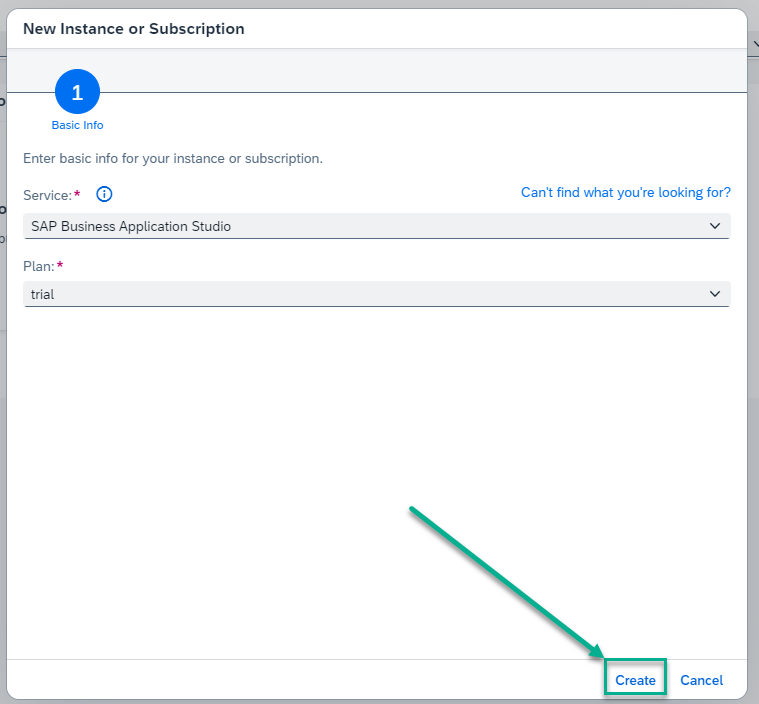
subscribewizard A Creation in Progress popup appears. Click View Subscription to view the SAP Business Application Studio subscription in the Instances and Subscriptions page.

subscriptioninprogress
Click Go to Application.

gotoapplication You might be asked to accept the legal terms. Check the box and click OK.
legalterms An Access Denied page may appear. Log out from SAP Business Application Studio and then log in as shown here.

Logout 
Login Enter your credentials, and click Log On.
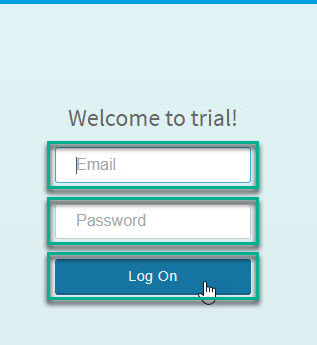
authentication You might be asked to accept the legal terms. Check the box and click OK.
legalterms A new tab opens and the welcome page for SAP Business Application Studio opens.
sap business application studio welcome Click My Dev Spaces to open the SAP Business Application Studio dev space manager.
sap business application studio welcome Dev space manager for SAP Business Application Studio
sap business application studio dev space manager Create a bookmark to this page to make it easy for you to get back to SAP Business Application Studio later.
Congratulations!
With this, you have successfully completed the setup of SAP Business Application Studio.
Resources
Discussion
Share feedback on this tutorial or join the conversation in SAP Community.