
Overview
You will learn
- How to create an SAPUI5 application for SAP BTP, Cloud Foundry environment
- How to test-run the app locally in the dev space


Prerequisites
Prerequisites
- You have created an SAP Fiori dev space in SAP Business Application Studio. See Create a preconfigured dev space for developing SAP Fiori apps.
- The SAP Fiori dev space is in status
RUNNINGand you have opened it. - You configured a destination to SAP Gateway Demo System (ES5) (see Connect SAP BTP to Your SAP Gateway Demo System Account (ES5)).
- The SAP Fiori dev space is in status
Steps
Intro
You’ll build an application that presents a list of suppliers from an on-premise backend. The suppliers’ data will be retrieved from the BusinessPartnerSet collection in the ZGWSAMPLE_BASIC OData service that is available from SAP’s ES5 demo Gateway system.
The flow consists of the following parts:
Running a wizard that creates a multi-target application (MTA) project that is configured to use Managed Application Router. An MTA is required in order to create the deployment artifact for SAP BTP, Cloud Foundry environment. If you are not familiar with the MTA concepts, read this guide. A Managed Application Router is SAP’s best practice for applications that run on SAP BTP and is required in order to include the app in SAP launchpad. To learn more about Managed Application Router, read this guide.
Running a wizard that generates the app based on the SAPUI5 Application template. The app is generated as an HTML5 module within the MTA.
Enhancing the application by creating the UI and presenting data fetched from an SAP backend.
Important
After a period of idle time the dev space is automatically stopped. In order to restart the dev space, open the dev space manager, click the Play icon, and - when the dev space is running again - click the dev space.
The period of idle time for enterprise accounts is different than for trial accounts.
In the left-hand sidebar of SAP Business Application Studio, select the hamburger icon | File | Open Folder… to open the Open Folder dialog.

open workspace dialog The Open Folder dialog opens at the center of the SAP Business Application Studio window. First, select the projects entry.
Then click OK.

open workspace dialog In the project explorer, select New Folder… to create a new folder for your project. Insert
FioriDemoas folder name.
open workspace dialog
In the Get Started tab, click New Project from Template.

launch generate app If the Get Started Page does not appear, in the left side bar, select the hamburger icon | Help | Get Started.

Welcome Page from help menu The easiest way to develop an SAPUI5 freestyle app from scratch is to create it from a template. To continue developing an existing application, the best practice is to use git source code management and clone the repository.
Using the UI wizard you can at any point click the
Backbutton to go back to the previous step, or click the specific wizard step to go back to that step.You can also create a project from the terminal using Yeoman (
@sap/fiorigenerator).Select the SAP Fiori generator tile, and click Start.

fiori template group For Template Selection, select the following, and click Next.
Parameter Value Which templatedo you want to use?Basic tile 
Floorplan Selection For Data Source and Service Selection, select the following, and click Next.
Parameter Value Data source Connect to a system System ES5Service ZGWSAMPLE_BASIC (1) - OData V2
Data Source and Service Selection For Entity Selection > View name, enter
Suppliers, and click Next.
Entity Selection > View name For Project Attributes, select the following, and click Next.
Parameter Value Module name businesspartnersApplication title Suppliers Application namespace ns Description An SAP Fiori app to view a list of suppliers (demo) Project folder path /home/user/projects/FioriDemoMinimum SAPUI5 version (Use the latest version) Enable TypeScript No Add deployment configuration Yes Add FLP configuration Yes Use virtual endpoints for local preview No Configure advanced options No (default) Make sure to set the correct project folder path and to use the latest SAPUI5 version.

Project Attributes You might need to scroll to see the latest version when selecting the Minimum SAPUI5version.

Minimum SAPUI5 version For Deployment Configuration, select the following, and click Next.
Parameter Value Please choose the target Cloud Foundry (default) Destination name ES5 - https: //sapes5.sapdevcenter.com Add Router Module Add Application to Managed Application Router 
deployment configuration For Fiori Launchpad Configuration, enter the following, and click Finish.
Parameter Value Semantic Object Object Action display Title Suppliers Subtitle (optional) Our Suppliers 
launchpad configuration Wait until the installation of project dependencies is completed. A notification that “The project has been generated” appears at the bottom right of the screen. The Application Information tab opens, and the files and project structure in the Explorer view are updated.

application generated
Click the Run Configurations icon to open the
Run Configurationsview. You’ll see a set of run configurations that were created when you generated the app.
local run If you use a smaller screen the Run Configurations icon might be hidden. Then search for the … icon. Selecting this icon will open a menu showing all hidden menu entries.

hidden menu entries Hover over the
Start businesspartnersrun configuration and click the Play icon next to it to run the app locally in the dev space.
local run You may be prompted to allow pop-ups.
The Debug view opens, and the status bar color changes to orange, indicating that a debug session is in progress.
A new tab opens in SAP Business Application Studio where you can see the log of the running app.

local run A new browser tab opens showing the app. At this stage of development, the app only shows a title.

app running locally
The layout editor allows users to easily make changes in the app using a visual editor. In this tutorial, you will make changes so that data from the backend service is displayed when the app is running.
Click Toggle Bottom Panel to free screen space for the editors pane.

toggle bottom pane Click the Explorer button to open the
Explorerview.
open explorer view Choose
FioriDemo/businesspartners>webapp>view, right-click theSuppliers.view.xmlfile, and click Open with…
Open with Layout Editor The Select editor dialog opens at the top center of the SAP Business Application Studio window. Select the Layout Editor entry.

Open with Layout Editor You may need to wait a bit for the layout editor extension to load.
The Suppliers view opens in the layout editor.

open layout editor Open the
Suppliers.view.xmlfile with the Text Editor and see how modifications in the layout editor show up in the text editor. You don’t have to open both editors for development. You can do the development work using either of the editors, or both. In this tutorial, you’ll have both editors open for demo purposes.
Open code editor The Suppliers view opens in the text editor in a tab next to the layout editor.
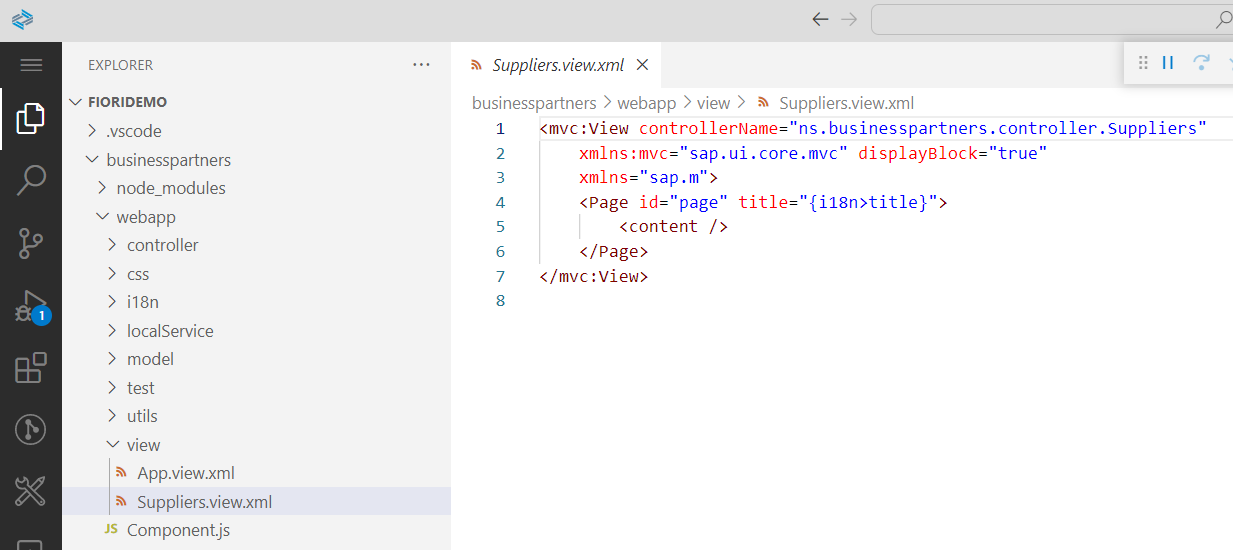
open code editor For convenience, drag the text editor below the layout editor.

drag-drop editor The layout editor and text editor are stacked so you can see how making changes to one shows up in the other.

drag-drop editor
Edit your app using the layout editor, with no need to do any coding.
Tip 1: Since autosave is enabled by default, every change to a file triggers the live reload of the app. If you place the browser with the running app and the browser window with SAP Business Application Studio side by side, you’ll be able to see how changes trigger the app’s live reload.
Tip 2: To trigger live reload only when you save a file, in the menu bar, select File | Auto Save to toggle auto save from enable (default) to disable. A check mark next to auto save indicates that auto save is enabled.
In the Controls pane, enter
Listin the search box to filter the controls.
Filter List control To get more screen real-estate, click the Explorer button to close the
Explorerview, and adjust the ratio between the layout editor and the code editor.
Explorer Button Drag the List control and drop it on the View control in the canvas.

Drag and drop Adding the list control to the view is reflected in both the layout editor and the text editor.

Link text e.g., Destination screen Select the Standard List Item control by clicking the List control you just added (the breadcrumb indicates which control is selected) and, in the Entity Set property in the Properties pane, click the Bind icon.

Open entity set bind window The Select Entity Set view is displayed.
Select the Define entity set and set the selected control as template option, and in the Entity Set dropdown list, choose the
BusinessPartnerSetentity set. Click Bind to complete the operation.
entity set bind window The space of the Select Entity Set view may be too narrow to show all options. If you do not see the Define entity set and set the selected control as template option, scroll down in the Select Entity Set view to make it available.
The bind operation is reflected in both the Layout Editor and the code editor.

entity set bind window In the Properties pane, in the Title property, click the Bind icon.

open Title bind window The Data Binding view is displayed.
Click the Clear expression (eraser) icon to clear the default text, and in the data field double-click
CompanyName. Click Bind to complete the operation.
Title bound Repeat the last two steps for the Description property in the Properties pane. Choose
WebAddress.
Bind Description Wait for the live reload of the app to complete. A list of suppliers is displayed.

Bind Description
Congratulations!
You have now successfully developed an SAP Fiori app using SAP Business Application Studio, including test-running the app locally in the dev space. In this tutorial, you learned about the high productivity tools that are available out-of-the-box in SAP Business Application Studio, such as: templates and wizards, command palette, layout editor, local run (Preview Application), and more.
Resources
Discussion
Share feedback on this tutorial or join the conversation in SAP Community.