
Overview
You will learn
- How to connect GitHub to SAP AI Core
- How to create scenarios and workflows
- How to check the sync status and debug errors in your AI workflow
- How to run workflows in SAP AI Core


Prerequisites
Prerequisites
- A BTP global account If you are an SAP Developer or SAP employee, please refer to the following links ( for internal SAP stakeholders only ) - How to create a BTP Account (internal) SAP AI Core If you are an external developer or a customer or a partner kindly refer to this tutorial
- Have Postman, Python (AI Libraries) or SAP AI Launchpad set up. You can set any of these up using this tutorial
Steps
Intro
You will create an AI workflow for your Hello, World! workflow, and connect and execute it in your SAP AI Core instance. You will see that workflows between GitHub and SAP AI Core can be auto synced, and it is possible to use this workflow after subscription, to connect to your actual AI code.
The terms “executable” and “workflow” can be used interchangeably to refer to the YAML files, introduced in this tutorial.
Please find downloadable sample notebooks for the tutorials : . Note that these tutorials are for demonstration purposes only and should not be used in production environments. To execute them properly, you’ll need to set up your own S3 bucket or provision services from BTP, including an AI Core with a standard plan for narrow AI and an extended plan for GenAI HUB. Ensure you input the service keys of these services into the relevant cells of the notebook. Link to notebook
Create account on GitHub.
WARNING: If you are using a GitHub account hosted by your organization, it must be external facing (not behind a firewall).
Click New to create a new repository. You will use this GitHub repository to store all of your workflows for SAP AI Core. Each workflow may belong to more than one AI use case.

Create a repository named aicore-pipelines. It is recommended have this repository’s visibility set to private.

Click on your GitHub profile icon. Select Settings.

Click Developer Settings from the left navigation pane.

Click Personal access tokens. Click on Generate new token. GitHub tokens are an alternative to sharing your GitHub credentials so that you can allow applications like SAP AI Core to access you GitHub repositories, without compromising your account security.

Give the name my_access_token in the Note field and select the checkbox Full control of private repositories in the Select Scopes field.

Scroll to the bottom of page and click Generate token.

Store your generated access token locally.

Select on your SAP AI Core connection under Workspaces app in the SAP AI Launchpad.

Under the Git Repositories section in AI Core Administration app, click Add.
WARNING If you don’t see the AI Core Administration app, check that you had selected your SAP AI Core connection from the Workspaces app. If it is still not visible then ask your SAP AI Launchpad administrator to assign roles to you so that you can access the app.

Enter your GitHub repository details (created in the previous step) in the dialog box that appears, and click Add.

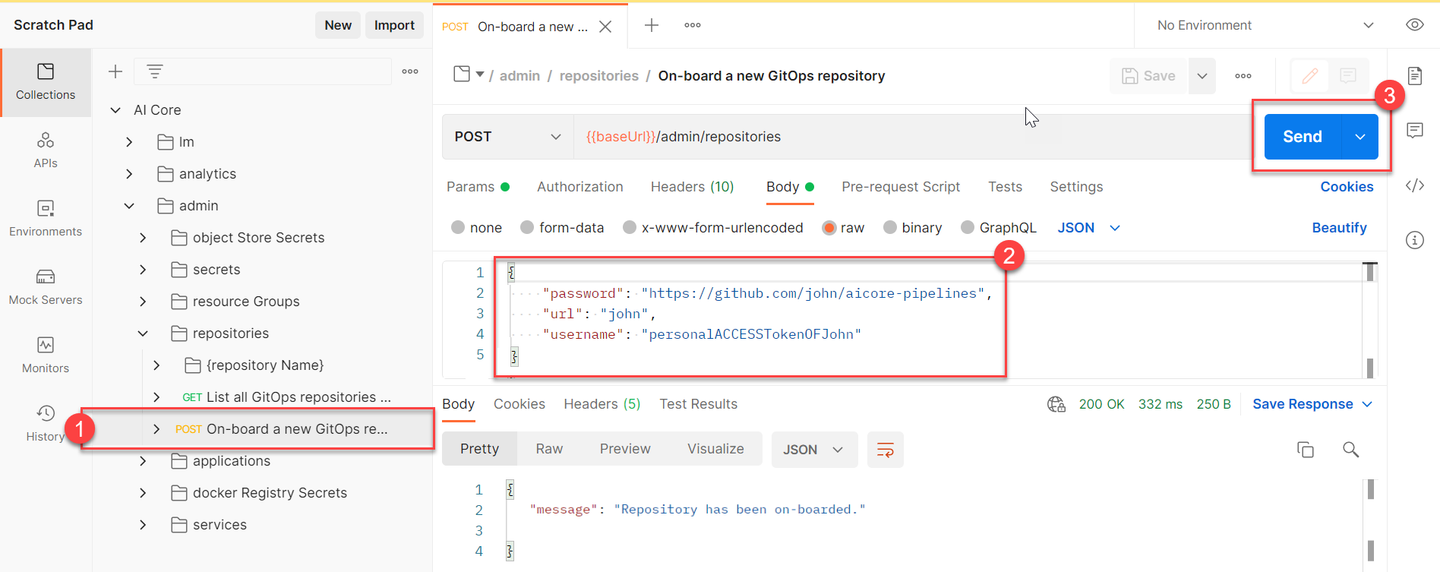
On-board your repository.
# on-board new GitHub repository
ai_core_client.repositories.create(
#    name = "john-aicore-pipelines",
    url = "https://github.com/john/aicore-pipelines",
    username = "john",
    password = "personalACCESSTokenOFJohn"
)
Check on-boarded repositories.
# check on-boarding status
response = ai_core_client.repositories.query()
#
for repository in response.resources:
#    print('Name:', repository.name)
    print('URL:', repository.url)
    print('Status:', repository.status)
Use the following information as reference:
URL: Paste the URL of your GitHub repository and add the suffix
/aicore-pipelines.Username: Your GitHub username.
Password: Paste your GitHub Personal Access Token, generated in the previous step.
You will see your GitHub onboarding completed in a few seconds. In the next steps you will learn how to enable auto syncing of workflows from GitHub.

CAUTION These onboarding steps only store credentials to access the specified SAP AI Core instance within your GitHub account. Therefore, this Completed status does not guarantee that your SAP AI Core is able to access a given file, in your GitHub repository. If you need to debug this, follow the steps of application creation and debugging.
Workflows for SAP AI Core are created using YAML or JSON files that are compatible with the SAP AI Core schema. Let’s start with a simple workflow which will output a log file, containing: Hello from SAP AI Core.
In your GitHub repository, click Add file > Create new file.
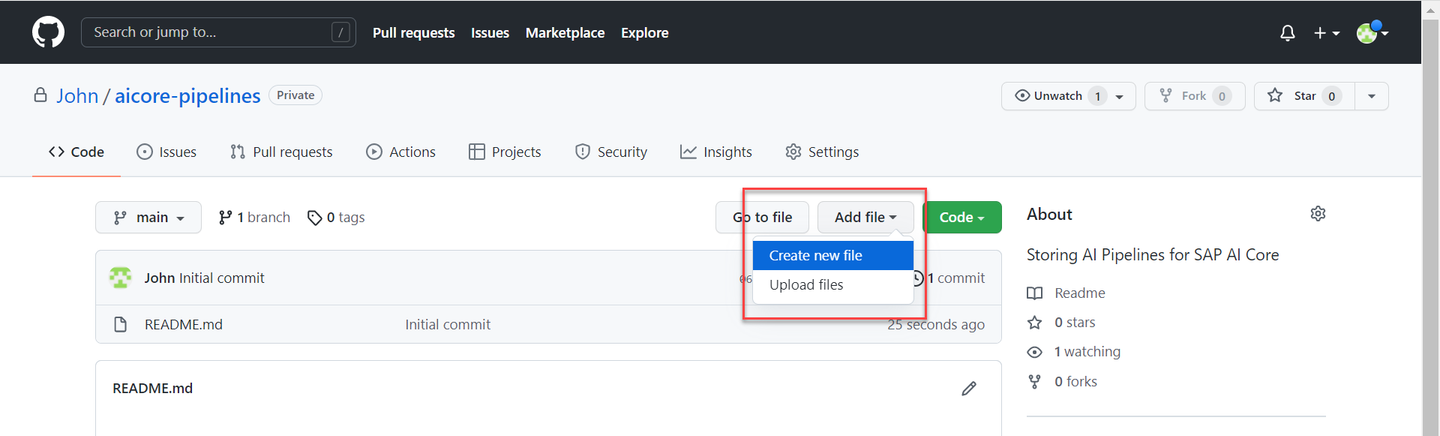
Type LearningScenarios/hello_pipeline.yaml into the Name your file field. This will automatically create the folder LearningScenarios and a workflow named hello_pipeline.yaml inside it.

CAUTION Do not use the name of your workflow file (
hello_pipeline.yaml) as any other identifier within SAP AI Core.

Now copy and paste the following snippet to the editor. The code is also available by following this link↓.
apiVersion: argoproj.io/v1alpha1
kind: WorkflowTemplate
metadata:
  name: first-pipeline # Executable ID (max length 64 lowercase-hyphen-separated), please modify this to any value if you are not the only user of your SAP AI Core instance. Example: `first-pipeline-1234`
  annotations:
    scenarios.ai.sap.com/description: "Introduction to SAP AI Core"
    scenarios.ai.sap.com/name: "Tutorial"
    executables.ai.sap.com/description: "Greets the user"
    executables.ai.sap.com/name: "Hello Pipeline"
  labels:
    scenarios.ai.sap.com/id: "learning"
    ai.sap.com/version: "1.0"
spec:
  entrypoint: mypipeline
  templates:
  - name: mypipeline
    steps:
    - - name: greet
        template: greeter

  - name: greeter
    container:
      image: docker.io/python:latest
      command:
        - python3
        - '-c'
      args:
       - |
print("Hello from SAP AI Core")CAUTION The key
metadata > namespecifies your executable ID. In the example below, the valuefirst-pipelinebecomes your executable ID. This executable ID is a unique identifier for your workflow within SAP AI Core. The executable ID of each workflow needs to be unique from all other workflows and GitHub repositories that you sync with your SAP AI Core instance. If your SAP AI Core instance is shared with other users, edit the value to be sure that it is unique, for example,first-pipeline-1234.

Scroll to the bottom of page and click Commit new file.

The workflow contains annotations, which are identifiers for SAP AI Core. Your AI use case is termed Scenario (Tutorial in this case) and within each scenario you create executables (workflows), (Hello Pipeline in this case). These workflows are used for training, serving or batch inferencing.

IMPORTANT Recall that the executable ID (
namein this case) within your workflow (first-pipelinein this case) must be unique across all GitHub repositories onboard to your SAP AI Core instance. If your SAP AI Core instance is shared, update the value tofirst-pipeline<some-number>.
The executable uses a step by step flow and starts with templates (blocks of code). The order of steps is shown in the example by the values: mypipeline > greet > greeter.

The code first takes takes a public docker image of python, which is run a using a python interpreter, and prints an output.

What is a Docker Image?
A Docker Image is a portable Linux environment, similar to a virtual machine. Docker images are layered environments, which means you may just have Linux OS (for example
Distrom) as one Docker image or another Docker image which has python layered on top of that Linux.While the code in this tutorial is written directly in the workflow, in actual production you will store the code scripts within your Docker Image. The number of code files and programming language are your preferences.
Go to your SAP AI Launchpad.
In the AI Core Administration app, click Applications > Create.

Using the reference below as a guide, specify the details of your application. This form will create your application on your SAP AI Launchpad.
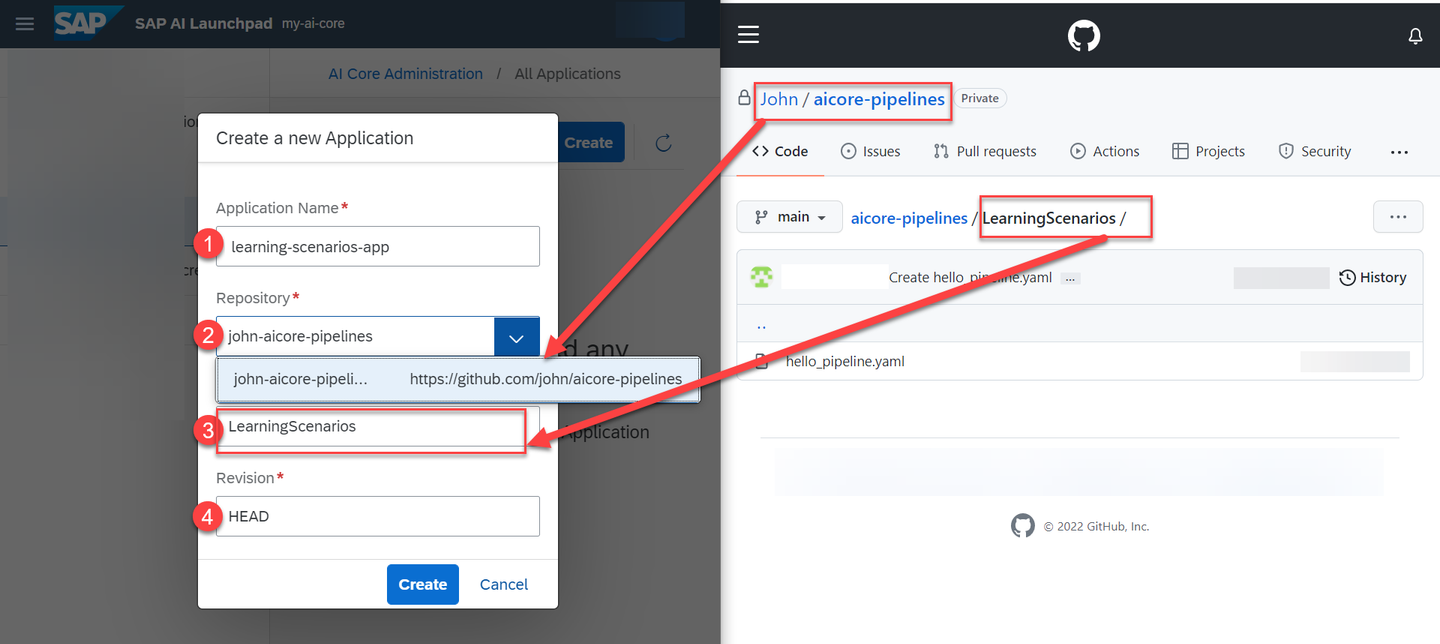

Create your application. If you are unsure of the values, use the reference guide at the bottom of the page.
ai_core_client.applications.create(
    application_name = "learning-scenarios-app",
    repository_url = "https://github.com/john/aicore-pipelines",
    path = "LearningScenarios",
    revision = "HEAD"
)
List on-boarded applications.
response = ai_core_client.applications.query()

for app in response.resources:
    print(app.__dict__)
Use the following information for reference:
Application Name: An identifier of your choice.
learning-scenarios-appis used as an example of best practice in this tutorial because it is a descriptive name.Repository URL: Your GitHub account URL and repository suffix. This helps you select the credentials to access the repository.
Path: The folder in your GitHub where your workflow is located. For this tutorial it is
LearningScenarios.Revision: The is the unique ID of your GitHub commit. Set this to
HEADto have it automatically refer to the latest commit.
IMPORTANT Not all the files from your GitHub repository will be synced. Only the files present in the path mentioned in Path in Repository will be searched for YAML files and synced with SAP AI Core, excluding subfolders. This means that to sync different folders and subfolders of your GitHub in your production system, you are required to create multiple applications. Your path entry should have the format:
path/to/folder.
Click through Applications > AI Core Administration App > learning-scenarios-app.

You will directed to the details page of your application.
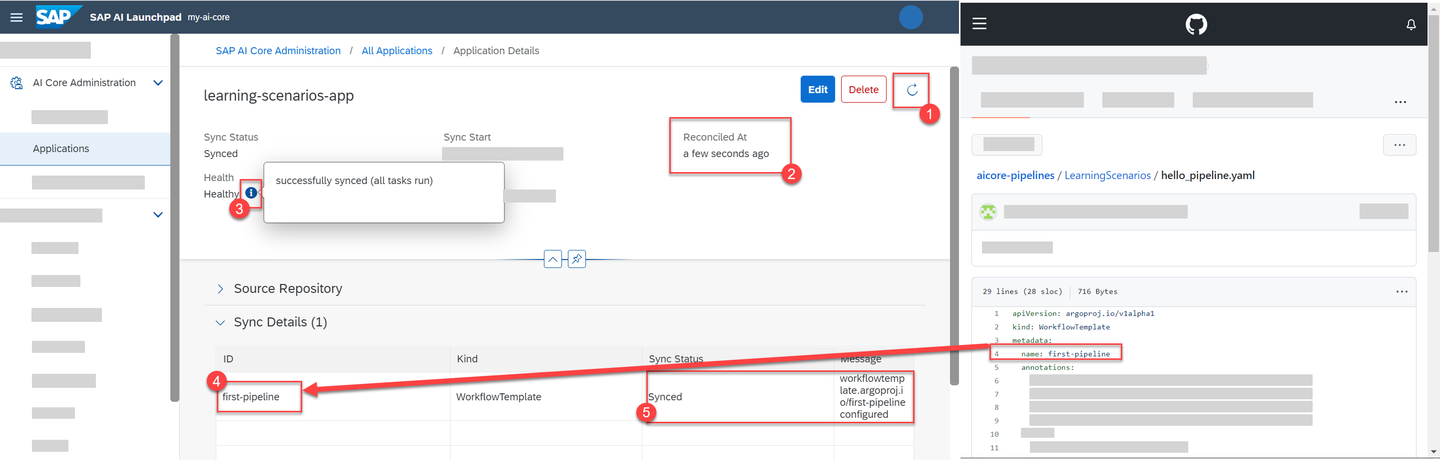
Click the Refresh button.
View the time elapsed since the last Reconciled At. You can use Refresh button to update your page and check the status of your application.
Click the i tooltip in the Health log to see the most recent sync log.
The ID field on the table refers to the executable ID, which is specified under the
nameannotation within your YAML file.You will see information, including any error messages, relating to your executables (your specified directory and YAML files) listed in the Sync Details table.

Get applications status.
response = ai_core_client.applications.get_status(application_name='learning-scenarios-app')

print(response.message)
for workflow_sync_status in response.sync_ressources_status:
    print(workflow_sync_status.__dict__)
Note: The application automatically actively syncs with your GitHub repository at intervals of ~3 minutes.
If there are any errors in the syntax of your executable then this application status will report message with the error in the code output.
Most common errors likely to occur are:
| Message | Meaning |
|---|---|
| Unable to resolve … to a commit SHA | This means the value of Revision used while creating application is unreachable. |
| repository not found | Your GitHub Repository linked with your application is not found. |
Please refer the Troubleshooting guide if encounter them.
Click ML Operation > Scenario to find a scenario named Tutorial. Scenarios are automatically created from the details specified in your executables in your GitHub.

To view the details click on the Tutorial row in scenarios and expand Workflow Executable. Check these values against your YAML file to better understand the relation between your annotations and values of executable in SAP AI Core.

Click Collections > Get list of scenarios and Send.
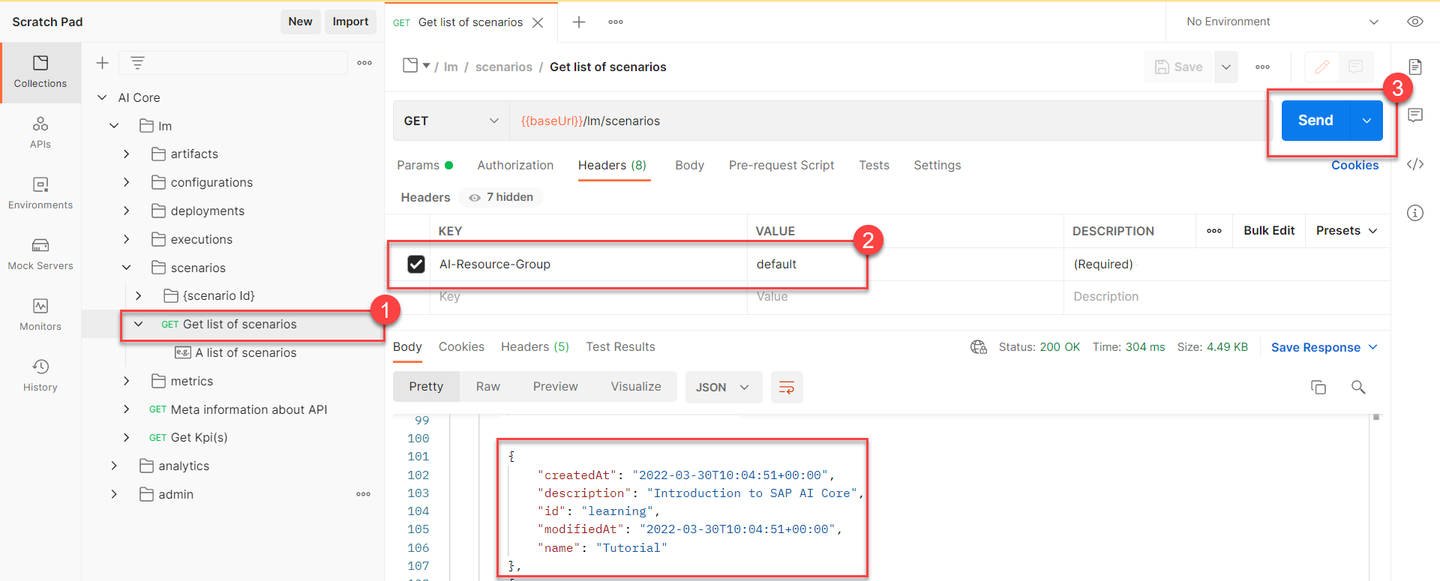
CAUTION You are required to specify the value of key
AI-Resource-Groupin the HEADER when using any of the endpoints or folders containinglm, otherwise, you can usedefaultfor this tutorial. Where a header is not specified, the headerdefaultis assumed, however you can override ´this by addingAI-Resource-Groupto the header value.

List the executables in that scenario ID by clicking Get list of executables, specifying your scenario ID and pressing Send.

List your Scenarios.
response = ai_core_client.scenario.query(resource_group='default')

for scenario in response.resources:
    print(scenario.__dict__)
List your executables within a given scenario.
response = ai_core_client.executable.query(scenario_id = "learning", resource_group='default')

for executable in response.resources:
    print(executable.__dict__)
Check the values between your code output and workflow to better understand the relation between your annotations and values of executable in SAP AI Core.

Click Workspaces > default to select your connection. Configuration will now be enabled in the ML Operations app.

Click configuration > Create.

The configuration name value should be a descriptive name of your choice. All other values must be set as shown in the image below, in line with your executable identifiers.

Click Next through the steps until other step 4, where you click Create.
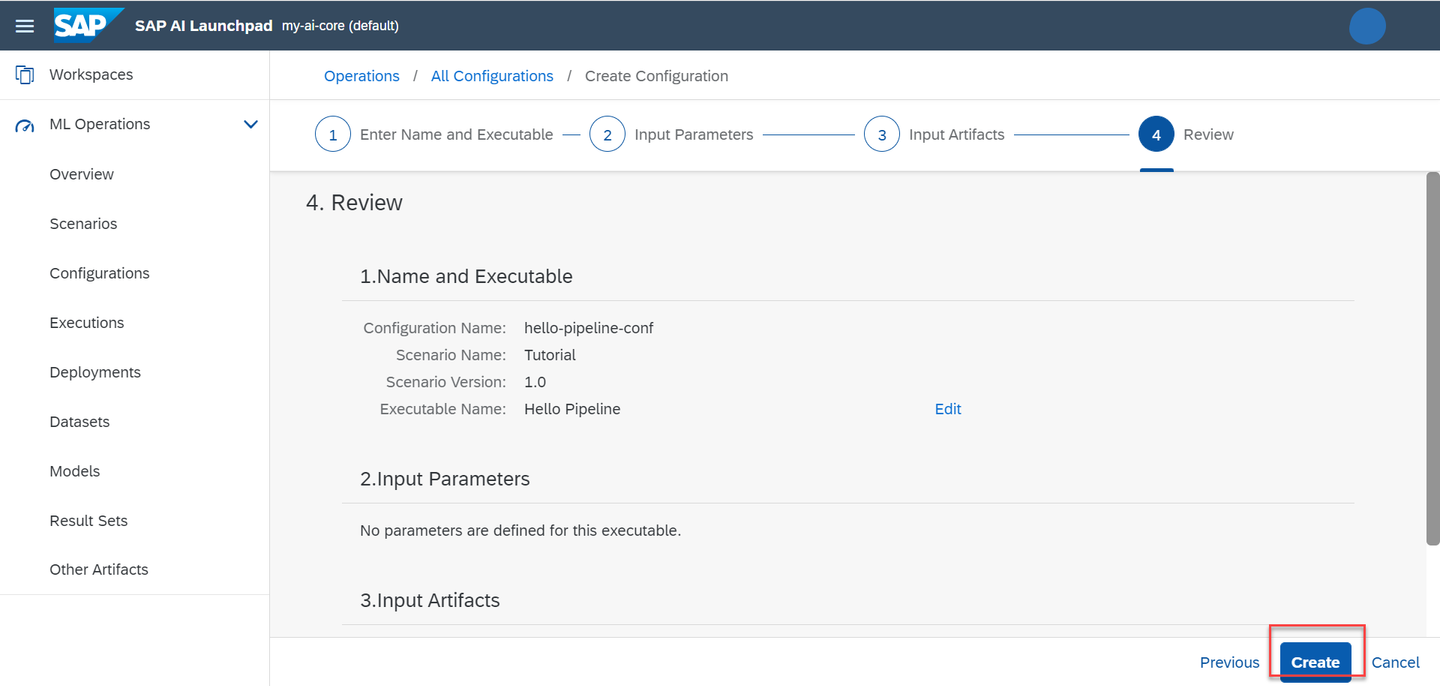
TIP: This step is one time only. Once a configuration is created, you can use it again and again.
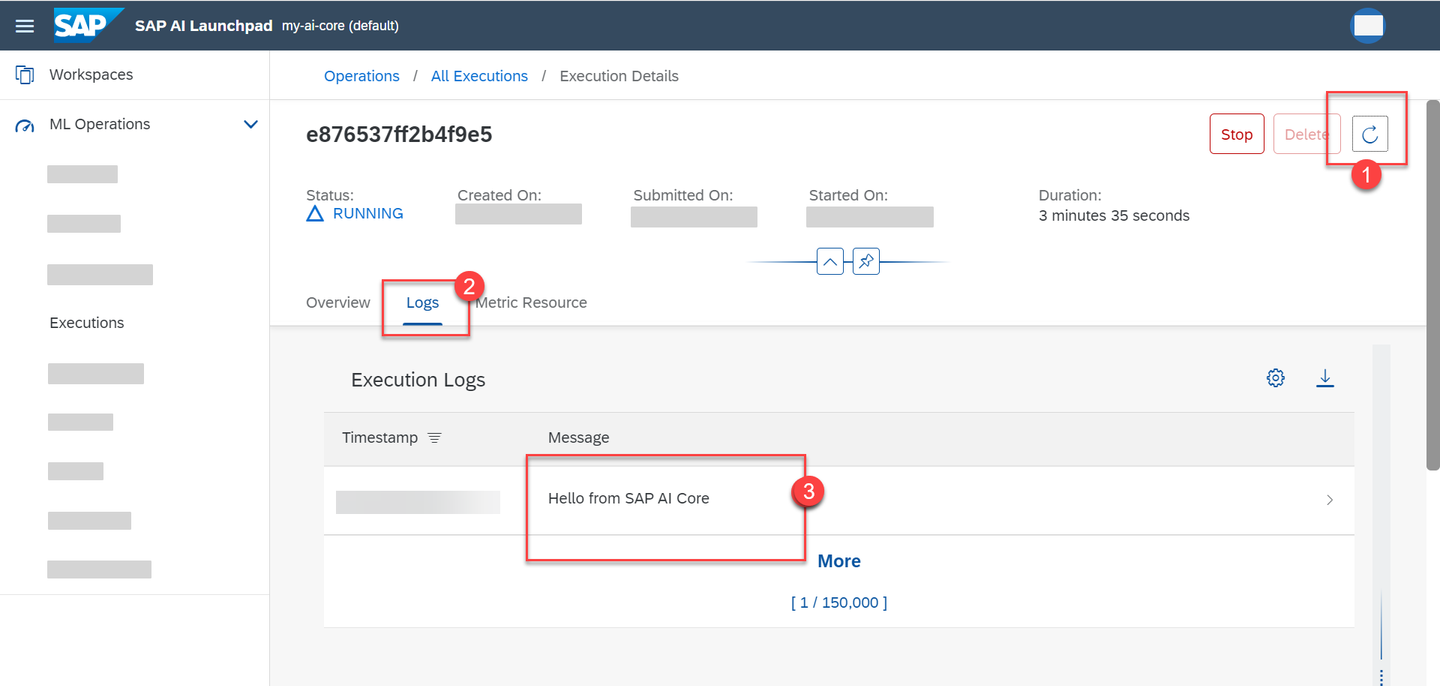
To execute your workflow, click Create Execution on the configuration details page.

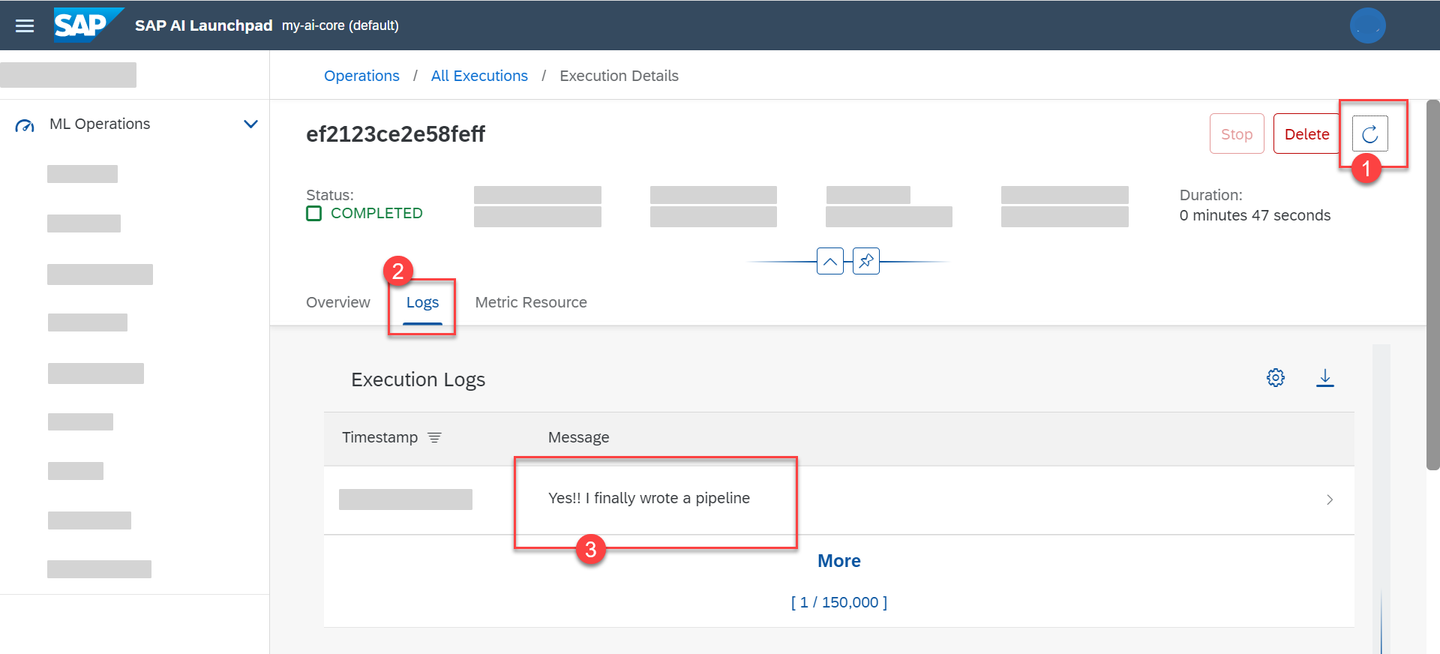
This page provides details about the status of your execution under the Logs tab. As executables take time to run, click on the Refresh Icon to see the latest information. Thirty second intervals are recommended. Observe the output Hello from SAP AI Core.
To create a configuration, select the workflow for execution.

The response contains an id field. This is your configuration ID, you need to copy this ID.
CAUTION When using the original API collection (downloaded from SAP API Business Hub) you might find that
"value": "...schema...is entered automatically. For example:
If this is the case, the value needs to be changed manually by the user. For this specific case, you should enter your
executableIDas determined in the previous step. If this occurs outside of this tutorial, or for other endpoints that you do not know the value for, you should refer to the API specification for SAP AI Core in the SAP AI Business Hub

To start the execution, click through executions > POST Trigger execution, and paste your configuration ID into the body. Click send, and as before, copy the id returned in the response. This is your execution ID.
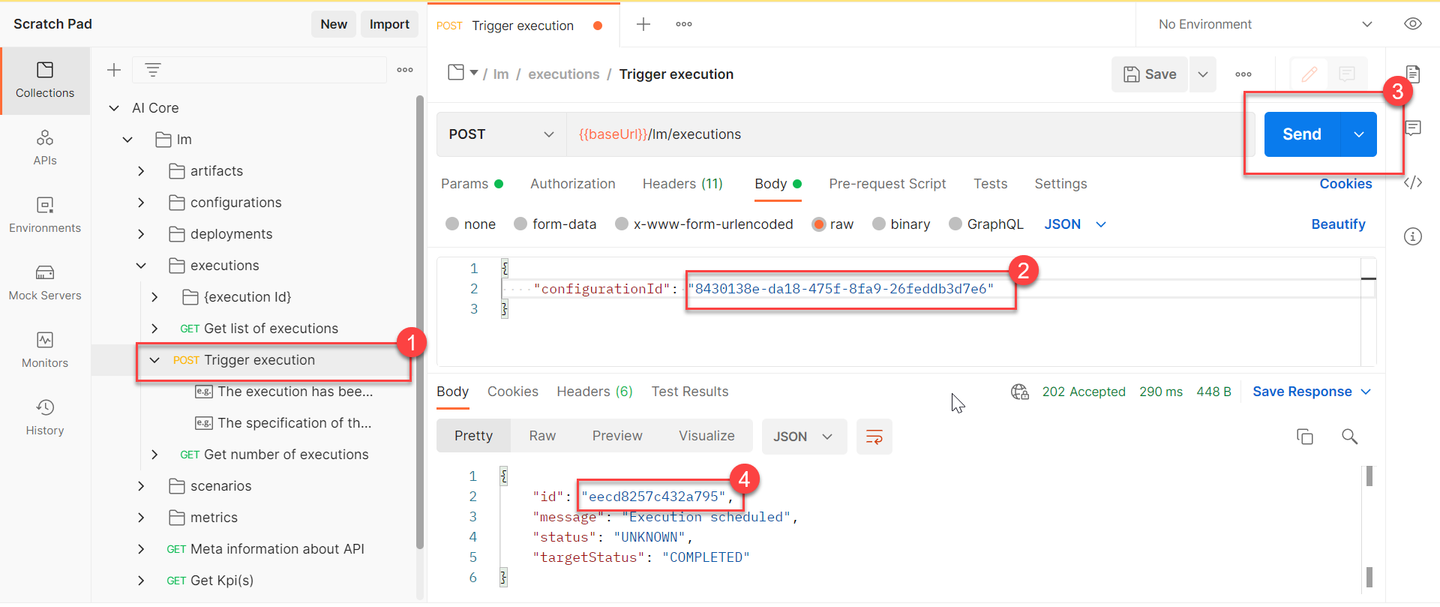
To query the status using the execution, click executions > Get information about a specific execution. Copy the execution ID into the Params, and click Send. As executables take time to run, click on the Send button again to see the latest information. Thirty second intervals are recommended, until the status: COMPLETED response is received.

Click Get logs of specific execution, copy the execution ID into the Params and click Send. Observe the output Hello from SAP AI Core.

Create your configuration.
# Create configuration
ai_core_client.configuration.create(
    name = "hello-pipeline-conf", # custom name of configuration
    scenario_id = "learning", # value from workflow
    executable_id = "first-pipeline", # value from workflow
    resource_group = "default"
)
List your created configuration to find its ID.
# Lists all configurations
response = ai_core_client.configuration.query(
    resource_group = "default"
)

for configuration in response.resources:
    print(configuration.__dict__)
Use the ID of configuration to create your execution.
# Create execution using configuration
response = ai_core_client.execution.create(
    configuration_id = '<YOUR_CONFIGURATION_ID>', # Change this value.
    resource_group = 'default'
)
response.__dict__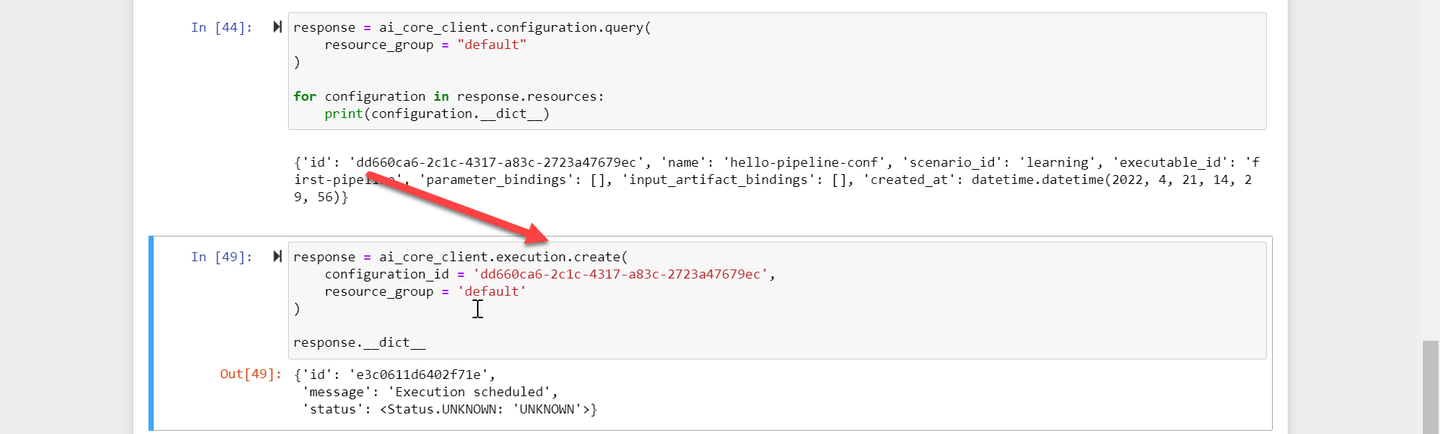
Query the execution status.
# Get execution status from SAP AI Core
# execute this multiple times in interval of 30 seconds
response = ai_core_client.execution.get(
    execution_id = '<YOUR_EXECUTION_ID', # Change this
    resource_group = 'default'
)

response.__dict__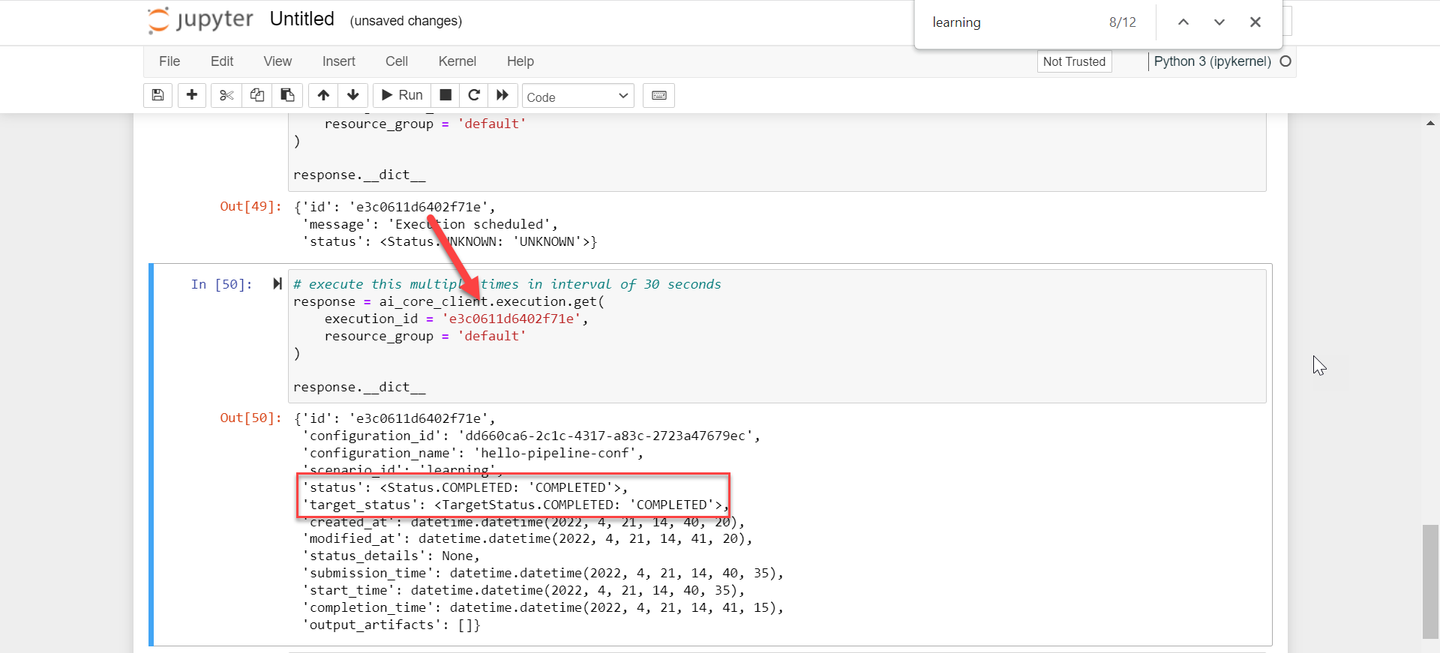
Check the logs of the execution.
# Get logs of an execution
response = ai_core_client.execution.query_logs(
    execution_id = '<YOUR_EXECUTION_ID>',
    resource_group = 'default'
)

for log in response.data.result:
    print(log.__dict__)
If your execution is successful, you will see the log message Hello from SAP AI Core.

Why not directly create an execution ?
An execution is just an instance of the configuration running. The configuration is set of binding information between your workflow and datasets. In this tutorial you are just using the workflow information in the configuration.
Having set all of the automation in the previous steps, it is easy to update your workflow and execute it.
Click Edit (the pencil icon) on your YAML file on your GitHub repository.

Update the greeting message in the executable on your GitHub. It is also recommended to update the version value. The value of api.sap.com/version is a string identifier of your choice.
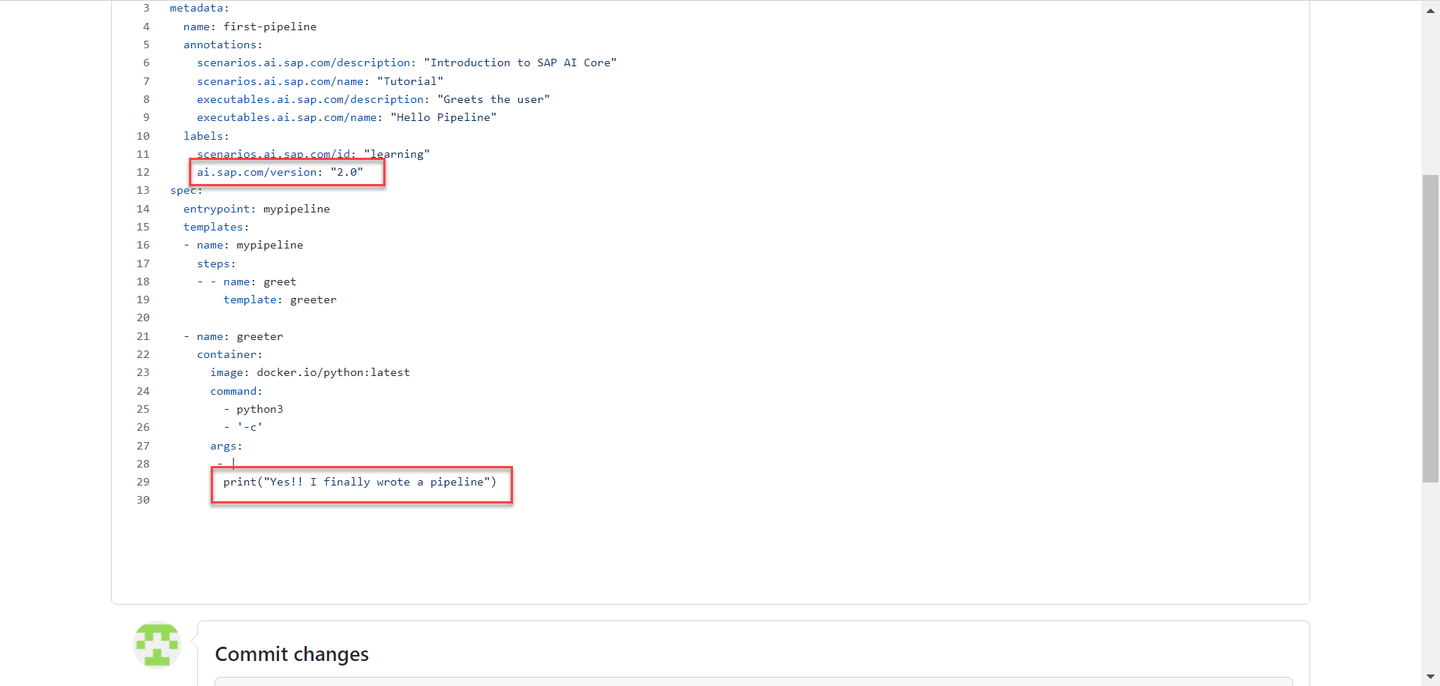
Click Commit Changes.
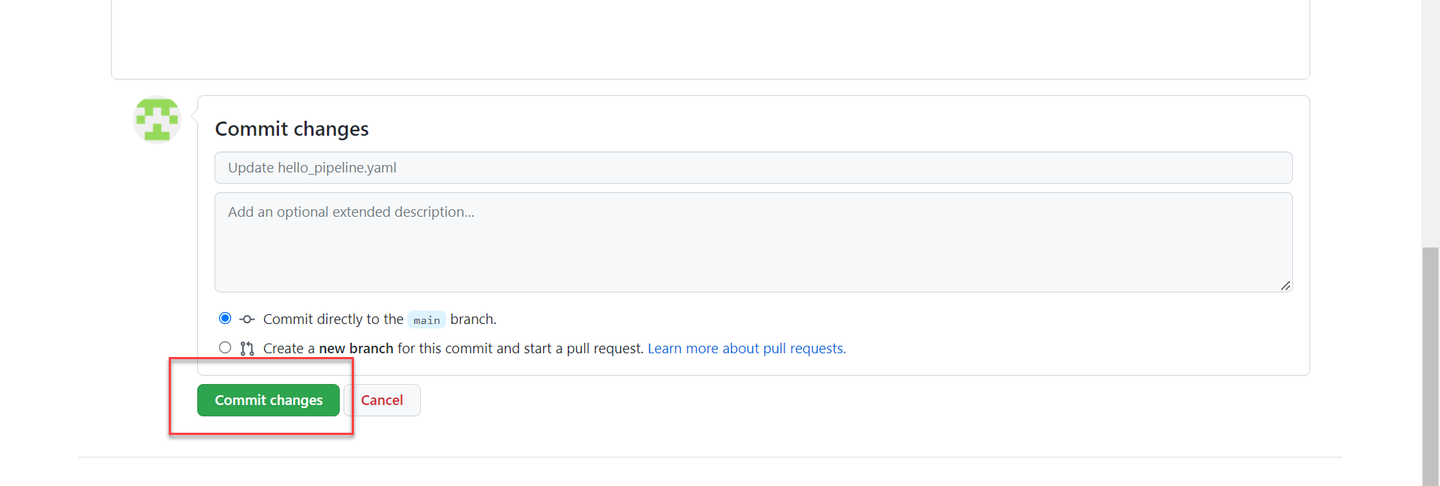
Reuse the configuration created in previous steps to create a new execution.
Click on your hello-pipeline-conf configuration. Ensure that your configuration version is showing the value that you specified in the previous step. Syncing occurs at three minute intervals, so if your new value does not show yet, wait and then refresh you SAP AI Launchpad page.
How did the version update to
2.0the version was1.0when the configuration was created?When you create a configuration, the version is derived from the
executableIdwhich you specified. Hence when you updated the version toai.sap.com/version:2.0in your workflow, this value was synced and updated in the configuration.
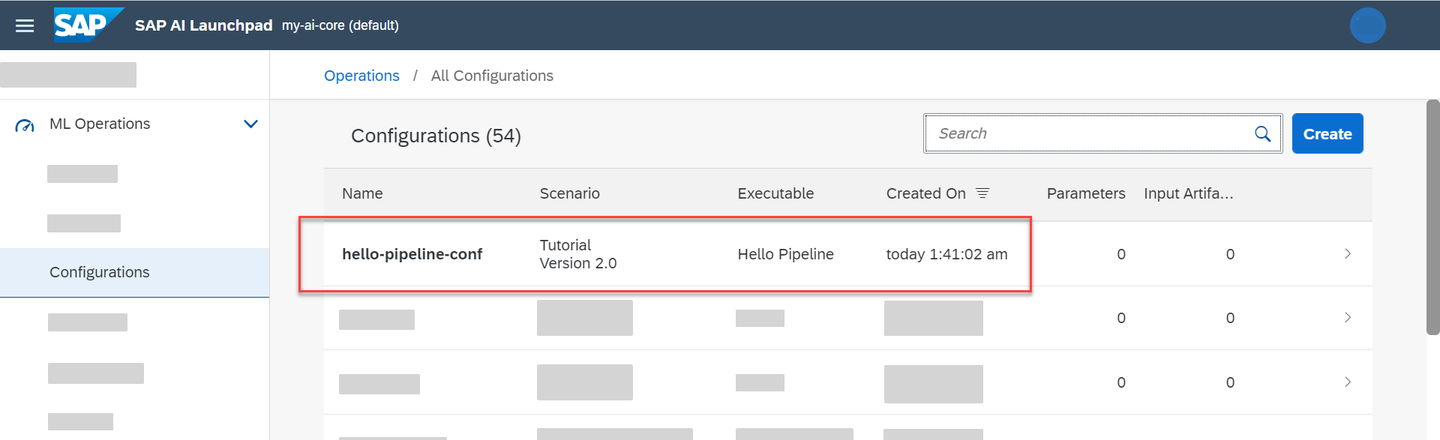
Click Create Execution.

You will see the new message in your logs.
Check your executable within the scenario. You should observe the version 2.0. If not wait for at least 3 minutes for SAP AI Core to sync it.

Start a new execution. Use the same configuration ID used before.

Query status of this new execution ID. Wait for it to complete.
Get the log of your new execution. You will observe the message that you updated in your workflow.
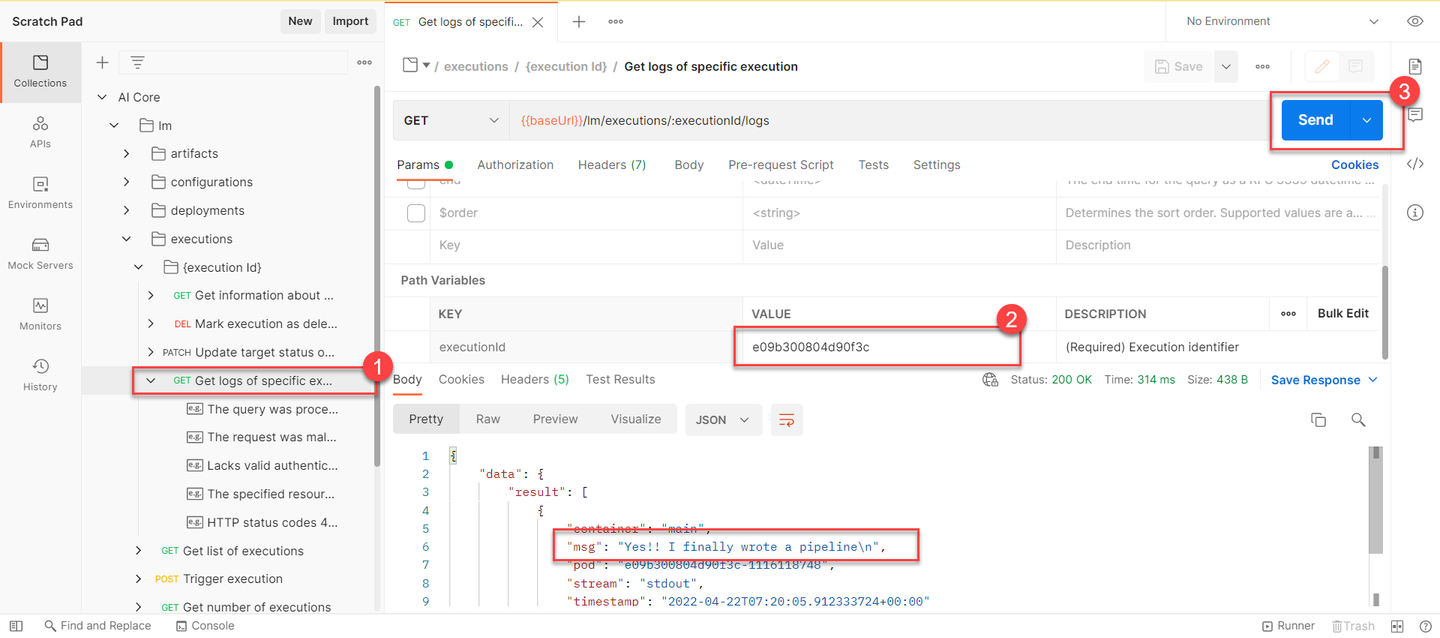
!![image]
Check if the executable is updated (in SAP AI Core) to 2.0, else wait for at least 3 min to auto sync with your GitHub.
response = ai_core_client.executable.query(
    scenario_id = "learning", resource_group='default'
)

for executable in response.resources:
    print(executable.__dict__)
You will reuse the configuration created in previous steps to create a new execution.
response = ai_core_client.execution.create(
    configuration_id = '<YOUR_CONFIGURATION_ID>', # previously created.
    resource_group = 'default'
)

response.__dict__
Note the new execution ID, and use it to check status of the new execution.
# execute this multiple times in interval of 30 seconds
response = ai_core_client.execution.get(
    execution_id = '<YOUR_EXECUTION_ID>',
    resource_group = 'default'
)

response.__dict__
Query the logs of this new execution.
response = ai_core_client.execution.query_logs(
    execution_id = '<YOUR_EXECUTION_ID>',
    resource_group = 'default'
)

for log in response.data.result:
    print(log.__dict__)
Note Although the configuration binds using the ID, not the version of the executable, checking the version is a quick way to check if the most recent version is synced or not.
Resources
Discussion
Share feedback on this tutorial or join the conversation in SAP Community.