
Overview
You will learn
- How to deploy an LLM model.
- How to use the models to execute different queries.


Prerequisites
Prerequisites
- A BTP global account If you are an SAP Developer or SAP employee, please refer to the following links ( for internal SAP stakeholders only ) - How to create a BTP Account (internal) SAP AI Core If you are an external developer or a customer or a partner kindly refer to this tutorial
- An Extended SAP AI Core service plan is required, as the Generative AI Hub is not available in the Free or Standard tiers. For more details, refer to SAP AI Core Service Plans
- You have completed the client authorization for your preferred user interface.
- Access to SAP AI Core instance with the Extended plan
- Python and programming IDE (e.g. VSCode)
- To follow the Bruno steps in this tutorial, download the Bruno collection file: Foundation-Models-Demo.json and import it into Bruno.
For more information, see SAP AI Core documentation.
Steps
Provision SAP AI Core in your global account
Open the SAP BTP cockpit and access your global account.

Check the entitlements for your account by clicking Entitlements and searching for SAP AI Core.

Click Configure Entitlements > Add Service Plans.


Select SAP AI Core and the extended service plan.

Save your new entitlement.

Run the booster for SAP AI Core
Choose Boosters from the navigation pane. Find and choose the booster for SAP AI Core from the selection.

The booster tile contains information about SAP AI Core. Click Start when you are ready.
When you start a booster, a wizard opens up which guides you through the required steps.

View your instances and create your keys
In the subaccount section of SAP BTP Cockpit, choose Services from the left navigation menu and Instances and subscriptions from the page.

To see the details of your new instance, click the chevron on the entry.
To create the keys that you need to access your instance, click the three dots > Create Service Key.

Enter a Key Name of your choice and click Create.


Once your keys have been created, you can view or download them at any time by locating the key and clicking the three dots and choosing from the available options.

Provision SAP AI Launchpad in your global account
Note: SAP AI Launchpad is optional, but is the recommended interface for use with SAP AI Core.
Configure your entitlement as before, but select SAP AI Launchpad.
Run the booster for SAP AI Launchpad
Choose Boosters from the navigation pane, and then choose the booster for SAP AI Launchpad from the selection.

Click Start when you are ready.

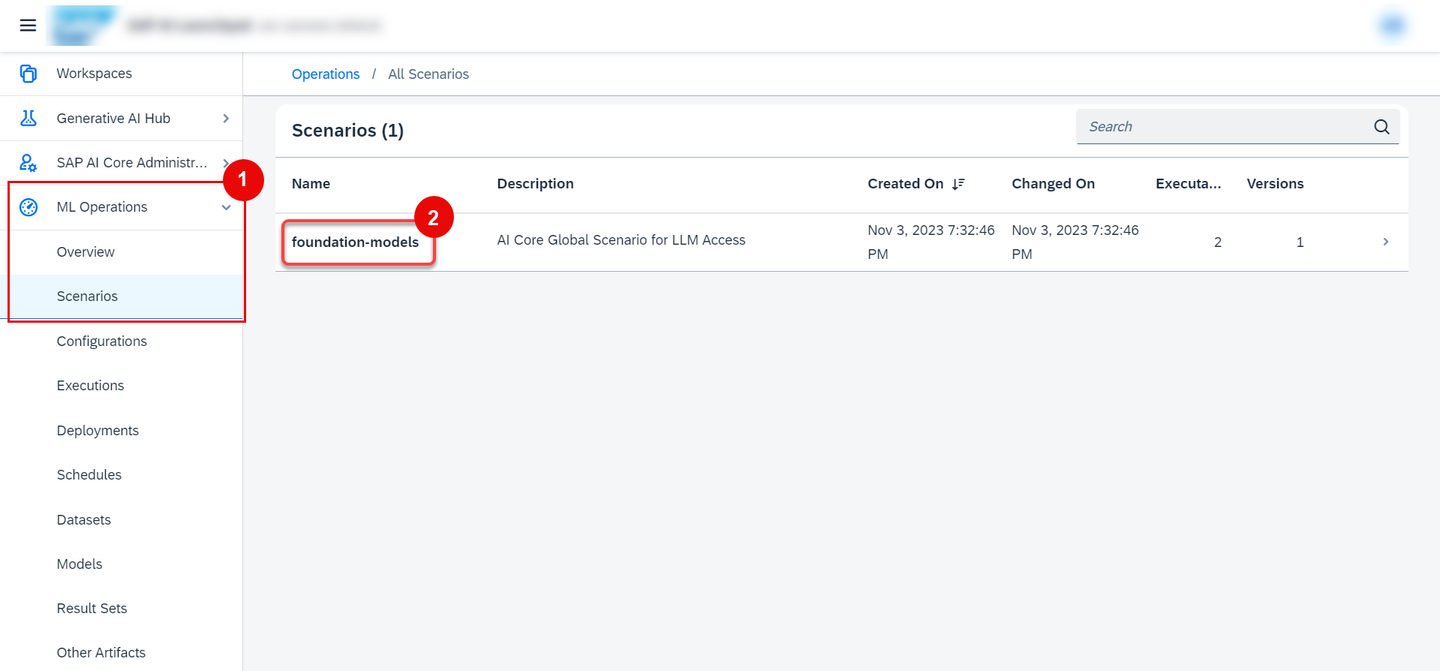
Go to ML Operations -> Scenarios. Check whether the foundation-models scenario is present in your AI-Core workspace.
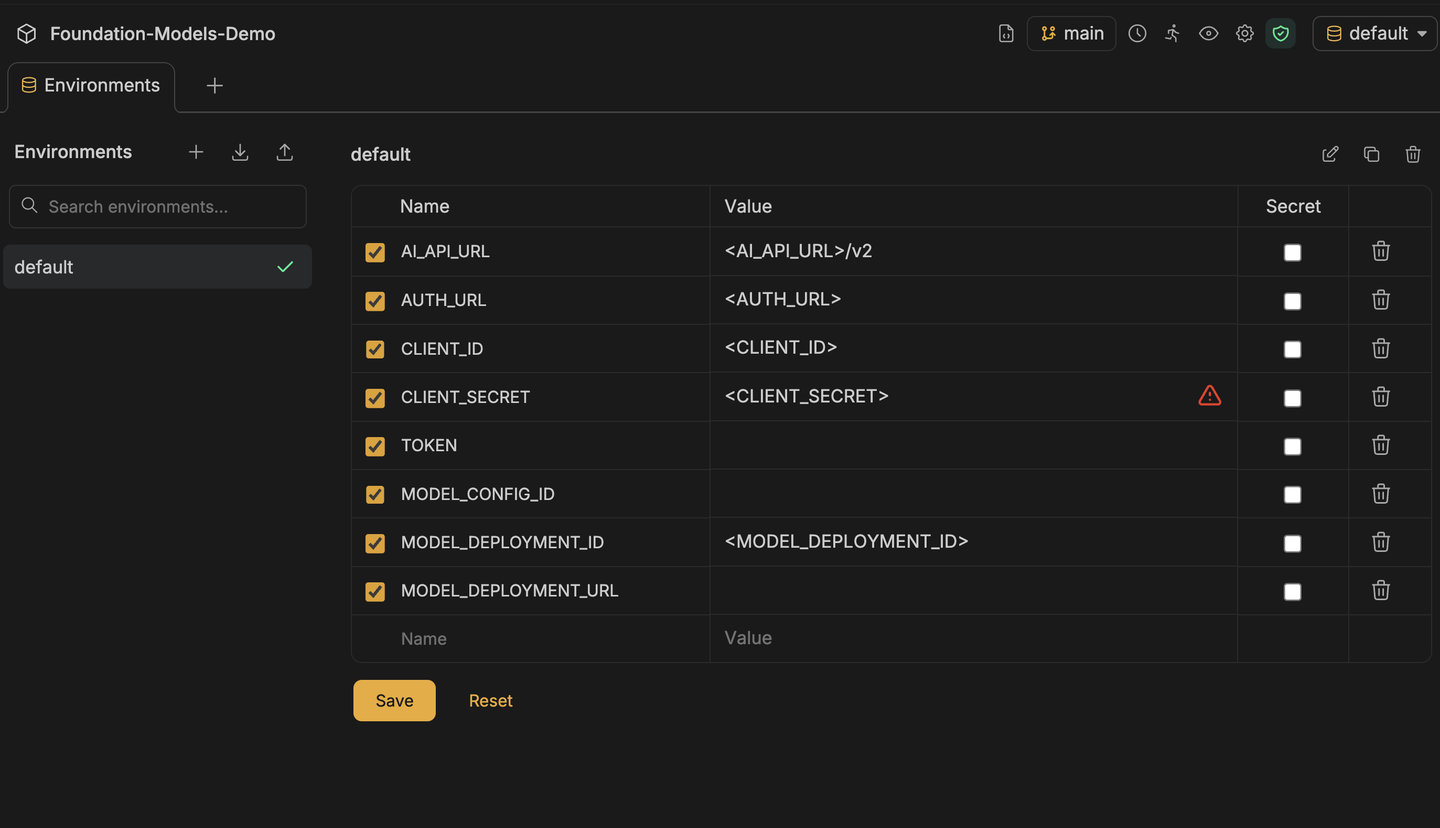
Open the Foundation-Models-Demo Bruno collection and click on Environments in the top bar. Select the default environment and fill in the following variables with your SAP AI Core service key values:
AI_API_URL— your AI API URL (append/v2)AUTH_URL— your OAuth token endpoint base URLCLIENT_ID— your client IDCLIENT_SECRET— your client secret
Click Save.
Note: The requests in this collection use
AI-Resource-Group: defaultas the resource group header. If your resource group has a different name, update theAI-Resource-Groupheader value in each request’s Headers tab before sending.
Open Administrative > 1 - Get Auth Token and click the send button. The post-response script automatically saves the bearer token to the TOKEN environment variable — no manual copy-paste needed.

Open Administrative > 2 - List Scenarios and send the request. Verify that the foundation-models scenario is present in the response.

Go to ML Operations -> Configurations. Click on the Create button

- Give a name for the configuration.
- Select the foundation-models scenario.
- Choose the version.
- Choose the Executable ID.

In input parameters, give name and version of the model you want to use.

Refer to this for the list of models available as of now: Models and Scenarios in the Generative AI Hub
Note that the model version can be given as latest. If the model version is not specified, it will be set to latest by default.
Click on Next -> Review -> Create to create the configuration.
Model versions have deprecation dates. Where a model version is specified, the deployment will stop working on the deprecation date of that model version.
Implement one of the following model upgrade options:
Auto Upgrade: Create or patch an LLM configuration with model version latest. When a new model version is supported by SAP AI Core, existing deployments will automatically use the latest version of the given model.
Manual Upgrade: Patch an LLM configuration with your chosen replacement model version. This model version will be used in your deployments irrespective of updates to the models supported by SAP AI Core.
Open Administrative > 4 - Create Model Configuration and update the request body with your desired model. For example, to use GPT-4o:
{
    "name": "yourNameChoice",
    "executableId": "azure-openai",
    "scenarioId": "foundation-models",
    "versionId": "0.0.1",
    "parameterBindings": [
        {
            "key": "modelName",
            "value": "gpt-4o"
        },
        {
            "key": "modelVersion",
            "value": "latest"
        }
    ]
}nameis your free choice of identifier.scenarioIdmust befoundation-models.versionIdis the version of the foundation-models scenario.
Send the request. The post-response script automatically saves the returned configuration ID to the MODEL_CONFIG_ID environment variable.

Note that the model version can be set to latest, to use the latest version of the model. If the model version is not specified, it will be set to latest by default.
Model versions have deprecation dates. Where a model version is specified, the deployment will stop working on the deprecation date of that model version.
Implement one of the following model upgrade options:
Auto Upgrade: Create or patch an LLM configuration with model version latest. When a new model version is supported by SAP AI Core, existing deployments will automatically use the latest version of the given model.
Manual Upgrade: Patch an LLM configuration with your chosen replacement model version. This model version will be used in your deployments irrespective of updates to the models supported by SAP AI Core.
You can make LLM available for use by creating a virtual LLM deployment. You can do so once for each model and model version.
Once you created the configuration, click on Create Deployment.

Set duration as standard and click on the Review button.

Once you create the deployment, wait for the current status to be set to RUNNING.

Once the deployment is running, you can access your models in the Generative AI Hub.
You can make an LLM available for use by creating a virtual LLM deployment. You can do so once for each model and model version.
Open Administrative > 5 - Create Model Deployment and send the request. The MODEL_CONFIG_ID saved in the previous step is automatically used. The response will show the deployment status as UNKNOWN initially.

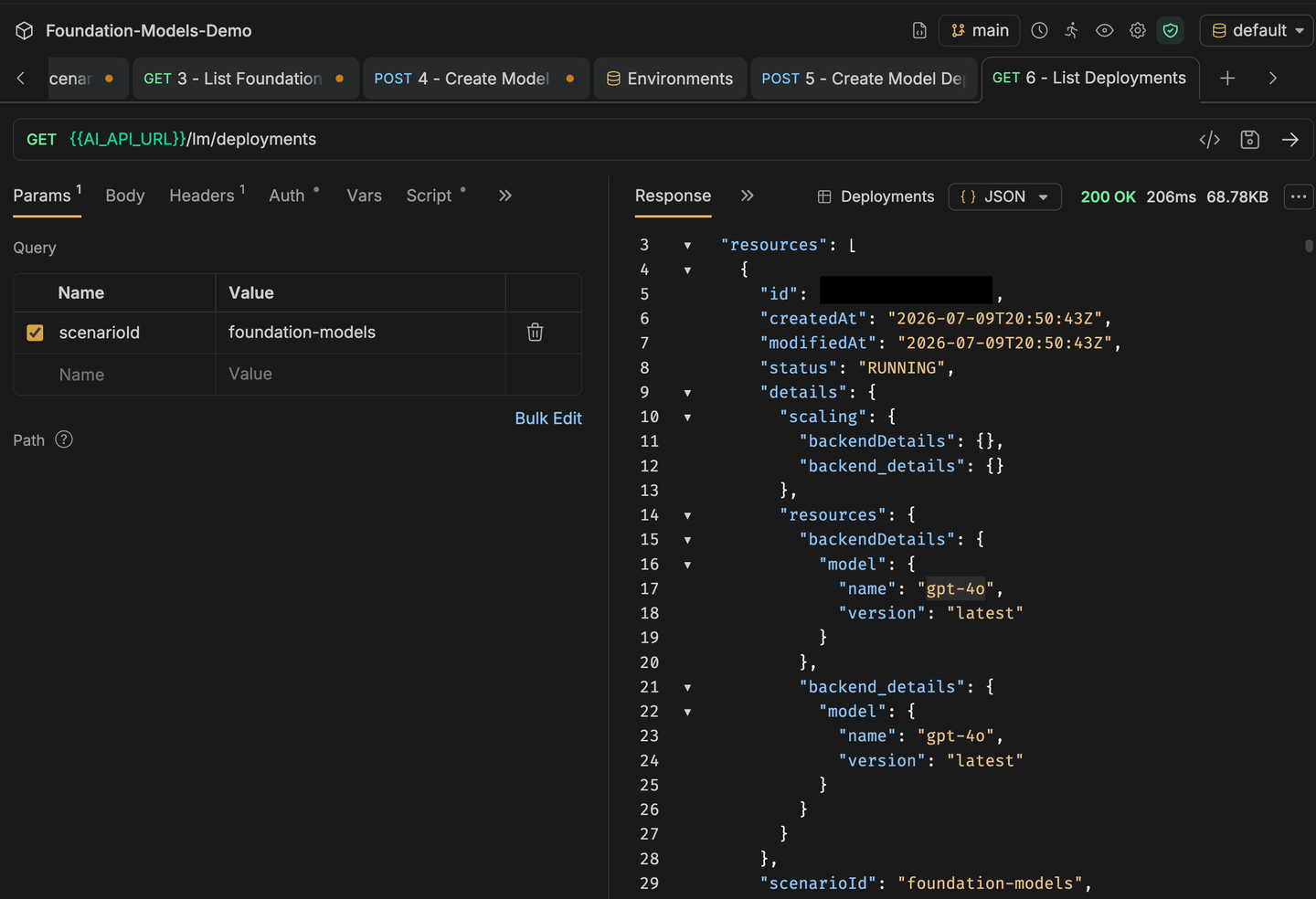
Open Administrative > 6 - List Deployments and send the request. The post-response script automatically saves the deployment URL to MODEL_DEPLOYMENT_URL. Keep re-sending this request every minute or so until the status shows RUNNING — once it does, MODEL_DEPLOYMENT_URL is populated and you are ready to query the model.
Navigate to the Generative AI Hub in AI Launchpad.

Here you can see the following options
Prompt Editor: In the prompt editor, you can query your prompts and save the responses.
Prompt Management: In the prompt management page, you can manage all your saved prompts.
Prompt Administration: In the prompt administration page, you can manage the prompts in the current workspace.
In the Prompt Editor page, give a name for your prompt. You can optionally give a collection name. Name and collection name will come handy in prompt management.

Scroll down and click on the arrow to select Model and parameters.

Click here to select the model of your choice.
You can set additional parameters here.

Frequency PenaltyNumber between -2.0 and 2.0. Positive values penalize new tokens based on their existing frequency in the text so far, decreasing the model’s likelihood to repeat the same line verbatim.Presence PenaltyNumber between -2.0 and 2.0. Positive values penalize new tokens based on whether they appear in the text so far, increasing the model’s likelihood to talk about new topics.Max-TokensThe maximum number of tokens allowed for the generated answer.TemperatureWhat sampling temperature to use, between 0 and 2. Higher values will make the output more random, while lower values will make it more focused and deterministic.
After selecting the model and setting the parameters, give your prompt in the prompt field, and click on the Run button to get your output. You can save the response by clicking on the Save button.

Click on the Create New button if you want to start a new prompt.

You can open a previously saved prompt by clicking on the Select button.

Choose the prompt and click Select to open the prompt.

Open Inference > 1 - Inference GPT and update the request body with your query:
{
    "messages": [
        {
            "role": "user",
            "content": "What's the difference between flammable and inflammable?"
        }
    ],
    "max_tokens": 100,
    "temperature": 0.0,
    "frequency_penalty": 0,
    "presence_penalty": 0,
    "stop": "null"
}
The Authorization: Bearer {{TOKEN}} header is already set. Make sure the AI-Resource-Group header value matches your resource group name. Send the request to get the response.
Note: The example above uses a GPT deployment. If you want to query a Claude model instead, create a configuration with
executableId: "aws-bedrock"and deploy it, then use theInference > 1 - Inference Claudeendpoint instead. For theexecutableIdof other models, refer to SAP Note 3437766.
The request body must include:
messages — your query.
You can also include optional parameters such as:
max_tokens — the maximum number of tokens allowed for the generated answer. The default value is 4,096.
temperature — a number between 0 and 2. Higher values make the output more random, lower values make it more focused and deterministic.
frequency_penalty — a number between -2.0 and 2.0. Positive values penalize new tokens based on their existing frequency in the text so far, decreasing the model’s likelihood to repeat the same line verbatim.
presence_penalty — a number between -2.0 and 2.0. Positive values penalize new tokens based on whether they appear in the text so far, increasing the model’s likelihood to talk about new topics.
stop — can be a string or array, which if found, will stop generating further output.
To install the generative-ai-hub-sdk package in your system, open your terminal or command prompt and run the following command.
pip3 install generative-ai-hub-sdk[all]Now you have generative-ai-hub-sdk installed in your system.
You have to configure proxy modules to use the large language models.
We recommend setting these values as environment variables for AI core creds via config file. The default path for this file is ~/.aicore/config.json.
open Notepad and replace the values in below json with your AI core Service keys that you downloaded from BTP and press Command + S to save file. A pop up will appear on the screen where navigate to ~/.aicore/ and location and save the file as config.json
{
  "AICORE_AUTH_URL": "https://* * * .authentication.sap.hana.ondemand.com",
  "AICORE_CLIENT_ID": "* * * ",
  "AICORE_CLIENT_SECRET": "* * * ",
  "AICORE_RESOURCE_GROUP": "* * * ",
  "AICORE_BASE_URL": "https://api.ai.* * *.cfapps.sap.hana.ondemand.com/v2"
}
You can use the gen_ai_hub for prompting large language models such as gpt-3.5, gpt-4 and falcon-40b.
Open a python programming environment of your choice and run the following code we deployed these models at step 3.
from gen_ai_hub.proxy.langchain.init_models import init_llm

llm = init_llm('gpt-4', temperature=0.0, max_tokens=256)
response = llm.invoke('What is generative AI?').content
print('Response:', response)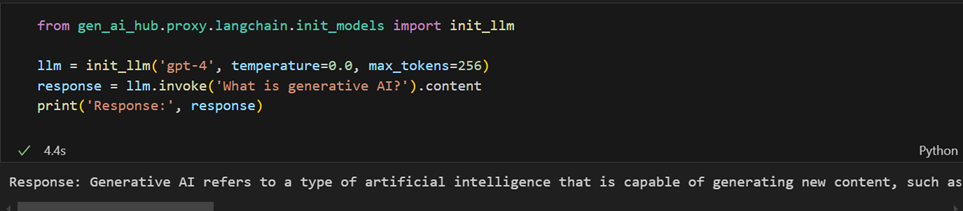
In the Generative AI Hub, you can manage your prompts in the Prompt Management page. Go to Generative AI Hub -> Prompt Management. Here you can click on a prompt to go to its details page.

Here on the left hand pane, you can see the different versions of the prompt. Once you choose a new version, the details of that version will be displayed.
Click on Open in Prompt Editor to open the chosen prompt in the prompt editor.
You can delete the prompt by clicking the Delete button.

In the prompt management page, you can filter the prompts based on created date, collection, model used, etc.

If the filter pane is not visible, click on the toggle button to display it.

You can add some prompts to favorite for quick access. Click on the star icon to add prompts to favorites. Click on the Favorites tab to see them.

You can also select multiple prompts and delete them.

Go to Generative AI Hub -> Administration.

Here you can delete all the data of a particular user. Type the email id of the user and press Enter.
If the user data is found, the Delete button will become active. Click on the Delete button to delete all the prompts saved by that particular user.

This example tasks the LLM with condensing and summarizing a given text. The text, clearly demarcated with triple backticks, is expected to be distilled into a concise summary of no more than 30 words. The focus is on extracting the most salient points and presenting them in a succinct manner, ensuring that the essence of the original content is retained without excessive verbosity. This format is designed to challenge the LLM’s capability to discern key details and convey them efficiently. For this demo we have taken 2 pages from SAP annual report 2 on Independent Assurance Practitioner’s Report by KPMG.
Go to Generative AI Hub -> Prompt Editor.
Copy the following text into the message box and click on the Run button.
Your task is to generate a short summary of a text.
Summarize the text below, in at most 30 words.
Review: Independent Assurance Practitioner's Report
To the Supervisory Board of SAP SE, Walldorf
We have performed a limited assurance engagement on the non-financial statement of SAP SE (further "Company" or "SAP") and on the non-financial statement of the parent company that is combined with it, which are published in the Management Report, (further "combined non-financial statement") for the period from January 1 to December 31, 2022.
Responsibilities of Management
Management of the company is responsible for the preparation of the combined non-financial statement in accordance with Sections 315c in conjunction with 289c to 289e HGB ["Handelsgesetzbuch": German Commercial Code] and Article 8 of REGULATION (EU) 2020/852 OF THE EUROPEAN PARLIAMENT AND OF THE COUNCIL of June 18, 2020 on establishing a framework to facilitate sustainable investment and amending Regulation (EU) 2019/2088 (hereinafter the "EU Taxonomy Regulation") and the Delegated Acts adopted thereunder, as well as for making their own interpretation of the wording and terms contained in the EU Taxonomy Regulation and the delegated acts adopted thereunder as set out in section "Sustainable Finance: EU Taxonomy Disclosures" of the combined non-financial statement.
This responsibility includes the selection and application of appropriate non-financial reporting methods and making assumptions and estimates about individual non-financial disclosures of the group that are reasonable in the circumstances. Furthermore, management is responsible for such internal control as they consider necessary to enable the preparation of a combined non-financial statement that is free from material misstatement, whether due to fraud or error.
The EU Taxonomy Regulation and the Delegated Acts issued thereunder contain wording and terms that are still subject to considerable interpretation uncertainties and for which clarifications have not yet been published in every case. Therefore, management has disclosed their interpretation of the EU Taxonomy Regulation and the Delegated Acts adopted thereunder in section "Sustainable Finance: EU Taxonomy Disclosures" of the combined non-financial statement. They are responsible for the defensibility of this interpretation. Due to the immanent risk that indeterminate legal terms may be interpreted differently, the legal conformity of the interpretation is subject to uncertainties.
Independence and Quality Assurance of the Assurance Practitioner's firm
We have complied with the independence and quality assurance requirements set out in the national legal provisions and professional pronouncements, in particular the Professional Code for German Public Auditors and Chartered Accountants (in Germany) and the quality assurance standard of the German Institute of Public Auditors (Institut der Wirtschaftsprufer, IDW) regarding quality assurance requirements in audit practice (IDW QS 1).
Responsibility of the Assurance Practitioner
Our responsibility is to express a conclusion with limited assurance on the combined non-financial statement based on our assurance engagement.
We conducted our assurance engagement in accordance with International Standard on Assurance Engagements (ISAE) 3000 (Revised): "Assurance Engagements other than Audits or Reviews of
41/335
SAP Integrated Report 2022
To Our Stakeholders
Combined Group Consolidated Financial Further Information on Management Report Statements IFRS Sustainability
Additional Information
Historical Financial Information" issued by the IAASB. This standard requires that we plan and perform the assurance engagement to obtain limited assurance about whether any matters have come to our attention that cause us to believe that the company's non-financial statement, is not prepared, in all material respects, in accordance with Sections 315c in conjunction with 289c to 289e HGB and the EU Taxonomy Regulation and the Delegated Acts issued thereunder as well as the interpretation by management disclosed in section "Sustainable Finance: EU Taxonomy Disclosures" of the combined non-financial statement. We do not, however, issue a separate conclusion for each disclosure.
In a limited assurance engagement, the procedures performed are less extensive than in a reasonable assurance engagement, and accordingly, a substantially lower level of assurance is obtained. The selection of the assurance procedures is subject to the professional judgment of the assurance practitioner.
In the course of our assurance engagement we have, among other things, performed the following assurance procedures and other activities:
– Interviewing employees responsible for the materiality analysis at group level in order to obtain an understanding on the approach for identifying key issues and related reporting limits of SAP,
– Carrying out a risk assessment, inclusive of media analysis, on relevant information on sustainability performance of SAP in the reporting period,
– Assessing the design and implementation of systems and processes for identifying, handling, and monitoring information on environmental, employee and social matters, human rights and combating corruption and bribery, including the consolidation of data,
– Interviewing staff on group level, who are responsible for the disclosures on concepts, due diligence processes, results and risks, the performance of internal control activities and the consolidation of the disclosures,
– Inspecting selected internal and external documents,
– Analytically assessing the data and trends of the quantitative information, which is reported on group level of all locations,
– Evaluating the local data collection, validation, and reporting processes as well as the reliability of the reported data by means of a sampling survey at two locations,
– Interviewing of responsible staff on group level to obtain an understanding of the approach to identify relevant economic activities in accordance with the EU taxonomy,
– Evaluating the design and implementation of systems and procedures for identifying, processing, and monitoring information on turnover, capital expenditures and operating expenditures for the taxonomy-relevant economic activities for the first two environmental objectives climate change mitigation and climate change adaptation,
– Evaluating the data collection, validation, and reporting processes, as well as the reliability of the reported data for the taxonomy-aligned economic activities in conjunction with the assessment of the technical evaluation criteria for the substantial contribution, the fulfilment of the DNSH-criteria and the documentation of the minimum safeguard,
– Assessment of the overall presentation of the disclosures.
In determining the disclosures in accordance with Article 8 of the EU Taxonomy Regulation, management is required to interpret undefined legal terms. Due to the immanent risk that undefined legal terms may be interpreted differently, the legal conformity of their interpretation and, accordingly, our assurance engagement thereon are subject to uncertainties.
Assurance Opinion
Based on the assurance procedures performed and the evidence obtained, nothing has come to our attention that causes us to believe that the combined non-financial statement of SAP SE, Walldorf for
42/335
SAP Integrated Report 2022
To Our Stakeholders
Combined Group Consolidated Financial Further Information on Management Report Statements IFRS Sustainability
Additional Information
the period from January 1 to December 31, 2022 has not been prepared, in all material respects, in accordance with Sections 315c in conjunction with 289c to 289e HGB and the EU Taxonomy Regulation and the Delegated Acts issued thereunder as well as the interpretation by management as disclosed in section "Sustainable Finance: EU Taxonomy Disclosures" of the combined non-financial statement.
Restriction of Use
This assurance report is solely addressed to SAP SE, Walldorf.
Our assignment for SAP SE, Walldorf and professional liability is governed by the General Engagement Terms for Wirtschaftsprufer (German Public Auditors) and Wirtschaftsprufungs- gesellschaften (German Public Audit Firms) (Allgemeine Auftragsbedingungen fur Wirtschaftsprufer und Wirtschaftsprufungsgesellschaften) in the version dated January 1, 2017 (https://www.kpmg.de/bescheinigungen/lib/aab_english.pdf). By reading and using the information contained in this assurance report, each recipient confirms having taken note of provisions of the General Engagement Terms (including the limitation of our liability for negligence to EUR 4 million as stipulated in No. 9) and accepts the validity of the attached General Engagement Terms with respect to us.
Mannheim, den 22. Februar 2023
KPMG AG Wirtschaftsprufungsgesellschaft
Beyer
Wirtschaftsprufer [German Public Auditor]
Wiegand Wirtschaftsprufer [German Public Auditor]

Open Inference > 1 - Inference GPT and update the request body with the prompt shown above, then send the request.
{{deploymentUrl}}/chat/completions?api-version=latestopen Jupyter notebook or python IDE and run the following code to inference the model using GPT-3.5-turbo .
from gen_ai_hub.proxy.langchain.init_models import init_llm

prompt = """Your task is to generate a short summary of a text.
Summarize the text below, in at most 30 words.

Review: Independent Assurance Practitioner's Report
To the Supervisory Board of SAP SE, Walldorf
We have performed a limited assurance engagement on the non-financial statement of SAP SE (further "Company" or "SAP") and on the non-financial statement of the parent company that is combined with it, which are published in the Management Report, (further "combined non-financial statement") for the period from January 1 to December 31, 2022.
Responsibilities of Management
Management of the company is responsible for the preparation of the combined non-financial statement in accordance with Sections 315c in conjunction with 289c to 289e HGB ["Handelsgesetzbuch": German Commercial Code] and Article 8 of REGULATION (EU) 2020/852 OF THE EUROPEAN PARLIAMENT AND OF THE COUNCIL of June 18, 2020 on establishing a framework to facilitate sustainable investment and amending Regulation (EU) 2019/2088 (hereinafter the "EU Taxonomy Regulation") and the Delegated Acts adopted thereunder, as well as for making their own interpretation of the wording and terms contained in the EU Taxonomy Regulation and the delegated acts adopted thereunder as set out in section "Sustainable Finance: EU Taxonomy Disclosures" of the combined non-financial statement.
This responsibility includes the selection and application of appropriate non-financial reporting methods and making assumptions and estimates about individual non-financial disclosures of the group that are reasonable in the circumstances. Furthermore, management is responsible for such internal control as they consider necessary to enable the preparation of a combined non-financial statement that is free from material misstatement, whether due to fraud or error.
The EU Taxonomy Regulation and the Delegated Acts issued thereunder contain wording and terms that are still subject to considerable interpretation uncertainties and for which clarifications have not yet been published in every case. Therefore, management has disclosed their interpretation of the EU Taxonomy Regulation and the Delegated Acts adopted thereunder in section "Sustainable Finance: EU Taxonomy Disclosures" of the combined non-financial statement. They are responsible for the defensibility of this interpretation. Due to the immanent risk that indeterminate legal terms may be interpreted differently, the legal conformity of the interpretation is subject to uncertainties.
Independence and Quality Assurance of the Assurance Practitioner's firm
We have complied with the independence and quality assurance requirements set out in the national legal provisions and professional pronouncements, in particular the Professional Code for German Public Auditors and Chartered Accountants (in Germany) and the quality assurance standard of the German Institute of Public Auditors (Institut der Wirtschaftsprufer, IDW) regarding quality assurance requirements in audit practice (IDW QS 1).
Responsibility of the Assurance Practitioner
Our responsibility is to express a conclusion with limited assurance on the combined non-financial statement based on our assurance engagement.
We conducted our assurance engagement in accordance with International Standard on Assurance Engagements (ISAE) 3000 (Revised): "Assurance Engagements other than Audits or Reviews of
41/335
  SAP Integrated Report 2022
 To Our Stakeholders
    Combined Group Consolidated Financial Further Information on Management Report Statements IFRS Sustainability
  Additional Information
  Historical Financial Information" issued by the IAASB. This standard requires that we plan and perform the assurance engagement to obtain limited assurance about whether any matters have come to our attention that cause us to believe that the company's non-financial statement, is not prepared, in all material respects, in accordance with Sections 315c in conjunction with 289c to 289e HGB and the EU Taxonomy Regulation and the Delegated Acts issued thereunder as well as the interpretation by management disclosed in section "Sustainable Finance: EU Taxonomy Disclosures" of the combined non-financial statement. We do not, however, issue a separate conclusion for each disclosure.
In a limited assurance engagement, the procedures performed are less extensive than in a reasonable assurance engagement, and accordingly, a substantially lower level of assurance is obtained. The selection of the assurance procedures is subject to the professional judgment of the assurance practitioner.
In the course of our assurance engagement we have, among other things, performed the following assurance procedures and other activities:
– Interviewing employees responsible for the materiality analysis at group level in order to obtain an understanding on the approach for identifying key issues and related reporting limits of SAP,
– Carrying out a risk assessment, inclusive of media analysis, on relevant information on sustainability performance of SAP in the reporting period,
– Assessing the design and implementation of systems and processes for identifying, handling, and monitoring information on environmental, employee and social matters, human rights and combating corruption and bribery, including the consolidation of data,
– Interviewing staff on group level, who are responsible for the disclosures on concepts, due diligence processes, results and risks, the performance of internal control activities and the consolidation of the disclosures,
– Inspecting selected internal and external documents,
– Analytically assessing the data and trends of the quantitative information, which is reported on group level of all locations,
– Evaluating the local data collection, validation, and reporting processes as well as the reliability of the reported data by means of a sampling survey at two locations,
– Interviewing of responsible staff on group level to obtain an understanding of the approach to identify relevant economic activities in accordance with the EU taxonomy,
– Evaluating the design and implementation of systems and procedures for identifying, processing, and monitoring information on turnover, capital expenditures and operating expenditures for the taxonomy-relevant economic activities for the first two environmental objectives climate change mitigation and climate change adaptation,
– Evaluating the data collection, validation, and reporting processes, as well as the reliability of the reported data for the taxonomy-aligned economic activities in conjunction with the assessment of the technical evaluation criteria for the substantial contribution, the fulfilment of the DNSH-criteria and the documentation of the minimum safeguard,
– Assessment of the overall presentation of the disclosures.
In determining the disclosures in accordance with Article 8 of the EU Taxonomy Regulation, management is required to interpret undefined legal terms. Due to the immanent risk that undefined legal terms may be interpreted differently, the legal conformity of their interpretation and, accordingly, our assurance engagement thereon are subject to uncertainties.
Assurance Opinion
Based on the assurance procedures performed and the evidence obtained, nothing has come to our attention that causes us to believe that the combined non-financial statement of SAP SE, Walldorf for
42/335

 SAP Integrated Report 2022
To Our Stakeholders
Combined Group Consolidated Financial Further Information on Management Report Statements IFRS Sustainability
Additional Information
the period from January 1 to December 31, 2022 has not been prepared, in all material respects, in accordance with Sections 315c in conjunction with 289c to 289e HGB and the EU Taxonomy Regulation and the Delegated Acts issued thereunder as well as the interpretation by management as disclosed in section "Sustainable Finance: EU Taxonomy Disclosures" of the combined non-financial statement.
Restriction of Use
This assurance report is solely addressed to SAP SE, Walldorf.
Our assignment for SAP SE, Walldorf and professional liability is governed by the General Engagement Terms for Wirtschaftsprufer (German Public Auditors) and Wirtschaftsprufungs- gesellschaften (German Public Audit Firms) (Allgemeine Auftragsbedingungen fur Wirtschaftsprufer und Wirtschaftsprufungsgesellschaften) in the version dated January 1, 2017 (https://www.kpmg.de/bescheinigungen/lib/aab_english.pdf). By reading and using the information contained in this assurance report, each recipient confirms having taken note of provisions of the General Engagement Terms (including the limitation of our liability for negligence to EUR 4 million as stipulated in No. 9) and accepts the validity of the attached General Engagement Terms with respect to us.
Mannheim, den 22. Februar 2023
KPMG AG Wirtschaftsprufungsgesellschaft
Beyer
Wirtschaftsprufer [German Public Auditor]
Wiegand Wirtschaftsprufer [German Public Auditor]"""

llm = init_llm('gpt-35-turbo', temperature=0., max_tokens=256)
response = llm.invoke(prompt).content
print('Response:', response)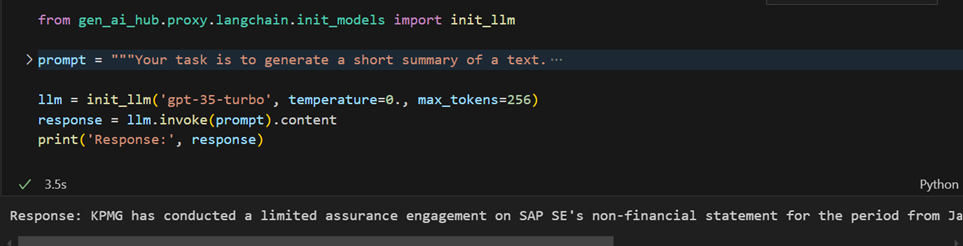
This example instructs the LLM to formulate a concise response to a specific question, with the context provided for reference. The LLM’s answer should be encapsulated within triple backticks, ensuring a clear distinction between the question and the response. If the LLM is uncertain about the correct answer based on the provided context, it is instructed to reply with “Unsure about answer”, offering a clear acknowledgment of uncertainty rather than providing potentially inaccurate information. Where we took a part of memo by Christian Klein from SAP Annual report.
Go to Generative AI Hub -> Prompt Editor.
Copy the following text into the message box and click on the Run button.
Answer the question  based on the context below. Keep the answer short and concise.
Respond "Unsure about answer" if not sure about the answer.
Context: Dear Fellow Shareholders,
It's hard to summarize the year 2022 in a few words – as the pandemic continued, the world also faced new and unexpected challenges, such as the terrible war in Ukraine, that hugely impacted all of our lives. We have faced conflicts and geopolitical tensions, climate change, the energy crisis, inflation, and volatile markets. Yet, once again, we have seen solidarity in times of crisis – people coming together to provide support to those in need when it mattered most. Despite the ongoing uncertainties in the world, SAP has remained in a strong position.
2022 marked the 50th anniversary of SAP, which we celebrated together with our customers, partners, and colleagues across the world. Five decades ago, our founders set out to redefine business software and in doing so, forever changed the way the world runs. Their innovative thinking, pioneering spirit, and drive laid the foundation for the rise of SAP – and they are still the basis for our success today, as we are carrying their legacy forward to drive positive change for our planet and its people – something that has never been more relevant or important than today.
Our hearts remain with the people impacted by the war in Ukraine. As announced, SAP has stopped all sales in Russia and Belarus, and we are in the process of a total withdrawal from these markets. For 2023, while business wind-down continues, our focus is on further reducing the remaining SAP footprint in Russia. We hope for the swift restoration of peace and will continue to help those affected by this war.
7/335
  SAP Integrated Report 2022
 To Our Stakeholders
    Combined Group Consolidated Financial Further Information on Management Report Statements IFRS Sustainability
  Additional Information
  The last year was a stark reminder that no one business, government, or society can tackle the greatest challenges of our time alone. For that, a change is needed, and technology plays a key role in finding solutions to our global challenges.
Over two years ago, we embarked on our transformation journey to move SAP towards a cloud company. This, together with our vision to enable every organization and every industry to become a network of intelligent, sustainable enterprises, is perfectly aligned with the challenges our customers face. From increasing speed and agility, building transparent and resilient supply chains, and recording, reporting, and acting on sustainability, our solutions provide the value our customers need:
– With RISE with SAP, we enable organizations to become agile, intelligent enterprises.
– With the SAP Business Network, we connect millions of companies, allowing organizations to
benefit from connected networks.
– With our SAP sustainability solutions, we enable organizations to truly operate sustainably.
Looking at our financial numbers, we met all of our outlook metrics in 2022. Our strong full-year 2022 results at a glance:
– Cloud revenue continued to be our main growth driver, increasing by 24%1.
– Current cloud backlog increased by 24%1.
– Total revenue grew 5%1.
– IFRS Operating profit was flat, while non-IFRS operating profit decreased by 7%1.
– Free cash flow was €4.35 billion.
2022 was a volatile year on the market, with technology stocks particularly hard hit. Our shares were not immune from this overall trend. Our share price decreased 22.8% in 2022, below the DAX, which lost 12.4%, but better than the NASDAQ 100, which decreased 33% over the course of the year. We want our shareholders to participate in our success. Therefore, we have proposed an annual dividend of €2.05 per share2,  an increase of approximately 5% over the prior year's regular dividend.
Customer Net Promoter Score (NPS) decreased 7 points year over year to 3 in 2022, hitting the lower end of the revised outlook range. SAP's Employee Engagement Index decreased 3 percentage points to 80%, a continued high level of engagement at the low end of the revised outlook range. The software as a service-industry scores overall have declined over the past few years of the pandemic. SAP continues to get feedback about needed improvements around pricing increases, licensing structure, product-related topics, support, service and stability of account team relationships. This type of transparent feedback and accountability helps provide us with the information to better focus investments and further improve our customer relationships. SAP's retention rate was 92.3% (2021: 92.8%). Further, the proportion of women in management increased to 29.4% (2021: 28.3%) and we also reached 35% of women in the workforce. Net carbon emissions continued to decrease, at 85 kilotons in 2022, down 25 kt year over year.
In addition to driving our ESG goals internally, we also take our wider social and environmental responsibility very seriously:
– In total, SAP donated more than €4.2 million to support Ukraine in cooperation with organizations such as UNICEF, UNHCR, and the German Red Cross. This includes our employee donation campaign which became SAP's largest employee donation campaign to date.
– SAP extended its partnership with UNICEF through Generation Unlimited (GenU), focusing on employability. The partnership also supports SAP Educate to Employ, a new program educating
1 At constant currencies
2 Pending approval of Annual General Meeting of Shareholders
 8/335
SAP Integrated Report 2022
To Our Stakeholders
Combined Group Consolidated Financial Further Information on Management Report Statements IFRS Sustainability
Additional Information
youth in need on soft skills, foundational knowledge, and SAP skills to enable a pathway to a successful career in the SAP ecosystem.
– Together with partners, we launched the TRANSFORM Support Hub offering virtual pro bono consulting opportunities worldwide, connecting SAP employees to social enterprises.
Net-net: We believe that together with our customers, colleagues, and partners around the world, we can turn the world's greatest challenges into opportunities for a prosperous and greener future. 2022 was one of the most important years in our history. As we head into 2023, we are committed to further optimizing and improving our business. We are deepening our focus on delivering lifetime value to current and new customers in the cloud and on high-growth opportunities where SAP can lead. Across SAP, we are laying the foundation for SAP's ongoing success, expanding our position as the #1 Enterprise Application company on the planet, powered by our leading platform.
Finally, I want to express my deepest thanks for your continuous trust in SAP. I certainly look back on 2022 with pride and gratitude for the many ways SAP's teams around the world are making a difference. I'm very much looking forward to 2023, and the great achievements our over 100,000 colleagues will continue to deliver as we pursue our vision to enable every organization and every industry to become a network of intelligent, sustainable enterprises.
Sincerely,
Christian Klein CEO, SAP SE
9/335
SAP Integrated Report 2022
To Our Stakeholders
Combined Group Consolidated Financial Further Information on Management Report Statements IFRS Sustainability
Additional Information
SAP Executive Board
Question: How is SAP performing?

Open Inference > 1 - Inference GPT and update the request body with the prompt shown above, then send the request.
{{deploymentUrl}}/chat/completions?api-version=latestSimilarly change the value for prompt and re-run the cell in Jupyter notebook.
from gen_ai_hub.proxy.langchain.init_models import init_llm

prompt = """Answer the question  based on the context below. Keep the answer short and concise.
Respond "Unsure about answer" if not sure about the answer.
Context: Dear Fellow Shareholders,
It's hard to summarize the year 2022 in a few words – as the pandemic continued, the world also faced new and unexpected challenges, such as the terrible war in Ukraine, that hugely impacted all of our lives. We have faced conflicts and geopolitical tensions, climate change, the energy crisis, inflation, and volatile markets. Yet, once again, we have seen solidarity in times of crisis – people coming together to provide support to those in need when it mattered most. Despite the ongoing uncertainties in the world, SAP has remained in a strong position.
2022 marked the 50th anniversary of SAP, which we celebrated together with our customers, partners, and colleagues across the world. Five decades ago, our founders set out to redefine business software and in doing so, forever changed the way the world runs. Their innovative thinking, pioneering spirit, and drive laid the foundation for the rise of SAP – and they are still the basis for our success today, as we are carrying their legacy forward to drive positive change for our planet and its people – something that has never been more relevant or important than today.
Our hearts remain with the people impacted by the war in Ukraine. As announced, SAP has stopped all sales in Russia and Belarus, and we are in the process of a total withdrawal from these markets. For 2023, while business wind-down continues, our focus is on further reducing the remaining SAP footprint in Russia. We hope for the swift restoration of peace and will continue to help those affected by this war.
7/335
  SAP Integrated Report 2022
 To Our Stakeholders
    Combined Group Consolidated Financial Further Information on Management Report Statements IFRS Sustainability
  Additional Information
  The last year was a stark reminder that no one business, government, or society can tackle the greatest challenges of our time alone. For that, a change is needed, and technology plays a key role in finding solutions to our global challenges.
Over two years ago, we embarked on our transformation journey to move SAP towards a cloud company. This, together with our vision to enable every organization and every industry to become a network of intelligent, sustainable enterprises, is perfectly aligned with the challenges our customers face. From increasing speed and agility, building transparent and resilient supply chains, and recording, reporting, and acting on sustainability, our solutions provide the value our customers need:
– With RISE with SAP, we enable organizations to become agile, intelligent enterprises.
– With the SAP Business Network, we connect millions of companies, allowing organizations to
benefit from connected networks.
– With our SAP sustainability solutions, we enable organizations to truly operate sustainably.
Looking at our financial numbers, we met all of our outlook metrics in 2022. Our strong full-year 2022 results at a glance:
– Cloud revenue continued to be our main growth driver, increasing by 24%1.
– Current cloud backlog increased by 24%1.
– Total revenue grew 5%1.
– IFRS Operating profit was flat, while non-IFRS operating profit decreased by 7%1.
– Free cash flow was €4.35 billion.
2022 was a volatile year on the market, with technology stocks particularly hard hit. Our shares were not immune from this overall trend. Our share price decreased 22.8% in 2022, below the DAX, which lost 12.4%, but better than the NASDAQ 100, which decreased 33% over the course of the year. We want our shareholders to participate in our success. Therefore, we have proposed an annual dividend of €2.05 per share2,  an increase of approximately 5% over the prior year's regular dividend.
Customer Net Promoter Score (NPS) decreased 7 points year over year to 3 in 2022, hitting the lower end of the revised outlook range. SAP's Employee Engagement Index decreased 3 percentage points to 80%, a continued high level of engagement at the low end of the revised outlook range. The software as a service-industry scores overall have declined over the past few years of the pandemic. SAP continues to get feedback about needed improvements around pricing increases, licensing structure, product-related topics, support, service and stability of account team relationships. This type of transparent feedback and accountability helps provide us with the information to better focus investments and further improve our customer relationships. SAP's retention rate was 92.3% (2021: 92.8%). Further, the proportion of women in management increased to 29.4% (2021: 28.3%) and we also reached 35% of women in the workforce. Net carbon emissions continued to decrease, at 85 kilotons in 2022, down 25 kt year over year.
In addition to driving our ESG goals internally, we also take our wider social and environmental responsibility very seriously:
– In total, SAP donated more than €4.2 million to support Ukraine in cooperation with organizations such as UNICEF, UNHCR, and the German Red Cross. This includes our employee donation campaign which became SAP's largest employee donation campaign to date.
– SAP extended its partnership with UNICEF through Generation Unlimited (GenU), focusing on employability. The partnership also supports SAP Educate to Employ, a new program educating
1 At constant currencies
2 Pending approval of Annual General Meeting of Shareholders
 8/335

  SAP Integrated Report 2022
 To Our Stakeholders
    Combined Group Consolidated Financial Further Information on Management Report Statements IFRS Sustainability
  Additional Information
  youth in need on soft skills, foundational knowledge, and SAP skills to enable a pathway to a successful career in the SAP ecosystem.
– Together with partners, we launched the TRANSFORM Support Hub offering virtual pro bono consulting opportunities worldwide, connecting SAP employees to social enterprises.
Net-net: We believe that together with our customers, colleagues, and partners around the world, we can turn the world's greatest challenges into opportunities for a prosperous and greener future. 2022 was one of the most important years in our history. As we head into 2023, we are committed to further optimizing and improving our business. We are deepening our focus on delivering lifetime value to current and new customers in the cloud and on high-growth opportunities where SAP can lead. Across SAP, we are laying the foundation for SAP's ongoing success, expanding our position as the #1 Enterprise Application company on the planet, powered by our leading platform.
Finally, I want to express my deepest thanks for your continuous trust in SAP. I certainly look back on 2022 with pride and gratitude for the many ways SAP's teams around the world are making a difference. I'm very much looking forward to 2023, and the great achievements our over 100,000 colleagues will continue to deliver as we pursue our vision to enable every organization and every industry to become a network of intelligent, sustainable enterprises.
Sincerely,
Christian Klein CEO, SAP SE
9/335


 SAP Integrated Report 2022
To Our Stakeholders
Combined Group Consolidated Financial Further Information on Management Report Statements IFRS Sustainability
Additional Information
SAP Executive Board
Question: How is SAP performing?
"""

llm = init_llm('gpt-35-turbo', temperature=0., max_tokens=256)
response = llm.invoke(prompt).content
print('Response:', response)
This example directs an LLM to perform sentiment analysis on a provided product review. The LLM is instructed to assess the sentiment of the review text and respond with a single word, either “positive” or “negative”. The review text is clearly delineated using triple backticks, ensuring clarity about which portion of the text needs to be analyzed. This format aims to extract concise and direct sentiment evaluations without any ambiguity.
Go to Generative AI Hub -> Prompt Editor.
Copy the following text into the message box and click on the Run button.
What is the sentiment of the following product review,
which is delimited with triple single quotes?
Give your answer as a single word, either "positive" or "negative".
Review text: '''SAP has Best work Environment and Best ERP product'''

Open Inference > 1 - Inference GPT and update the request body with the prompt shown above, then send the request.
{{deploymentUrl}}/chat/completions?api-version=latestSimilarly change the value for prompt and re-run the cell in Jupyter notebook.
from gen_ai_hub.proxy.langchain.init_models import init_llm

prompt = """What is the sentiment of the following product review,
which is delimited with triple single quotes?

Give your answer as a single word, either "positive" or "negative".

Review text: '''SAP has Best work Environment and Best ERP product'''"""

llm = init_llm('gpt-35-turbo', temperature=0., max_tokens=256)
response = llm.invoke(prompt).content
print('Response:', response)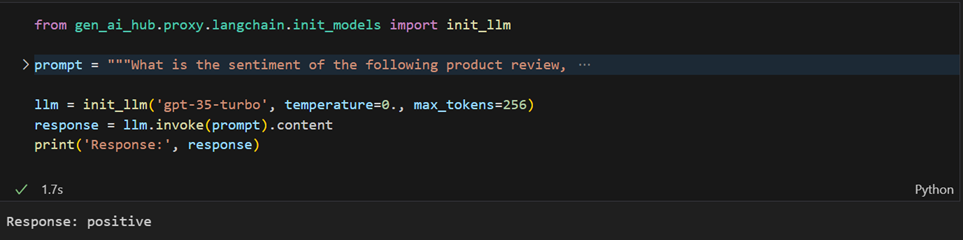
Here in this demo we are going to try out show text expansion qualities of AI core, where we wrote a few sentences about AI core and asked the LLM model to write a 500 word blog post or paragraph based on the context it understands.
Go to Generative AI Hub -> Prompt Editor.
Copy the following text into the message box and click on the Run button.
Expand it into a 500 word blog post
SAP AI core is a platform for building AI applications. which can be used to train and deploy AI applications. as well as act as a model and dataset artifactory.
Open Inference > 1 - Inference GPT and update the request body with the prompt shown above, then send the request.
{{deploymentUrl}}/chat/completions?api-version=latestSimilarly change the value for prompt and re-run the cell in Jupyter notebook.
from gen_ai_hub.proxy.langchain.init_models import init_llm

prompt = """Expand it into a 500 word blog post
SAP AI core is a platform for building AI applications. which can be used to train and deploy AI applications. as well as act as a model and dataset artifactory."""

llm = init_llm('gpt-35-turbo', temperature=0., max_tokens=256)
response = llm.invoke(prompt).content
print('Response:', response)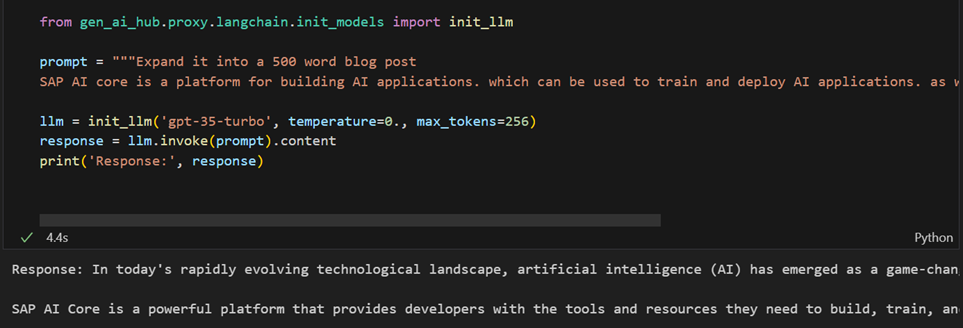
Here in tone Adjustment we are trying to showcase use the LLM’s capabilities to change/modify the tone of a text written by a new employee at SAP to proper professional tone.
Go to Generative AI Hub -> Prompt Editor.
Copy the following text into the message box and click on the Run button.
Translate the following input to a Corporate language
Sap Blue a new product from SAP. that is a gig based product. launched in 2016 relaunched in 2023.
Open Inference > 1 - Inference GPT and update the request body with the prompt shown above, then send the request.
{{deploymentUrl}}/chat/completions?api-version=latestSimilarly change the value for prompt and re-run the cell in Jupyter notebook.
from gen_ai_hub.proxy.langchain.init_models import init_llm

prompt = """Translate the following input to a Corporate language
Sap Blue a new product from SAP. that is a gig based product. launched in 2016 relaunched in 2023."""

llm = init_llm('gpt-35-turbo', temperature=0., max_tokens=256)
response = llm.invoke(prompt).content
print('Response:', response)
Here we picked a paragraph on SAP and made a few spelling and grammatical errors. Now we will be asking the LLM to fix those errors by proofreading the content.
Go to Generative AI Hub -> Prompt Editor.
Copy the following text into the message box and click on the Run button.
proofread and correct this review: SAP SE is a German multinationl software company based in Walldorf, Baden-Wurttemberg. It develops enterprise software to manage business operations and customer relations. The company is the world leading enterprise resource planing software vendor.
Open Inference > 1 - Inference GPT and update the request body with the prompt shown above, then send the request.
{{deploymentUrl}}/chat/completions?api-version=latestSimilarly change the value for prompt and re-run the cell in Jupyter notebook.
from gen_ai_hub.proxy.langchain.init_models import init_llm

prompt = """proofread and correct this review: SAP SE is a German multinationl software company based in Walldorf, Baden-Wurttemberg. It develops enterprise software to manage business operations and customer relations. The company is the world leading enterprise resource planing software vendor."""

llm = init_llm('gpt-35-turbo', temperature=0., max_tokens=256)
response = llm.invoke(prompt).content
print('Response:', response)
We picked up a random review from trust pilot on SAP ERP and want the LLM to perform multiple tasks at once which include sentiment analysis, checking if the user is angry with the product, which product/item they are talking about and which brand does it belong to.
Go to Generative AI Hub -> Prompt Editor.
Copy the following text into the message box and click on the Run button.
Identify the following items from the review text:
- Sentiment (positive or negative)
- Is the reviewer expressing anger? (true or false)
- Item purchased by reviewer
- Company that made the item
The review is delimited with triple backticks.
Format your response as a JSON object with "Sentiment", "Anger", "Item" and "Brand" as the keys.
If the information isn't present, use "unknown" as the value.
Make your response as short as possible. Format the Anger value as a boolean.
Review text: '''A true ERP software available in the market which captures 60% of market share and known as a ERP leader. The best part about the product that it can be used cloud based and it can be integrated with several modules which are equally relevant as a department. I have been a part of SAP from past 12+ years and I am extremely happy of using and referring this product to others as well. This isn't only beneficial for companies but can also make careers for humans as well. Now a days cloud based functionality and integration with API tools are the best part in it. Easy to customize according to the requirement of a client. It has several features and capabilities 1. Cost efficient, 2. Advance data management, 3. Saves time, 4. Increase productivity, 5. Real time data saving to server's, 6. Avoid duplication and ensures transparency. Best product available in the market.'''

Open Inference > 1 - Inference GPT and update the request body with the prompt shown above, then send the request.
{{deploymentUrl}}/chat/completions?api-version=latestSimilarly change the value for prompt and re-run the cell in Jupyter notebook.
from gen_ai_hub.proxy.langchain.init_models import init_llm

prompt = """Identify the following items from the review text:
- Sentiment (positive or negative)
- Is the reviewer expressing anger? (true or false)
- Item purchased by reviewer
- Company that made the item

The review is delimited with triple backticks.
Format your response as a JSON object with "Sentiment", "Anger", "Item" and "Brand" as the keys.
If the information isn't present, use "unknown" as the value.
Make your response as short as possible. Format the Anger value as a boolean.

Review text: '''A true ERP software available in the market which captures 60% of market share and known as a ERP leader. The best part about the product that it can be used cloud based and it can be integrated with several modules which are equally relevant as a department. I have been a part of SAP from past 12+ years and I am extremely happy of using and referring this product to others as well. This isn't only beneficial for companies but can also make careers for humans as well. Now a days cloud based functionality and integration with API tools are the best part in it. Easy to customize according to the requirement of a client. It has several features and capabilities 1. Cost efficient, 2. Advance data management, 3. Saves time, 4. Increase productivity, 5. Real time data saving to server's, 6. Avoid duplication and ensures transparency. Best product available in the market.''' """

llm = init_llm('gpt-35-turbo', temperature=0., max_tokens=256)
response = llm.invoke(prompt).content
print('Response:', response)
The following example demonstrates a few-shot learning approach in prompt engineering, where the model is provided with a couple of examples to understand the desired task and format. Instead of explicitly stating the task, the LLM is given a context in which it should operate.
- Contextual Setup: The “Child” and “Grandparent” dialog sets up a context. The model is implicitly being taught that it should generate responses in the style of a wise grandparent answering a child’s questions.
- Example Provided: The first complete interaction (about patience) serves as a shot or example, guiding the model on how it should structure its response.
- Task Indication: The second interaction (about unity) is incomplete, indicating the task the model needs to perform. The goal is to get the model to continue the pattern and provide a similarly styled, profound answer to the child’s new question.
The model’s generated completion is then printed, providing insight into its understanding and continuation of the provided examples.
In summary, by using a few-shot learning approach, the model is guided to understand and emulate the style of the conversation without explicitly being told the exact format or context. This method leverages the model’s ability to generalize from few examples and produce consistent and contextually relevant outputs.
Go to Generative AI Hub -> Prompt Editor.
Copy the following text into the message box and click on the Run button.
Your task is to answer in a consistent style.
Child: Teach me about patience.
Grandparent: The river that carves the deepest
valley flows from a modest spring;
the grandest symphony originates from a single note;
the most intricate tapestry begins with a solitary thread.
Child: Teach me about unity.
Grandparent:

Open Inference > 1 - Inference GPT and update the request body with the prompt shown above, then send the request.
{{deploymentUrl}}/chat/completions?api-version=latestThe following example showcases an advanced application of prompt engineering that encapsulates a multi-step task for the LLM.
Role Emulation: The initial statement sets the stage by instructing the LLM to assume the role of a customer service AI assistant. This prepares the model to respond in a specific, customer-service oriented manner.
Multi-step Instruction: The prompt is divided into two distinct steps, each guiding the model to perform a specific action:
- Step 1: Sentiment Analysis - The model is directed to discern the sentiment of a provided customer review. This sentiment could be positive, negative, or neutral.
- Step 2: Contextual Reply - Based on the extracted sentiment, the model must generate an appropriate email reply. The instructions are clear:
- Positive or Neutral Sentiment: Express gratitude.
- Negative Sentiment: Offer an apology and provide an avenue for further assistance. The model is also guided to incorporate details from the review to ensure the response feels tailored and specific to the customer’s concerns.
Tone and Format: The instructions emphasize writing in a concise and professional tone. Moreover, the model is guided to sign off the email as “AI customer agent”, reinforcing the context and ensuring the generated response follows a proper email format.
Multi-step Continuation: This prompt is an excellent example of multi-step continuation. The LLM first determines the sentiment of the review and then uses that sentiment to guide its next action, which is generating a contextually appropriate email reply.
In summary, from a prompt engineering standpoint, this example effectively leverages a structured, multi-step instruction set to guide the LLM through a complex task. The clarity and specificity of the instructions, combined with the defined role and context, aim to elicit a precise and contextually relevant response from the model.
Go to Generative AI Hub -> Prompt Editor.
Copy the following text into the message box and click on the Run button.
You are a customer service AI assistant.
Given the customer email, perform the following steps:
Step 1: Extract the sentiment of the customer review as positive, negative and neutral.
Step 2: Now, Your task is to send an email reply to a valued customer.
Generate a reply to thank the customer for their review.
If the sentiment is positive or neutral, thank them for their review.
If the sentiment is negative, apologize and suggest that they can reach out to customer service.
Make sure to use specific details from the review. Write in a concise and professional tone.
Sign the email as AI customer agent.
Customer review: So, they still had the 17 piece system on seasonal sale for around $49 in the month of November, about half off, but for some reason (call it price gouging) around the second week of December the prices all went up to about anywhere from between $70-$89 for the same system. And the 11 piece system went up around $10 or so in price also from the earlier sale price of $29. So it looks okay, but if you look at the base, the part where the blade locks into place doesn't look as good as in previous editions from a few years ago, but I plan to be very gentle with it (example, I crush very hard items like beans, ice, rice, etc. in the blender first then pulverize them in the serving size I want in the blender then switch to the whipping blade for a finer flour, and use the cross cutting blade first when making smoothies, then use the flat blade if I need them finer/less pulpy). Special tip when making smoothies, finely cut and freeze the fruits and vegetables (if using spinach-lightly stew soften the spinach then freeze until ready for use-and if making sorbet, use a small to medium sized food processor) that you plan to use that way you can avoid adding so much ice if at all-when making your smoothie. After about a year, the motor was making a funny noise. I called customer service, but the warranty expired already, so I had to buy another one. FYI: The overall quality has gone done in these types of products, so they are kind of counting on brand recognition and consumer loyalty to maintain sales. Got it in about two days.

Open Inference > 1 - Inference GPT and update the request body with the prompt shown above, then send the request.
{{deploymentUrl}}/chat/completions?api-version=latestThe next example allows us to evaluate visual prompting capabilities in AI Launchpad.
To begin, navigate to AI Launchpad > Generative AI Hub > Chat. CLick on Configure, and in model selection, select the Image option to enable image input.

In this example, we’ll be demonstrating the following image recognition capabilities:
Identifying Products
Categorizing by Characteristics
Analyzing Product Placement
Identifying Visual and Design Elements
Identifying Products
Use the upload button to upload relevant image for context. Add a corresponding query, then hit send.


The image features several different cereal brands with various packaging colors. Here is a list of the brands and their corresponding packaging colors:

1. Post Great Grains
- Packaging Colours: Brown and beige with images of grains and nuts.

2. Post Grape-Nuts
- Packaging Colours: White and purple.

3. Quaker Granola
- Packaging Colours: Beige and brown with images of granola.

4. Kashi Organic Promise
- Packaging Colours: Light green and beige.

5. Kashi Cinnamon Harvest
- Packaging Colours: Light green and beige.

6. Carnation Breakfast Essentials
- Packaging Colours: Yellow and blue.

7. Quaker Life
- Packaging Colours: White with blue and green accents.

8. Quaker Oatmeal Squares
- Packaging Colours: Light blue and beige.

9. Kashi GOLEAN Crunch!
- Packaging Colours: White with red and green text.

10. Kashi GOLEAN Crisp!
- Packaging Colours: White with green and red text.

11. Post Honey Bunches of Oats
- Packaging Colours: Yellow and orange with images of oats and almonds.

12. Post Shredded Wheat
- Packaging Colours: Yellow and red, as well as green and red.

13. Post Honeycomb
- Packaging Colours: Yellow and blue.

14. Quaker Crunchy Corn Bran
- Packaging Colours: Blue with yellow text and images of corn.

15. Nature's Path Crunchy Vanilla Sunrise
- Packaging Colours: Orange with images of cereal and vanilla.

16. Crunch Berries (Cap’n Crunch)
- Packaging Colours: Yellow with blue and red accents and cartoon characters.

17. Cap’n Crunch
- Packaging Colours: Yellow with cartoon characters.

18. Oops! All Berries (Cap’n Crunch)
- Packaging Colours: Blue with cartoon characters.

19. Golden Crisp
- Packaging Colours: Yellow with blue and cartoon characters.

20. Frosted Flakes
- Packaging Colours: Blue with orange and white accents, featuring cartoon characters.

21. Cocoa Pebbles
- Packaging Colours: Brown with cartoon characters.

22. Fruity Pebbles
- Packaging Colours: Red with cartoon characters.

23. Post Raisin Bran
- PackagingQuestions can further be added, without having to reupload the image in same AI Launchpad Chat instance.

Categorizing by Characteristics
Group the cereals by their primary ingredients, such as oats, wheat, or corn.
Certainly! Here is a grouping of the cereals by their primary ingredients as inferred from the image:

- Oats:
1. Post Great Grains
2. Quaker Oatmeal Squares
3. Post Honey Bunches of Oats
4. Quaker Granola
5. Nature’s Path Cinnamon Harvest

- Wheat:
1. Post Shredded Wheat
2. Kashi GOLEAN Crunch!
3. Kashi GOLEAN Crisp!

- Corn:
1. Post Honeycomb
2. Cap’n Crunch
3. Cap’n Crunch Crunch Berries
4. Cap’n Crunch Oops! All Berries
5. Golden Crisp
6. Kellogg’s Frosted Flakes
7. Quaker Life
8. Quaker Crunchy Corn Bran

- Rice:
1. Post Cocoa Pebbles
2. Post Fruity Pebbles

- Grape Nuts (Mixed Ingredients including Barley):
1. Post Grape-Nuts

These groupings are based on the typical primary ingredient associated with each cereal type.Analyzing Product Placement
Describe the placement strategy for the cereals on the shelves. Are there any patterns in how products are organized?Based on the visible organization of cereals on the shelves in the image, the placement strategy seems to follow certain patterns and organizational principles:
1. Brand Clustering:
- Cereals from the same brand are typically placed together in clusters. For instance, Post cereals like Great Grains, Grape-Nuts, and Honey Bunches of Oats are located near each other on the shelves.
- Similarly, Quaker cereals such as Oatmeal Squares, Life, and Granola are placed in proximity to each other.
2. Product Lines and Variants:
- Different variants of the same product line are placed next to each other. As seen with Quaker Life cereals, multiple flavors are grouped together.
- For the Cap’n Crunch series, different versions (Crunch Berries, Oops! All Berries, and the original) are placed side by side.
3. Shelf Level and Product Type:
- Healthier or whole grain options like Kashi Organic Promise and Grape-Nuts are placed at eye level on the top shelves, which may be aimed at health-conscious shoppers.
- Popular, colorful, and marketed-to-children cereals such as Cap’n Crunch, Fruity Pebbles, and Cocoa Pebbles are placed on the middle to lower shelves where they are easily accessible and visible to children.
4. Breakfast Essentials and Granola Bars:
- Non-cereal breakfast options like granola bars are placed towards the top, likely to encourage shoppers to consider these alternatives alongside their cereal choices.
- Breakfast Essentials, aimed at providing quick meal options, are placed on the top shelf, potentially targeting adult shoppers looking for convenient breakfast solutions.
5. Vertical Space Utilization:
- Vertical space is used to provide a variety of choices within the same category of cereals, allowing easy comparison. This is seen with multiple rows of products like Shredded Wheat and Honey Bunches of Oats.
6. Promotional Items:
- Non-cereal items designed to attract attention, such as the hanging Fruit Loops Candy Rolls, are placed at eye-catching positions to entice impulse purchases.
Overall, the placement strategy appears to be well-thought-out, aiming to make it easy for customers to find specific brands, compare similar products, and attract attention to special items or promotions.Identifying Visual and Design Elements
Analyze the design elements used on the cereal boxes, such as mascots, colors, and typography.The design elements on cereal boxes play a crucial role in attracting shoppers. Here's a detailed analysis of the primary design elements used:
- Mascots:
- Cartoon Characters: Many cereal brands, especially those marketed towards children, use mascots or cartoon characters to create a friendly and engaging look. For example:
- Cap’n Crunch features the iconic Cap’n Crunch character, which is instantly recognizable and appeals to kids.
- Frosted Flakes showcases Tony the Tiger, a friendly and energetic character that makes the cereal memorable.
- Cocoa Pebbles and Fruity Pebbles use characters from "The Flintstones," which adds a nostalgic and fun element.
- Colors:
- Bright and Vibrant Colors: These are used to grab attention and make products stand out on the shelves.
- Cap’n Crunch and Crunch Berries use bold yellows and vibrant reds and blues to be eye-catching.
- Fruity Pebbles and Cocoa Pebbles use bold reds and browns respectively, which stand out on the shelves.
- Natural and Earth Tones: Used for more health-conscious products to suggest wholesomeness and natural ingredients.
- Kashi cereals use greens and beiges to indicate health and organic qualities.
- Post Great Grains and Quaker Granola use browns and beiges to suggest natural ingredients and healthiness.
- Typography:
- Bold and Large Fonts: The main product names are often in large, bold fonts to ensure high readability and easy recognition.
- Life cereal has its name in large, bold letters.
- Honeycomb uses large blocky letters to make the product name noticeable.
- Playful Fonts: For child-friendly cereals, playful or whimsical fonts are used.
- Oops! All Berries uses a fun and dynamic font to appeal to children.
- Emphasis on Benefits: Key nutritional benefits or unique features are highlighted in contrasting colors or boxed texts.
- Honey Bunches of Oats often directly states health benefits like "whole grain" on the box.
- Imagery:
- Images of Cereal and Ingredients: High-quality images of the product in a bowl, often with milk, are used to evoke taste and texture, making the cereal look appetizing.NOTE: The image recognition capabilities are not limited to the above demonstrated characteristics, and can be extended and modified based on individual use-case and scenarios.
Resources
Discussion
Share feedback on this tutorial or join the conversation in SAP Community.