
Build a House Price Predictor with SAP AI Core
Build portable AI code with Docker and use it with SAP AI Core.
Overview
You will learn
- How to build Docker images from code.
- How to use Docker images with SAP AI Core
- How to check and debug execution logs for errors.


Prerequisites
Prerequisites
- A BTP global account If you are an SAP Developer or SAP employee, please refer to the following links ( for internal SAP stakeholders only ) - How to create a BTP Account (internal) SAP AI Core If you are an external developer or a customer or a partner kindly refer to this tutorial
- You have created your first workflow with SAP AI Core, using this tutorial
Steps
Intro
By the end of the tutorial you will have your AI code in form of a Docker image, connected to your AI workflow. You will also know how to use Docker images together with AI core and how to debug your code if the Execution goes to an unexpected state. This tutorial is a precursor to the set up of data pipelines and model generation.
You may still complete this tutorial if you are not familiar with the Python programming language.
Please find downloadable sample notebooks for the tutorials : . Note that these tutorials are for demonstration purposes only and should not be used in production environments. To execute them properly, you’ll need to set up your own S3 bucket or provision services from BTP, including an AI Core with a standard plan for narrow AI and an extended plan for GenAI HUB. Ensure you input the service keys of these services into the relevant cells of the notebook. Link to notebook
You need a Docker repository to store your AI code on the cloud in the form of Docker images. SAP AI core will fetch your code from this Docker repository. The image ensures that your code is bundled along with all of the dependencies, directory structure and drivers that are required when using GPU.
INFORMATION You may use your organization’s own Docker registry/repository. But please ensure that the repository is internet facing, not protected by a firewall.
Sign Up for a Docker account.
Click on the profile button (your profile name) and then select Account Settings.

Select Security from the navigation bar and click New Access Token.

Follow the guided steps, and then store the token that you receive in your local system.
SECURITY TIP: This access token means that SAP AI Core can access the specified Docker repository without you sharing you Docker credentials. It also means that you can revoke access by deleting the token, rather than having to change your credentials.
Download and Install Docker Desktop. You will need Docker Desktop to help you build Docker images of your AI code.
Run your Docker Desktop. You will observe “whale icon” on your tray when Docker Desktop is running.

Create a directory (folder) named hello-aicore-code.
Create a file main.py. Paste the following snippet in the file.
# Load Datasets
from sklearn import datasets
data_house = datasets.fetch_california_housing()
X = data_house['data']
y = data_house['target']
#
# Partition into Train and test dataset
from sklearn.model_selection import train_test_split
train_x, test_x, train_y, test_y = train_test_split(X, y, test_size=0.3)
#
# Init model
from sklearn.tree import DecisionTreeRegressor
clf = DecisionTreeRegressor()
#
# Train model
clf.fit(train_x, train_y)
#
# Test model
test_r2_score = clf.score(test_x, test_y)
# Output will be available in logs of SAP AI Core.
# Not the ideal way of storing /reporting metrics in SAP AI Core, but that is not the focus this tutorial
print(f"Test Data Score {test_r2_score}")
Create another file requirements.txt in the same directory. Here you will mention which python libraries are required to execute your code.
RECOMMENDED In production you should use the terminal command
pip list --format freeze > requirements.txtto auto generaterequirements.txt.
Paste the following snippet into requirements.txt.
scikit-learn
The code builds a model using the California Housing Dataset available in Scikit-Learn. Note that the code neither reads a datafile nor stores the model. We will cover both of these in a different tutorial.
In the same directory, create a file named Dockerfile with no extension. This file stores instructions for Docker to build an image. Your Docker image is a Linux distribution, therefore commands in this Dockerfile are similar to Linux commands with verbs for Docker as the suffix. Paste the following content exactly as it is, into the file:
# Specify which base layers (default dependencies) to use
# You may find more base layers at https://hub.docker.com/
FROM python:3.7
#
# Creates directory within your Docker image
RUN mkdir -p /app/src/
#
# Copies file from your Local system TO path in Docker image
COPY main.py /app/src/
COPY requirements.txt /app/src/
#
# Installs dependencies within you Docker image
RUN pip3 install -r /app/src/requirements.txt
#
# Enable permission to execute anything inside the folder app
RUN chgrp -R 65534 /app && \
    chmod -R 777 /app
You may notice that you did not specify the command to run the script main.py in the Dockerfile. This command will be written into the AI workflow and is covered later in this tutorial.
Open your terminal and navigate to your hello-aicore-code directory. You will use the terminal to build your Docker image.

Copy and edit the following command to build your docker image. The command follows the format docker build -t <DOCKER_REGISTRY>/<YOUR_DOCKER_USERNAME>/<IMAGE_NAME>:<TAG_NAME>. So for example, if you are using your organization’s registry which has the URL myteam.myorg, The command should be docker build -t myteam.myorg/yourusername/house-price:01 .
docker build -t docker.io/<YOUR_DOCKER_USERNAME>/house-price:01 .If you have machine with Apple Silicon M1/M2/M3 Chip, use –platform linux/amd64
docker build --platform linux/amd64 -t docker.io/<YOUR_DOCKER_USERNAME>/house-price:01 .INFORMATION In the command,
-tindicates that there is a tag name, followed by a colon and version. The name is your descriptive string, and the version can be in any format, herehouse-priceand01, respectively. The.(dot) at the end instructs Docker to look for the filenameDockerfilein the present directory.
INFORMATION The platform information relates to your operating system, for example, linux/amd64. By default, Docker builds the image for your machine’s native architecture. If you are using an ARM-based system (such as an Apple M1/M2 or Raspberry Pi), the build process may default to arm64, which could cause issues when running the container on an amd64 cluster. To avoid such compatibility problems, explicitly specify the platform using the –platform linux/amd64 flag when building the image.
The result of this command should be:

Login to your Docker account from your terminal. This is a one time step that stores your Docker account credentials in your local Docker Desktop.
INFORMATION If you are using your organization docker registry (hosting) please use the command in the format
docker login <URL_YOUR_ORGANIZATIONS_DOCKER_REGISTRY>
docker login docker.ioCopy and paste your generated Docker Access Token to use as your password. For security reasons, your input will not be printed on the screen.

docker push docker.io/<YOUR_USERNAME>/house-price:01
This step is required once. Storing Docker credentials enables SAP AI Core to pull (download) your Docker images from a private Docker repository. Use of a private Docker image prevents others from seeing your content.
WARNING SAP AI Core does not verify your docker credentials, please ensure that you are storing the correct credentials.
Select your SAP AI Core connection under the Workspaces app.
Click Docker Registry Secrets in the AI Core Administration app. Click Add.

Name your secret, and paste and edit the snippet into the Secret field.
{
        ".dockerconfigjson": "{\"auths\":{\"YOUR_DOCKER_REGISTRY_URL\":{\"username\":\"YOUR_DOCKER_USERNAME\",\"password\":\"YOUR_DOCKER_ACCESS_TOKEN\"}}}"    }
BODY
Click on POST Create a secret. Paste and edit the snippet into the body of the request, using the information below as a guide.
{
    "data": {
        ".dockerconfigjson": "{\"auths\":{\"YOUR_DOCKER_REGISTRY_URL\":{\"username\":\"YOUR_DOCKER_USERNAME\",\"password\":\"YOUR_DOCKER_ACCESS_TOKEN\"}}}"
    },
    "name": "credstutorialrepo"
}
Paste and edit the snippet into the body of the request, using the information below as a guide.
response = ai_core_client.docker_registry_secrets.create(
    name = "credstutorialrepo",
    data = {
        ".dockerconfigjson": "{\"auths\":{\"YOUR_DOCKER_REGISTRY_URL\":{\"username\":\"YOUR_DOCKER_USERNAME\",\"password\":\"YOUR_DOCKER_ACCESS_TOKEN\"}}}"
    }
)

print(response.__dict__)
- Name: Enter
credstutorialrepo. This is becomes an identifier for your Docker credentials within SAP AI Core. This value is your docker registry secret. - URL: If you have used your organization’s Docker registry then use its URL, otherwise, enter
https://index.docker.io. - Username: Your Docker username.
- Access Token: The access token generated previously, in the Docker account settings.
TIP You can store multiple Docker credentials in SAP AI Core.
This step requires the GitHub folder that you synced in this tutorial. In this folder, create another YAML file called code-pipeline.yaml. (This filename is not used as an identifier within SAP AI Core.)

Paste the following snippet into your YAML file. Edit the highlighted lines, using the comments and your own Docker image information. Click Commit Changes. The code is also available by following this link
apiVersion: argoproj.io/v1alpha1
kind: WorkflowTemplate
metadata:
  name: code-pipeline # executable id, must be unique across all your workflows (YAML files), please modify this to any value (e.g. code-pipeline-12345) if you are not the only user of your SAP AI Core instance.
  annotations:
    scenarios.ai.sap.com/description: "Tutorial to add custom code to SAP AI Core"
    scenarios.ai.sap.com/name: "Code (Tutorial)"
    executables.ai.sap.com/description: "Trains model on median house prices"
    executables.ai.sap.com/name: "House Price (Sklearn Example)"
  labels:
    scenarios.ai.sap.com/id: "learning-code"
    ai.sap.com/version: "1.0"
spec:
  imagePullSecrets:
    - name: credstutorialrepo # your docker registry secret
  entrypoint: mypipeline
  templates:
  - name: mypipeline
    steps:
    - - name: mypredictor
        template: mycodeblock1

  - name: mycodeblock1
    container:
      image: docker.io/<YOUR_DOCKER_USERNAME>/house-price:01 # Your docker image name
      command: ["/bin/sh", "-c"]
      args:
- "python /app/src/main.py"Observe the difference between the hello.yaml (created in the prerequisite tutorial) and code-pipeline.yaml.

imagePullSecrets: A key that specifies which credentials will be used to access the Docker registry. The valuecredstutorialrepospecifies the Docker registry secret that you created previously to store Docker information in SAP AI Core.image: A key that specifies which code to use in the workflow and which commands to execute within the Docker image.
Click Workspaces > Applications > your SAP AI Core connection in SAP AI Launchpad.
Navigate to your application. Check the status of your workflow. SAP AI Core will automatically sync this workflow, this can take up to three minutes.
WARNING If you don’t see the YAML workflow file in your Applications, even after 5 minutes, it is possible that another user of your SAP AI Core instance has used the same workflow name. Check that each of your workflows have unique executable ID, even if they are from separate users or GitHub repositories.

Under scenarios, you will also see a scenario named Code (Tutorial).

Click Collections > GET Returns the ArgoCD application status.

Response
...
{
    "kind": "WorkflowTemplate",
    "message": "workflowtemplate.argoproj.io/code-pipeline configured",
    "name": "code-pipeline",
    "status": "Synced"
},
...
List all available scenarios by clicking Collections > Scenarios > GET get list of scenarios.
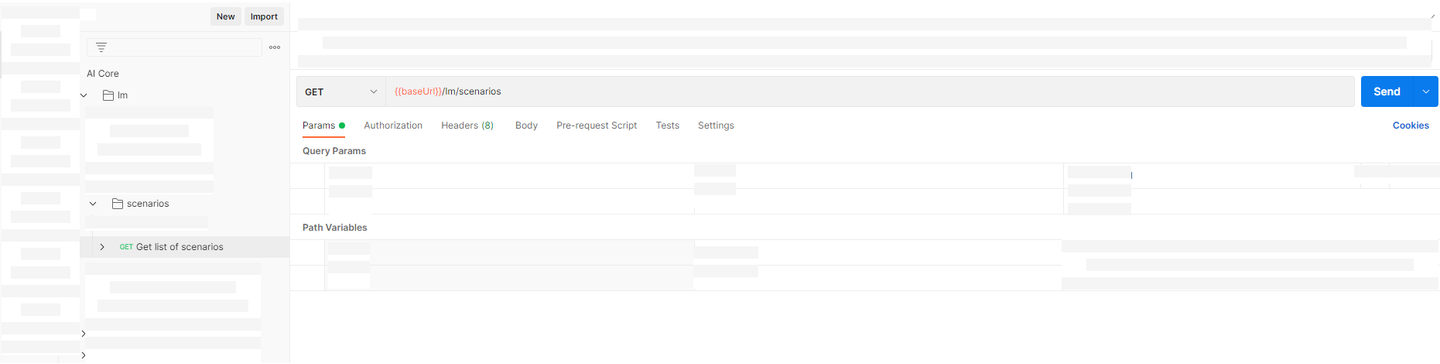
Response
{
    "createdAt": "2022-04-15T04:30:52+00:00",
    "description": "Tutorial to add custom code to SAP AI Core",
    "id": "learning-code",
    "modifiedAt": "2022-04-15T04:30:52+00:00",
    "name": "Code (Tutorial)"
},
Get the application status.
response = ai_core_client.applications.get_status(application_name='learning-scenarios-app')

print(response.message)
for sync_status in response.sync_ressources_status:
    print(sync_status.__dict__)
Your output should contain the following snippet:
...
{'name': 'code-pipeline', 'kind': 'WorkflowTemplate', 'status': 'Synced', 'message': 'workflowtemplate.argoproj.io/code-pipeline configured'}
List the executables for the scenario learning-code:
response = ai_core_client.executable.query(
    scenario_id = "learning-code", resource_group='default'
)

for executable in response.resources:
    print(executable.__dict__)
Output
{'id': 'code-pipeline', 'scenario_id': 'learning-code', 'version_id': '1.0', 'name': 'House Price (Sklearn Example)', 'description': 'Trains model on median house prices', 'deployable': False, 'parameters': [], 'input_artifacts': [], ...}How is a different Scenario created even when the application is syncing the your GitHub folder?
The application’s only task is to sync and look for syntax errors in YAML files. By modifying annotations (
scenarios.ai.sap.com/id,scenarios.ai.sap.com/nameandscenarios.ai.sap.com/description) within the YAML you create new scenario.
In the Workspaces app, select the default resource group.
In the ML Operations App, click Configurations.
Click Create.

Follow the guided process of creating configurations.

- Configuration Name: write
code-workflow-1. - Scenario Name: select
Code (Tutorial). - Version: select
1.0. - Executable: select
House Price (Sklearn Example)(refers to the Executable Name).
Click Next to review the remaining steps, and click Create.

Click Create Execution. You will be redirected to your execution details page, and your Docker image will start executing.

Click the refresh icon.
Create a configuration with the BODY:
{
    "executableId": "code-pipeline",
    "name": "code-workflow-1",
    "scenarioId": "learning-code"
}
Example Response
{
    "id": "abe8e956-945e-46ca-9b90-9b9e5f41867a",
    "message": "Configuration created"
}
Note The configuration ID differs every time you create one, and for all users.
Use your own configuration ID to start an execution with the BODY:
{
    "configurationId": "8430138e-da18-475f-8fa9-26feddb3d7e6"
}
Example Response
{
    "id": "e9d69a2f9c525325",
    "message": "Execution scheduled",
    "status": "UNKNOWN",
    "targetStatus": "COMPLETED"
}
Note The configuration ID differs every time you create one, and for all users.
Use your execution ID to get information on the status of your execution.

Create a configuration using the following code snippet:
# Create configuration
response = ai_core_client.configuration.create(
    name = "code-workflow-1",
    scenario_id = "learning-code",
    executable_id = "code-pipeline",
    resource_group = "default"
)
print(response.__dict__)
Example Response
{'id': 'bd812e2c-5c71-406f-8562-a27609593de0', 'message': 'Configuration created'}Note The configuration ID differs every time you create one, and for all users.
Paste and edit the snippet below, using your configuration ID. Run it to start an execution.
response = ai_core_client.execution.create(
    configuration_id = 'bd812e2c-5c71-406f-8562-a27609593de0',
    resource_group = 'default'
)

response.__dict__
Example Response
{
    "id": "e9d69a2f9c525325",
    "message": "Execution scheduled",
    "status": "UNKNOWN",
    "targetStatus": "COMPLETED"
}
Note The configuration ID differs every time you create one, and for all users.
Paste and edit the snippet below, using your execution ID. Run the code to get your execution status.
# Get execution status from SAP AI Core
# execute this multiple times in interval of 30 seconds
response = ai_core_client.execution.get(
    execution_id = '<YOUR_EXECUTION_ID', # Change this
    resource_group = 'default'
)

response.__dict__
The execution will go from UNKNOWN to RUNNING then to the DEAD state. Resolving this is covered in next step.
In the Overview tab in the Status details section, you will find the most recent log from your execution. You should see a stack trace of errors.

INFORMATION: In the rare case that you observe the status:
Task currently un-schedulable due to lack of resource, wait for a few minutes, it will automatically resolve itself and your execution will continue to run.
Click the Logs tab to see the stack trace generated from your code.

Use your execution ID to get the logs from SAP AI Core. You should see a stack trace of errors.
WARNING: You are required to use the
startparameter when getting logs from an execution older than an hour.

To query the execution logs, paste and edit the snippet below, using your execution ID. You should see a stack trace of errors.
# get execution logs
response = ai_core_client.execution.query_logs(
    execution_id = 'e06a4ab94956c569',
    resource_group = 'default',
    start = datetime(1990, 1, 1) # Optional, required when execution is older than one hour
)

for log in response.data.result:
    print(log.__dict__)
We can see that scikit-learn was unable to create directory for caching. Let’s resolve this in the next step.
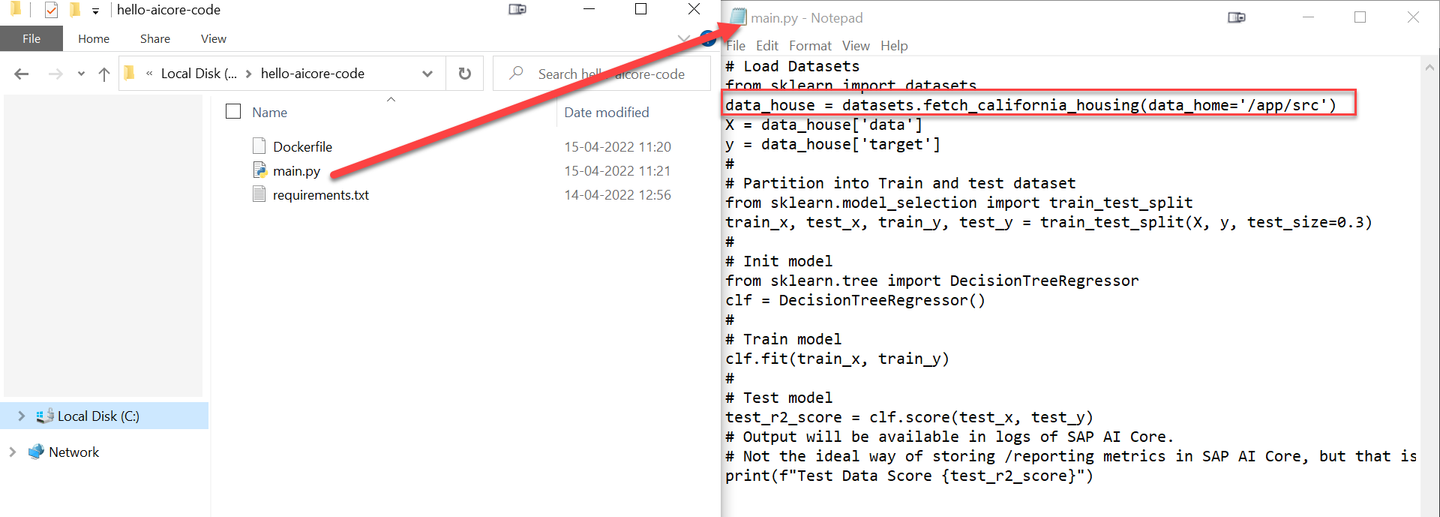
Update the highlighted line in main.py. Set the parameter data_home of function dataset.fetch_california_housing to /app/src. You had already set elevated permissions for this directory in your Dockerfile.
Build your code again, this time with a new tag. We use 02, i.e. the second version of your Docker image.
docker build -t docker.io/<YOUR_DOCKER_USERNAME>/house-price:02 .
Upload your code to your Docker registry.
docker push docker.io/<YOUR_DOCKER_USERNAME>/house-price:02
Locate your workflow (YAML file) in GitHub. Click on the Pencil Icon to edit your workflow. The original code is also available by following this link

Update your workflow by adding the new 02 tag to the ai.sap.com/version and the Docker image name.

Click Commit Changes after editing.
Why update the version each time you make changes to your workflow?
The executable version is denoted by
ai.sap.com/version. SAP AI Core syncs you workflows every three minutes and the version number is easily observable. You can be confident that your changes have synced. An alternative method of checking is to check that the latest REVISION number from GitHub is reflected in AI Core.
Go to SAP AI Launchpad. Click ML Operations > Configuration.
Look at the Scenario version in the configuration named code-workflow-1. If it shows Version 2.0, it has synced successfully, if not, please wait for ~ 3 minutes and refresh the page.

Click on code-workflow-1 to see your configuration details. Click Create Execution. A new run of your workflow will start.
Check the status of your execution. When the status turns to COMPLETED, you will see the output of the print statement from your code. You may need to check the Logs to see this.

On Postman, list the executables in the same way as before, for the scenario learning-code. You should see that the version has updated to 2.0. If not please wait for ~ 3 minutes and list the executables again.
Create a new execution, using the procedure and configuration ID from the previous steps.
Check the status of your execution. When the status turns to COMPLETED, you will see the output of the print statement from your code. You may need to check the Logs to see this.
Use the code snippet to list the executables for the scenario learning-code. You should see that the version has updated to 2.0. If not please wait for ~ 3 minutes and list the executables again.
response = ai_core_client.executable.query(
    scenario_id = "learning-code", resource_group='default'
)

for executable in response.resources:
    print(executable.__dict__)
Create a new execution, using the procedure and configuration ID from the previous steps.
Check the status of your execution. When the status turns to COMPLETED, you will see the output of the print statement from your code. You may need to check the Logs to see this.
AI core Also provides the functionality to auto schedule Executions based on Time.
To schedule an Execution at particular time of the day visit ML operations > schedules and click on Add

Choose scenario as House price and click on next

Choose Executable and click on next.

Now a screen will appear where you can choose between the available Execution config and click on next

Now we need to choose the Schedule for our execution. Enter name as Demo-Schedule and choose between date and time in case you need to run the Execution for once else Choose recurring Enter the cron Job and choose the start and end date and click on Review

Check all the details before creating the execution and click on Create.

You would be able to see the schedule created under schedules tab in ML operations

Resources
Discussion
Share feedback on this tutorial or join the conversation in SAP Community.