
Overview
You will learn
- How to find out the needed authorization objects for a given BAPI
- How to handle authorizations via an authorization default variant for the check authorization use case
- How to suppress all authorization checks in the disable authorization check use case


Prerequisites
Prerequisites
- You have completed the previous tutorial in this group and integrated your wrapper in your RAP BO.
- You will be using the same user with full development authorization you used in the previous tutorial of this group. Throughout the tutorial, we will refer to this user as ‘developer user’ or ‘user with unrestricted access’, to distinguish it from other users we will create as part of the tutorial.
Steps
Intro
Throughout this tutorial, wherever ### appears, use a number (e.g. 000). This tutorial is done with the placeholder 000.
In the previous tutorials of this group we used a user with full development authorization to be able to develop the RAP BO and the wrapper. Given the unrestricted access that this user has, we did not have to worry about providing authorizations so far. In this tutorial we want to test two different authorization scenarios: the case in which we want authorizations to be checked upon the creation of a purchase requisition (so that only authorized users can perform this action), and the case in which we do not want any authorization check to be performed.
In a realistic scenario, the next step would be to develop a UI for your application, deploy it to your system, and maintain all the needed objects (i.e.: Business Catalogs, Business Roles, etc). However, in this tutorial we will follow a simplified approach and we will test the various authorization scenarios via the application preview available in ADT, without the need for UI development and deployment. For this reason, we need a user which is allowed to access the application preview via ADT: we create this user in the next step.
In this tutorial we want to test different authorization scenarios via the application preview, and therefore we need a user with restricted access. You will now create such a user, which we will refer to as ‘shopping cart user’.
Logon on to your SAP S/4HANA system via the backend, using your developer user credentials and create a new user (transaction SU01) with name Z_USER_###.

Now, you will need to create a role for this user to be able to access the ADT and get the URL of any service binding preview.
Start transaction PFCG and create a new role as a copy of the SAP_BC_ABAP_DEVELOPER_5 role template, according to Set Up Developer Extensibility documentation. This role is needed for preview testing. Input the template role name and click on the Copy Role icon:

We suggest to name the role ZAP_BC_ABAP_DEVELOPER_5_###. Click on Copy all:

Open the newly created role in edit mode, navigate to the Authorizations tab and click on Change Authorization Data. Click on the Status button (1) and confirm the pop-up to give the role full authorizations (2). Then Save it (3) and click on the Generate icon to generate the authorization profile (4) (confirm the pop-up window).

Then go back, navigate to the User tab and add the Z_USER_### (1), Save (2) and click on the User Comparison button (3) (select Full Comparison in the pop-up window):

This role allows the user to access ADT and get the URL of any service binding preview. However, the user still lacks access to the actual service binding (i.e: it cannot use the application preview). This will be addressed in the next step.
For demonstration purposes and to keep this tutorial as modular as possible, you will now create a new service binding on which you will perform the authorizations tests: connect to your system via ADT and navigate to the package Z_PURCHASE_REQ_### containing the RAP BO, right click on the Service Definition ZUI_SHOPCART_### and select New Service Binding, input the Name ZUI_SHOPCART_WRAPPER_O4_###and a Description, and choose the Binding Type = OData V4 - UI:

Click on Next, select a suitable transport request (or create a new one) and then click on Finish. Activate it. Publish the service binding (as shown in a previous tutorial).
We will now use the shopping cart user created in the previous step to test out different authorization scenarios. First of all, to be able to test our service binding, the shopping cart user must have access to it. Logon on to your SAP S/4HANA system via the backend, using your developer user credentials, start transaction PFCG and create a new single role, with name: ZR_SHOPCART_###. In the Menu tab select Transaction –> Authorization Default

As Authorization Default choose SAP GATEWAY OData V4 Backend Service Group & Assignments (1) and input your service binding name (2) then click on Copy (3):

Save the role. Then navigate to the Authorizations tab, click on Change Authorization data and click on the Generate icon to generate the authorization profile. Add the Z_USER_### in the User tab, save the role and then click on the User Comparison button.
With this role your user can now access the service binding and use the application preview to create entries in your shopping cart. But it still lacks authorizations to create a purchase requisition. To test this logon to ADT and open the service binding ZUI_SHOPCART_WRAPPER_O4_###, right click on the ShoppingCart entity and select Copy Fiori Elements App Preview URL to copy the URL of the application preview.

Open the URL in a new browser so you will be prompted to login. Input the shopping cart user credentials:

The limited access of the shopping cart user allows it to access the service binding and create a new entry but it is not yet allowed to create a purchase requisition. You can test this out: create a new entry and then click on the Create PR via BAPI in SAVE, you will get an error message:

In this authorization scenario you want authorization checks to be performed when creating a purchase requisition in your application, so that only authorized users can perform that action.
In the case of released objects you would add the released authorizations objects directly to the authorization defaults via transaction SU22. This is however not possible for unreleased authorization objects:

The best practice in the case of unreleased authorization objects is to create an authorization default variant to hold the authorizations. You will now create such a variant for the wrapper service binding ZUI_SHOPCART_WRAPPER_O4_###.
Log on to the system via SAP GUI using the developer user credentials and start transaction SU22. In ‘Type of Application’ select SAP Gateway OData V4 Backend Service group and Assignments and as ‘Object Name’ input the service binding ZUI_SHOPCART_WRAPPER_O4_### then click on Execute:

Open the service binding ZUI_SHOPCART_WRAPPER_O4_###: there should be no authorization objects except for S_START. Click on the Variant icon to create a new variant:

Input the name ZUI_SHOPCART_WRAPPER_O4_###_V and a description for the default variant (1) and then click on Save (2). You will be prompted to select a package: input the custom wrapper package $Z_PURCHASE_REQ_CUST_WRAP_### (3) and save it (4):

If needed, select a suitable transport request (or create a new one) and confirm.
You now want to find out the required authorizations for the BAPI_PR_CREATE wrapper that is used in the wrapper service binding, and add them to your default variant.
You can use various authorization traces to find out the needed authorization objects for a given BAPI. For the scope of this tutorial, we will show the recommended approach using the system trace in the SU22 transaction, but we suggest you familiarise yourself with all the various available traces.
In the SU22 transaction, open the newly created authorization default variant. Switch to edit mode (1) and then click on Object -> Add Object from System Trace -> Local (2):

Input the username for which you want to activate the trace (in this case: your developer user) and click on Activate Trace:

Do NOT close this window.
From ADT, open the preview of the wrapper service binding ZUI_SHOPCART_WRAPPER_O4_### using the developer user credentials, create a new entry and create a purchase requisition by clicking on the Create PR via BAPI in SAVE button. The needed authorizations will be picked up by the active trace.
Go back to the SU22 window you left open, click on Deactivate Trace and then click on Evaluate. Select all the authorization Objects that the trace found, and click on the Continue icon. The needed authorizations will be added.

Save. Select all the newly added Authorization Objects and then click on the Trace button:

Now click on Evaluate Trace -> System Trace (STAUTHTRACE) -> Local:

Click on Evaluate and the needed field values will be displayed for the given selected authorization object (1). Select it (2) and click on Transfer (3): the needed field values will be added (4):

Repeat the process for all the non-released authorization objects and then click on the Continue icon in the right bottom corner. Save it.
Save it. Now start transaction SU24 and select SAP Gateway OData V4 Backend Service Group and Assignments from the dropdown menu of the Type of Application field. In the Object Name field input your Service Binding name and click on the Execute button. Select the newly created variant (1), switch to Edit mode (2), click on the SAP Data icon (3), and then click on Copy SAP Data to SU24 icon in the Maintenance Status for Authorization Objects tab (4).
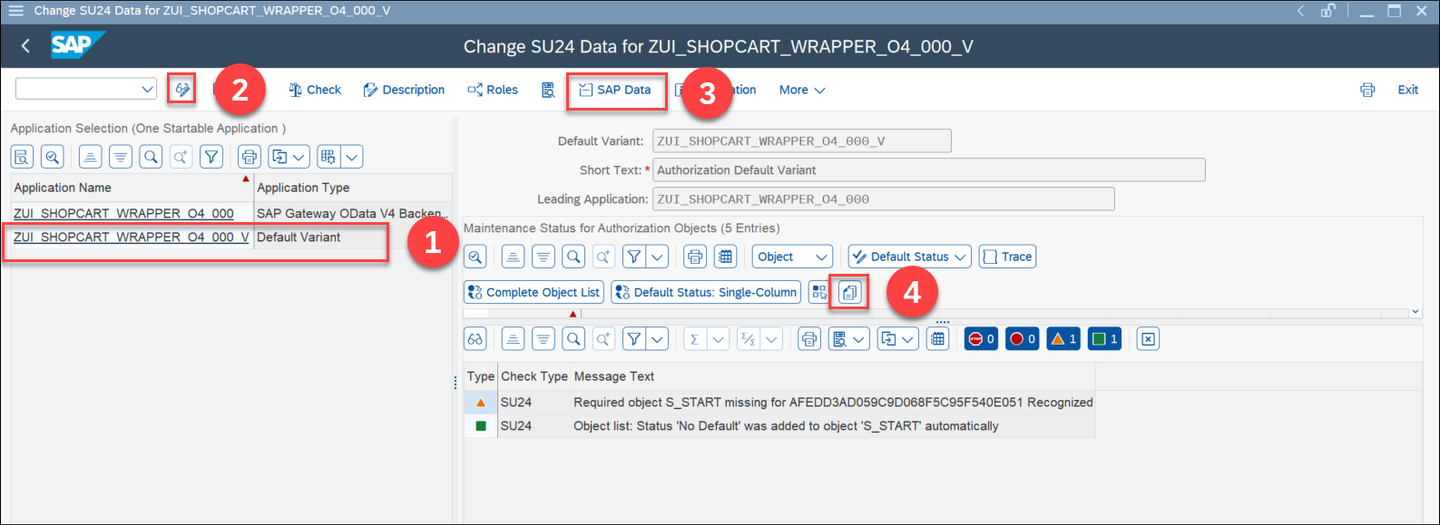
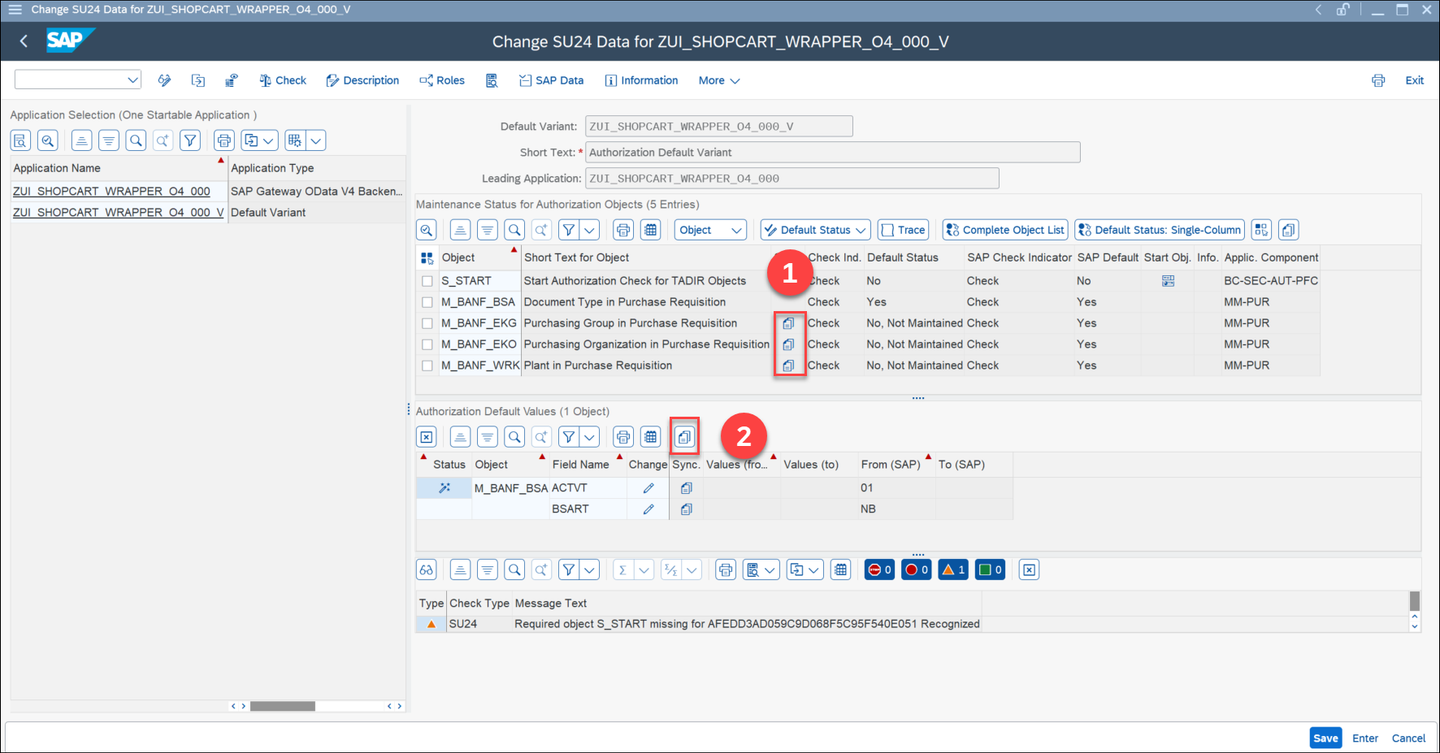
This will copy the authorization objects, but you still need to copy the authorization defaults values for each object. To do this, click on the Synchronize with SAP data icon for all the authorization objects (1) and then click on the Copy SAP Data to SU24 icon in the Authorization Default Values tab (2).
Save it and select a suitable transport request (or create a new one if needed).
In the previous steps you found out the needed authorization objects to create a purchase requisition via the BAPI_PR_CREATE wrapper, and you created a default variant for the service binding granting such authorizations. The last step is to add this default variant to the ZR_SHOPCART_### role. Any user with this role will then be able to create a purchase requisition.
Start transaction PFCG, and open the ZR_SHOPCART_### role. Switch to Edit mode and in the Applications tab deselect the authorization default and select the default variant you created, then click on Save:

In the Authorizations tab click on Change Authorization Data and in the pop-up select all the options and click on Full Authorization then click on Save.

you will see that all the authorization objects are automatically added and all the field values are set. Save and then click on the Generate icon to generate the authorization profile.

Now the shopping cart user has the role assigned, which contains the authorization default variant for the service binding, granting the necessary authorizations to create a purchase requisition via the BAPI wrapper.
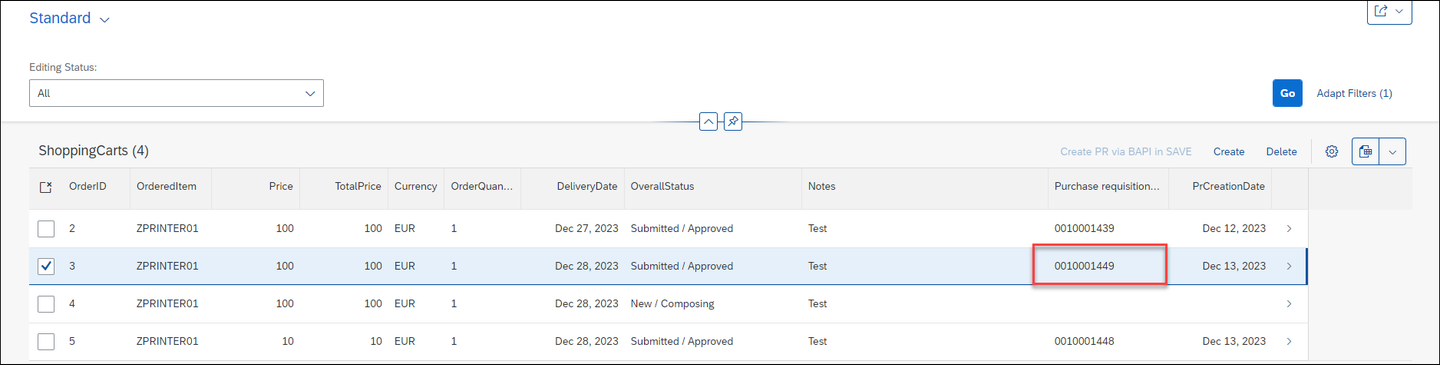
You can test it: open the service binding using the shopping cart user credentials (we suggest to open it in incognito mode, so that you will be prompted to log in) and try to create a purchase requisition by clicking on the Create PR via BAPI in SAVE button, it should work without errors:
After the
DO CHECKuse case test is successfully done, remove theZR_SHOPCART_###roles from theZ_USER_###(this can be done in transactionSU01) so that the shopping cart user is returned to its limited access state, and ready to be used in the next use case.
In this authorization scenario, you have decided that you do not want that any of the authorizations required for the BAPI call are checked when creating a purchase requisition in your application. So any user using the application should be able to create a purchase requisition, regardless of roles and authorizations. To achieve this you can set the check indicator of the authorization objects to Do not Check in transaction SU24.
You are setting the ‘DO NOT CHECK’ indicator in
SU24for two reasons: first, as shown before it is not possible to add unreleased authorization objects inSU22to applications with ABAP language version ABAP for Cloud Development, and second, it is not possible to set the ‘DO NOT CHECK’ indicator inSU22for applications with ABAP language version ABAP for Cloud Development, as shown in the following screenshot:

To keep this tutorial clear and modular, we will create a new service binding to test this scenario. This service binding exposes exactly the same service as the previous one. Logon to ADT using the developer user credentials and navigate to the package Z_PURCHASE_REQ_###. Right click on the service definition ZUI_SHOPCART_### and select New Service Binding, input the Name ZUI_SHOPCART_WRP_NCK_O4_### and a Description and select the Binding Type OData V4 - UI:

Click on Next. Select an existing transport request (or create a new one if needed) and click on Finish. Activate it. Publish the service binding as shown in a previous tutorial of this series.
After the service binding has been published, logon to the backend of the system using the developer user credentials and, similar as what done in a previous step, create a new role (we suggest to name the role ZR_SHOPCART_NCK_###) and add the newly created ZUI_SHOPCART_WRP_NCK_O4_### service binding defaults in the Menu tab to gain access to the service. Assign the Z_USER_### user to role (do not forget to generate the authorization profile and do the user comparison). The shopping cart user should now have only two roles: ZAP_BC_ABAP_DEVELOPER_5_### and ZR_SHOPCART_NCK_###:

At the moment, the newly created service binding ZUI_SHOPCART_WRP_NCK_O4_### would still perform authorization checks when creating a purchase requisition. You can test this using the Z_USER_### role: since this role does not have the required authorization, you will get an error when trying to create a purchase requisition from the service binding preview.
Now, we will modify the service binding so that no authorization check is performed. Start transaction SU24 and open the ZUI_SHOPCART_WRP_NCK_O4_### service binding. Similar to what done in the previous step, for the check authorization use case, switch to edit mode and add all the needed authorization objects.
For the scope of this tutorial, you already found out the needed authorization objects in a previous step. You could also use the system trace directly from the
SU24transaction to find the authorization objects that you need to add.
Then select all of them and click on Check Indicator -> Do Not Check:

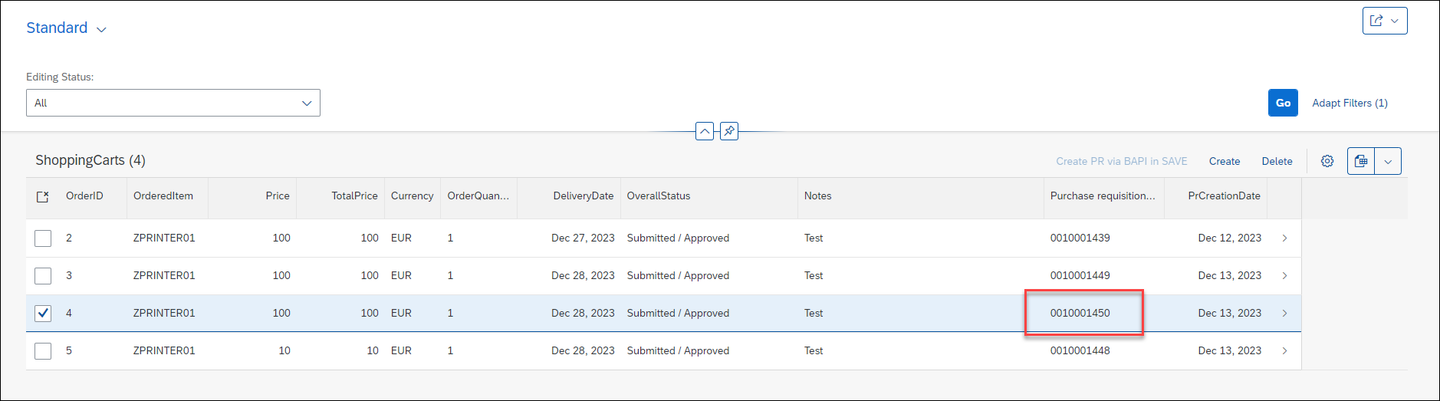
Save it. Now the service binding will not perform authorization checks for all the authorization objects with a ‘DO NOT CHECK’ indicator. As a result, even users with limited access and no specific authorizations will be able to create a purchase requisition. You can test this with the Z_USER_### user:
Resources
Discussion
Share feedback on this tutorial or join the conversation in SAP Community.