
Overview
You will learn
- How to log on to SAP S/4HANA Cloud ABAP Environment
- How to create an ABAP package
- How to find relevant existing
BAdIenhancement spots for your line of business, in this case Materials-Management-Purchasing - How to implement a
BAdIthat checks for the field quantity and delivery date during creation of purchase requisition item


Prerequisites
Prerequisites
- You have a license for SAP S/4HANA Cloud and have a developer user in this system
- You have installed SAP ABAP Development Tools (ADT), latest version, and have created an ABAP Cloud project for your SAP S/4HANA Cloud System in it
- You are familiar with the concept of extensions to the SAP standard and with
BAdIsin particular. If not, see the More Information section at the end of this tutorial - To test the
BAdI: In SAP Fiori launchpad, you have the authorization for the app Process Purchase Requisitions - Professional, i.e.SAP_BR_PURCHASER
Steps
Intro
The administrator receives an welcome e-mail after provisioning. This e-mail includes the system URL. By removing
/uiyou can log into the SAP S/4HANA Cloud ABAP Environment system. Further information can be found Developer Extensibility: Connect to the ABAP System.
A Business Add-In (BAdI) an object-oriented enhancement option, a hook for an object plug-in. It enables you to implement enhancements to standard SAP applications without modifying the original code.
In these tutorials, SAP has already defined the BAdI enhancement spot, MM_PUR_S4_PR for the Fiori App Manage Purchase Requisitions – Professional, and the BAdI definition, MM_PUR_S4_PR_CHECK.
You then implement the BAdI in the SAP Fiori app as follows:
1. For the BAdI definition MM_PUR_S4_PR_CHECK, you create a container, known as an enhancement implementation - here ZEI_BADI_CHECK_PURCH_REQ_000.
2. You can then create one or more BAdI implementations - here ZIMP_CHECK_PURCH_REQ_000.
3. For each BAdI implementation you create an ABAP Class - here ZCL_CHECK_PURCH_REQ_000.
4. Within this class, you then create a method of the BAdI- here MM_PUR_S4_PR_CHECK~check.

The advantage of this approach is that you can group several related BAdI implementations in one enhancement implementation.

At runtime:
- The user creates a purchase requisition.
- The enhancement checks:
- the quantity of items ordered is 10 or fewer
- the date is 180 days or fewer in advance
- If not, the application returns an error.
The application will look roughly like this:


Throughout this tutorial, objects name include a suffix, such as 000. Always replace this with your group number or initials.
Open ADT, select File > New > Other.

logon Search ABAP Cloud Project, select it and choose Next >.

logon Select SAP S/4HANA Cloud ABAP Environment, enter the ABAP service instance URL and choose Next.

logon To log on, choose Open Logon Page in Browser, then choose Next. (Alternatively, e.g. if you have an admin user and a developer user in the SAP BTP Cloud landscape, you may need to choose Copy Logon URL… .)

logon 
logon Check your ABAP service instance connection and choose Finish.

logon
Your project is available in the Project Explorer.

First, create a package for your development objects.
Choose your project, then choose New > ABAP Package from the context menu.

step1a-package-new Enter the following.
Z_MM_PUR_S4_BADI_000- First
BADIfor MM Purchasing
Choose Add to favorite packages, then choose Next

step1b-package-name Choose Create a new request, enter a meaningful description, e.g. Test
BADIsMM-PURCHASING then choose Finish.
First make sure that the released APIs are displayed by application component: In your project, navigate to Released Objects.The tree should show the Released Objects sorted by Application Component.

step2b-released-objects If not, choose Configure Tree from the context menu, then select Application Component from the left side ( Available Tree Levels ) and add it to the right side ( Selected Tree Levels ). Move it to the top. Then choose Finish.

step2a-tree-configure 
step2b-application-component-add In the tree, drill down to MM-PUR-REQ > Enhancements > Enhancement Spots >
MM_PUR_S4_PRand open it by double-clicking.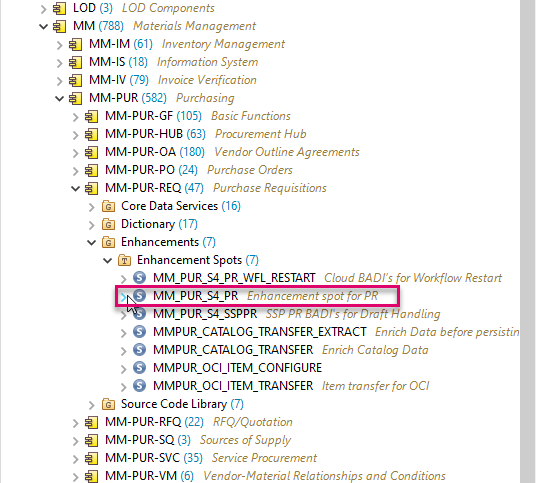
step2c-enhancement-spot-choose
The BAdI enhancement spot appears in a new editor, showing you the available BAdI definitions (1).
To help you create your own enhancements, example classes are provided (2).

Now that you have identified the correct enhancement spot, you need a container within this enhancement spot for your BAdI implementations. This is known as an enhancement implementation.
Select your package
Z_MM_PUR_S4_BADI_000and choose New > Other ABAP Object from the context menu.
step3a-badi-implem-create Filter by
BAdI, chooseBAdIEnhancement Implementation, then choose Next.Enter the following and choose Next.
- Name:
ZEI_BADI_CHECK_PURCH_REQ_000 - Description: Check date and quantity in Purchase Requisition
- Enhancement Spot:
MM_PUR_S4_PR
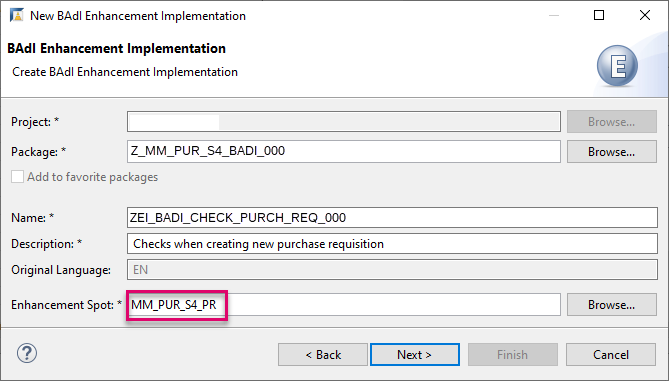
step3b-badi-enhancement-implem - Name:
Choose the transport request, then choose Finish.
Your BAdI enhancement implementation appears in a new editor. It implements the enhancement spot MM_PUR_S4_PR.

A complete searchable table of available
BAdIsand the Fiori apps to which they pertain is available here: SAP Help Portal: Adaptation of App Behavior
In the
BAdIenhancement implementation, choose AddBAdIimplementation.Add the following, then choose Next:
BAdIDefinition:MM_PUR_S4_PR_CHECK(Provided by SAP; add by clicking on Browse)BAdIImplementation Name:ZIMP_CHECK_PURCH_REQ_000

step5b-badi-input-values
Ignore the error. You will fix this in the next step.
Choose Implementing Class.

step5a-implementing-class-create Add the following, then choose Next.
- Name:
ZCL_CHECK_PURCH_REQ_000 - Description: Implement checks on creating Purchase Requisition
- (Added automatically): Interfaces:
IF_MM_PUR_S4_PR_CHECK

step5b-implementing-class-name - Name:
Choose the transport request, then choose Finish.
The class appears in a new editor with skeleton code.
Format, save, and activate the class (
Shift+F1, Ctrl+S, Ctrl+F3).Go back to your
BAdIimplementationZIMP_CHECK_PURCH_REQ_000and activate it too.
The error will disappear.
Add the following code to the method implementation
if_mm_pur_s4_pr_check~check..ABAPDATA ls_message TYPE mmpur_s_messages. ** READ TABLE purchaserequisitionitem_table INTO DATA(ls_pur_req_itm) INDEX 1 . IF ls_pur_req_itm-orderedquantity > 10. ls_message-messageid = 'DUMMY'. ls_message-messagetype = 'E'. ls_message-messagenumber = '001'. ls_message-messagevariable1 = ' Quantity limit 10'. "Place holder APPEND ls_message TO messages. ENDIF. IF ls_pur_req_itm-deliverydate - ( cl_abap_context_info=>get_system_date( ) ) > 180. ls_message-messageid = 'DUMMY'. ls_message-messagetype = 'E'. ls_message-messagenumber = '001'. ls_message-messagevariable1 = 'Delivery date limit 180 days '. "Place holder APPEND ls_message TO messages. ENDIF.Format, save, and activate (
Shift+F1, Ctrl+S, Ctrl+F3) your code.Check that yours is the implementation that will be called:

Now test that the checks are performed in the app.
In SAP Fiori launchpad, open the app Manage Purchase Requisitions (Professional).

step7a-app-open Display the existing purchase requisitions by choosing Go, then choose Create.

step7b-go In the next screen, choose Create again, then choose Material.

step7c-create-material The Details screen appears. From the Material field, choose Value Help.
Then choose the material RM122, Plant 1010.

step7e-material-rm122-choose The system fills some fields with default values. Now enter a wrong quantity, e.g. 20, and date, e.g. 09.11.2021.

step7f-wrong-date-and-quantity The system shows you 2 errors. To display the errors, select the red box at the bottom left.

step7g-errors Enter correct values, choose Apply, then choose Save.
Your new order appears in the Overview List. .

- Start here: SAP blog post: How to Extend SAP Standard Using ADT
- SAP Help Portal: ABAP Development User Guide: Working with Business Add-Ins (
BAdIs) - Concepts: SAP Help Portal: Enhancement Technologies: Business Add-Ins (
BAdIs) - SAP Help Portal: Sourcing and Procurement: Adaptation of App Behavior (Overview and List of Available
BAdIs)
Resources
Discussion
Share feedback on this tutorial or join the conversation in SAP Community.