
Overview
You will learn
- How to use the Custom Business Configurations app to maintain configurations


Prerequisites
Prerequisites
- You need an SAP BTP, ABAP environment license or a trial user.
- This tutorial also works in an SAP S/4HANA Cloud, public edition system.
- This is the third tutorial of group Create a SAP Fiori based Table Maintenance app. You must complete the tutorials in the given order.
Steps
Intro
The Custom Business Configurations app serves as an entry point to the configuration objects provided by different applications or partners. You can use the app to adjust these configuration objects to change and influence the system behavior.
The required business catalog is included in the SAP_BR_BPC_EXPERT (Configuration Expert - Business Process Configuration) business role template. Make sure that this role is assigned to the user who is responsible for maintaining the error codes.
Hint: The trial user in SAP BTP ABAP trial system already has the required catalog.
Launch SAP Fiori Launchpad.
Log on with the user who is responsible for maintaining the error codes.
Select Custom Business Configurations tile. If you cannot find the tile, use the search function and enter Custom Business Configurations. You can also use the app finder.
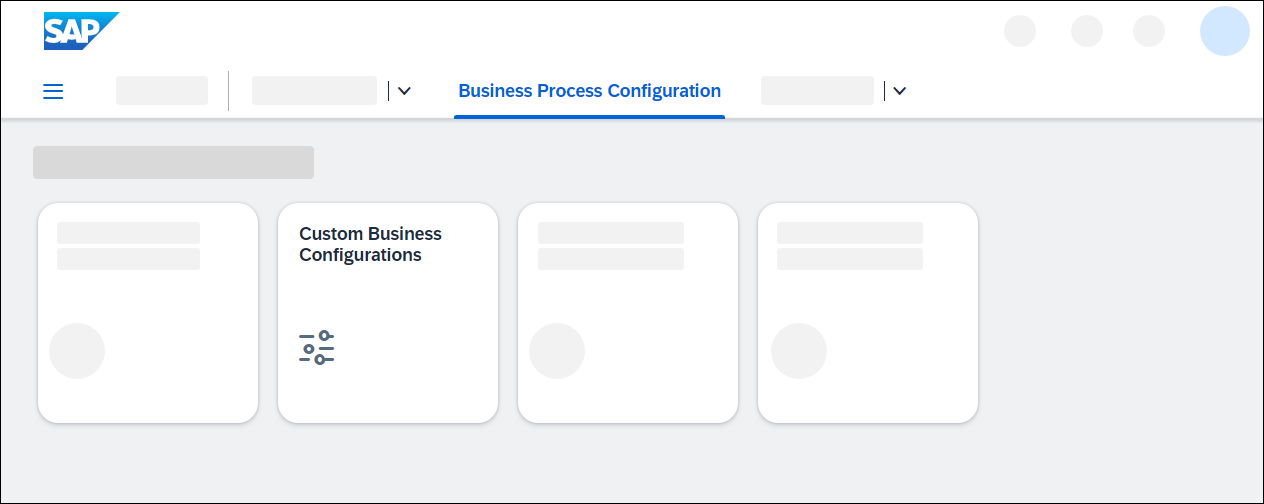
Start Custom Business Configurations app Select your business configuration.
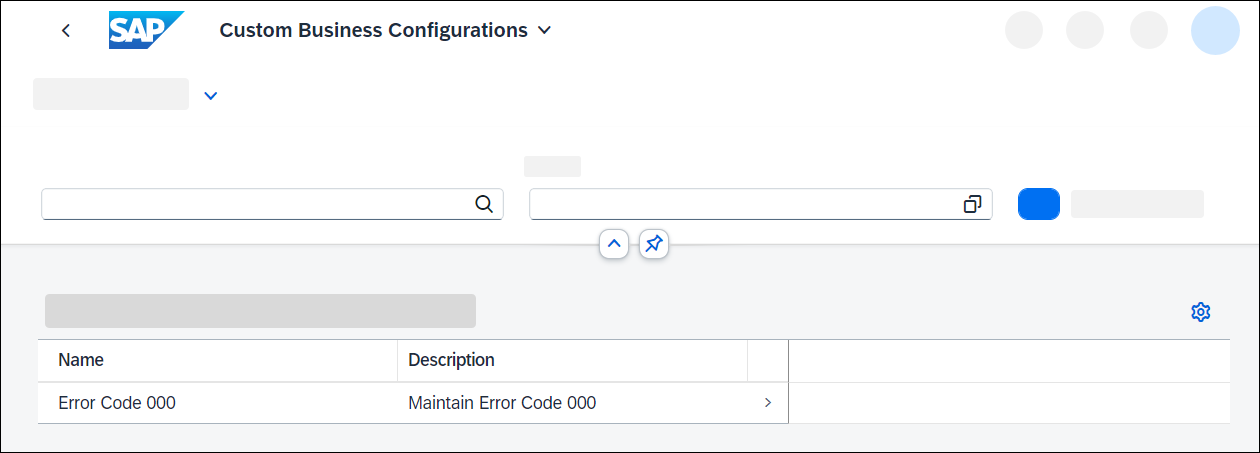
Select business configuration Click Edit. When the Edit action is performed, a customizing transport request is determined automatically. You can see the determined transport request in the header area. You can find the determination logic in the ABAP documentation of method
get_transport_requestof interfaceif_mbc_cp_rap_tdat_cts.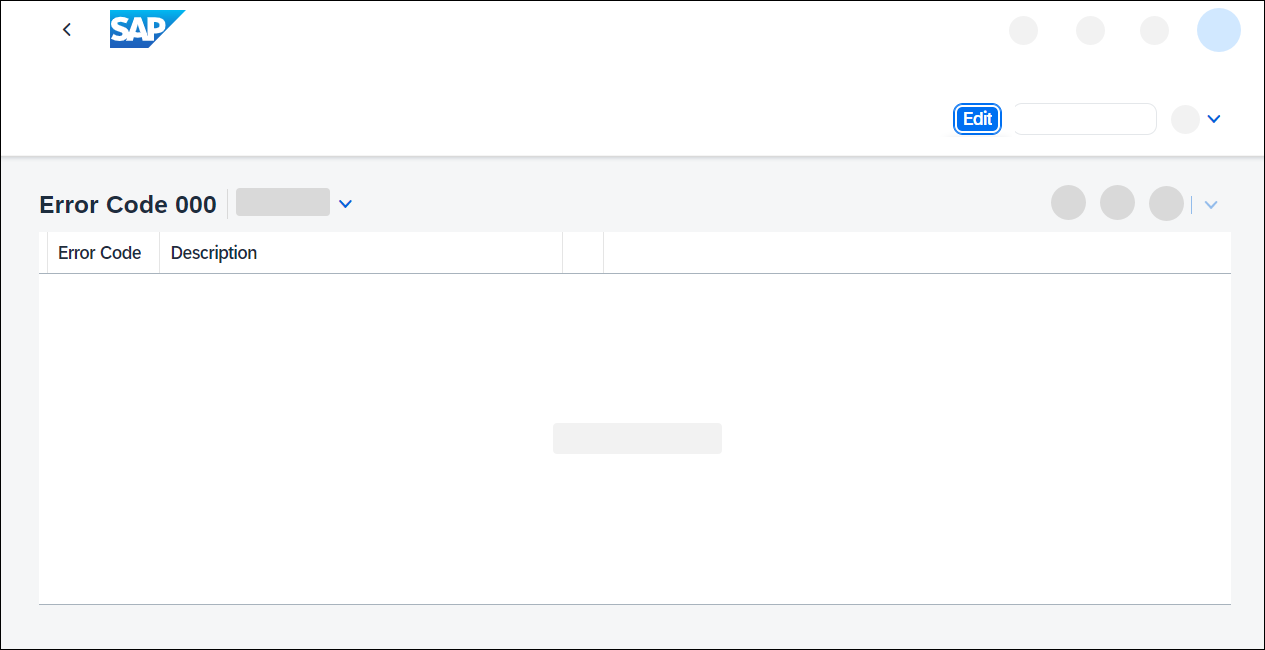
Click edit Enter the following:
- Error Code:
401 - Description:
Unauthorized
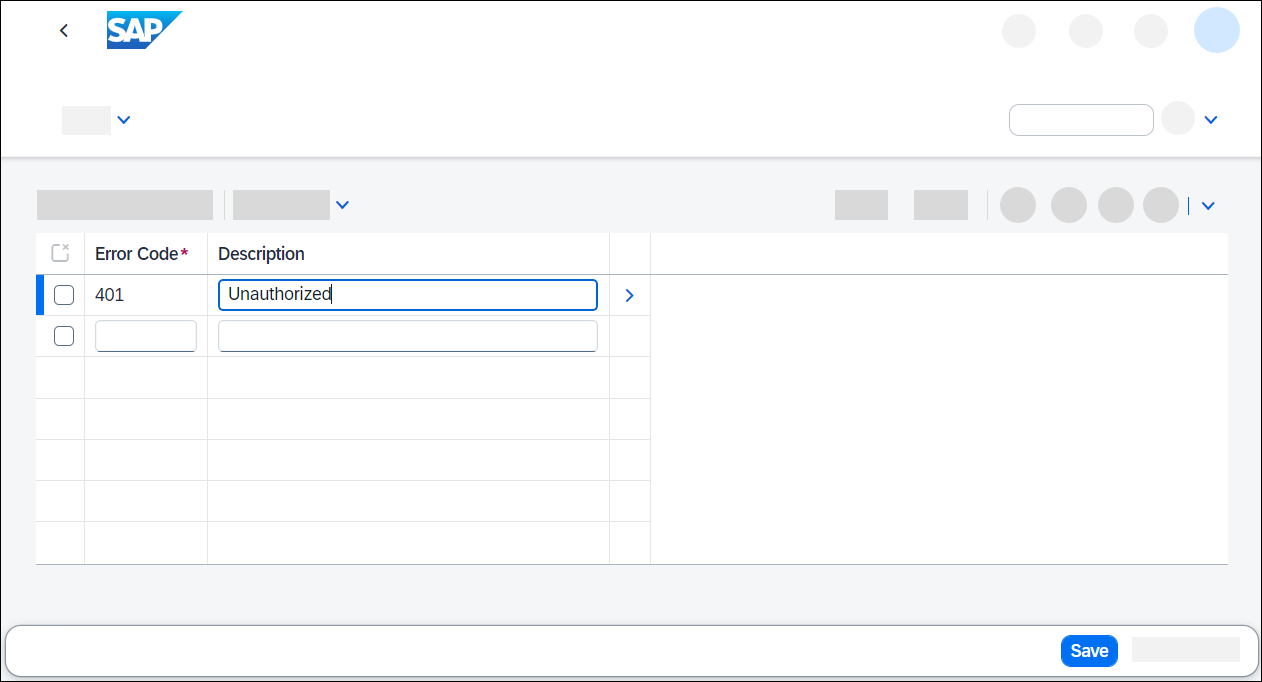
Enter new row Click Save.
- Error Code:
If the system was able to automatically determine a customizing request, or if you only have a SAP BTP trial account and have made the adjustments mentioned in the first tutorial, the save process is successful and you can now set this step to Done and proceed to the next step Test yourself. If not, you are prompted to select a transport request.
Click on the input help button. If a task of a modifiable transport request is assigned to your user, you can select the transport request and then continue with saving by clicking on Select Transport Request. If this is not the case, you must first create a new one.
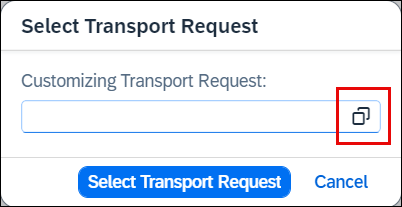
Input help button To create a transport request, return to the SAP Fiori Launchpad home page and choose the Export Customizing Transports app.
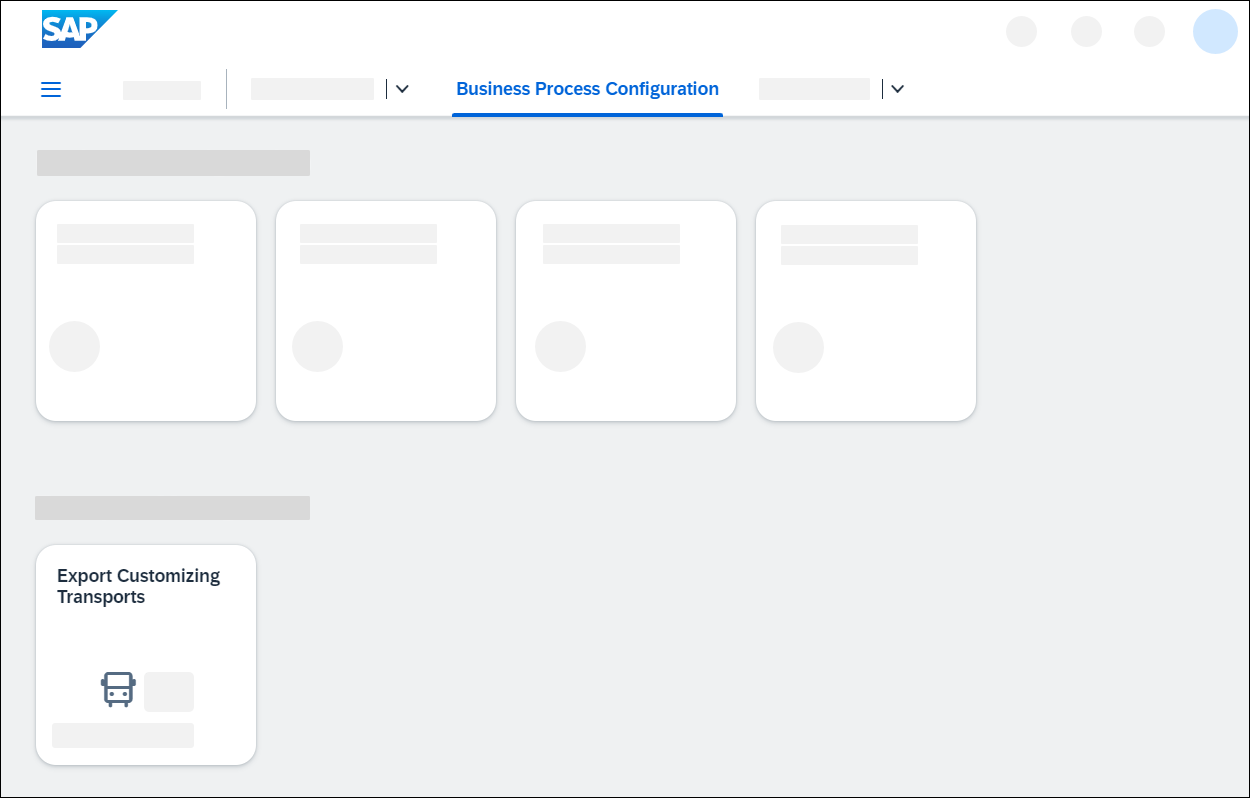
Start Export Customizing Transports app Click Create.
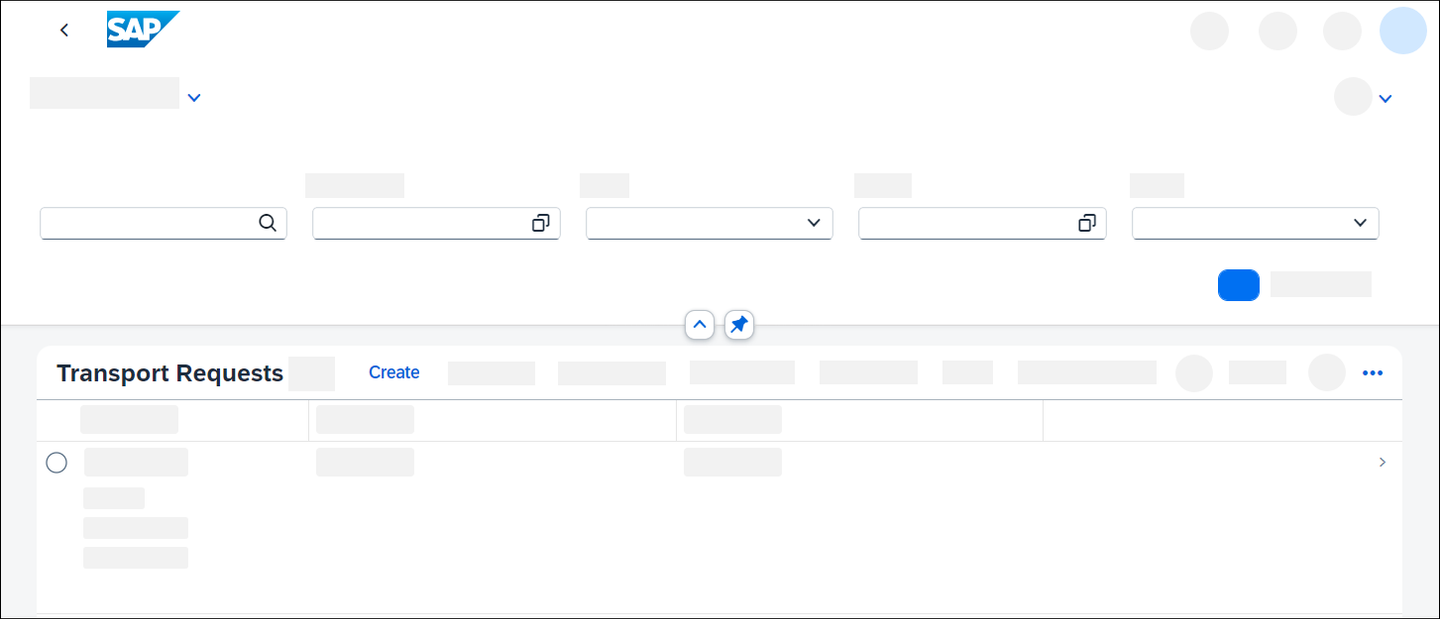
Create new transport request Create a transport request:
- Description:
New Error Codes ### - Technical Type:
Customizing Request
Click Create.
- Description:
In the Custom Business Configurations app, save again. Use the input help to select a transport request. Then click Select Transport Request. If you do not find a transport request, try reloading the Custom Business Configurations app.
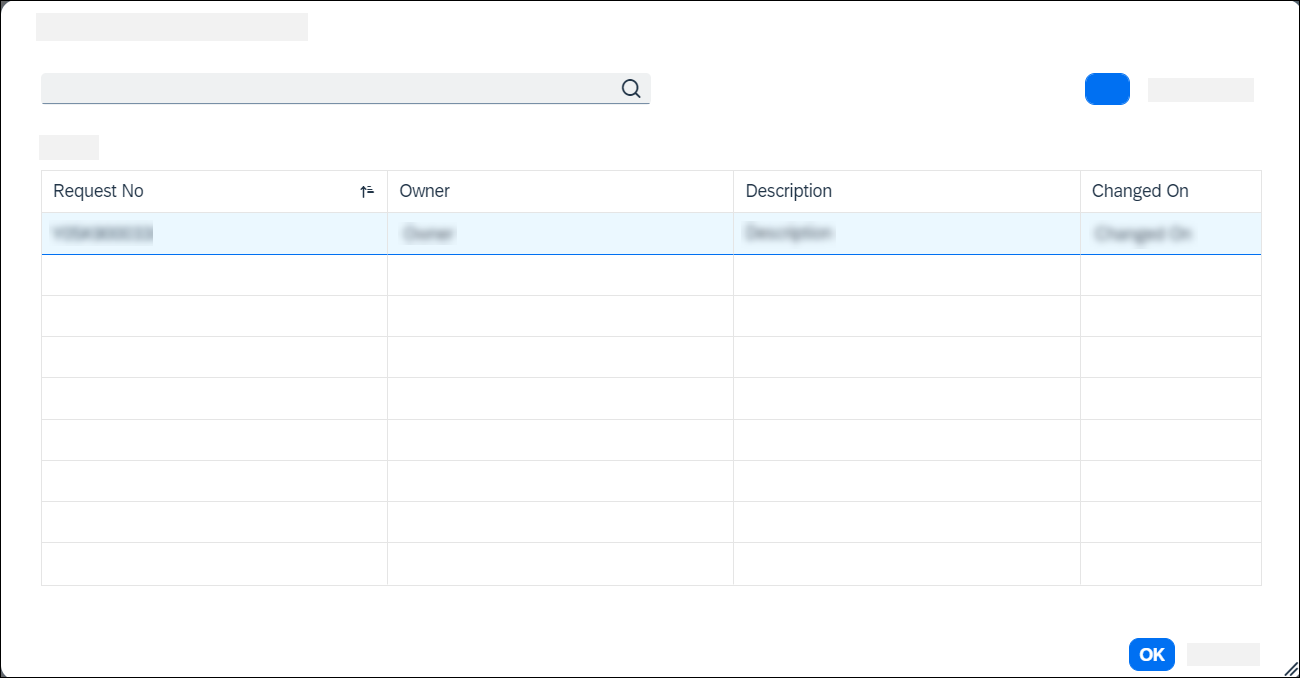
Select transport request in Custom Business Configurations app The data was recorded on the transport request. Business configuration content can be recorded in both business configuration and development software components. For the transport request, the attribute
SAP_CUS_TRANSPORT_CATEGORYmust be set toDEFAULT_CUSTorMANUAL_CUST.
Resources
Discussion
Share feedback on this tutorial or join the conversation in SAP Community.