
Create a SAP Fiori App and Deploy it to SAP BTP, Cloud Foundry environment
Create a SAP Fiori app using SAP-managed app router for a RAP business object from SAP BTP, ABAP Environment in SAP Business Application Studio and deploy it to SAP BTP, Cloud Foundry environment.
Overview
You will learn
- How to create MTA projects
- How to create SAP Fiori applications
- How to run applications
- How to build MTA projects
- How to deploy MTA archive files
- How to check deployment
- How to open SAP launchpad service


Prerequisites
Prerequisites
- Trial: You need an SAP BTP, ABAP environment trial user or a license.
- User has authorization to execute the OData service
- The user is Space Developer in the targeted Cloud Foundry Space
- Business Application Studio is subscribed and the SAP Business Application Studio Developer role collection is assigned
- SAP Launchpad Service is subscribed and the Launchpad Admin role collection is assigned
- Limitation: SAP Business Application Studio must be subscribed in same subaccount as the ABAP instance
Steps
Log in to SAP BTP Trial cockpit and click Enter Your Trial Account.

SAP Business Application Studio Select your subaccount trial.

SAP Business Application Studio Select Service Marketplace and search for SAP Business Application Studio and select it.

SAP Business Application Studio
Create a new dev space: - Name:
Managed_App_Router- Type: SAP FioriClick **Create Dev Space**.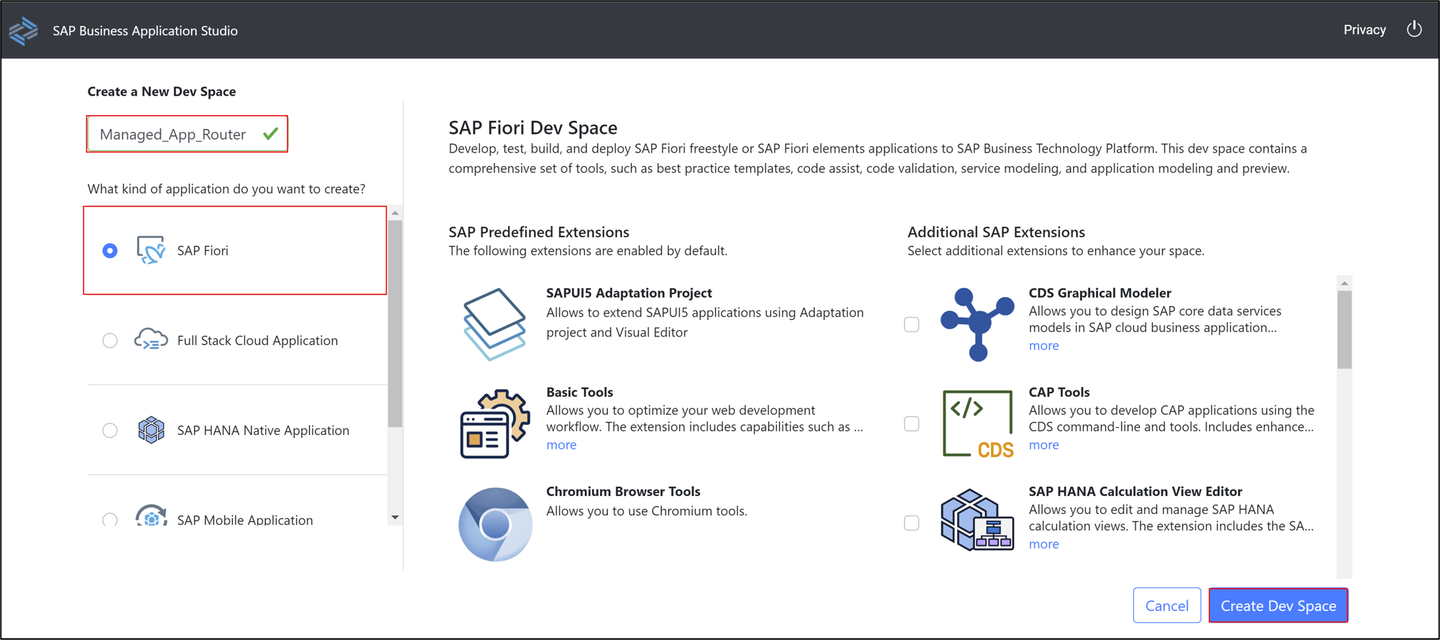
dev Click
Managed_App_Router.
dev Select Open Folder.

dev Select projects and click Open.

dev
Select View > Find Command.

MTA project Search for Open CF: Application Router Generator and select it.

MTA project Create MTA project:
- MTA ID:
ztravel_app_xxx - MTA description: Travel App XXX
- Add router module:
Managed Approuter
- MTA ID:
Click **Finish**.
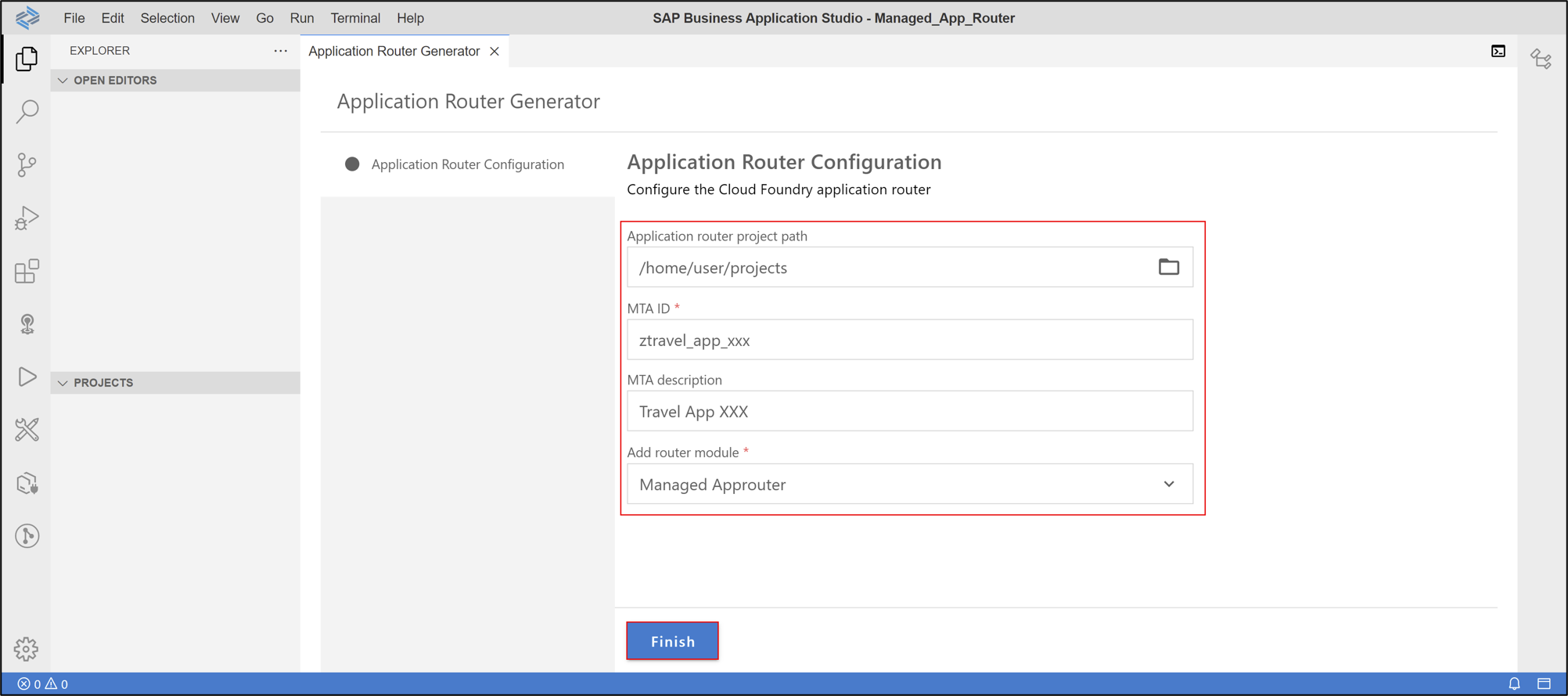
Check your result.

MTA project
Select View > Find Command.

login Search for Login to Cloud Foundry and select it.

login Press Enter to set your API endpoint.

login Enter your email address and press Enter.

login Enter your password and press Enter.

login Select your global account.

login Select your dev space.

login Now you are logged in and your organization and space have been set.

login
Select View > Find Command.
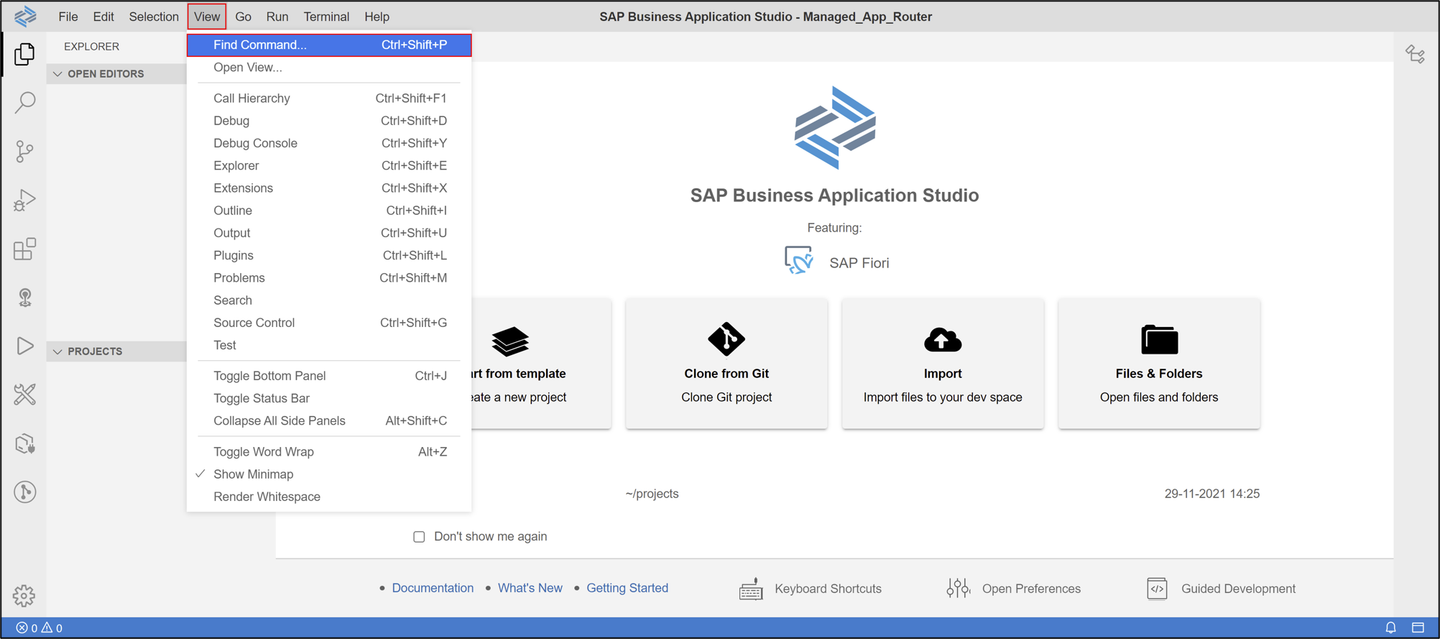
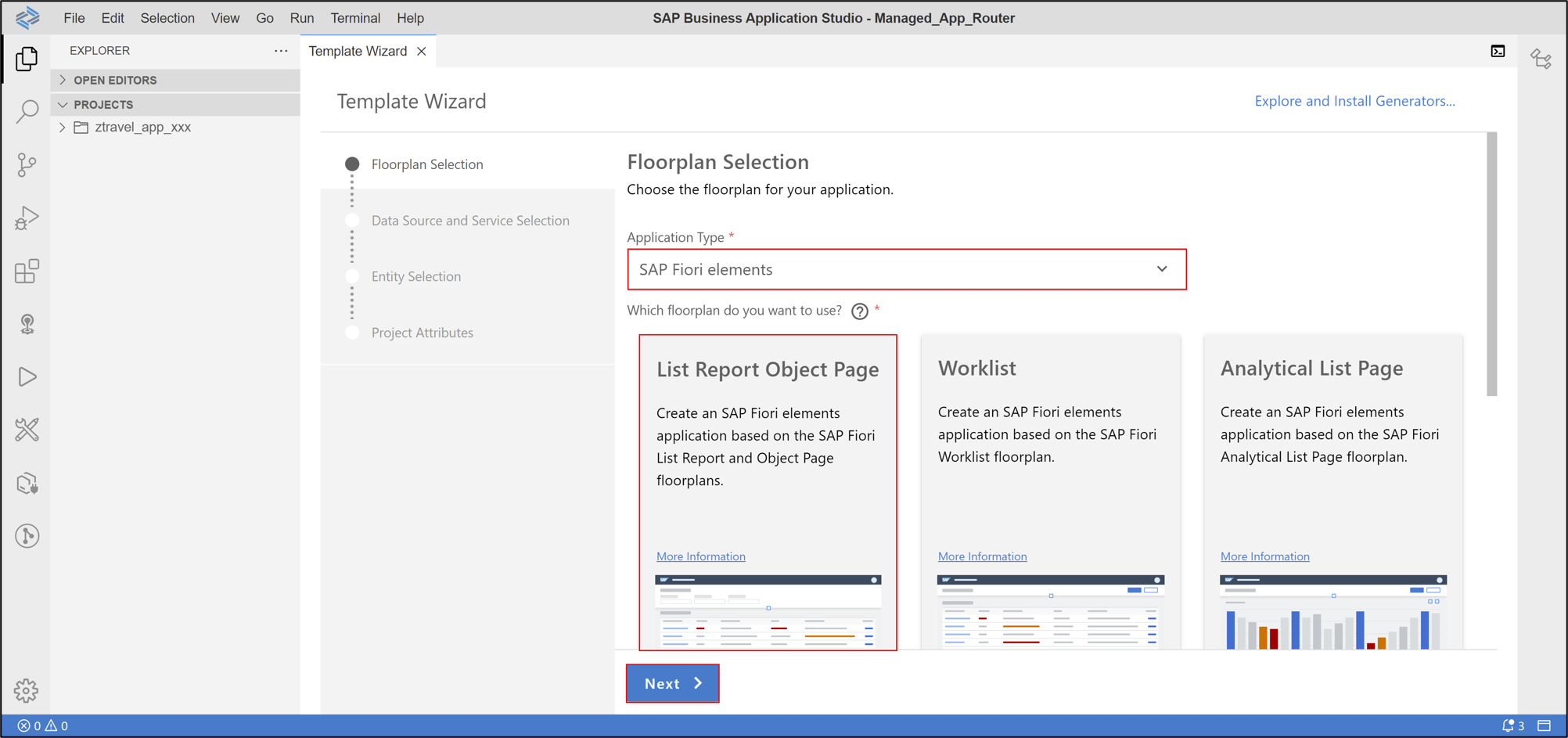
Fiori application Search for Open Application Generator and select it.
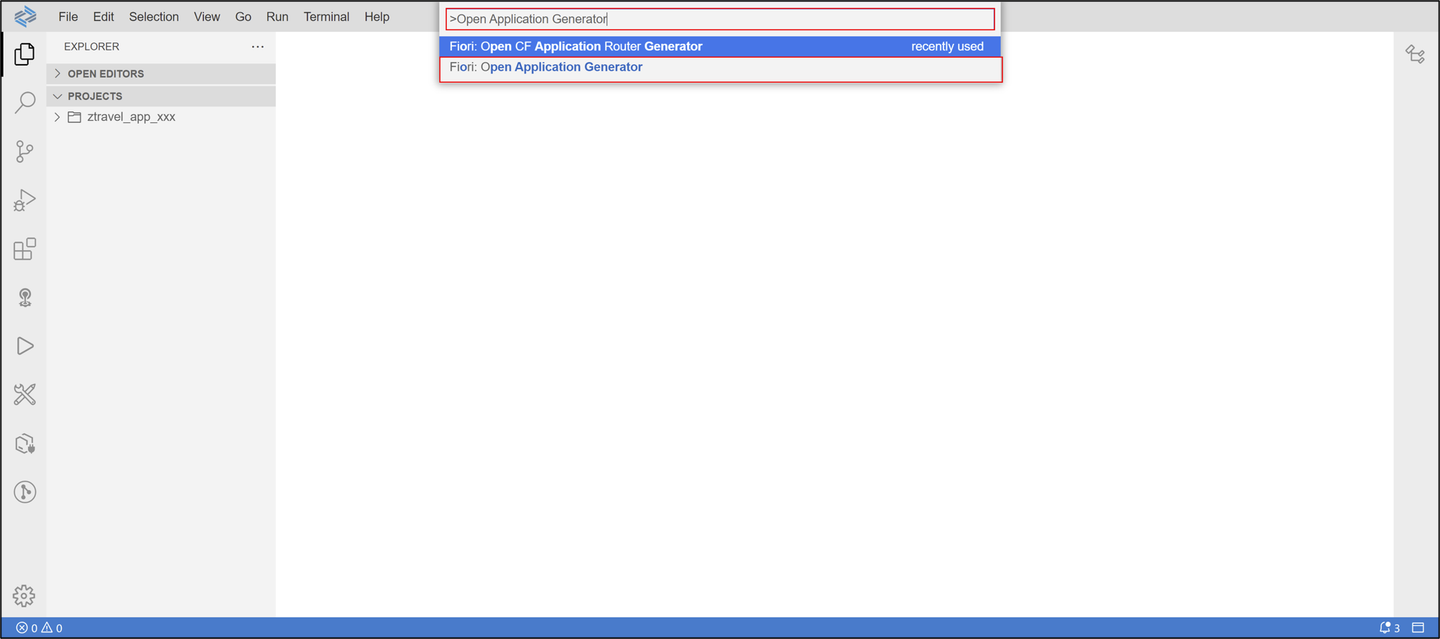
Fiori application Select SAP Fiori elements as application type and List Report Object Page as
floorplan.
Click **Next >**.
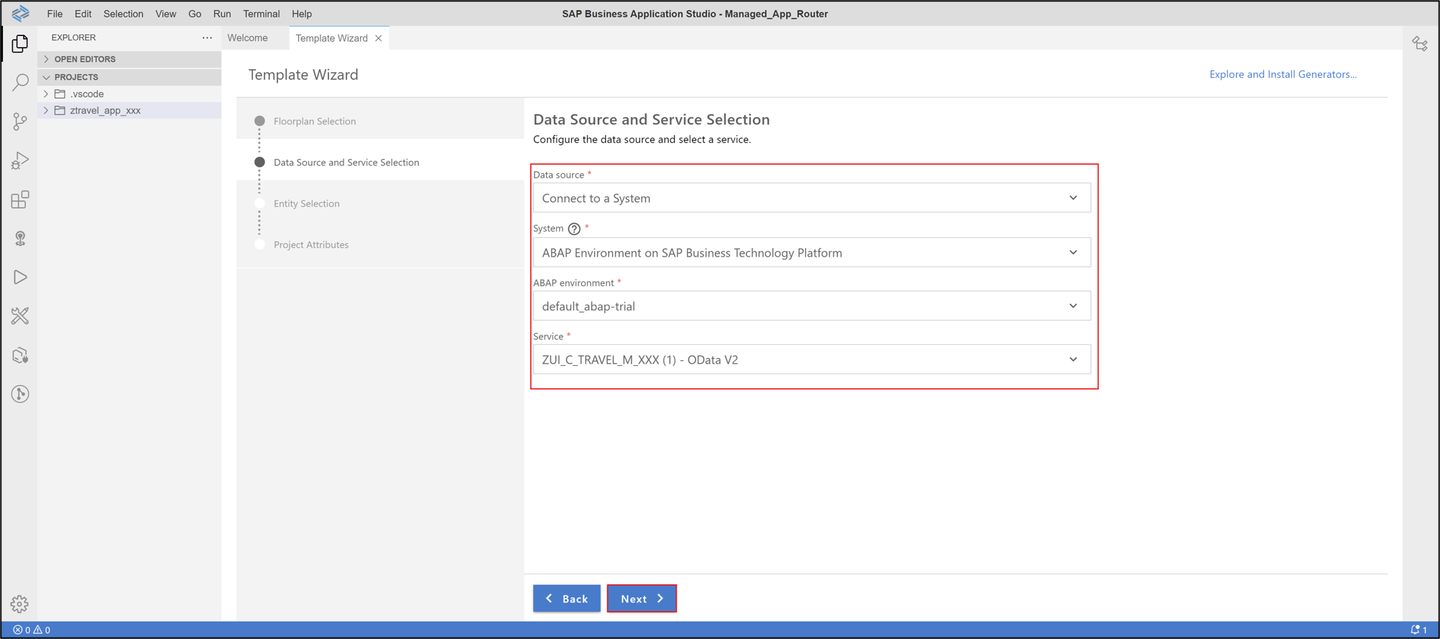
Configure data source, system and service:
- Data source: Connect to a SAP System
- System:
ABAP Environment on SAP Business Technology Platform - ABAP Environment:
default_abap-trial - Service:
ZUI_C_TRAVEL_M_XXX(1) - OData V2
Click Next >.
organization Select
TravelProcessorand click Next >.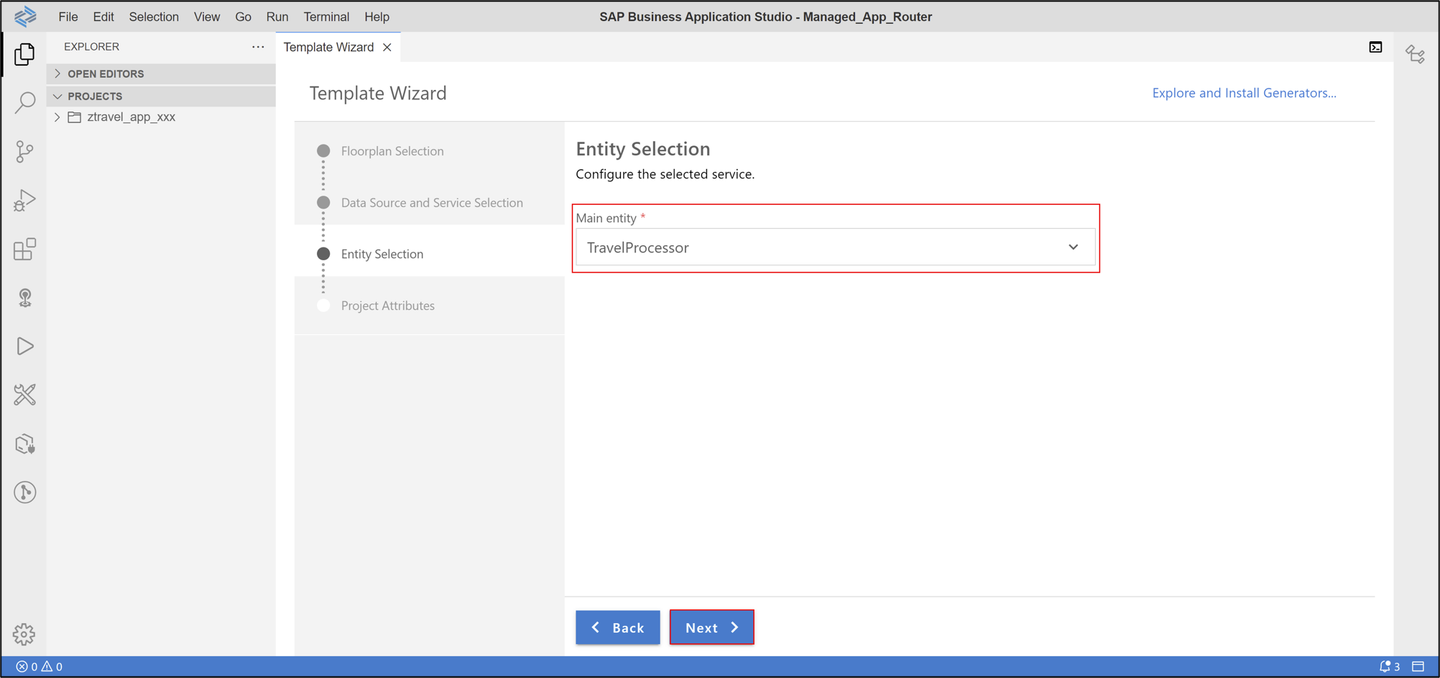
Fiori application Configure project attributes:
- Name:
ztravel_app_xxx - Title: Travel App XXX
- Description: A Fiori application.
- Project folder path:
/home/user/projects/ztravel_app_xxx - Add deployment configuration: Yes
- Add FLP configuration: Yes
- Configure advanced options: No
Click Next >.

Fiori application - Name:
>**HINT**: Make sure, you have selected your **MTA project** in the **folder path**.
Configure deployment:
- Target: Cloud Foundry
- Destination Name:
<your_destination_system_url>
Click Next >.
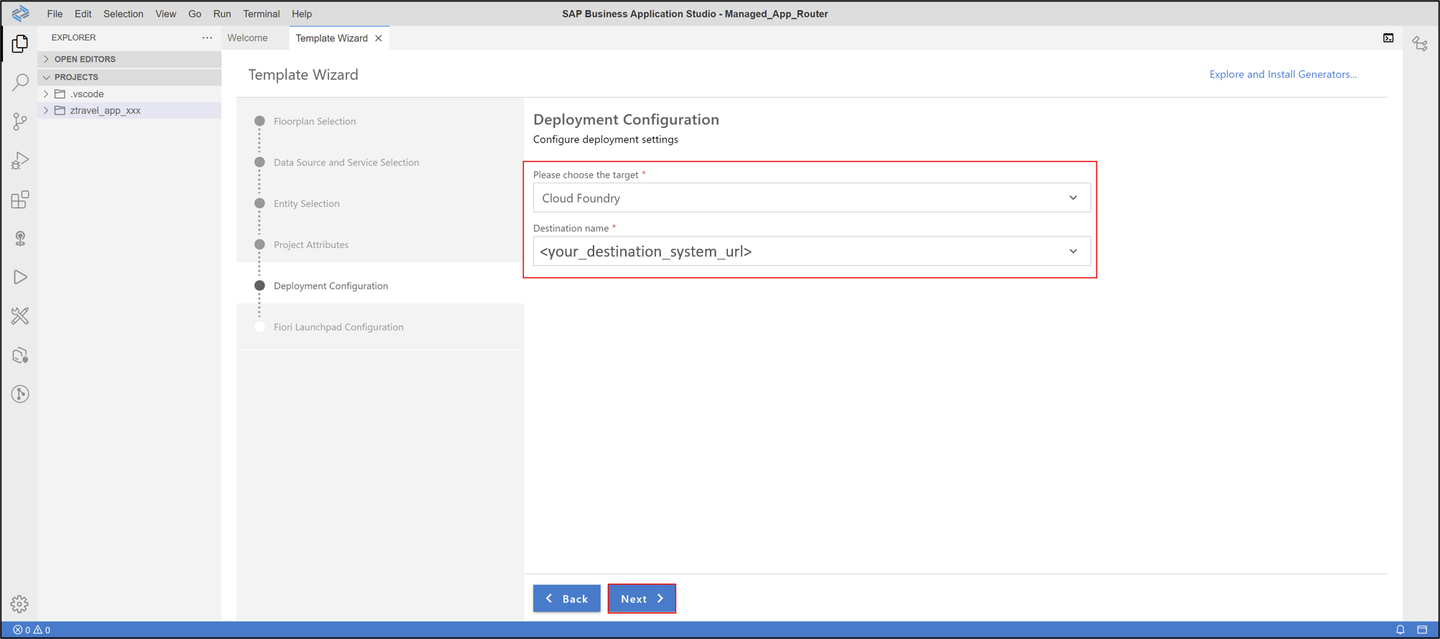
Fiori application Configure SAP Fiori Launchpad:
- Semantic Object:
ztravel_app_xxx - Action: maintain
- Title: Travel App XXX
Click Finish.
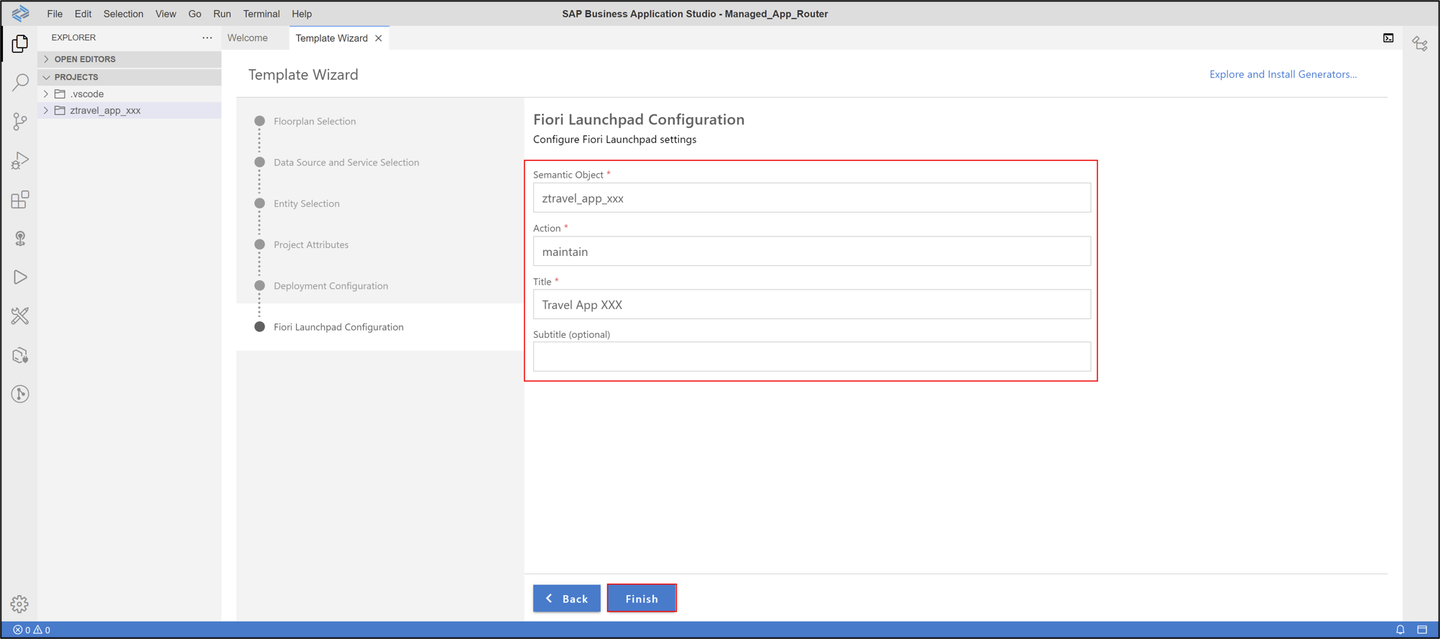
Fiori application - Semantic Object:
Check your result

Right-click your SAP Fiori Application
ztravel_app_xxxand select Open in Terminal.
run Enter
npm run startto run your application.
run Click Go.

run Check your result.

run
Right-click your
mta.yamlfile inside your SAP Fiori Applicationztravel_app_xxxand select Build MTA Project.
build Check your result. A new
mta_archivesfolder has been created.
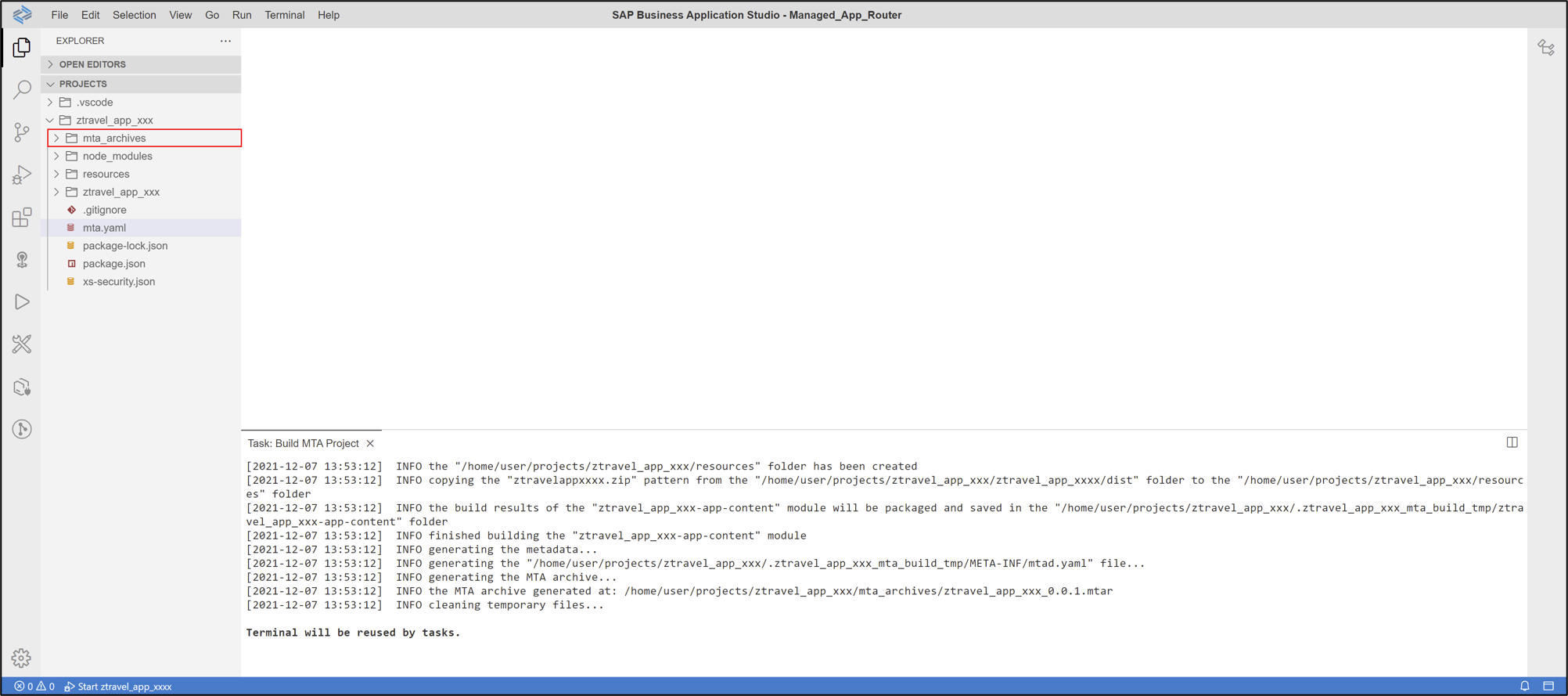
>**HINT:** You can also create the `mta_archives` by right-click on the **project** > **open terminal**, and **check** where the `mta_archive` is present, and then run the command `npm run build`. The `mta_archives` file will then get generated.
Right-click your
ztravel_app_xxx_0.0.1.mtarfile inside yourmta_archivesfolder and select Deploy MTA Archive.
deploy Check your result.

deploy
>**HINT:** You can also deploy the application from command line by **opening the terminal**, **check** where the **`mta_archive`** is present, and then run the **command `npm run deploy`**.
Go back to SAP BTP trial cockpit, select HTML5 Applications on the left menu and select your application
ztravelappxxx.
deployment Click Go.

deployment Check your result.

deployment
Go back to SAP BTP trial cockpit, select Service Marketplace on the left menu, search for Launchpad Service and select Go to Application.

service Click Content Providers on the left menu. Now you can see your HTML5 application. Click the refresh button.

service Go to your content explorer and select your HTML5 app.
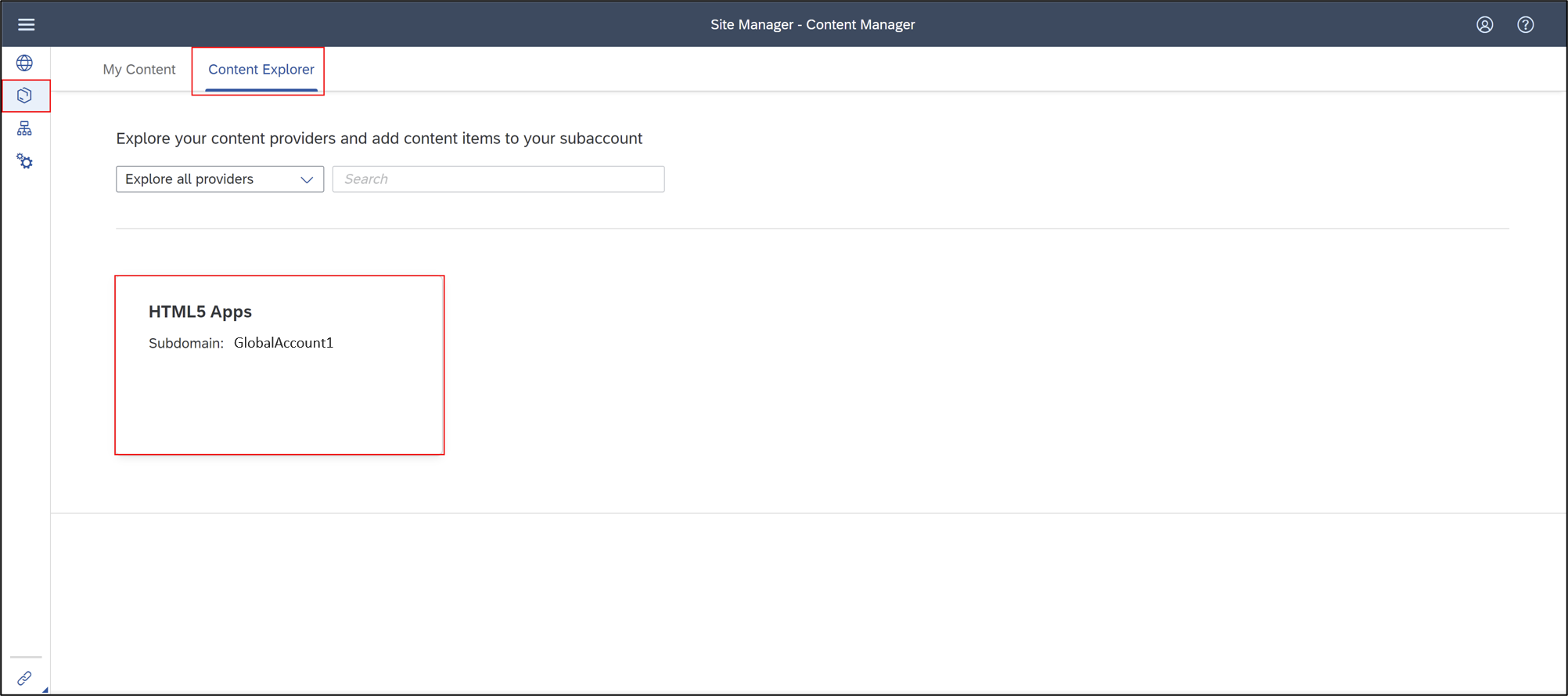
Check your result. Your Travel App XXX should appear here.

service
Resources
Discussion
Share feedback on this tutorial or join the conversation in SAP Community.