
Create a Data Element
Create a data element, which you will use in a later tutorial.
Overview
You will learn
- How to create a data element.
- How to use this data element to provide Boolean logic to one of the columns in the table


Prerequisites
Prerequisites
- You have a valid instance of an on-premise AS ABAP server, version 7.51 or higher (some ABAP Development Tools may not be available in earlier versions)
- Tutorial: Create an ABAP Project in ABAP Development Tools (ADT)
Steps
Go back to your ABAP Dictionary structure zso_invoice_item and change the type of field payment_status to zso_invoice_payment_status:

Since the data element zso_invoice_payment_status does not exist, you get a syntax error, which you will fix using a quick fix below.
Select the data element and display all the available Quick Fixes by choosing
Ctrl+1.Then choose Create data element
zso_invoice_payment_statusand choose Enter.
Image depicting backup-create-DTEL
Enter a description for the new data element in the field Description, then choose Finish :

In the Data Element editor that appears, enter the following:
In the Type Name box, enter Flag.
Under Field Labels on the right, enter the following:
- Short = Paid
- Medium = Invoice paid
- Long = Invoice paid
- Title = Invoice paid

Then choose Save (Ctrl+S), then Activate (Ctrl+F3) your data element.
Go back to the structure ZSO_INVOICE_ITEM and choose Check ABAP Development Object (Ctrl+F2) :

Choose Activate (Ctrl+F3).
The ABAP Dictionary structure zso_invoice_item is now activated.
Go back to the class, **ZCL_INVOICE_RETRIEVAL**, which you created in the previous tutorial, Create an ABAP class.
You will now transform the values of payment_status from P to a flag that is set to X (true) when the invoice has been paid.
You will do this by looping through each row of the table using a field-symbol, which acts as a place-holder for each row of the internal table lt_result. The field-symbol is declared inline.
Enter the following code after the ORDER BY clause of the SELECT statement:
LOOP AT lt_result ASSIGNING FIELD-SYMBOL(<entry>).
    CASE <entry>-payment_status.
        WHEN 'P'.
            <entry>-payment_status = abap_true.
        WHEN OTHERS.
            <entry>-payment_status = abap_false.
    ENDCASE.
ENDLOOP.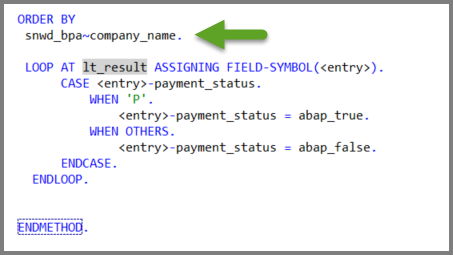
Finally, choose Save (Ctrl+S), then Activate (Ctrl+F3) your class.
Your code should now look like this:
CLASS zcl_invoice_retrieval DEFINITION
  PUBLIC
  FINAL
  CREATE PUBLIC .

  PUBLIC SECTION.
    TYPES: ty_table_of_zso_invoice_item TYPE STANDARD TABLE OF zso_invoice_item WITH DEFAULT KEY.

    METHODS get_items_from_db
              RETURNING
                VALUE(lt_result) type ty_table_of_zso_invoice_item.
  PROTECTED SECTION.
  PRIVATE SECTION.
ENDCLASS.

CLASS zcl_invoice_retrieval IMPLEMENTATION.

  METHOD get_items_from_db.

  SELECT
    snwd_bpa~company_name,
    snwd_so_inv_item~gross_amount,
    snwd_so_inv_item~currency_code,
    snwd_so_inv_head~payment_status

  FROM
   snwd_so_inv_item
   JOIN snwd_so_inv_head ON snwd_so_inv_item~parent_key = snwd_so_inv_head~node_key
   JOIN snwd_bpa ON snwd_so_inv_head~buyer_guid = snwd_bpa~node_key

   INTO TABLE @lt_result

  WHERE
   snwd_so_inv_item~currency_code = 'USD'

  ORDER BY
   snwd_bpa~company_name.

   LOOP AT lt_result ASSIGNING FIELD-SYMBOL(<entry>).
        CASE <entry>-payment_status.
            WHEN 'P'.
                <entry>-payment_status = abap_true.
            WHEN OTHERS.
                <entry>-payment_status = abap_false.
        ENDCASE.
    ENDLOOP.
  ENDMETHOD.
ENDCLASS.You can now test the result of your changes in the SAP List Viewer.
There is a preference which allows you to reuse SAP GUI windows when running applications. To enable this feature, choose Window > Preferences. In the Preferences dialog, open ABAP Development > SAP GUI Integration and tick the appropriate check box.
Go back to your report and execute it by choosing F8. Your SAP List Viewer should look roughly like this:

The field-symbol booking has been defined as follows. Rewrite the LOOP AT statement using an inline declaration. Enter your code in the box below and choose Submit Answer:
FIELD-SYMBOLS <booking> TYPE sbook.
LOOP AT Booking_List ASSIGNING <booking>.Resources
Discussion
Share feedback on this tutorial or join the conversation in SAP Community.