
Overview
You will learn
- How to create an HTTP destination on SAP Business Technology Platform with SAML assertion authentication to an SAP S/4HANA Cloud system
- How to create a communication system for an SAP Business Application Studio subaccount in an SAP S/4HANA Cloud system


Prerequisites
Prerequisites
- You have an SAP S/4HANA Cloud system and a business user with Communication Management authorizations (this requires a business role with unrestricted write access containing business catalog
SAP_CORE_BC_COM). - You have an SAP Business Technology Platform Trial account or customer account with an SAP Business Application Studio subscription
- You have set up mutual trust between the SAP BTP subaccount and the Identity Provider, see Tutorial: Set Up Trust Between SAP Cloud Identity Services and SAP BTP Cloud Foundry Environment
Steps
Additional Infos
- If you want to create a custom SAP Fiori app with developer extensibility check out Develop an SAP Fiori App to Trigger Purchase Requisitions API
- Tutorial last checked for feasibility with SAP S/4HANA Cloud Release 2608
- Alternatively, see Integrating SAP Business Application Studio documentation for this tutorial’s content with a customer account.
SAP Business Application Studio requires connection information to request custom business object data from your SAP S/4HANA Cloud system and to deploy a UI into this system. That information is stored in the SAP Business Application Studio subaccount as a so-called destination. To create that destination, do the following:
Although this tutorial describes the flow with a trial account, the sequence is the same for a customer account after entering the subaccount of your choice.
In your web browser, open the SAP BTP Trial cockpit https://account.hanatrial.ondemand.com and Go To Your Trial Account, which is a so-called global account.
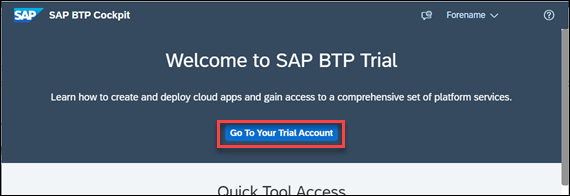
Enter Global Trial Account On your global account page, select default subaccount
trial.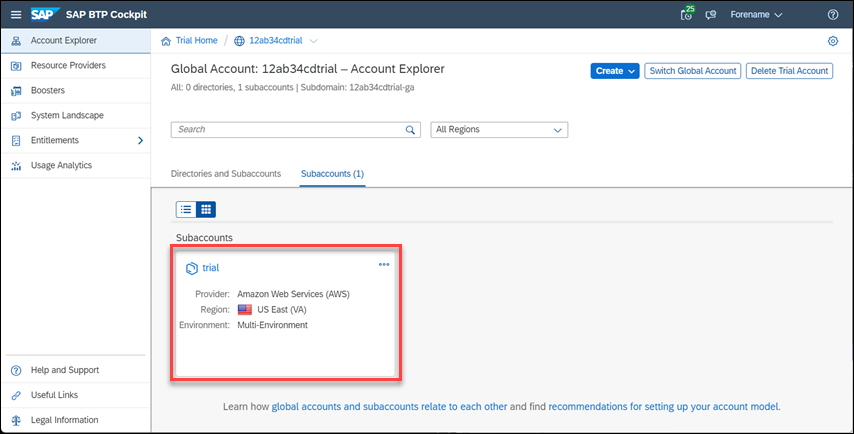
Enter trial subaccount In the navigation pane expand the Connectivity section.
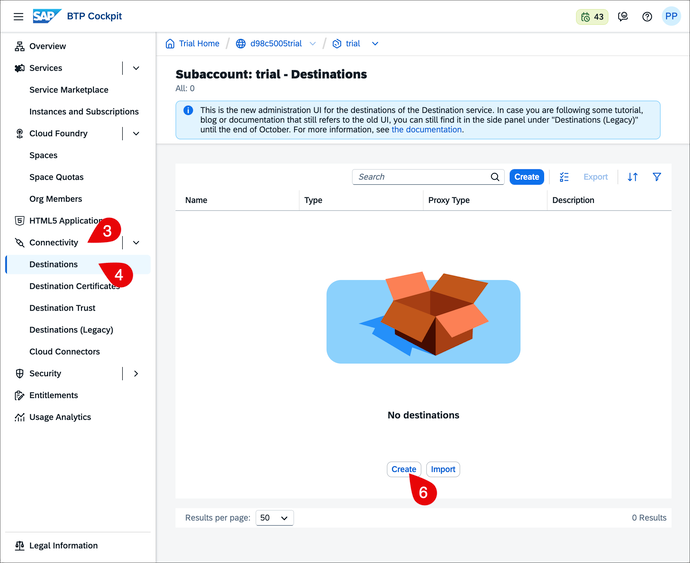
Get to New Destination Select Destinations.
To simplify the destination creation and to reduce the risk of errors, this tutorial provides a template for the destination:
{
  "exportTime": "2025-09-05 14:30:04.933832067",
  "destination": {
    "Name": "YOUR_SYSTEMS_ID_SAML_ASSERTION",
    "Type": "HTTP",
    "Description": "SAML Assertion Destination to SAP S/4HANA Cloud system YOUR_SYSTEMS_ID",
    "URL": "https://my12345-api.s4hana.cloud.sap",
    "ProxyType": "Internet",
    "Authentication": "SAMLAssertion",
    "authnContextClassRef": "urn:oasis:names:tc:SAML:2.0:ac:classes:PreviousSession",
    "audience": "https://my12345.s4hana.cloud.sap",
    "skipUserAttributesPrefixInSAMLAttributes": "false",
    "includeSigningCertificateInSAMLAssertion": "false",
    "skipUserUuidInSAMLAttributes": "false",
    "HTML5.DynamicDestination": "true",
    "HTML5.Timeout": "60000",
    "WebIDEEnabled": "true",
    "WebIDEUsage": "odata_abap,dev_abap"
  }
}
You can save the file as a .json file on your machine the simplify the destination creation steps.
Create the destination either by uploading the file via Create → From File (A) or if you want to input everything manually via Create → From Scratch (B).
In case of import (A) adapt the
NameandDescriptionto your needs and provide the mandatory value forURLandAudienceand empty value forClient Keyas shown below.In case of completely manual configuration (B) set the Main Properties as shown below.
Field Name Value NameYOUR_SYSTEMS_ID_SAML_ASSERTIONTypeHTTPDescriptionSAML Assertion Destination to SAP S/4HANA Cloud system YOUR_SYSTEMS_IDURLIn the SAP S/4HANA Cloud system, navigate to the Communication Systems app, click the Own SAP Cloud System button, copy the Host Name and paste it with prefix https://, for examplehttps://my12345-api.s4hana.cloud.sap
Own System Host Name in Communication Systems App Proxy TypeInternetAuthenticationSAMLAssertionSet the SAML Properties as follows:
Field Name Value Remark AuthnContextClassRefurn:oasis:names:tc:SAML:2.0:ac:classes:PreviousSessionAudienceCopy and paste the OAuth 2.0 SAML2 Audiencefrom the Own SAP Cloud System.Client KeyCheck Set empty checkbox Name Id Formaturn:oasis:names:tc:SAML:1.1:nameid-format:emailAddressIf you have set the subject name identifier in the trust configuration to E-Mail, you have to add this property. Refer to Tutorial: Set Up Trust Between SAP Cloud Identity Services and SAP BTP Cloud Foundry Environment. This also requires the e-mail address to be maintained for SAP S/4HANA Cloud system business users. Select Add Property and maintain the following Additional Properties and values.
Field Name Value Remark HTML5.DynamicDestinationtrueHTML5.Timeout60000value stated in milliseconds. 60000 equals 1 minute. Required as deployment needs longer than the standard of 30 seconds. WebIDEEnabledtrueWebIDEUsageodata_abap,dev_abapMake sure that the Use default client trust store checkbox is ticked in the Client Trust Store configuration.
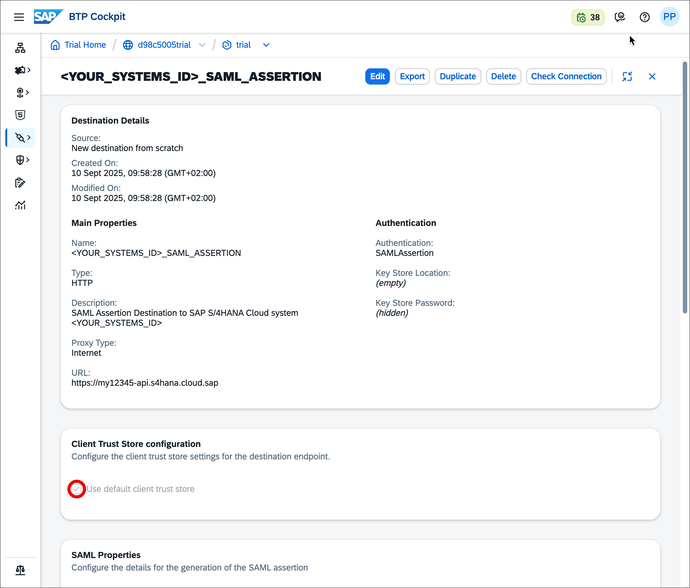
Configure Destination Click Save.
On the SAP S/4HANA Cloud system side, you need to allow SAP Business Application Studio to make inbound calls.
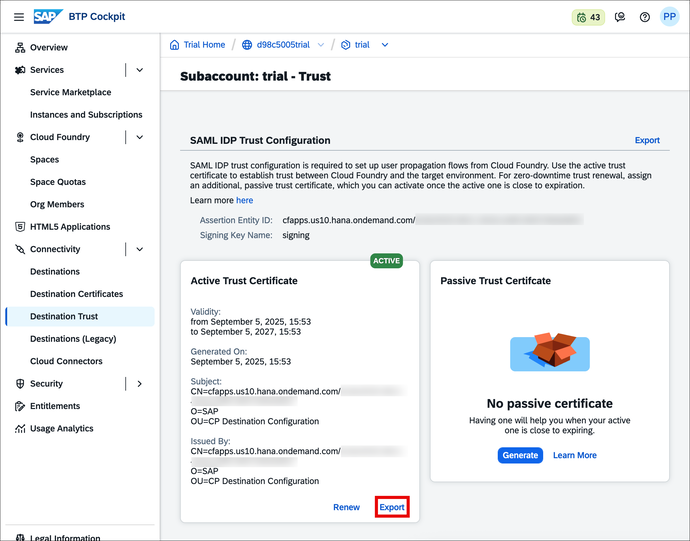
To set SAP Business Application Studio as a trusted caller in the SAP S/4HANA Cloud system, you first have to generate a SAML IDP Trust Configuration and thus an active trust certificate in the subaccount. The public part of this certificate is then exported and configured in the SAP S/4HANA Cloud system in the next step.
To do this, in the Connectivity → Destination Trust section, proceed as follows:
If the subaccount does not yet have a SAML Trust configuration for the Destination service, choose Generate Trust
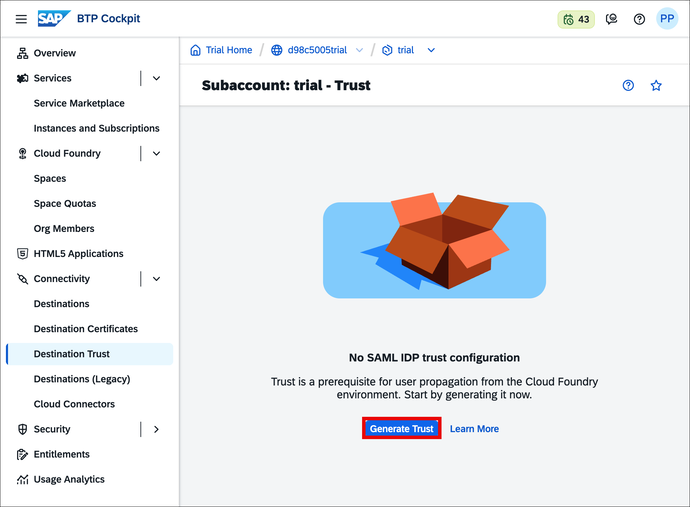
Generate Destination Trust Once generated, you have an active trust certificate, and its details are visible in the UI. Export the public part of this certificate, which downloads a certificate file in PEM format. Save this file for later.
Export Destination Trust
The subaccount trust certificate might need to be renewed or rotated after a while. Please refer to Manage Trust in the SAP BTP Connectivity documentation for more information.
Regarding the overall trust settings, you will now make your SAP S/4HANA Cloud system trust your SAP Business Technology Platform subaccount.
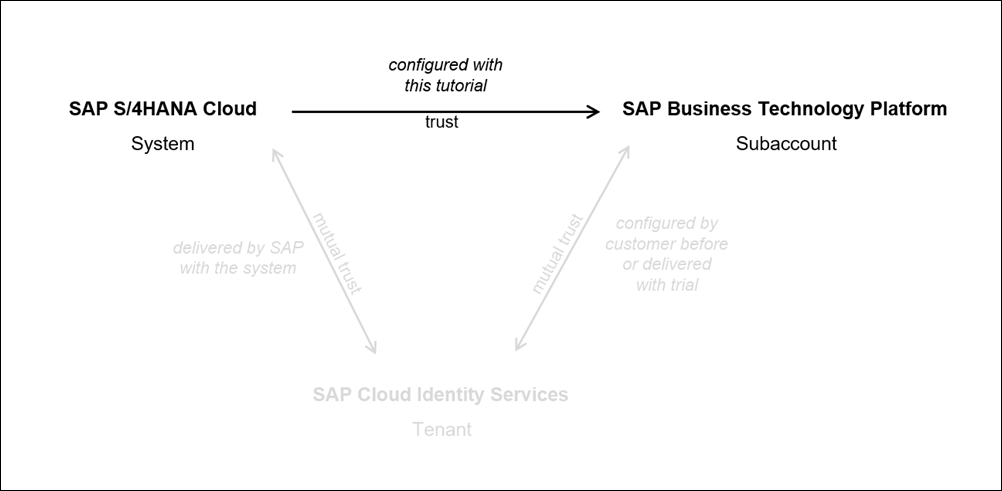
That enables its SAP Business Application Studio to request data from the SAP S/4HANA Cloud system during Custom UI development and finally to deploy that UI to the SAP S/4HANA Cloud system. Both processes are so called inbound requests to the SAP S/4HANA Cloud system.

With the downloaded trust certificate from the SAP Business Application Studio subaccount, you can now maintain it as a communication system and by that as a trusted caller in the SAP S/4HANA Cloud system.
Log on to your SAP S/4HANA Cloud system with the business user that is authorized for communication management.
Start typing Communication Systems in the Launchpad search and open the App from the results.

Communication Systems application from search results Select New.
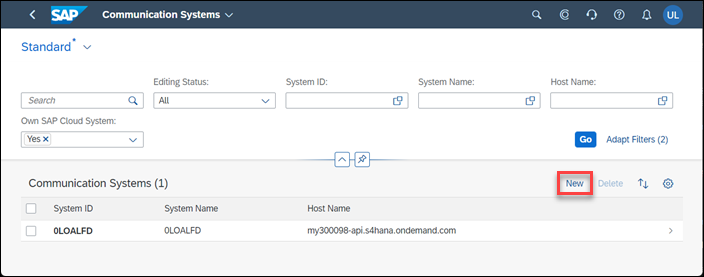
New Communication System Enter a System ID and System Name, for example
BAS_YOUR_SUBACCOUNTS_SUBDOMAINlikeBAS_12AB34CDTRIALand choose Create.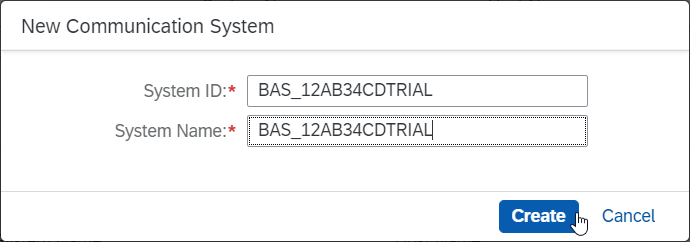
Create Communication System
This is how you have to configure the communication system that represents the SAP Business Application subaccount as a trusted caller.
Navigate to General > Technical Data
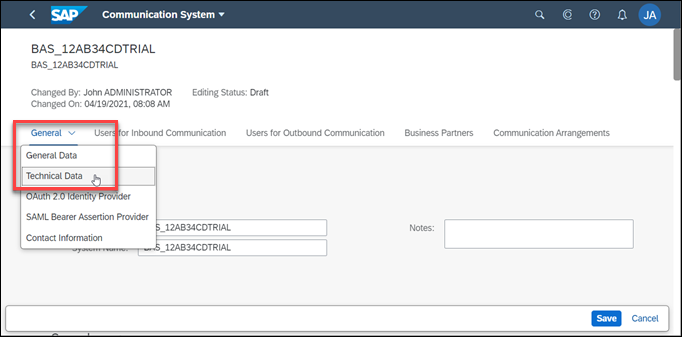
Navigate to General Technical Data Tick the Inbound Only checkbox.
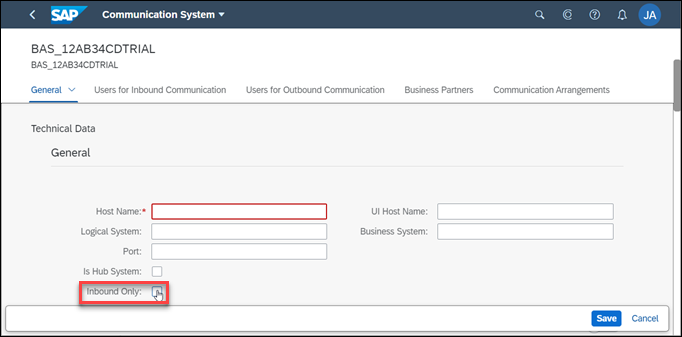
Set Communication System as Inbound Only Navigate to General > Identity Provider and slide the button for SAML Bearer Assertion Provider to ON.
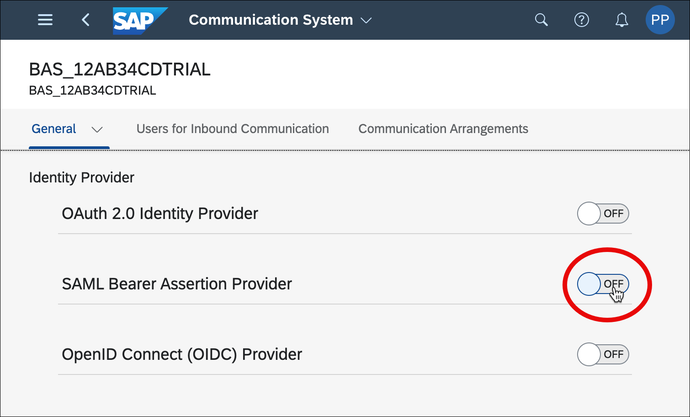
Enable SAML Bearer Assertion Provider for Communication System Choose Upload Signing Certificate, browse for the SAP BTP certificate and upload it.
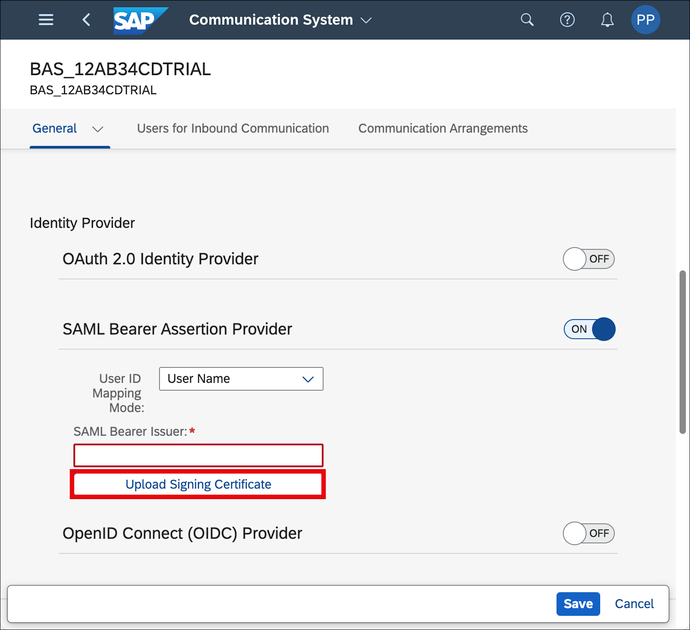
Upload Certificate to Communication System Set the SAML Bearer Issuer by inserting the CN attribute of the Signing Certificate Subject.
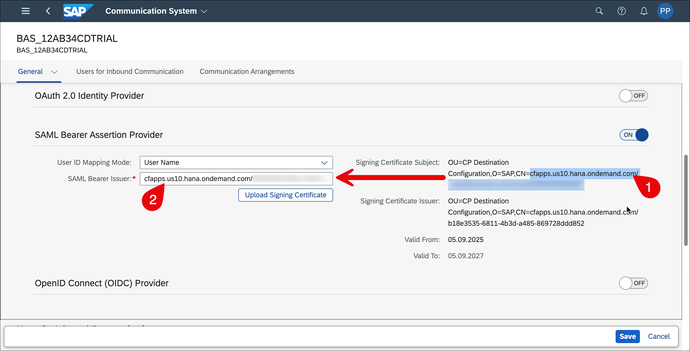
Copy and Paste Provider Name Choose Save.
The connection is now set up and you can make use of the OData services of the SAP S/4HANA Cloud system in SAP Business Application Studio.
Resources
Discussion
Share feedback on this tutorial or join the conversation in SAP Community.