
Overview


Prerequisites
Prerequisites
SAP_BR_ANALYTICS_SPECIALIST to access the Query Designer. The according business catalog is SAP_CA_BC_ANA_AQD.Steps
Intro
Custom Analytical Queries is a tool used for reporting and analysis. Raw data from business documents are getting converted into a meaningful grid. By using Custom Analytical Queries you do not need to understand the technical details.
Start the Custom Analytical Queries Application by selecting the corresponding tile in the SAP Fiori Launchpad.

Choose New (1) to create a new query. Enter the query name (2): CostCenterCostQuery.
Choose the data view (3) + (4) I_GLACCOUNTLINEITEMCUBE. Press OK (5) to create the query.

On the General tab, you can specify the label.

Switch now to the Field Selection tab.
Select all following fields of the Data View, so that they can be copied to the query:
Amount in CC CrcyControlling AreaCost CenterFiscal YearFiscal Year VariantCost ObjectTransaction CurrencyFiscal Period

Switch now to the Display tab. The Display icon indicates, whether a column is shown in the report. The Filter icon indicates, whether a fixed value filter is defined for this field.

By Selecting the field Controlling Area (1) you are able to change the attributes of this field:
- define the label as
Key Controlling Area(2) - change the display status (3)
- you can choose to hide/show the aggregated results (4) when the query is executed in the design studio
- and so on (5).

Field types are symbolized by different icons as:
- measure (1)
- dimension (2).
Click Move Up/Down (3) to reorder the fields within an across Row/Column/Free section. Choose Row/Column/Free (4) to quickly move across the sections.
Afterwards you can Save (5) your draft.

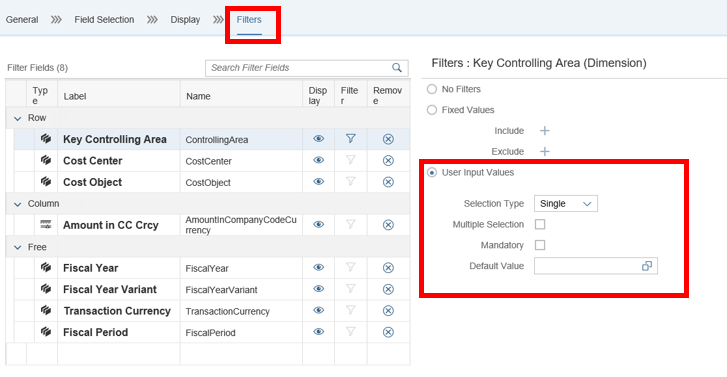
Switch to the Filters tab. This section displays the fixed value filters and the user input values for the selected dimension. Change Filters from No Filters to User Input Values. A dialog will be shown in the design studio to read value from user.
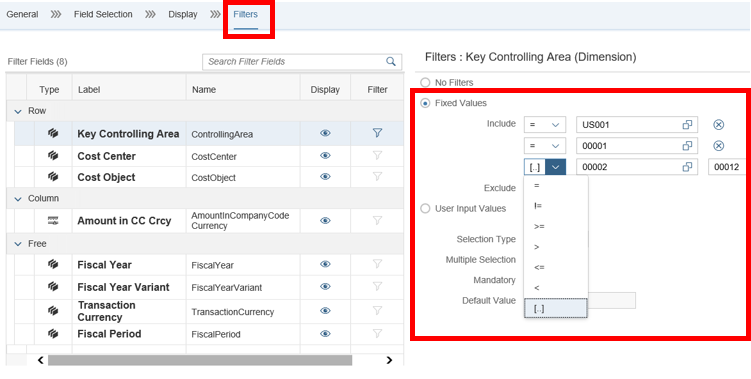
Or define a fixed value filter. The result set upon executing the report will be filtered by the conditions specified here. Add multiple include conditions. A range of values can also be specified.
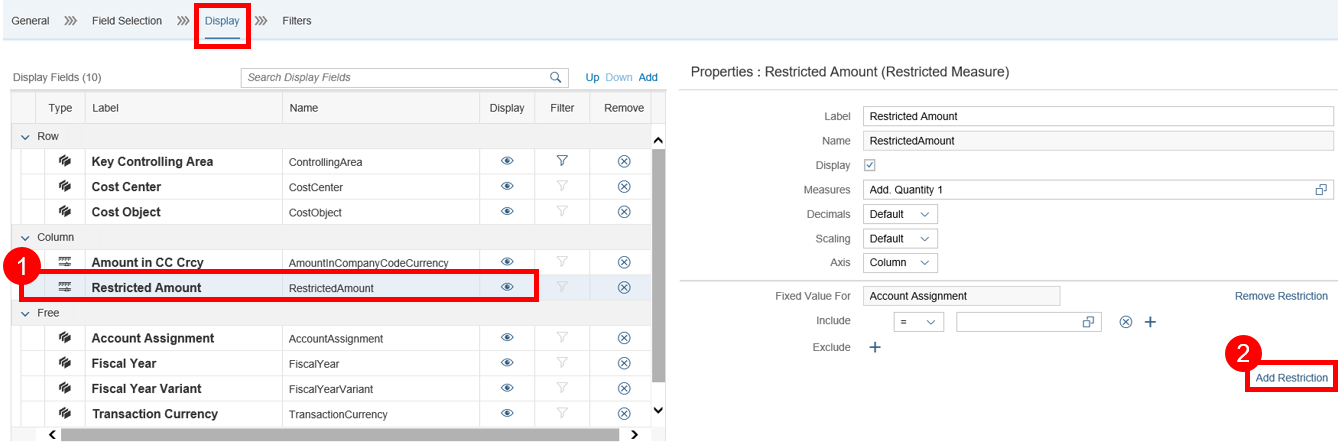
Switch back to the Display (1) tab again and press Add to add a new restricted measure.
A popup appears to enter the label and the name (2) of the restricted measure.

Now choose the measure Restricted Amount to add the restrictions.
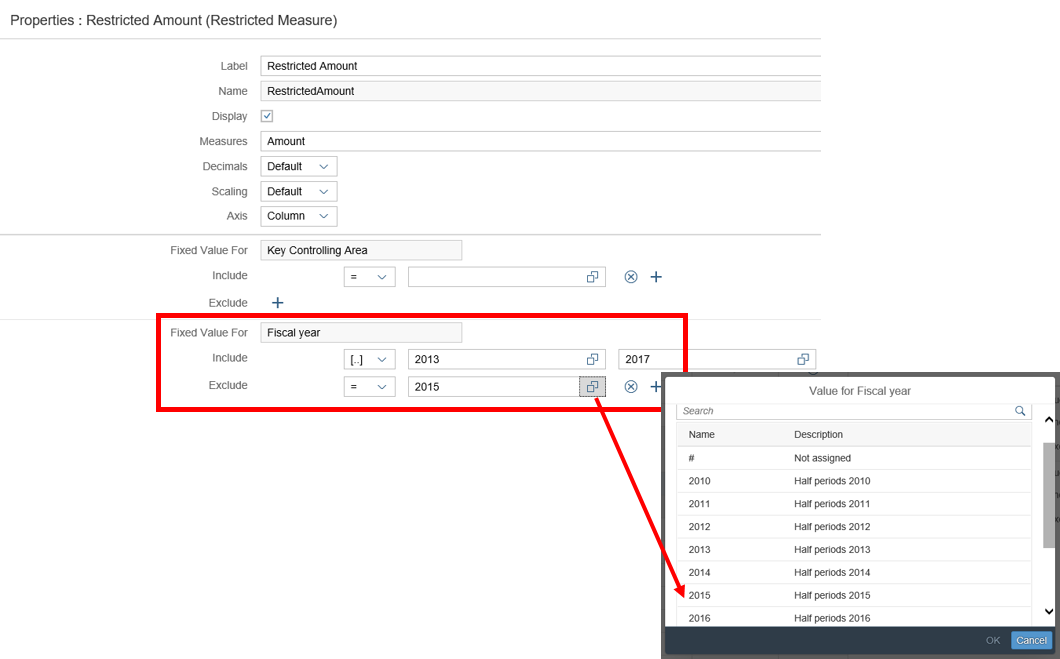
On the following popup, you can choose a dimension for the restrictions. Choose Fiscal Year.

You can have multiple include and exclude conditions with value help support.
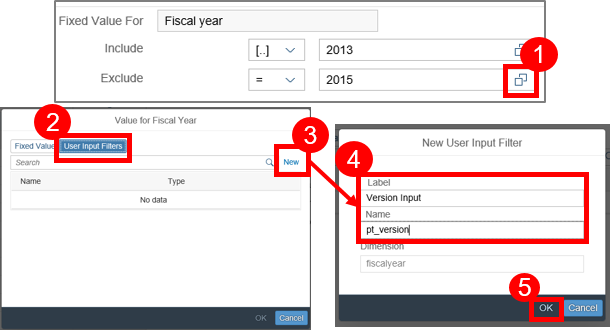
Define a new User Input Filter for restricted measures (1). Choose on the popup the tab User Input Filters and enter the attributes (2) on the following popup. Click on the new Button (3) to create a new input filter (4) + (5). The dimension is derived from the version.
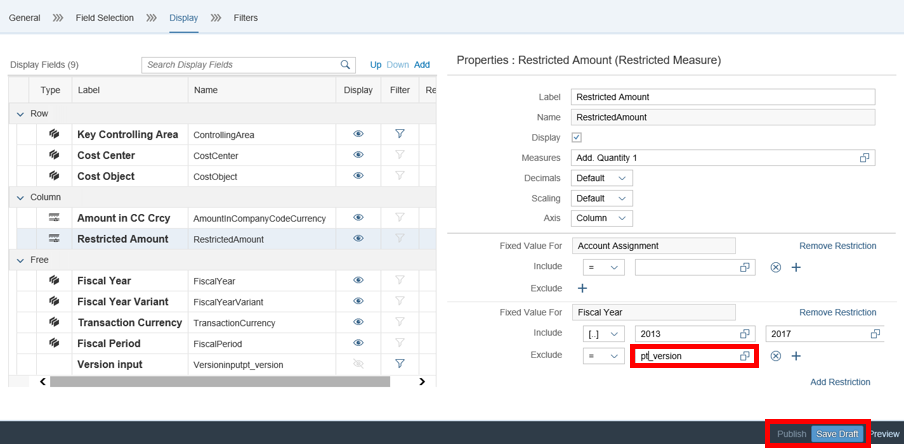
Result: A new field for user input filter is created.
The : signifies the usage of a user input filter.
While executing the query, the value for pt_version is read from user and entered into the
query. The user input filter can be used at any other location in the query for Version fields.
Now Save and Publish your draft.
Resources
Discussion
Share feedback on this tutorial or join the conversation in SAP Community.