
Overview


Prerequisites
Prerequisites
SAP_CA_BC_ANA_AQD_PC to access the Query Designer.
Furthermore ABAP Custom Analytical Queries as a tutorial reveals another Prerequisite.Steps
Intro
The Application Custom Analytical Queries characterizes the usage of reporting and analysis. Raw data from business documents are getting converted into a meaningful grid. By using Custom Analytical Queries you do not need to understand the technical details.
Start the Custom Analytical Queries Application by selecting the corresponding tile in the SAP Fiori Launchpad.

To edit your analytical query you have to search for it and select it. Furthermore you have to click on the Edit button to continue.

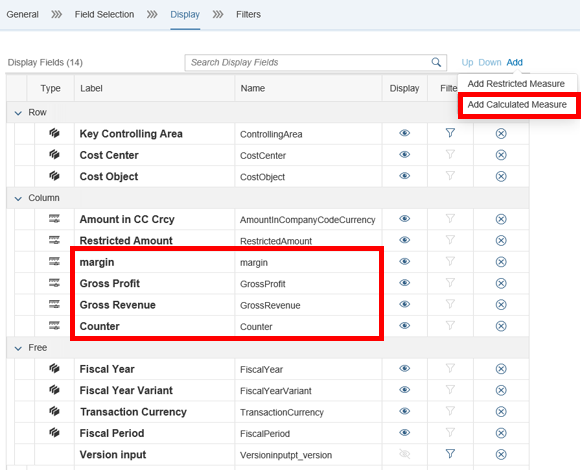
Now you have to switch to the Display Tab to add a calculated measure.

Press the Add button to add further calculated measures like:
- Gross Profit
- Gross Revenue
and **Counter**.
Select the measure margin and click on Edit to open the expression editor in a popup window.

You can choose different measures, supported functions and you have content assistance by pressing Ctrl + space.
Select "Gross Profit" / "Gross Revenue" as an Expression.

Result: The new expression for the calculated measure is shown in the text field.

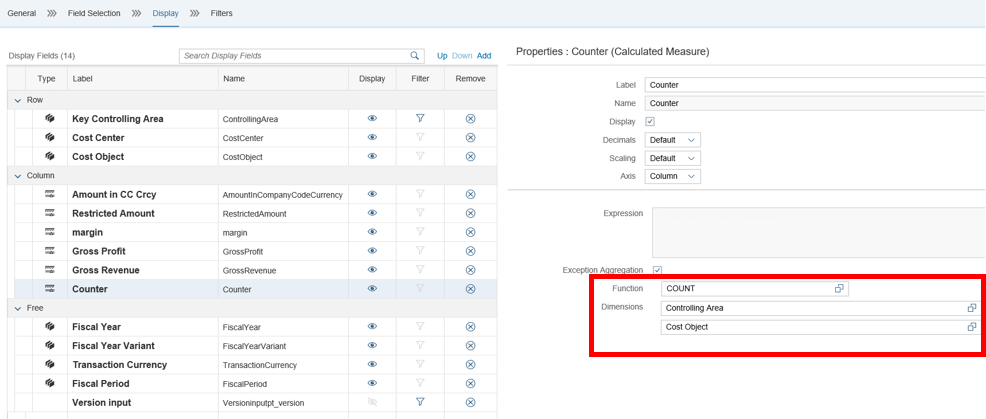
For a calculated measure, you can define exception aggregation. Check Exception Aggregation and press the value help to add a function. The popup shows you the supported functions. One or more dimensions can be added to the exception aggregation via the + button.
Select following:
`COUNT` as `Function``Controlling Area` as `Dimension`and `Cost Object` as `a further Dimension`.
If a field supports hierarchies, then the hierarchy checkbox is shown in the properties.
Checkmark the hierarchy checkbox to enable displaying hierarchy for CostCenter.
Furthermore select values for Controlling Area and Cost Center Hierarchy.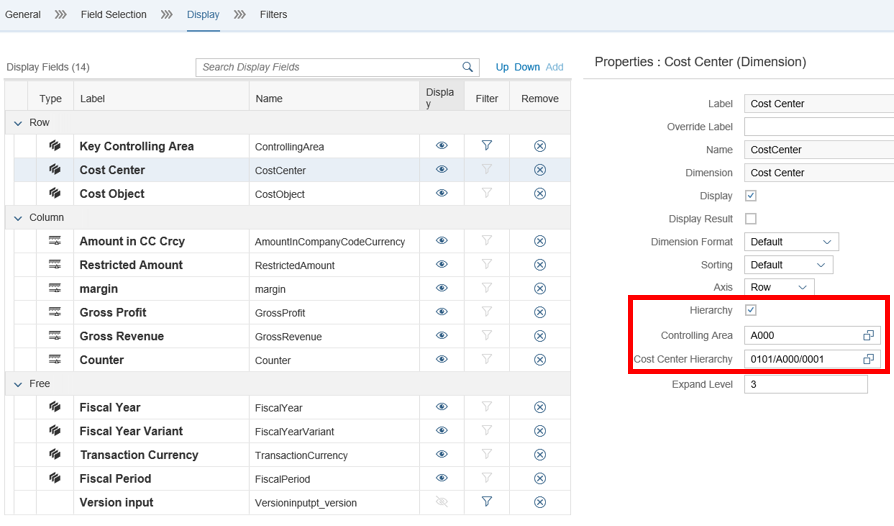
Click on Save Draft to save the query and click afterwards on Preview to test the query.

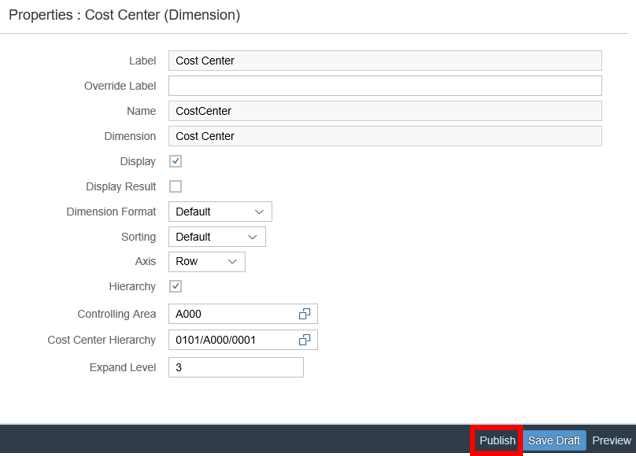
Click on publish to publish the query. Published queries are available to be consumed by Key Performance Indicators and Reports.
After publishing the status will be updated to published on the top right corner.
Resources
Discussion
Share feedback on this tutorial or join the conversation in SAP Community.